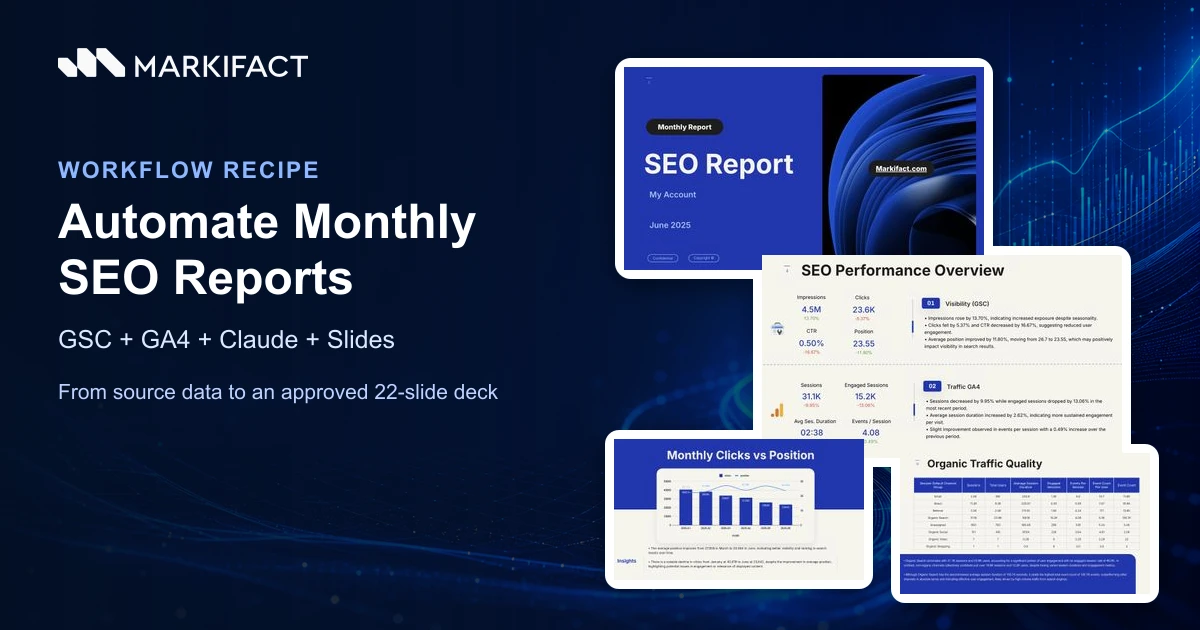

To connect Google Search Console to ChatGPT and Codex, connect Search Console inside Markifact, open the approved Markifact app in ChatGPT, choose Connect, and run a read-only report for a verified property. Codex is available in the ChatGPT desktop app and can use the same Markifact workspace, although its app permissions are managed separately from a normal ChatGPT conversation. This guide covers both routes and moves quickly from setup to useful SEO reports.
The quick version
- Open the Google Search Console MCP page and sign in to Markifact.
- Connect Google Search Console with the Google account that can access the properties you need.
- Open the approved Markifact app in ChatGPT and choose Connect.
- In a ChatGPT conversation, open the tools menu and select Markifact.
- Run a narrow
gsc_get_reportrequest for one property and a complete date range. - In Codex, use
/appsto confirm Markifact is connected and permitted before asking for the same report.
Search Console access through Markifact is read-only. ChatGPT and Codex can analyze performance, but they cannot submit sitemaps, request indexing, change a property, or modify your website through the GSC connector.
What you are connecting
The connection has three layers:
- Google Search Console stores performance data and controls property access through your Google account.
- Markifact handles Google OAuth and exposes Search Console reporting operations through its managed MCP server and approved ChatGPT app.
- ChatGPT or Codex turns your request into the relevant operation calls and explains the result.
Google provides an official Search Console API. However, as of July 21, 2026, Google's public list of managed MCP services does not include Search Console. The distinction matters: the API is official, while Markifact supplies the hosted MCP and app layer used in this guide.
What you need before starting
You need:
- A Markifact workspace.
- A Google account with access to at least one verified Search Console property.
- Access to the Markifact app in ChatGPT.
- The ChatGPT desktop app if you plan to use Codex.
- The property identifier you want to test, such as
sc-domain:example.com.
The connected Google account sets the property boundary. ChatGPT permissions cannot grant access to a site the Google account cannot see.
For comparisons, ask for complete periods. Search Console can return incomplete recent dates, so “the last 28 complete days” is clearer than a range that includes today.
1. Connect Google Search Console inside Markifact
Open Markifact, go to connections, choose Google Search Console, and select Connect. Complete Google OAuth with the account that has access to your target properties.
The connection uses Google's read-only Search Console scope. It can retrieve Search Analytics data without gaining permission to edit properties, sitemaps, indexing settings, or your site.
After connection, confirm that the expected properties appear. Agencies should check this before troubleshooting ChatGPT, because a missing client property is usually a Google account-access issue rather than an AI issue.
2. Connect the Markifact app in ChatGPT
Open the Markifact app listing, choose Connect, and complete the Markifact authorization flow.
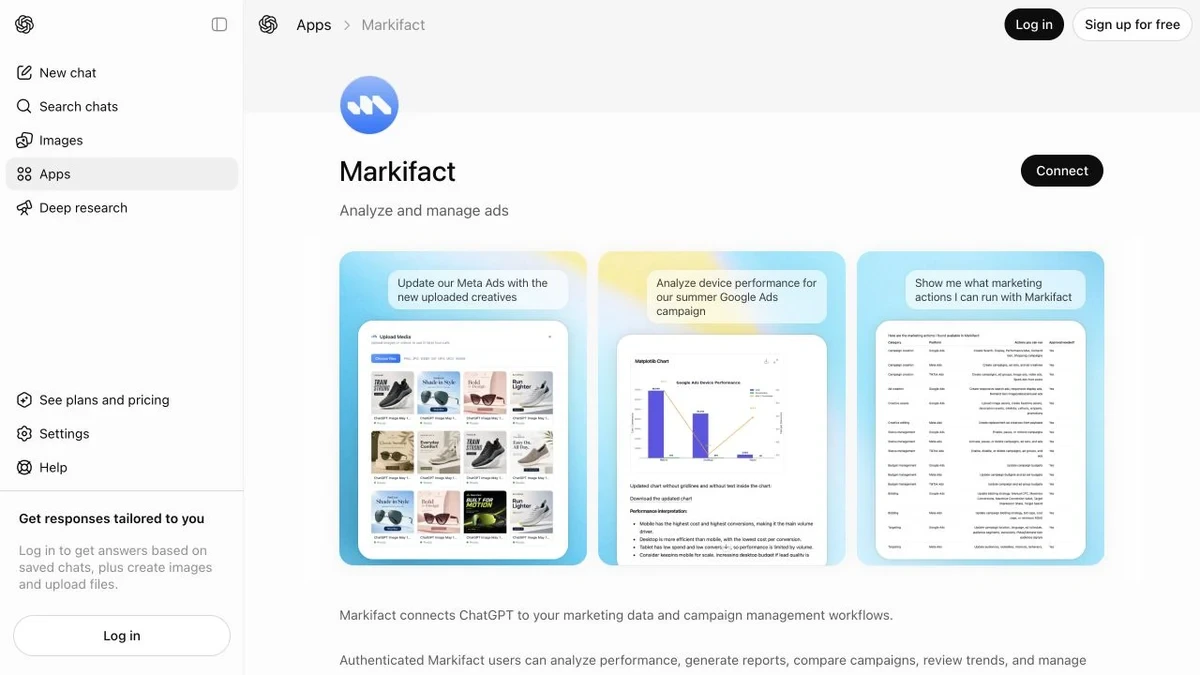
You do not need ChatGPT developer mode for the approved app route. You also do not need to create a Google Cloud project, paste an API key, or run a local MCP server.
The Google OAuth connection lives in Markifact. ChatGPT receives access to the operations permitted by the connected Markifact workspace rather than your raw Google credential.
3. Add Markifact to a ChatGPT conversation
Start a new conversation, open the tools or app menu, and select Markifact. The composer should show Markifact as an available app before you send the first Search Console request.
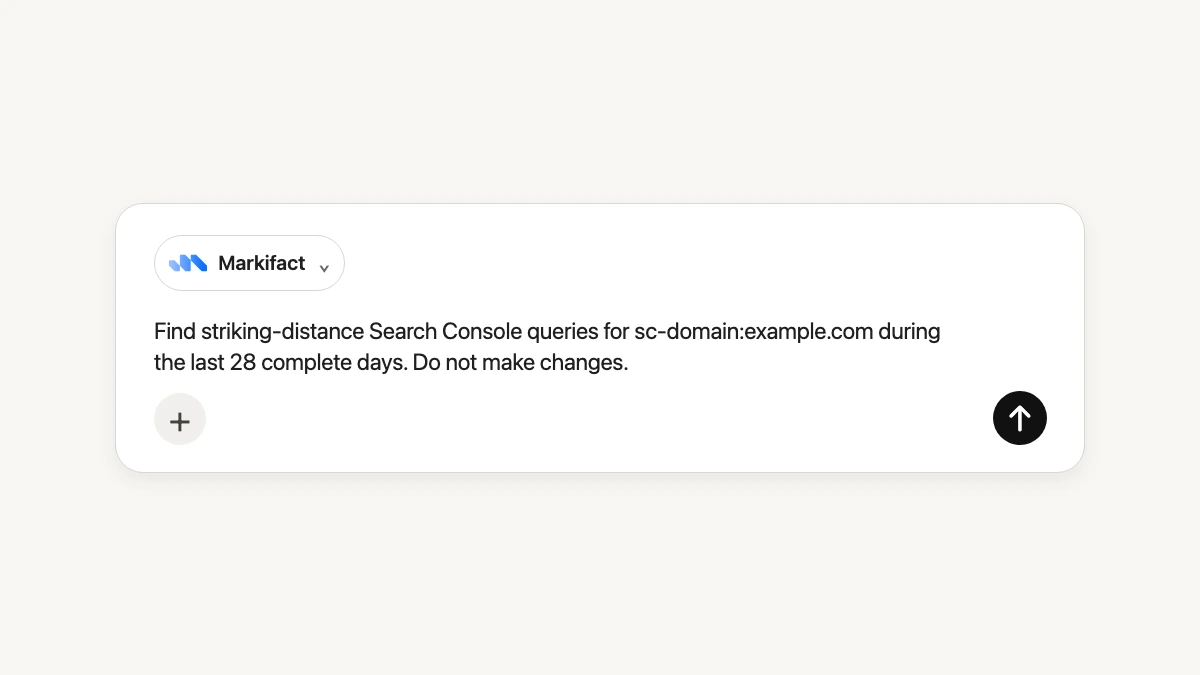
If Markifact is connected at the account level but absent from the composer, enable it for the current conversation. Installation and conversation-level availability are separate checks.
4. Run a safe first GSC report
Start with a request that identifies the property, date range, metrics, dimensions, and row limit:
Use Markifact to list my Google Search Console properties. Then use sc-domain:example.com and show clicks, impressions, CTR, and average position by query for the last 28 complete days. Return the top 20 queries by impressions and clearly state the property and dates. Keep the request read-only.
Markifact can use gsc_select_accounts when it needs to discover properties, then gsc_get_report for performance. If the property is already known, the report operation can use it directly.
Check the property and dates before interpreting the rows. Search Console analysis is only as reliable as the property boundary and period definition.
5. Use the same Search Console connection from Codex
Codex is available in the ChatGPT desktop app. It can access connected apps, but a normal ChatGPT conversation does not automatically grant the same app permissions inside Codex.
In Codex:
- Open a task in the desktop app.
- Enter
/apps. - Find Markifact and complete connection or permission steps if prompted.
- Ask for a read-only Search Console report.
For example:
Use Markifact to query sc-domain:example.com in Google Search Console. Compare the last 28 complete days with the previous 28. Group by page and show clicks, impressions, CTR, and average position with percentage changes. Do not modify files or use write operations.
The same Markifact workspace can back ChatGPT and Codex, but each surface still controls whether the app is available to the current conversation or task.
Real Google Search Console operation examples
The current dedicated GSC reporting operations are:
gsc_get_reportfor Search Analytics data.gsc_list_report_fieldsfor valid metrics and dimensions.gsc_select_accountsfor listing or selecting verified properties.
These named operations are examples, not an exhaustive list of what Markifact supports across its connected apps. Search Console itself is intentionally limited to these read-only reporting operations.
gsc_get_report can query several properties, compare periods in one call, group by query, page, country, device, or date, apply filters, sort results, and control row limits. Common metrics are clicks, impressions, ctr, and position.
Use gsc_list_report_fields instead of guessing. A metric from GA4 or Google Ads is not automatically valid in Search Console.
Find striking-distance keywords in ChatGPT
The most immediately useful report is often the set of queries with real visibility that sit near page one or in the lower page-one positions.
Use gsc_get_report for sc-domain:example.com and the last 28 complete days. Return queries with average position from 8 through 15 and at least 500 impressions. Show clicks, impressions, CTR, and position, sort by impressions descending, and explain why each query may be worth reviewing. Do not make changes.
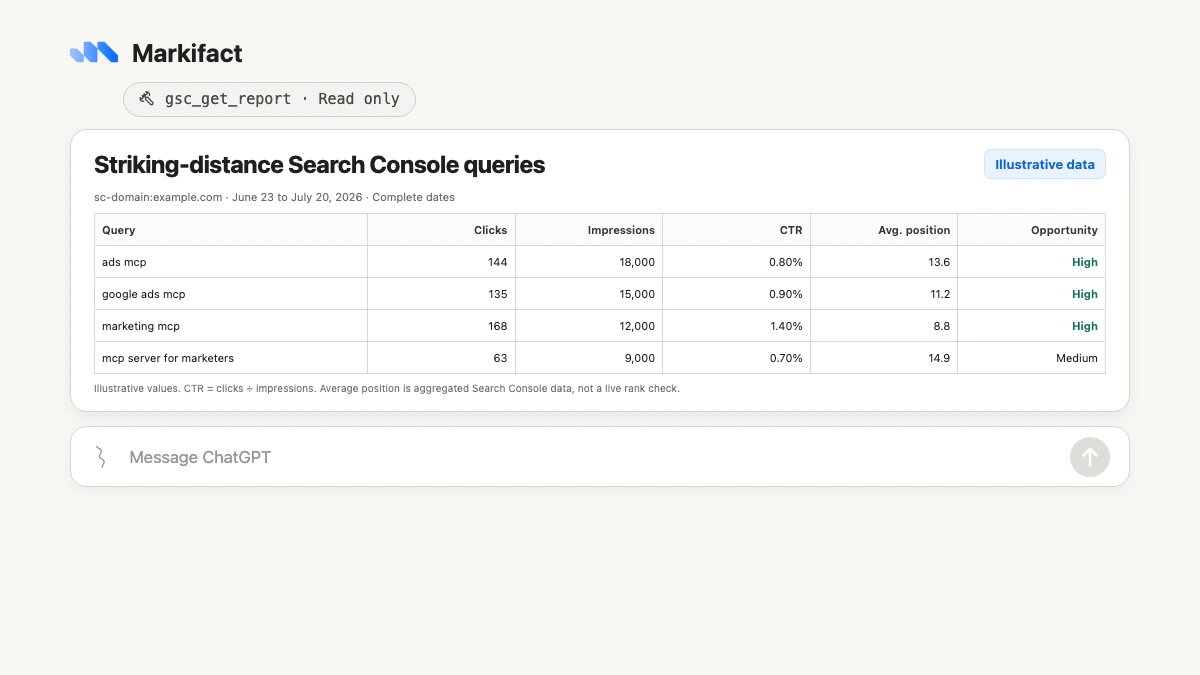
The table gives you an opportunity list, not an automatic content brief. Check the ranking page, search intent, current result set, and conversion relevance before deciding what to update.
Copy-paste GSC prompts for ChatGPT and Codex
Find content decay
For sc-domain:example.com, compare the last 28 complete days with the previous 28 using the built-in comparison. Group by page and show clicks, impressions, CTR, and average position for both periods. Flag pages with at least 100 previous-period clicks and a decline of 20 percent or more. Separate likely ranking loss, lower demand, and CTR deterioration.
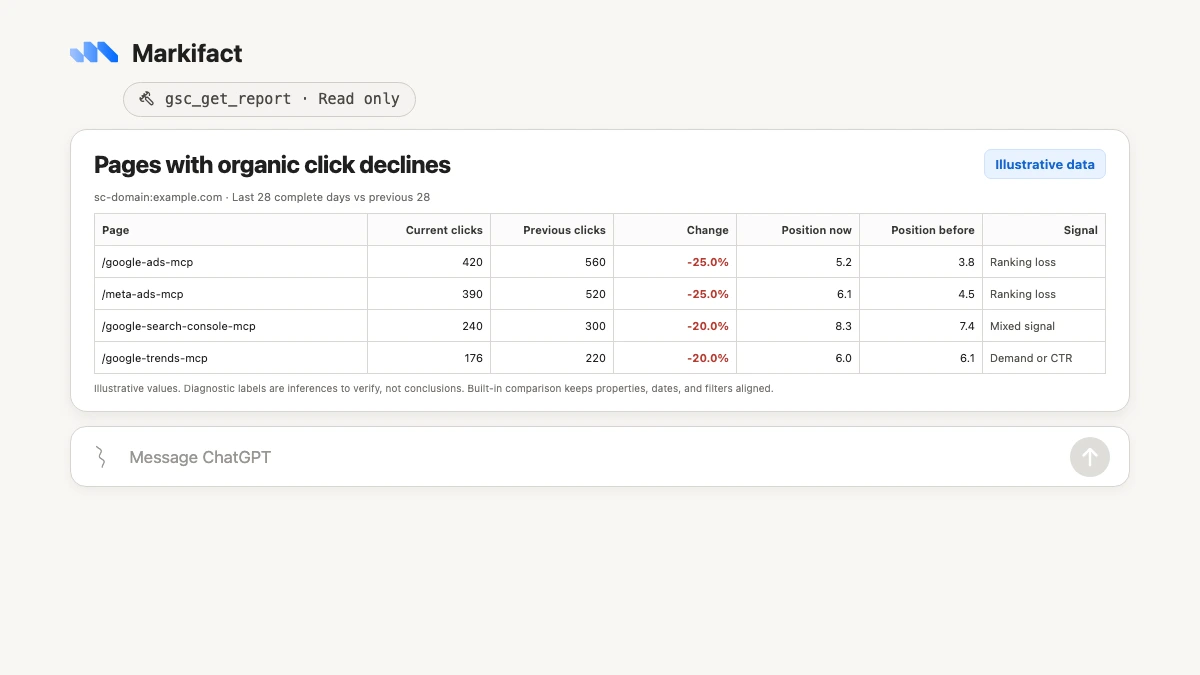
A ranking-loss label is an inference, not a fact. ChatGPT should explain the signals behind it and suggest what to verify.
Find low-CTR opportunities
Find Search Console queries for sc-domain:example.com with at least 1,000 impressions, average position better than 8, and CTR below 2 percent over the last 28 complete days. Include the ranking page, sort by impressions, and suggest what to inspect in the title, snippet, and intent match.
Compare mobile and desktop
Compare mobile and desktop Search Console performance for sc-domain:example.com over the last complete month. Show clicks, impressions, CTR, and average position by device, then find pages where mobile CTR trails desktop despite similar average position.
Review several client properties
Use gsc_select_accounts to list properties whose names contain "Aster". Then compare total clicks, impressions, CTR, and average position for the last complete calendar month across those properties. Label every property and do not merge the totals without showing the site-level rows.
Compare organic performance with GA4 outcomes
Use Search Console for sc-domain:example.com to find the landing pages with the largest click declines over the last 28 complete days versus the previous period. Then use GA4 to show sessions, engaged sessions, and key events for the same pages and dates. Explain which pages lost search visibility and which also lost business outcomes.
Turn findings into a brief
Use Search Console to find the 10 strongest striking-distance queries for sc-domain:example.com. For each, show the current page, impressions, CTR, and average position. Then draft a concise content-update brief in this conversation. Do not write to Google Docs unless I separately approve the exact destination.
If you need more analytics depth, the companion guide to connect GA4 to ChatGPT and Codex shows how to add engagement and key-event data.
Search Console remains read-only
The Markifact GSC connection cannot:
- Submit or delete sitemaps.
- Request indexing or run URL Inspection.
- Add or remove Search Console properties.
- Change users or permissions.
- Edit content, redirects, canonicals, or robots.txt.
Google's broader API includes more services, but Markifact focuses this connector on Search Analytics reporting. That narrower surface is useful because an SEO-analysis prompt cannot quietly turn into a site or indexing change.
Other Markifact apps can write. If you ask ChatGPT to export findings to Sheets, create a Docs brief, or send a Slack summary, that separate operation should show the exact destination and wait for approval.
Understand ChatGPT and Codex permissions
There are three different permission layers:
- Google account access controls which Search Console properties exist for the connection.
- Markifact workspace access controls which connections and operations are exposed.
- ChatGPT or Codex app access controls whether Markifact can be used in the current surface.
Reconnecting the ChatGPT app cannot fix a property that the Google account cannot access. Reconnecting Google cannot help if Markifact is disabled in the current Codex task. Check the layers in that order.
Why the numbers may differ from Search Console
Common reasons include:
- Different dates or inclusion of incomplete recent data.
- A domain property versus a URL-prefix property.
- Property-level versus page-level aggregation.
- Google's selected canonical URLs.
- Different query, page, country, device, or search-appearance filters.
- A top-row limit being compared with a complete property total.
Average position also differs from live rank-tracking because it aggregates actual impressions across contexts. When a number looks wrong, ask ChatGPT to restate every report input before rerunning it.
Troubleshooting
Markifact does not appear in ChatGPT
Open the app listing, confirm the app is connected, then select it from the tools menu in a new conversation.
Markifact appears in ChatGPT but not Codex
Open Codex in the desktop app and use /apps. Codex has separate app authentication and permission controls.
A Search Console property is missing
Open Search Console with the Google account connected to Markifact. If the property is absent there, fix Google access first. If access changed recently, reconnect GSC inside Markifact.
Authentication keeps reopening
Reconnect the Search Console connection in Markifact, then reconnect the app surface. An invalid_grant error refers to the Google connection inside Markifact, not the ChatGPT app listing.
The report returns no rows
Check the exact property string, dates, filters, and whether the property had search traffic during the selected period.
A field is rejected
Run gsc_list_report_fields and use the returned IDs. Do not guess based on a similar field in another platform.
A practical first workflow
Use this sequence after connection:
- List available properties.
- Pull overall clicks, impressions, CTR, and average position for a complete period.
- Find queries at positions 8 to 15 with meaningful impressions.
- Find pages losing clicks against the previous period.
- Diagnose position, demand, and CTR signals separately.
- Add GA4, Google Ads, or Trends context only where it changes the decision.
- Draft the recommendations in the conversation before approving any external write.
The same data can also be used from Claude. The paired guide explains how to connect Google Search Console to Claude.
Frequently asked questions
Can ChatGPT connect to Google Search Console?
Yes. Connect Search Console to Markifact with Google OAuth, connect the approved Markifact app in ChatGPT, select it in the conversation, and run read-only GSC reports.
Can Codex use Google Search Console?
Yes. Codex in the ChatGPT desktop app can use Markifact, but its app permission is separate from a normal ChatGPT conversation. Use /apps in Codex to confirm access.
Is there an official Google Search Console MCP server?
As of July 21, 2026, Google's public managed MCP materials do not list a Search Console MCP server. Google provides the official Search Console API, and Markifact provides the hosted MCP and approved app layer used here.
Do I need ChatGPT developer mode or a Google Cloud project?
No. The approved Markifact app and Google OAuth route do not require developer mode, a local MCP server, a service account, or your own Google Cloud project.
Is the Search Console connection read-only?
Yes. Markifact uses Search Console for performance reporting only. It cannot submit sitemaps, request indexing, change properties, or modify your site.
Which Search Console data can ChatGPT analyze?
It can analyze clicks, impressions, CTR, and average position by query, page, country, device, and date, including filters, comparisons, sorting, and multiple properties.
Why does a property not appear in ChatGPT or Codex?
The connected Google account must have access to the property. ChatGPT, Codex, and Markifact permissions cannot create Google access that the account does not have.
Can ChatGPT combine Search Console with GA4 or Google Ads?
Yes. Markifact can retrieve the reports in one conversation. Keep properties, account IDs, and dates explicit, and require separate approval before any other app writes the result externally.