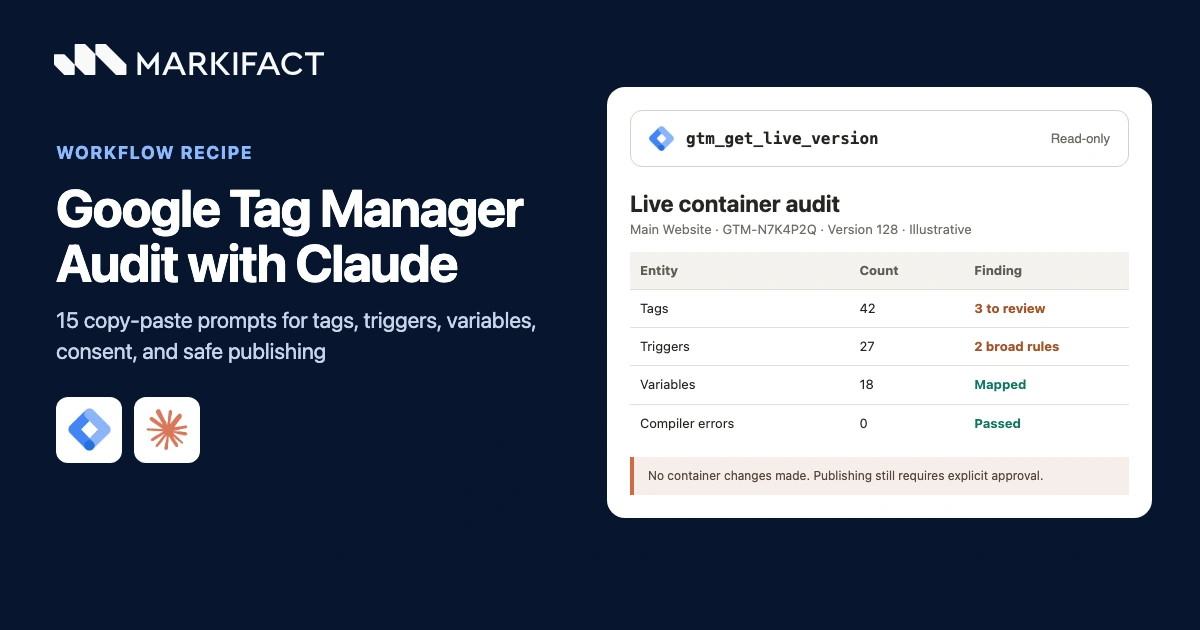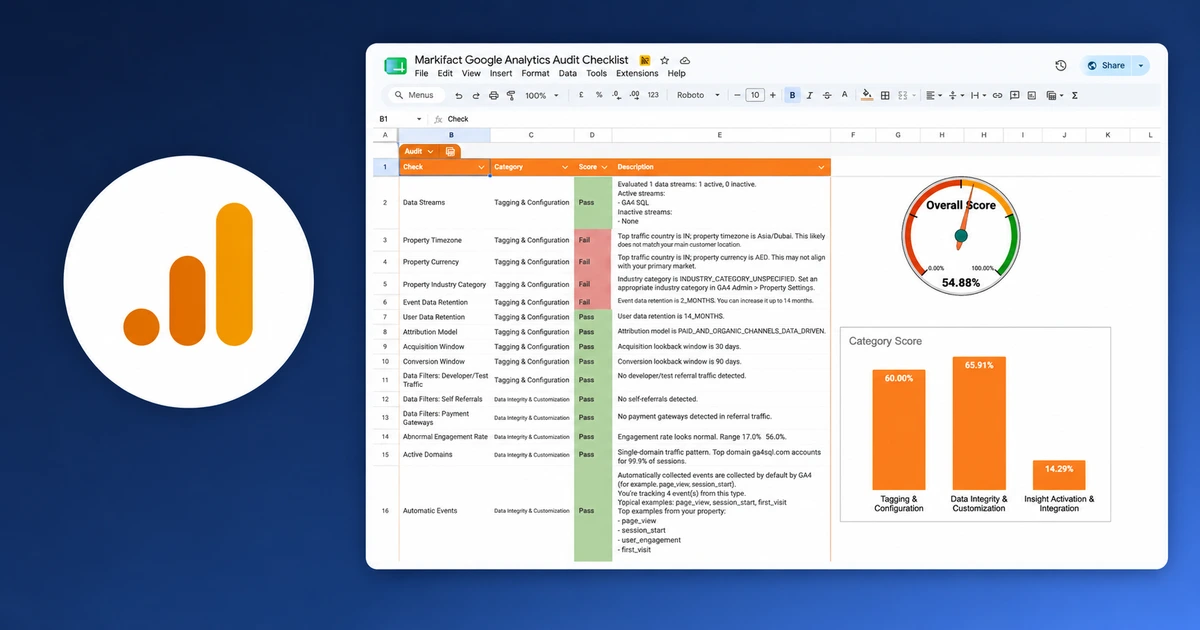

To connect Google Analytics 4 to ChatGPT, connect GA4 inside Markifact, open the approved Markifact app in ChatGPT, select Connect, add Markifact to a conversation, and run a read-only property report. Codex is now part of the ChatGPT desktop app and can use Markifact too, but its app authentication and permission controls are separate from the normal ChatGPT conversation. This guide covers both routes without requiring developer mode, a Google Cloud project, or a local MCP server.
The Google Analytics connection itself stays inside Markifact, so you authorize the GA4 property once and control how ChatGPT or Codex reaches it.
The quick version
For ChatGPT:
- Connect Google Analytics inside Markifact.
- Open the public Markifact app listing in ChatGPT and select Connect.
- Authorize the Markifact workspace containing your GA4 connection.
- Start a new conversation and add Markifact from the plus menu, then More.
- Select the exact GA4 property and run a read-only report.
For Codex:
- Open Codex from the ChatGPT desktop app.
- Browse available apps or connectors and select Markifact where it is available.
- Authenticate Markifact if Codex asks, even when it is already connected in ChatGPT.
- Apply Codex-specific permissions and run the same property check and report prompt.
The important boundary is unchanged on both surfaces: Markifact's GA4 operations are read-only. They can retrieve reports and inspect property configuration, but they cannot edit your Analytics property.
What you are actually connecting
There are two authorization layers:
Google Analytics → Markifact
This is the Google OAuth connection that gives Markifact access to the GA4 properties the signed-in Google account can already see.
Markifact → ChatGPT or Codex
This lets the OpenAI surface call the analytics operations available through your authorized Markifact workspace.
Connecting the Markifact app in ChatGPT does not create the Google Analytics connection automatically. GA4 must already be connected in the Markifact workspace you authorize.
You can review the managed analytics connection and current capabilities on the Markifact Google Analytics MCP page.
What you need before starting
You need:
- A Markifact workspace
- A Google account with legitimate access to the required GA4 property
- Access to the public Markifact app in ChatGPT
- The ChatGPT desktop app if you want to use Codex from the same product
- Permission to use apps or connectors if your ChatGPT workspace is managed
GA4 uses accounts and properties. It does not use the Universal Analytics view layer, so identify the exact property instead of relying on an old view name.
Google Analytics roles include Administrator, Editor, Analyst, and Viewer. The property list available through Markifact follows the permissions of the Google account you connect. ChatGPT or Codex app permissions cannot expand those Google permissions.
1. Connect Google Analytics inside Markifact
Open Connections in Markifact, choose Google Analytics, and click Connect.
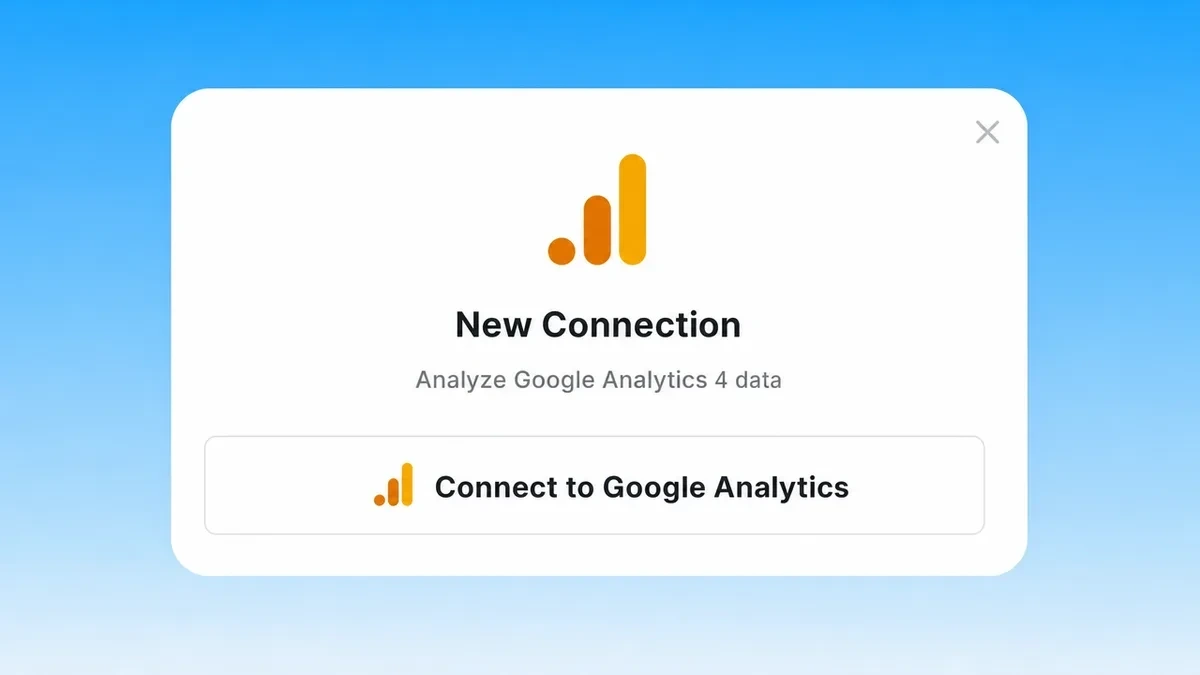
Complete the Google OAuth flow with the account that can already open the property in Analytics. If you manage several clients or environments, do not assume that the first property returned is the production property.
After authorization, confirm that Google Analytics appears in your Markifact connections. Give the connection a clear name if your workspace contains several Google logins.
The managed route does not require a Google Cloud project, a downloaded credentials file, a local service, or a custom ChatGPT app.
2. Connect the Markifact app in ChatGPT
Open the public Markifact listing in ChatGPT and select Connect.
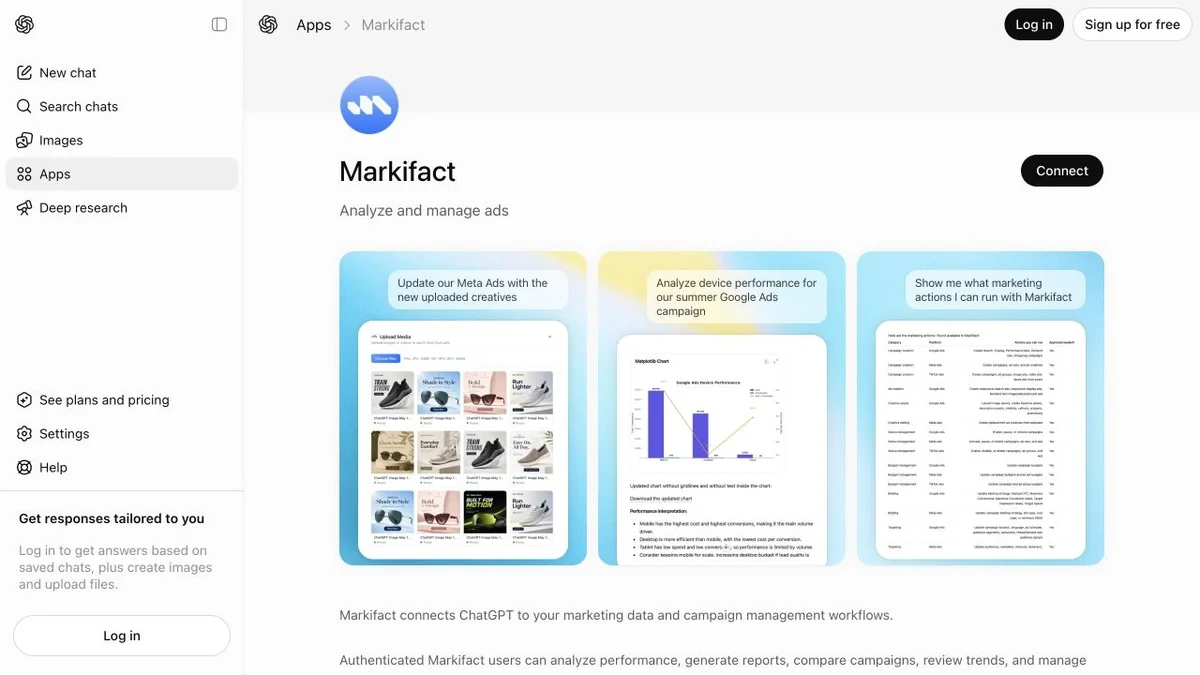
Sign in to the Markifact workspace containing the Google Analytics connection from step one. Complete the authorization flow and return to ChatGPT.
If you authorize the wrong workspace, disconnect Markifact in ChatGPT and repeat the process before running a report. A connected app with no GA4 connection in its selected workspace cannot retrieve the property you need.
This approved-app route does not require ChatGPT developer mode. It also does not require you to paste https://api.markifact.com/mcp into ChatGPT.
3. Add Markifact to a ChatGPT conversation
Start a new ChatGPT conversation. Click the plus button beside the composer, choose More, and select Markifact from the available apps.
OpenAI documents this as the step that adds an app to the conversation context. It tells ChatGPT which connected tool should handle the analytics request.

Do not start with “analyze my website.” That leaves the property, dates, metrics, and output undefined. First confirm the available property list.
Use Markifact to list the Google Analytics 4 properties available to this workspace.
Return the account name, property name, and property ID.
Do not run a performance report yet.
A read-only operation such as ga4_select_accounts can help identify the correct property. Property IDs are safer than names because teams often reuse names such as “Website” or “Production.”
4. Run a read-only GA4 report first
Once you have the property ID, copy this prompt:
Use Markifact and GA4 property [PROPERTY_ID].

Compare the last 7 complete days with the previous 7 complete days.
Break the report down by default channel group.
Include sessions, active users, key events, and session key event rate.

Before the table, confirm the account name, property name, property ID,
property timezone, and exact date ranges used.
If a field is unavailable or incompatible, tell me instead of substituting it.
Do not make any changes.
For this request, Markifact can use ga4_get_report. It is a read-only reporting operation with inputs for properties, dates, metrics, dimensions, filters, ordering, and other report options.
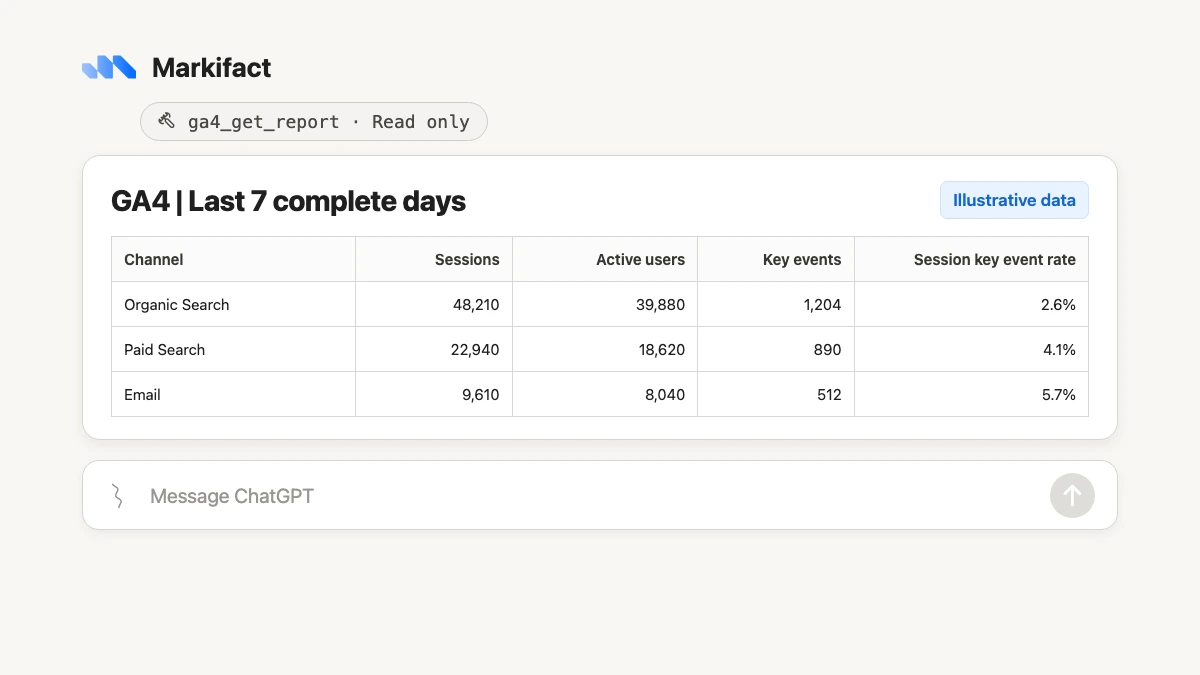
The figures in the image are illustrative. Your result uses the selected property and requested dates.
Before asking for analysis, verify:
- The GA4 property ID is correct.
- The property timezone matches your reporting day.
- Both periods contain complete days.
- The key events match the outcomes your team uses.
- The dimension and metrics describe the same report you intended to reproduce.
Google Analytics now uses key events as its current term. In operation inputs, current metric examples include keyEvents and sessionKeyEventRate. Avoid copying old prompts that still depend on deprecated conversion terminology.
5. Use the same GA4 connection from Codex
OpenAI added Codex to the ChatGPT desktop app on macOS and Windows. Open the desktop app and switch to Codex.
In Codex, browse apps or connectors and select Markifact where it is available. In the Codex CLI, the current `/apps` command opens the app browser and lets you attach an app to a prompt. Availability can depend on your account, workspace policy, and which apps are discoverable on that surface.
Codex may ask you to authenticate Markifact separately. This does not mean you need to reconnect the Google Analytics property. The Google OAuth connection remains in Markifact, while Codex establishes its own permission to use the Markifact app.
ChatGPT app permissions do not automatically control apps authenticated in Codex. Review the permission mode shown by Codex before running the first request. The safest starting point for this workflow is read-only access.
Use the same property-verification prompt and first-report prompt from the previous sections. The operation and analytics boundaries do not change because the prompt runs in Codex.
Real GA4 operation examples
Markifact exposes analytics operations that ChatGPT or Codex can select based on the request. Real examples include:
ga4_select_accountsfor discovering or selecting accessible propertiesga4_get_reportfor querying compatible metrics and dimensionsga4_list_report_fieldsfor discovering available standard and property-specific fieldsga4_get_property_settingsfor inspecting streams, audiences, channel groups, retention, and other settings
These are examples, not an exhaustive list of Markifact's analytics or cross-platform operations. All four examples above are read-only.
If a requested dimension or metric is invalid, ask the model to discover available fields instead of inventing a similar API name.
Copy-paste GA4 prompts for ChatGPT and Codex
The same prompt structure works on both surfaces. Name the property, dates, metrics, dimensions, comparison, output, and change boundary.
Acquisition performance
Use Markifact and GA4 property [PROPERTY_ID].
Compare the last 30 complete days with the previous 30 complete days
by session source and medium.

Include sessions, engaged sessions, active users, key events,
and session key event rate. Sort by sessions and show the top 20 rows.
Explain the three largest material changes after the table.
Do not make any changes.
Landing pages that need attention
Analyze landing-page performance for GA4 property [PROPERTY_ID]
for the last 28 complete days.

Include sessions, active users, engagement rate, key events,
and session key event rate.
Flag pages with at least 500 sessions and a session key event rate
below the property median. Separate evidence from recommendations.
Do not change GA4 or any ad platform.
The threshold is an instruction for your account, not a universal benchmark. Replace it with a traffic level that makes sense for the property.
Event and key-event check
For GA4 property [PROPERTY_ID], list events for the last 14 complete days.
Show event count, active users, and key events where compatible.
Compare with the previous 14 complete days and flag sudden drops.
Confirm whether each result is a normal event or a marked key event.
Do not make changes.
Ecommerce performance
Summarize GA4 ecommerce performance for property [PROPERTY_ID]
for the last 30 complete days.

Include sessions, ecommerce purchases, purchase revenue, active users,
and session key event rate where compatible.
Break down by default channel group and compare with the previous period.
Flag unavailable fields instead of guessing.
Compare several GA4 properties
Compare these GA4 property IDs: [PROPERTY_A], [PROPERTY_B], [PROPERTY_C].
Use each property's local timezone and the last 7 complete days.
Return sessions, active users, key events, and session key event rate.
Label every row with the property name and ID.
Show property-level results before combining any values.
Do not make changes.
Turn a report into an executive summary
Use the verified GA4 report in this conversation.
Write a concise update with three sections: wins, issues, and next checks.
Include the figures supporting every point.
Separate confirmed evidence from hypotheses.
Keep it under 250 words and do not make changes.
GA4 remains read-only when other marketing tools can write
Markifact's Google Analytics operations cannot change events, key-event configuration, audiences, retention, streams, or other property settings. ChatGPT and Codex can report, inspect, and diagnose, but not edit GA4 through this connection.
A cross-platform workflow can still lead to a proposed advertising action. For example, GA4 may show a landing-page problem affecting paid-search traffic. A later Google Ads operation could propose a campaign change, but that write is separate from the Analytics read and must follow its own approval boundary.
If you want the paid-media version of the approved app flow, see the Google Ads to ChatGPT and Codex guide. If you prefer Claude, the GA4 to Claude guide covers installation from Claude’s approved connector directory.
Understand ChatGPT and Codex permissions
OpenAI currently documents three ChatGPT app permission levels:
- Always ask asks before retrieving information or making changes.
- Ask before making changes allows retrieval without repeated confirmation but asks before writes.
- Ask only before important changes is the documented default and asks before consequential actions.
Personal accounts can set global or per-app preferences under Settings, then Apps. Business and Enterprise administrators control workspace defaults and per-app overrides.
These settings apply to connected apps in ChatGPT. Apps authenticated in Codex use separate permission controls. Neither permission system expands the GA4 properties granted to the connected Google user, and neither turns a read-only GA4 operation into a write.
Why ChatGPT and the GA4 interface can show different totals
Before treating a difference as a connector problem, align:
- Property ID
- Start and end dates
- Property timezone
- Filters
- Dimensions and metrics
- Reporting identity
- Data freshness and processing state
- Sampling, thresholding, approximation, and the
(other)row
Counts such as sessions and users can be approximated. A report grouped by channel can also behave differently from an ungrouped total.
Use this diagnostic prompt:
Do not reinterpret the result yet.
Show the exact GA4 property ID, date range, timezone, dimensions,
metrics, filters, order, and limit used in the last report.
Explain which GA4 reporting conditions could make it differ from the interface.
Do not run another report until I confirm the definition.
Troubleshooting
Markifact does not appear in ChatGPT
Open the direct public listing linked above. If you use a managed workspace, ask the administrator whether Markifact is available for your role.
Markifact appears in ChatGPT but not Codex
App availability can differ by surface and workspace policy. Browse apps or connectors from Codex and confirm that Markifact is discoverable. Do not assume that a ChatGPT connection automatically carries its permission settings into Codex.
The GA4 property is missing
Confirm that the Google account connected inside Markifact can open the property in Analytics. Then verify that ChatGPT or Codex authenticated the Markifact workspace containing that connection.
Authentication keeps reopening
Check which Markifact workspace and Google account you are using. If necessary, disconnect the app on the affected OpenAI surface and authenticate it again without switching accounts midway.
The report is empty
Verify the property ID, timezone, dates, and filters. Remove optional filters and run a basic sessions report. Also confirm that the property collected data during the requested period.
A metric or dimension is invalid
Ask Markifact to discover the available report fields and check compatibility. Custom dimensions or metrics must be registered in the selected property before they appear in the report schema.
A practical first workflow
Use the same sequence each week:
- Select the property by ID.
- Pull a channel report for complete dates.
- Verify the property, timezone, key events, and totals.
- Ask for the largest material changes with supporting figures.
- Narrow one channel by source, medium, campaign, or landing page.
- Request recommendations without applying cross-platform changes.
This keeps the evidence, interpretation, and action boundary clear. Once the property and business outcomes are defined, save the prompt and rerun the same report structure instead of rebuilding it every week.
Frequently asked questions
Can ChatGPT connect to Google Analytics 4?
Yes. Connect Google Analytics in Markifact, connect the approved Markifact app in ChatGPT, add it to a conversation, and select the exact GA4 property before running a read-only report.
Do I need ChatGPT developer mode?
No. This guide uses the public Markifact app listing. You do not need developer mode, a custom app, or a pasted MCP endpoint.
Do I need a separate GA4 connection for Codex?
No. The saved Google Analytics OAuth connection stays inside Markifact. Codex may require separate Markifact app authentication and permissions, but you do not create another GA4 property connection.
Does the ChatGPT app permission carry into Codex?
No. OpenAI documents separate permission controls for apps authenticated in Codex. Review the permission mode on each surface.
Is the Markifact GA4 connection read-only?
Yes. Markifact's GA4 operations retrieve reports and inspect property information but cannot change the Analytics property.
Do I need a Google Cloud project?
No. The managed Markifact route does not require a Google Cloud project, credentials file, local service, or self-hosted MCP server.
Can ChatGPT query several GA4 properties?
Yes. Markifact can report across selected properties available through the authorized Google account and workspace. Label every result with its property name and ID before combining values.
Why does a GA4 property not appear?
Check the connected Google account, its property role, the selected Markifact workspace, and the app authorization on the OpenAI surface you are using.
Why do ChatGPT's GA4 totals differ from the Analytics interface?
Align the property, dates, timezone, filters, dimensions, metrics, reporting identity, and processing state. Sampling, thresholding, approximation, and the (other) row can also affect comparisons.