

To connect Google Analytics (GA4) to Claude, connect Google Analytics (GA4) in Markifact, install the approved Markifact connector, and sign in to your workspace. This gives Claude live access to the GA4 properties your Google account can see without making you export reports or maintain a local MCP server. The setup takes a few minutes, but choosing the right property and testing it with precise dates matters more than rushing through the authorization screens.
This guide covers the complete Markifact route, from Google OAuth to a useful first GA4 report in Claude.
The quick version
- In Markifact, open Connections and connect Google Analytics (GA4) with your authorized account.
- Open the approved Markifact connector in Claude and click Connect.
- Sign in to the same Markifact workspace and review the connection access.
- Enable Markifact in the Claude conversation.
- Ask Claude to confirm the exact account or property, then run a read-only report before requesting changes.
The important boundary is simple: Markifact's GA4 operations are read-only. Claude can inspect properties and analyze Analytics data, but it cannot change the GA4 property through this connection.
Watch the GA4 MCP setup in Claude
This walkthrough shows the same connection and reporting flow inside the normal Claude interface.
The video may show the earlier manual connector setup. Follow the directory installation steps in this article for the current connection route.
What you are actually connecting
Claude is not receiving your Google password. It sends structured requests to a remote Model Context Protocol server, and that server uses the Google Analytics connection you authorized in Markifact.
The path is:
Claude → Markifact MCP → your authorized GA4 property
The managed endpoint is the same for every Markifact customer:
https://api.markifact.com/mcp
Your Markifact sign-in, workspace, selected MCP server, saved connections, and Google permissions determine what Claude can access. You can review the product and current analytics capabilities on the Google Analytics MCP page.
Before you start
You need:
- A Markifact workspace
- A Google account with access to the GA4 property you want to analyze
- A Claude account with permission to use the Markifact connector
- Permission to add or use organization connectors if you work in a managed Claude workspace
GA4 has accounts and properties. It does not have the Universal Analytics view layer, so confirm the exact property rather than asking Claude to find the old view name.
Google Analytics roles include Administrator, Editor, Analyst, and Viewer. Because the Markifact GA4 connection is read-only, a user with legitimate reporting access can use it without granting Claude the ability to edit Analytics. The property list still follows the permissions of the Google account you connect.
Claude connector availability follows your account and organization settings. Use the approved Markifact directory listing; in a managed workspace, ask an administrator to allow it if necessary.
1. Connect Google Analytics in Markifact
In Markifact, open Connections, choose Google Analytics, and click Connect.
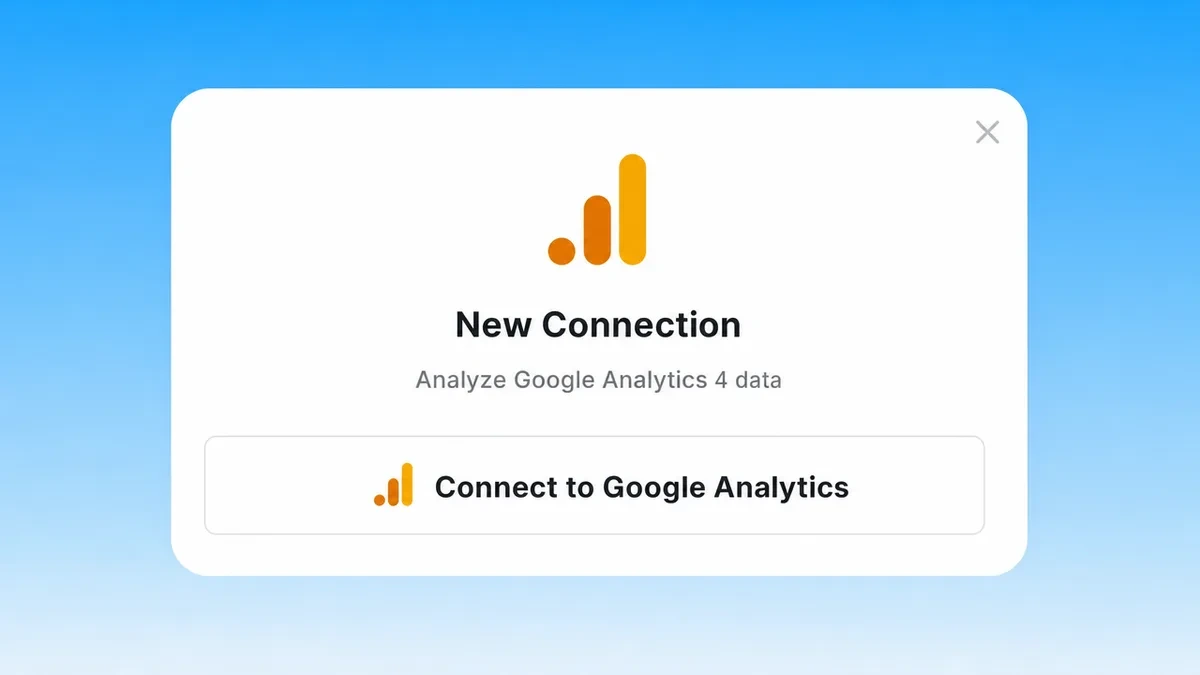
Complete the Google OAuth flow. Use the Google account that can already open the intended property in Analytics. If you have access to client, staging, and production properties, do not assume the first property returned is the one you want.
After authorization, return to Markifact and confirm that the Google Analytics connection is present. If your team uses several Google logins, give the connection a name that makes the account and client obvious.
You do not need to create a Google Cloud project, download a credentials file, or host an Analytics MCP server for this route.
2. Check workspace access and optional server scope
The directory install is the default route. The settings below are useful if your workspace uses a dedicated MCP server to limit connection or tool access; creating a new server is not a prerequisite for every reader.
Open MCP in Markifact. Create a new server for Claude or use an existing server that already has the right analytics connection.
I recommend a name that describes the client and purpose:
Claude - GA4 - Main Website
If the server can be scoped to specific connections, select the Google Analytics connection you just verified. Narrow scope is especially useful for agencies. A conversation about Client A should not accidentally search Client B's properties.
The operation names Claude sees depend on the capabilities enabled for that server. Real GA4 examples include:
ga4_select_accountsfor discovering or selecting accessible propertiesga4_get_reportfor querying metrics and dimensionsga4_list_report_fieldsfor finding valid standard and property-specific fieldsga4_get_property_settingsfor inspecting configuration such as streams, audiences, channel groups, and retention
These are examples, not an exhaustive list of Markifact's analytics or cross-platform operations.
3. Install Markifact from the Claude directory
Markifact is approved in Claude's connector directory. Open the Markifact listing and click Connect. Complete the Markifact sign-in, choose the intended workspace, and review the requested access. If prompted to choose an MCP server, select the one with the connections you want to use.
In a Claude conversation, open + > Connectors and enable Markifact. You do not need to add a custom connector or paste a server URL for this setup. If your organization manages connector access, an administrator may need to allow Markifact first.
4. Enable Markifact for the conversation
Installing Markifact does not mean every conversation uses it automatically. Start a new Claude chat, click the plus menu, open Connectors, and enable Markifact for that conversation.
Before requesting a report, ask Claude to confirm which GA4 properties are available:
Use Markifact to list the Google Analytics 4 properties available to this connection.
Return the account name, property name, and property ID.
Do not run a performance report yet.
Claude can use a read-only property-selection operation such as ga4_select_accounts. Pick the exact property by ID when names are similar.
5. Run a safe first GA4 report
Your first report should be boring and easy to verify. Use complete dates, a familiar acquisition dimension, and a small set of standard metrics.
Use the GA4 property with ID [PROPERTY_ID].

Compare the last 7 complete days with the previous 7 complete days.
Break the report down by default channel group.
Include sessions, active users, key events, and session key event rate.

Before the table, confirm the account name, property name, property ID,
property timezone, and the exact date ranges used.
If any field is unavailable or incompatible, tell me instead of substituting it.
Do not make any changes.
For a request like this, Claude can use ga4_get_report. The operation reads Analytics data and cannot modify the property.
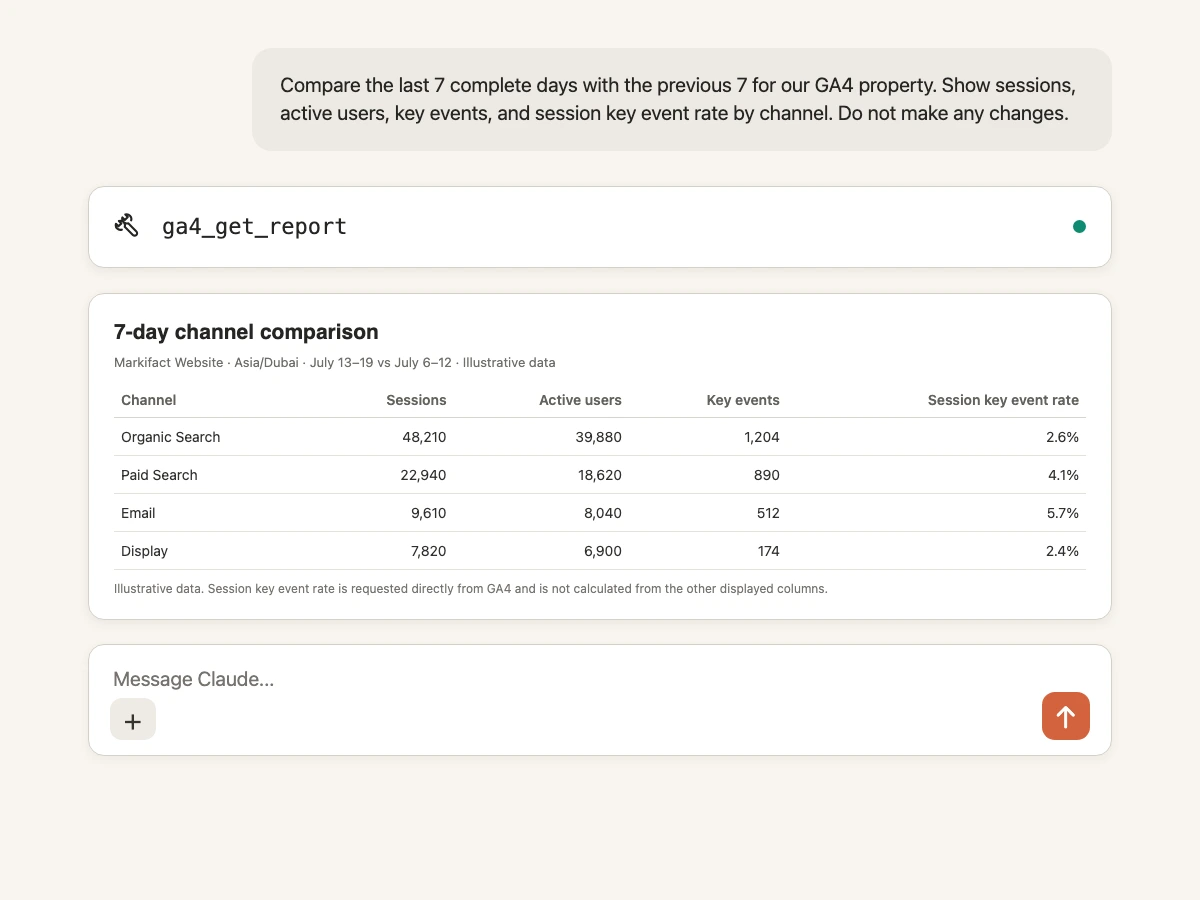
The values in the image are illustrative. Your report comes from the property and dates you select.
Before trusting the analysis, verify:
- The property ID is correct.
- The property timezone matches your reporting day.
- Both periods contain complete days.
- The key events are the ones your business treats as meaningful.
- The dimension and metrics match the report you intended to reproduce.
Google now uses key events as the current Analytics term. If an old prompt asks for conversions, update it to keyEvents or another current metric that matches the question.
Copy-paste prompts for common GA4 questions
Acquisition performance
For GA4 property [PROPERTY_ID], compare the last 30 complete days
with the previous 30 days by session source and medium.

Include sessions, engaged sessions, active users, key events,
and session key event rate. Sort by sessions and show the top 20 rows.
Explain the three largest material changes after the table.
Do not make any changes.
Landing pages that need attention
Analyze landing-page performance for the last 28 complete days.
Include sessions, active users, engagement rate, key events,
and session key event rate.

Flag pages with at least 500 sessions and a session key event rate
below the property median. Keep the evidence and recommendation separate.
Do not change GA4 or any ad platform.
If a requested landing-page dimension or metric is unavailable for the property, ask Claude to use ga4_list_report_fields to discover a compatible field rather than inventing a name.
Event and key-event check
For the last 14 complete days, list events by event name.
Show event count, active users, and key events where compatible.
Flag sudden drops versus the previous 14 complete days.
Confirm whether each result is a normal event or a marked key event.
Do not make any changes.
Ecommerce performance
Summarize GA4 ecommerce performance for the last 30 complete days.
Include sessions, ecommerce purchases, purchase revenue, active users,
and session key event rate where compatible.
Break down by default channel group and compare with the previous period.
Flag missing or incompatible fields instead of guessing.
Compare several GA4 properties
Compare these GA4 property IDs: [PROPERTY_A], [PROPERTY_B], [PROPERTY_C].
Use each property's local timezone and the last 7 complete days.
Return sessions, active users, key events, and session key event rate.
Label every row with the property name and ID.
Do not combine values until you have shown the property-level table.
GA4 is read-only, even when the rest of your stack is not
Markifact's Google Analytics operations cannot change events, key-event configuration, property settings, audiences, or retention. That makes the GA4 connector suitable for reporting, investigation, and audits.
A cross-platform workflow can still produce a proposed action. For example, Claude could identify a weak paid-search landing page from GA4 and then recommend changing a Google Ads campaign. The Analytics read and the advertising write are separate operations. Any ad-platform change should name the exact account and target, show the current and proposed values, and wait for approval before execution.
If you also manage paid media from Claude, the Google Ads MCP and Claude setup guide shows that separate connection and approval boundary.
Why Claude and the GA4 interface can show different numbers
A difference does not automatically mean the connector is wrong. Before debugging authentication, align:
- Property ID
- Exact start and end dates
- Property timezone
- Filters
- Dimensions and metrics
- Reporting identity
- Data freshness and processing state
- Thresholding, sampling, and the
(other)row
Counts such as users and sessions can be approximated. A report grouped by channel can also behave differently from an ungrouped total. Reproduce the same definition on both sides before comparing values.
Use this prompt when a result looks suspicious:
Do not reinterpret the result yet.
Show the exact GA4 property ID, date range, timezone, dimensions,
metrics, filters, order, and limit used in the last report.
Explain which GA4 reporting conditions could make it differ from the UI.
Do not run a new report until I confirm the definition.
Troubleshooting the GA4 connector
The property is missing
Confirm that the connected Google account can open the property in Google Analytics. Then check that the Markifact MCP server exposes the correct Google Analytics connection. Reconnecting with a different Google login will not help if that login lacks property access.
Claude does not show Markifact
Open Customize, then Connectors, and confirm that Markifact is connected. Enable it from the conversation's connector menu. In a managed organization, ask an owner whether the Markifact connector is available to your account.
Authentication keeps reopening
Confirm that you are signing into the intended Markifact workspace and Google account. If the loop persists, reconnect Markifact through its Claude directory listing, and complete both sign-ins without switching accounts midway.
The report is empty
Check the property ID, property timezone, complete dates, and filters. Remove optional filters and run a basic sessions report. Also confirm that the property collected data during the requested period.
A metric or dimension is invalid
Do not replace it with a similar-sounding field. Ask Claude to discover available report fields and confirm metric-dimension compatibility. Custom dimensions and metrics must be registered in the selected property before they can appear in the report schema.
The report uses the wrong property
Stop and restate the exact property ID. Property names are not reliable identifiers when an organization reuses names such as “Website” or “Production.”
A practical first workflow
Start broad, then narrow the question using the same property and dates:
- Compare channel performance with
ga4_get_report. - Pick the channel with the largest meaningful change.
- Break that channel down by source and medium or campaign.
- Inspect landing pages for the affected traffic.
- Check the relevant events and key events.
- Write a short diagnosis that separates evidence, assumptions, and next actions.
That sequence turns Claude into a useful analytics partner without pretending it can infer your tracking model from one vague prompt. Once the property, business outcome, and key events are clear, you can save the prompts and rerun the same workflow each week.
Frequently asked questions
Can Claude connect to Google Analytics 4?
Yes. Connect Google Analytics in Markifact, install the approved Markifact connector, authenticate, and enable Markifact in the conversation.
Is GA4 MCP the same as Google Analytics MCP?
In this context, yes. GA4 is the current Google Analytics property model, so searches for GA4 MCP and Google Analytics MCP usually describe the same reporting connection.
Do I need a Google Cloud project for this setup?
No. The managed Markifact route does not require you to create a Google Cloud project, download credentials, or host a local MCP server.
How do I install the approved Markifact connector?
Open the Markifact listing, click Connect, and complete Markifact sign-in. Your organization may require administrator approval for third-party connectors.
What Google Analytics permission does Claude need?
The connected Google account must have legitimate access to the required GA4 property. The property list follows that user's Analytics permissions, and Markifact's GA4 operations remain read-only.
Can Claude change GA4 settings through Markifact?
No. Markifact's GA4 operations are read-only. Claude can inspect property settings and report data, but it cannot edit the Analytics property through this connection.
Why does a GA4 property not appear in Claude?
Check the signed-in Google account, its GA4 property role, the saved Markifact connection, and the connections exposed by the selected MCP server.
Why do Claude's GA4 totals differ from the Analytics interface?
Align the property, dates, timezone, filters, dimensions, metrics, reporting identity, and processing state. Sampling, thresholding, approximation, or the (other) row can also affect comparisons.
Can Claude query multiple GA4 properties?
Yes. Markifact can expose multiple authorized properties, and ga4_get_report can be used across selected properties. Label results with property names and IDs before combining them.