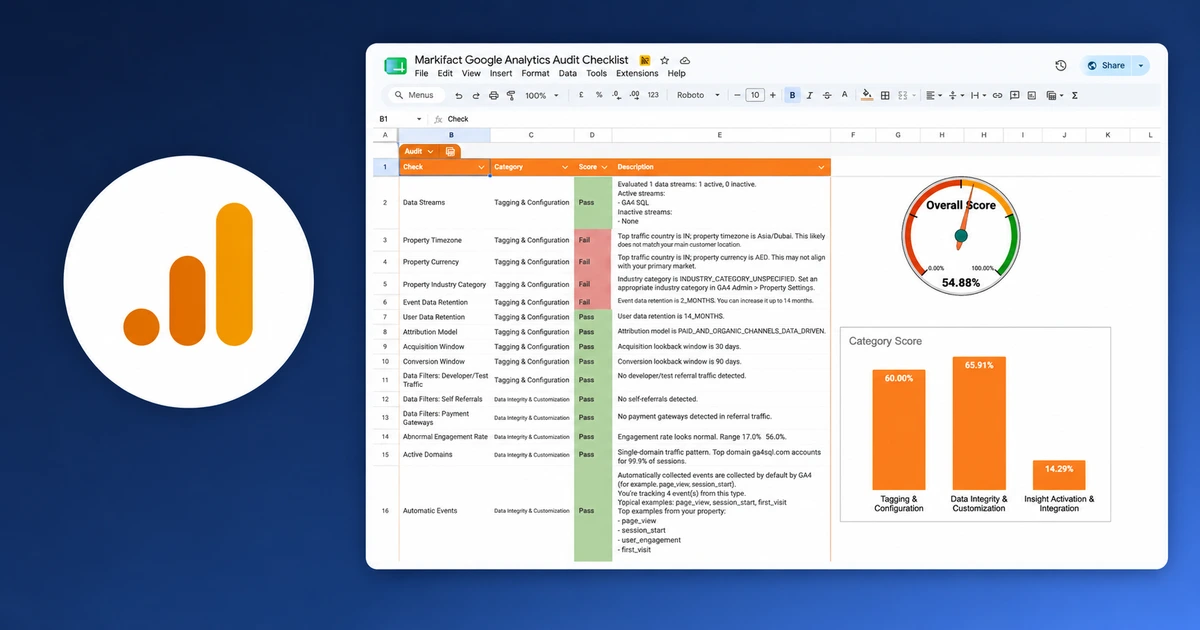

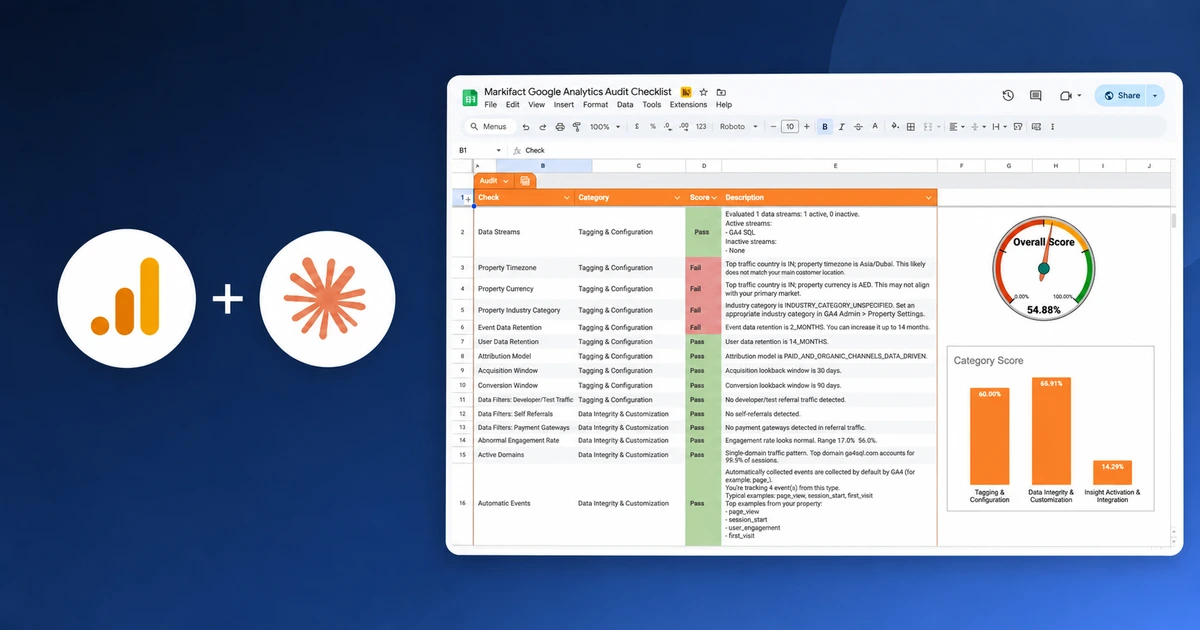
You can audit GA4 with Claude by giving it two controlled evidence sources: a completed configuration checklist in Google Sheets and read-only GA4 reports for explicit dates and properties. Claude should organize the findings, test them against reporting symptoms, and draft a prioritized remediation plan without changing Analytics. This guide gives you 15 copy-paste prompts that keep configuration evidence, report evidence, interpretation, and approved action separate.
What Claude can and cannot audit in GA4
Claude is useful for audit reasoning, but only when the evidence boundary is explicit.
Markifact's current ga4_get_report operation can retrieve compatible GA4 metrics and dimensions with selected properties, dates, comparisons, filters, and sorting. It does not expose every GA4 Admin setting. For configuration evidence such as property timezone, data retention, streams, integrations, and audiences, use the completed Google Analytics Audit Checklist.
Claude can then read that output through a current operation such as sheets_read_data and validate the data symptoms through ga4_get_report. These operation IDs are current examples, not an exhaustive or permanent catalog.
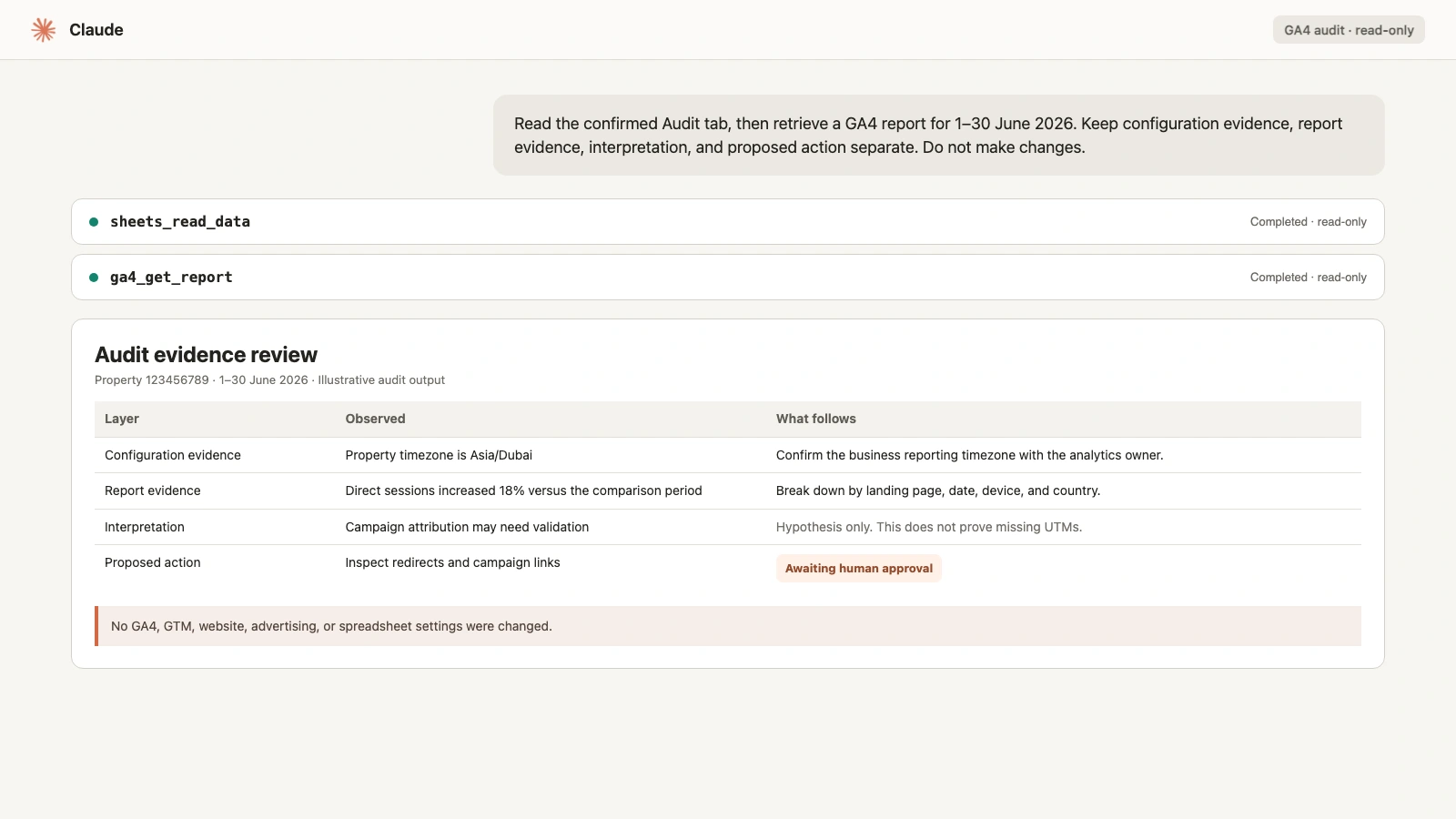
Claude should never infer an admin setting from a reporting symptom. High Direct traffic can justify an investigation, but it does not prove that UTMs are missing. No purchase events can indicate a broken implementation, a non-ecommerce business, a quiet date range, or the wrong property.
Before the prompts: connect the evidence sources
Connect Google Analytics to Claude through the Google Analytics MCP. If the connector is not configured yet, use the GA4-to-Claude setup guide.
Markifact is available in Claude's approved connector directory. Enable only the relevant tools for the conversation and review the permissions before allowing tool calls.
Install the approved Markifact connector in Claude, complete sign-in, and enable it for the audit conversation.
For the complete configuration audit:
- Run the Google Analytics Audit Checklist template.
- Use a complete, representative date range.
- Keep the generated sheet unchanged as the configuration evidence.
- Give Claude read-only access to the copied sheet and selected GA4 property.
- Require a human to approve any remediation.
The four-layer evidence model
Every audit response should contain four labeled layers:
| Layer | Meaning | Example |
|---|---|---|
| Configuration evidence | What the checklist actually returned | Key event is configured but inactive |
| Report evidence | What a GA4 report shows for explicit dates | No activity for that event in the selected period |
| Interpretation | What the combined evidence may mean | Tagging or the expected user path needs validation |
| Proposed action | What a person should verify or approve | Test the event in DebugView and inspect the tag trigger |
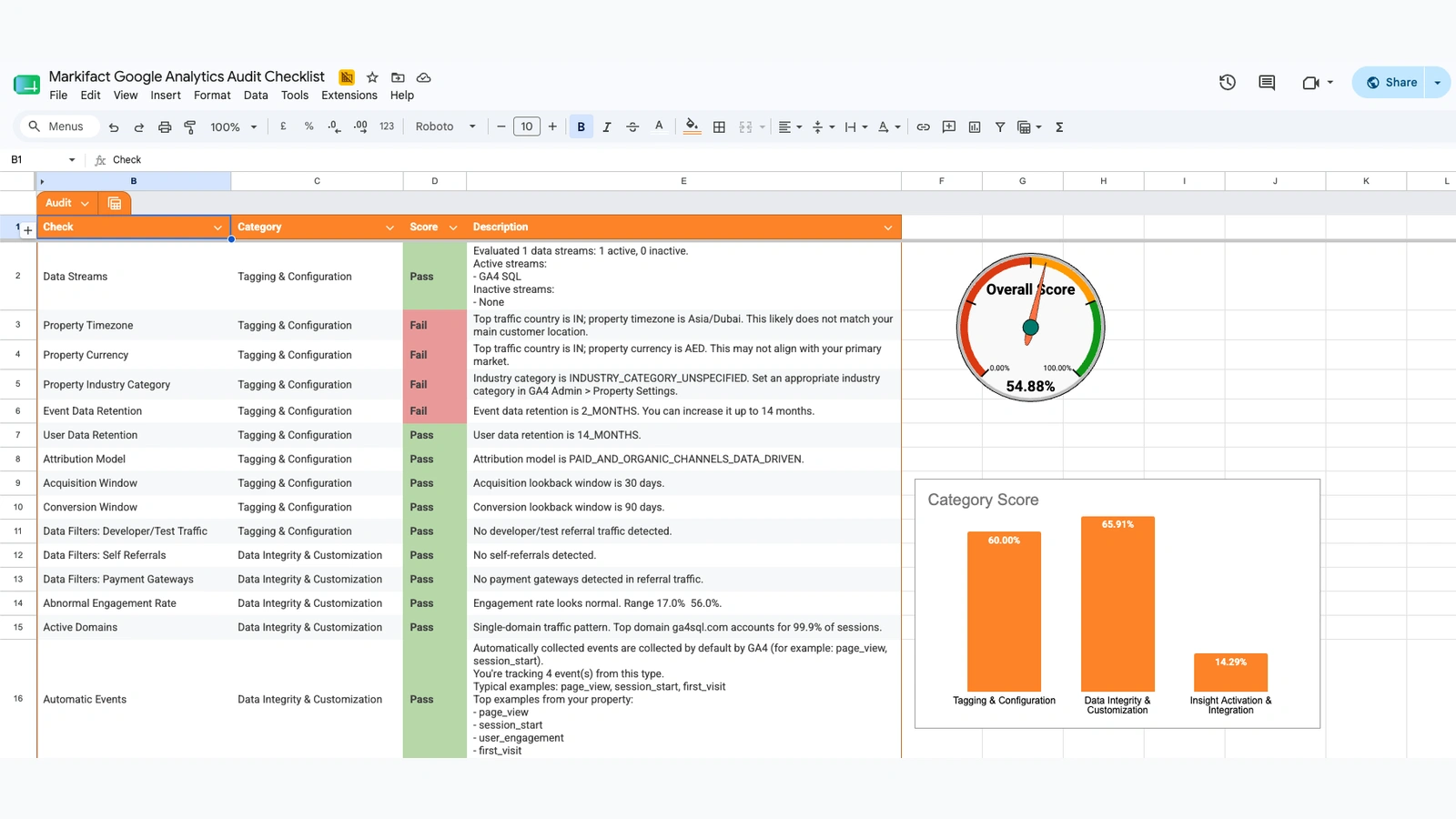
Do not let Claude collapse these layers into a confident diagnosis. The prompts below repeat the boundary deliberately because the most dangerous audit error is a polished explanation that is not supported by the property.
Prompt 1: establish the audit contract
Start every audit with the property, dates, business context, and approval boundary.
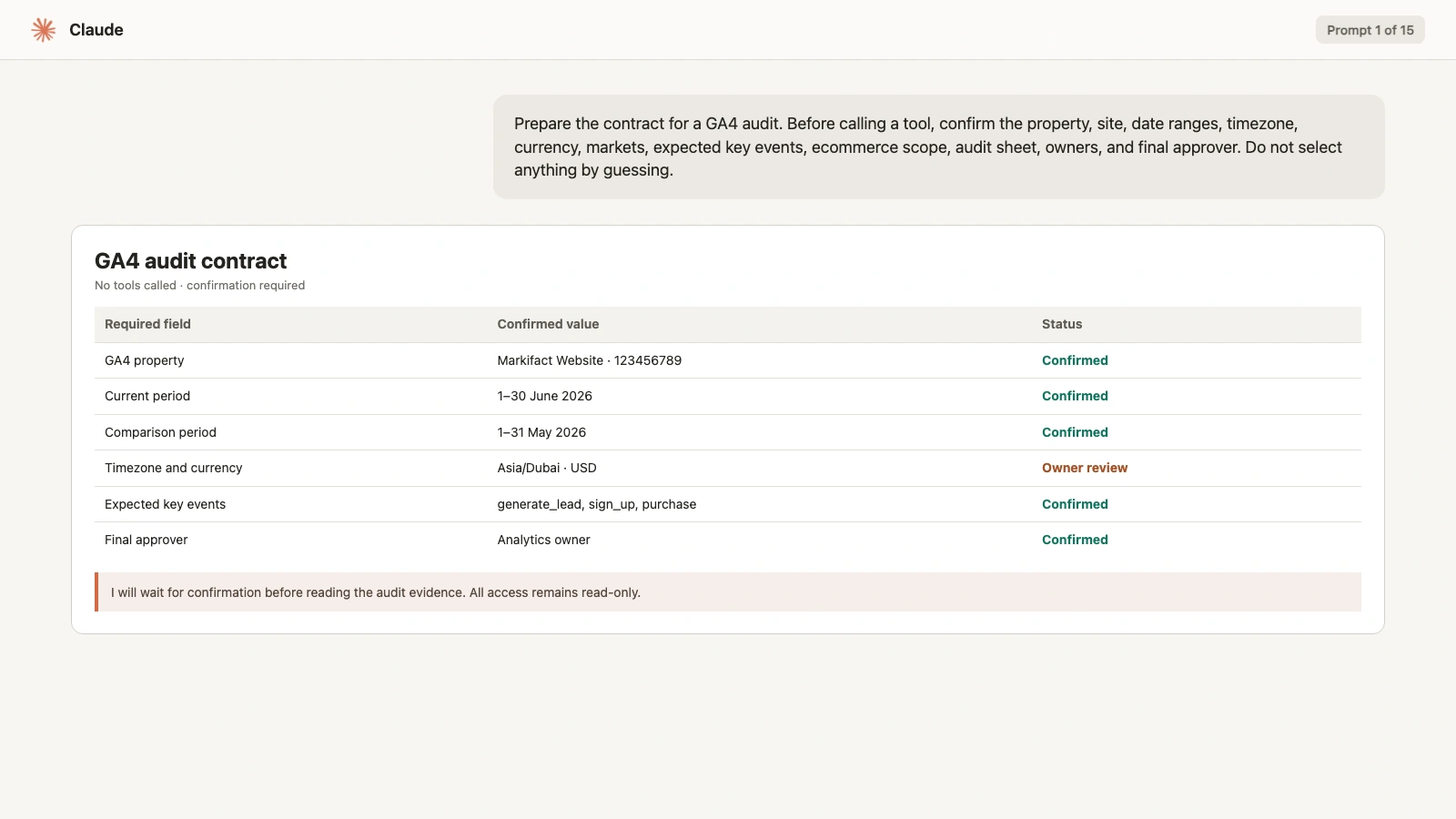
Prepare the contract for a GA4 audit.

Before calling a tool, state:
1. GA4 account and property name and ID
2. Website or app being audited
3. Current date range and comparison range
4. Reporting timezone and currency expected by the business
5. Primary markets
6. Approved business outcomes and expected key events
7. Whether ecommerce applies
8. Audit-sheet URL and tab
9. Analytics owner, technical owner, and final approver

Rules:
- Do not select a property or date range by guessing.
- Do not change GA4, GTM, the website, advertising, or the sheet.
- Do not describe a proposed fix as approved.
- Stop and ask for confirmation before reading the audit evidence.
Prompt 2: read and validate the audit sheet
The first tool call should inventory the configuration evidence without interpreting it.
Read the confirmed Google Analytics audit sheet using the available
read-only Google Sheets operation, such as sheets_read_data.

Validate that the output contains:
- Feature
- Check
- Category
- Score
- Description

Return:
1. sheet and tab read
2. number of populated result rows
3. categories present
4. count of Pass and Fail rows by category
5. duplicate feature identifiers
6. blank scores or descriptions

Do not recommend a fix yet.
Treat every row as evidence from the selected audit run, not as a
universal GA4 rule.
This catches an incomplete or stale sheet before it becomes the basis for a detailed report.
Prompt 3: review property and stream findings
Use the checklist for property details and stream status. Do not ask a GA4 report to reveal admin settings it cannot expose.
Review only these audit-sheet findings:
- data streams
- property timezone
- property currency
- industry category

For each row, return:
- observed configuration evidence
- business context required to judge it
- confidence in the current score
- manual validation step
- owner who should review it

Do not infer an admin setting from traffic data.
Do not recommend changing timezone or currency until the business owner
confirms the expected market and reporting policy.
Prompt 4: review retention and attribution
Retention and attribution settings affect different reporting questions. Keep their consequences separate.
Review the audit-sheet rows for:
- event data retention
- user data retention
- attribution model
- acquisition lookback window
- key-event lookback window

Explain:
1. what the sheet reports
2. what analysis or attribution may be affected
3. what cannot be concluded from the sheet alone
4. the governance or stakeholder decision required
5. the safest manual validation step

Do not call a setting wrong merely because another setting is common.
Do not change the property.
For a standard property, GA4 offers 2-month and 14-month event-data retention choices. The right choice also depends on privacy, governance, and analysis needs.
Prompt 5: investigate referrals and internal traffic
The checklist can flag self-referrals, payment gateways, or test traffic. Claude should convert those flags into a validation plan.
Review the audit rows for developer or test traffic, self-referrals,
payment gateways, and active domains.

Then use ga4_get_report only if needed to retrieve compatible,
read-only evidence for the confirmed dates, including referral source,
landing page, hostname, sessions, and engaged sessions.

Return:
- configuration evidence from the sheet
- report evidence from GA4
- domains or sources that need validation
- possible explanations, labeled as hypotheses
- exact manual tests to run

Do not add a referral exclusion.
Do not change an internal-traffic filter.
Prompt 6: inventory events
This prompt separates automatic, enhanced, recommended, and custom events.
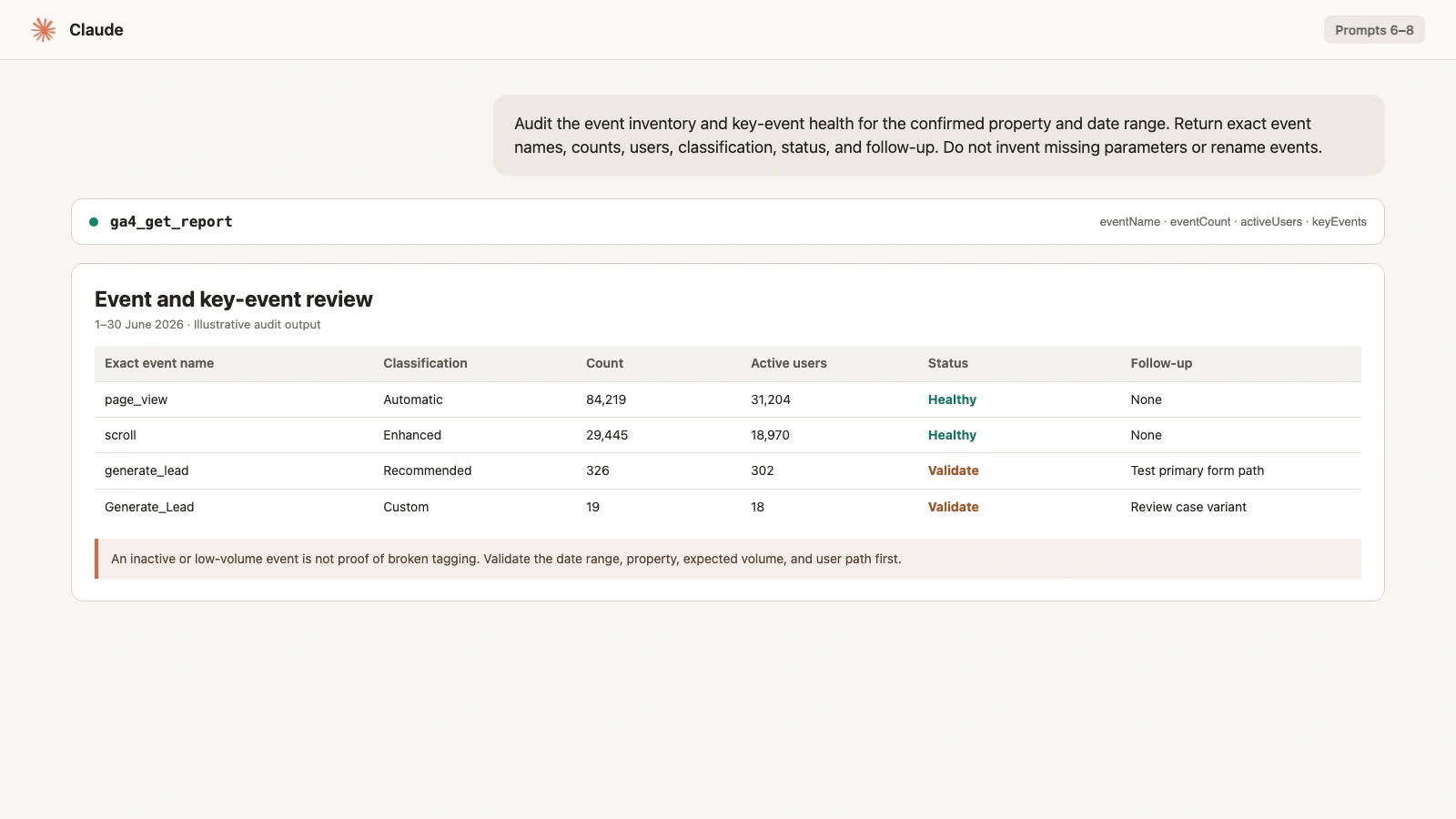
Audit the event inventory for the confirmed GA4 property and date range.

Use the audit-sheet rows for event categories and ga4_get_report with
eventName plus compatible metrics such as eventCount and activeUsers.

Return four tables:
1. automatically collected events
2. enhanced-measurement events
3. recommended events
4. custom events

For every event include:
- exact event name
- event count
- active users when available
- classification source
- whether the name appears in the audit sheet
- follow-up needed

Do not invent missing parameters.
Do not call a custom event invalid only because it is custom.
Prompt 7: audit key-event health
The event needs to represent an approved business outcome before its activity is judged.
Review configured and active key-event findings from the audit sheet.
Use ga4_get_report to retrieve compatible eventName and keyEvents
evidence for the confirmed period.

For each expected key event, show:
- business definition supplied in the audit contract
- configured according to the sheet: Yes / No / Unknown
- observed key-event count
- observed users or sessions when compatible
- value evidence when relevant
- status: Healthy / Needs validation / Not verifiable
- reason for the status

An inactive event is not proof of broken tagging.
First consider the date range, property, expected volume, and user path.
Prompt 8: inspect event naming
Naming problems often create duplicate rows and unreliable downstream logic.
Review the exact event names returned by the audit sheet and GA4 report.

Flag:
- uppercase variants
- inconsistent separators
- leading or trailing spaces
- likely duplicate names that differ only by case
- names longer than the agreed convention
- implementation-specific names that are hard to interpret

Return the original names unchanged.
Propose a naming map in a separate column.
Do not rename or create any event.
Require the analytics owner to approve the final mapping.
Prompt 9: audit channel classification
Use this for Default Channel Group and custom channel evidence.
Use ga4_get_report for the confirmed property and dates.
Retrieve sessionDefaultChannelGroup, sessionSourceMedium, sessions,
engagedSessions, keyEvents, and a comparison when compatible.

Return:
- channel totals
- source or medium rows contributing to Direct and Unassigned
- material month-over-month changes
- sources that may need UTM or channel-rule validation
- any incompatible or unavailable field

Keep observed values separate from interpretation.
Do not change a channel group.
Do not assign a source to a channel without an approved rule.
Prompt 10: investigate Direct traffic
High Direct traffic is a symptom with several plausible causes.
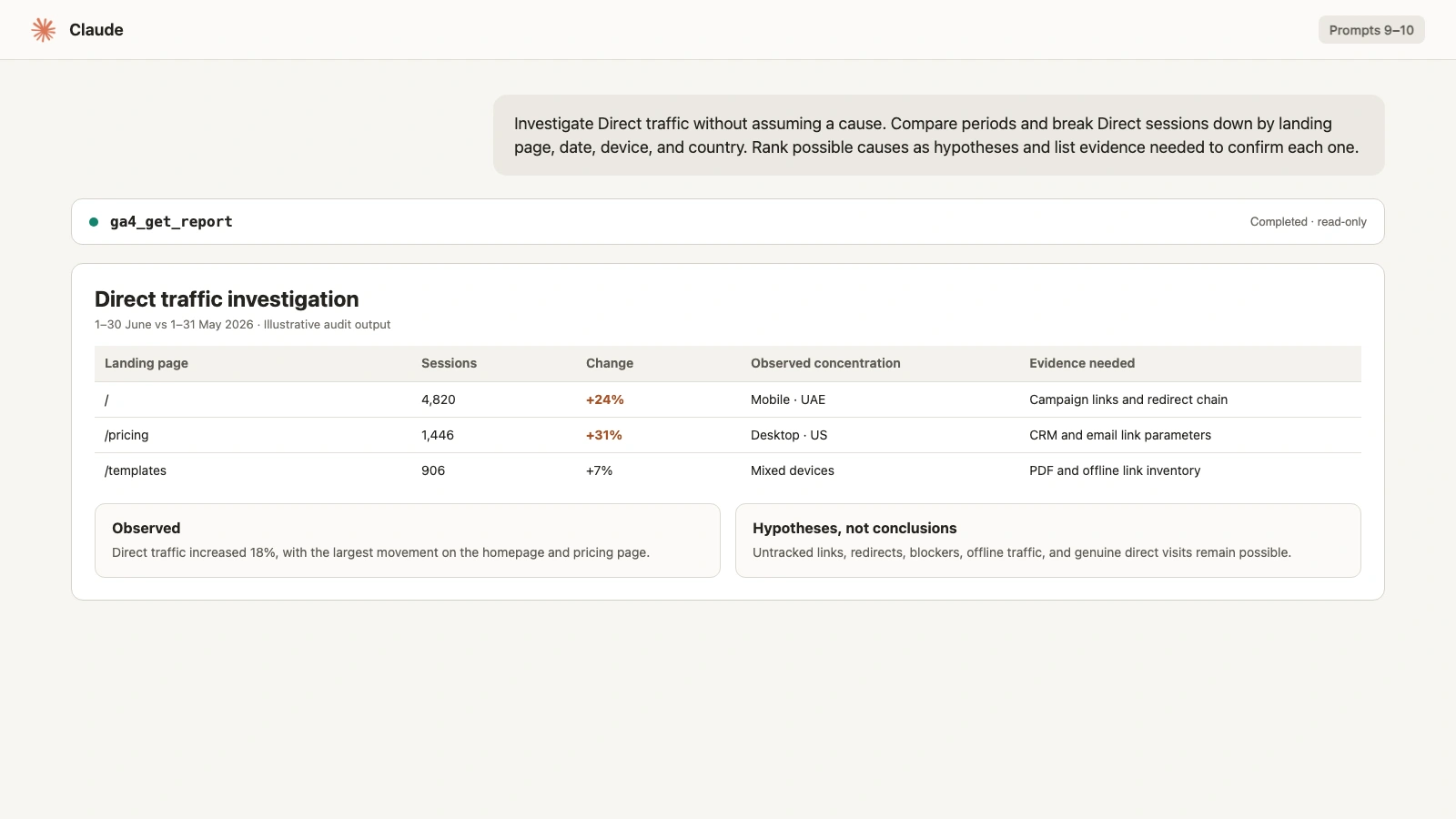
Investigate Direct traffic without assuming a cause.

For the confirmed current and comparison periods, use compatible GA4
reports to break Direct sessions down by:
- landing page
- date
- device
- country

Return:
1. current and comparison totals
2. largest landing-page contributors
3. dates with unusual movement
4. segment concentrations
5. possible causes ranked as hypotheses
6. evidence needed to confirm or reject each hypothesis

Do not state that missing UTMs caused Direct traffic unless supplied
campaign or redirect evidence proves it.
Prompt 11: audit ecommerce integrity
Only run this when ecommerce is part of the approved scope.
Audit ecommerce integrity for the confirmed property and complete date range.

Use the audit sheet for configuration findings and ga4_get_report for
compatible evidence such as ecommercePurchases, transactions,
purchaseRevenue, eventName, and transactionId when available.

Check:
- purchase activity
- transaction IDs present
- duplicate transaction IDs
- revenue and currency evidence
- current versus comparison movement
- periods or fields that cannot be verified

Return Observed evidence, Interpretation, Validation step, Owner, and
Approval required.

Zero transactions do not prove a broken implementation.
Do not estimate revenue or missing transaction IDs.
Prompt 12: review integrations and audiences
The checklist can confirm whether Google Ads, BigQuery, and audience types are present. Claude should judge them against use cases, not completeness for its own sake.
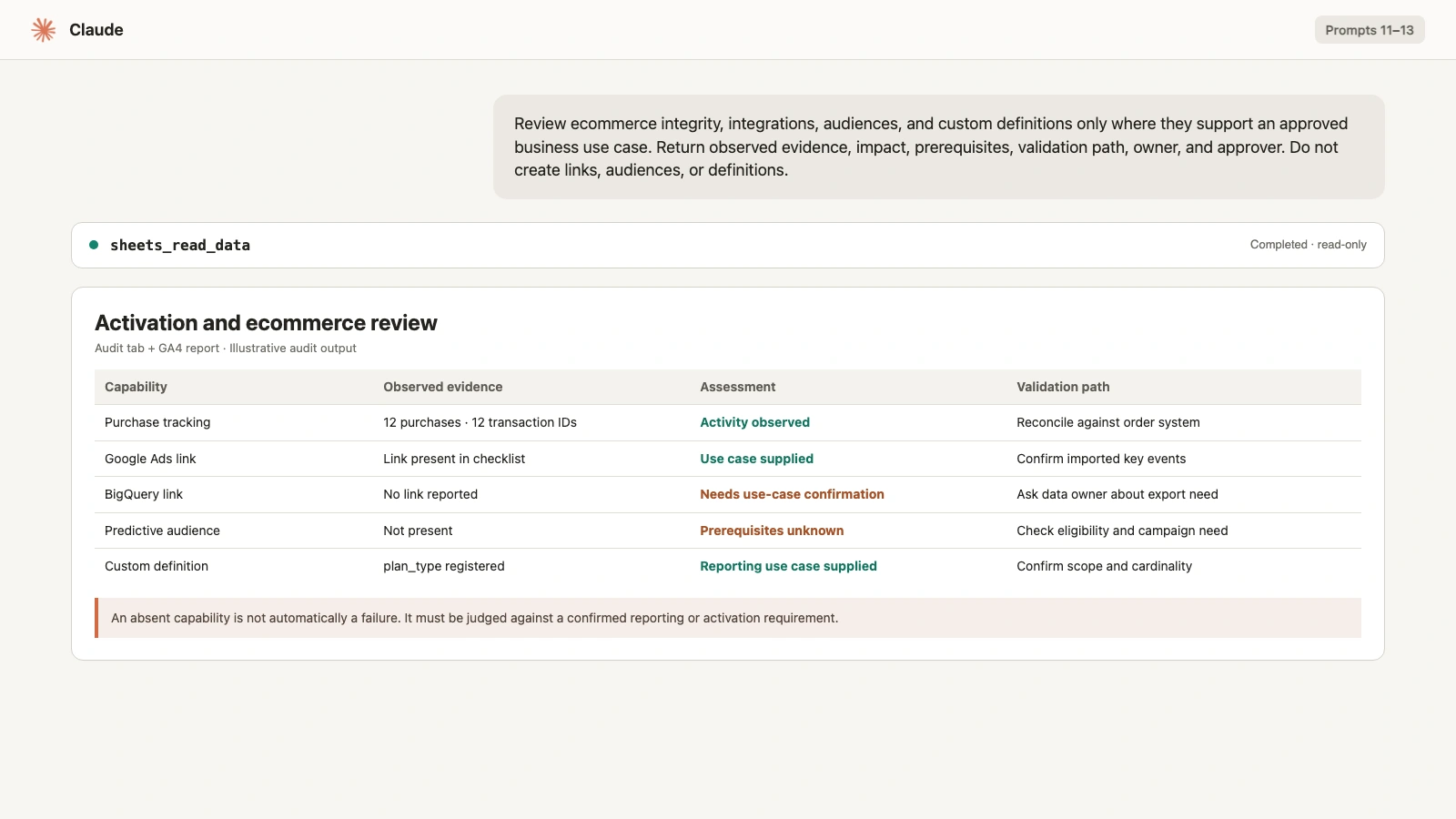
Review only the audit-sheet findings for:
- Google Ads links
- BigQuery links
- automatic audiences
- manual audiences
- predictive audiences

For each capability, return:
- observed sheet evidence
- approved business use case, if supplied
- impact if absent
- prerequisites
- manual validation path
- owner and approver

Use Needs use-case confirmation when no requirement was supplied.
Do not create a link or audience.
Do not treat every absent capability as a failure.
Prompt 13: review custom dimensions and metrics
Custom definitions should map to collected data and a real reporting need.
Review the audit-sheet findings for custom dimensions and custom metrics.

Ask for the measurement plan and expected custom parameters.
Then return:
- required definition
- parameter or user property
- intended scope
- observed in sheet: Yes / No / Unknown
- reporting use case
- cardinality risk
- duplicate standard field risk
- validation step

Do not propose a custom definition only to make the checklist pass.
Prefer a standard GA4 dimension or metric when it satisfies the use case.
Do not create or archive a definition.
Prompt 14: build the severity and remediation plan
Once all evidence has been reviewed, turn the findings into an owned plan.
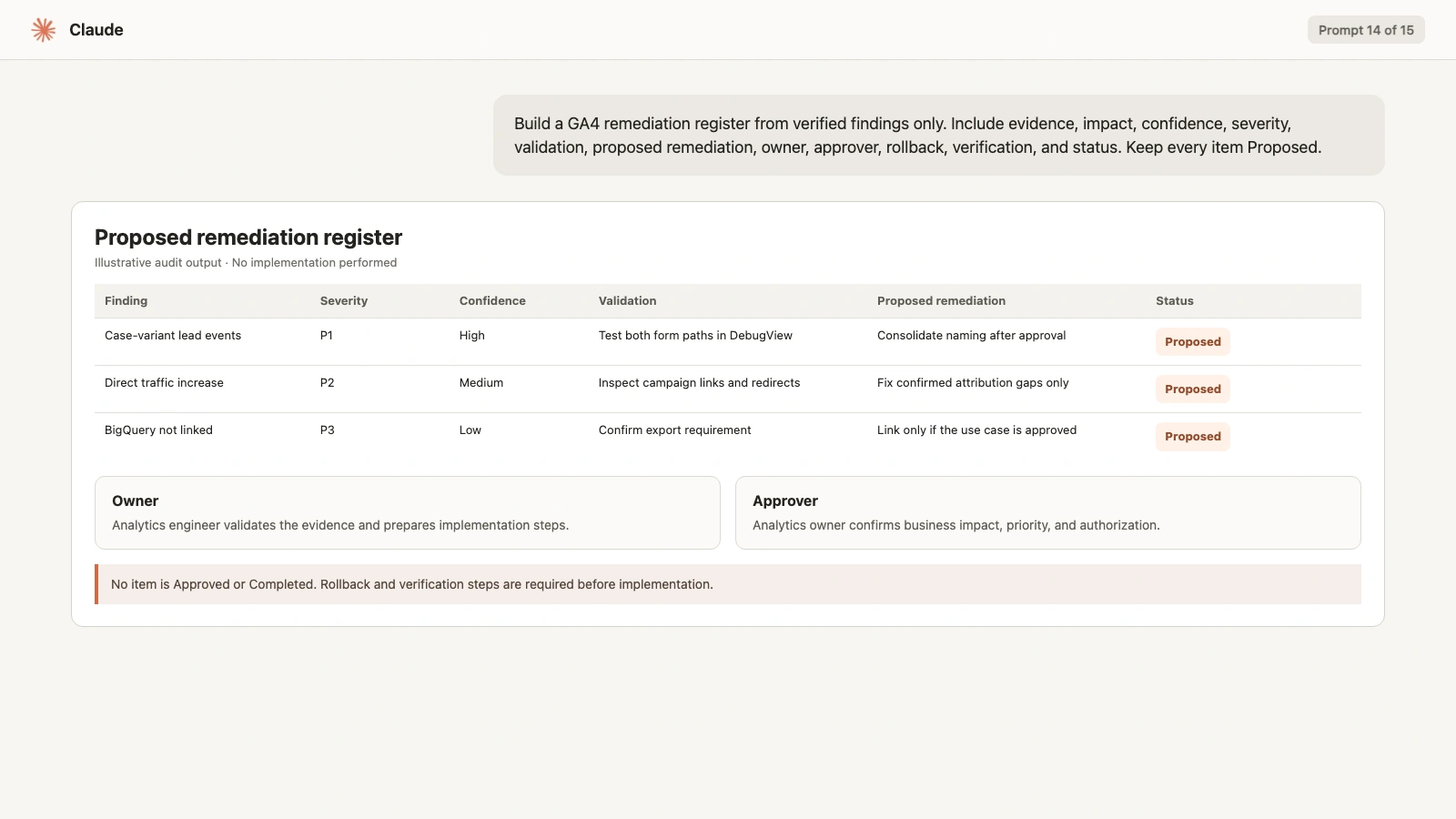
Build a GA4 remediation register from the verified findings only.

For each finding include:
- check
- category
- source evidence
- business impact
- confidence: High / Medium / Low
- severity: P0 / P1 / P2 / P3
- proposed validation
- proposed remediation
- owner
- approver
- rollback plan
- verification method
- status: Proposed

Severity definitions:
P0 = active data corruption, severe compliance risk, or critical outage
P1 = material outcome, revenue, or attribution error
P2 = analysis limitation or incomplete activation
P3 = documentation, cleanup, or optimization opportunity

Do not include an unverified finding as a confirmed defect.
Do not mark any remediation Approved or Completed.
Prompt 15: write the final audit summary
The summary should be concise enough for a stakeholder and traceable enough for an analyst.
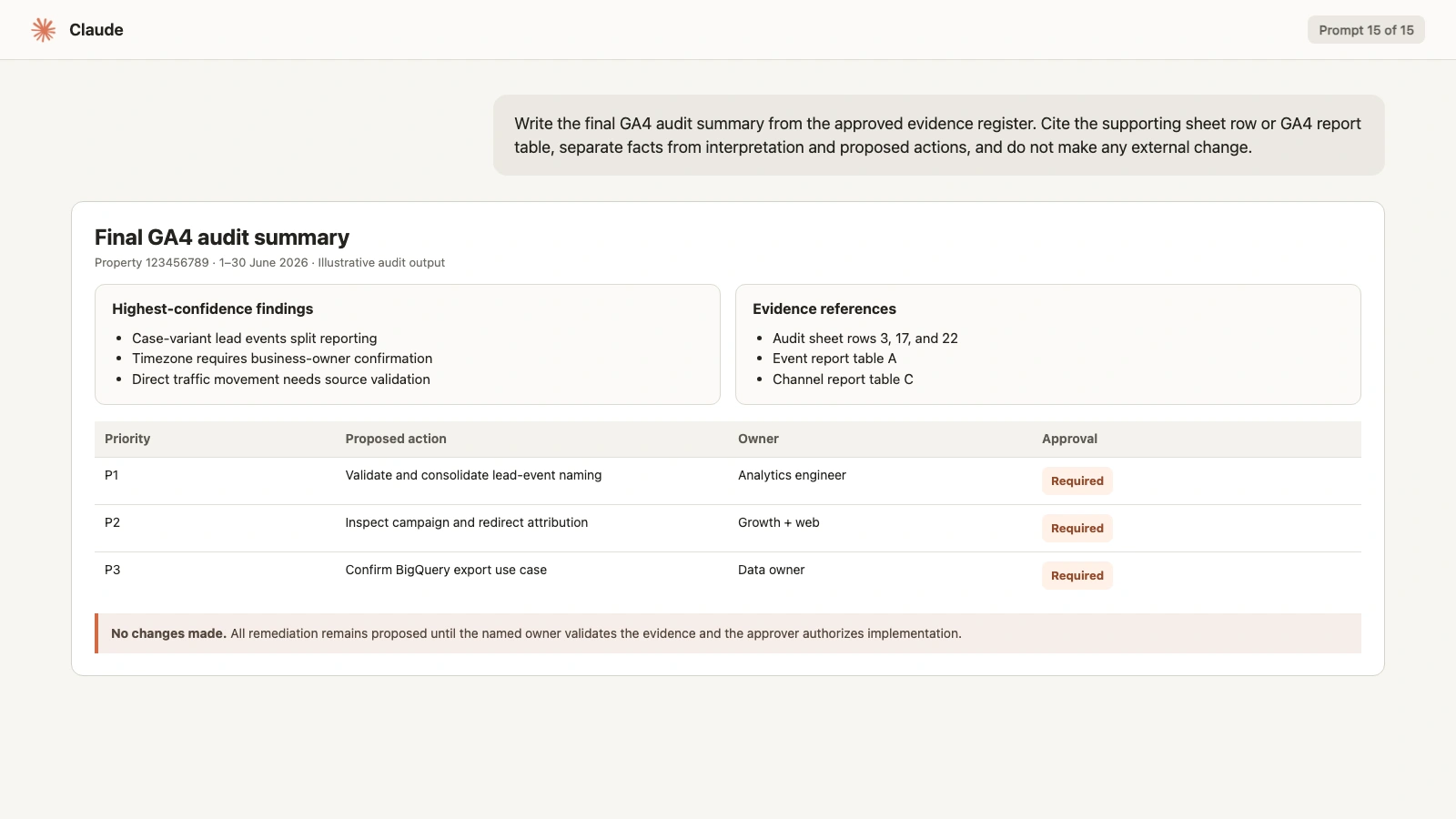
Write the final GA4 audit summary from the approved evidence register.

Structure:
1. audit scope and exact dates
2. property and evidence sources
3. three highest-confidence findings
4. material data limitations
5. P0 and P1 proposed actions
6. P2 and P3 backlog
7. owners and approvals still required
8. verification and rerun plan

For every finding, cite the audit-sheet row or GA4 report table that
supports it.
Separate observed facts, interpretations, and proposed actions.
Use cautious language for unresolved causes.
Do not describe a proposed change as approved.
Do not make any external change.
QA the Claude audit before sharing it
Use this final human checklist:
- Correct GA4 property and audit sheet
- Exact complete date and comparison ranges
- Configuration facts sourced from the sheet
- Reporting facts sourced from compatible GA4 fields
- No invented admin settings
- No incompatible dimensions and metrics silently combined
- Missing data shown as unavailable
- No causal claim without evidence
- Key events mapped to approved business outcomes
- Ecommerce judged only when relevant
- Every finding has a source and confidence level
- Every remediation remains proposed until approved
- Owners and verification methods are named
- No GA4, GTM, site, or advertising changes were performed
After approved changes are implemented by the correct owners, rerun the same Google Analytics Audit Checklist template. Compare the new sheet with the original rather than asking Claude to remember the previous state.
Frequently asked questions
Can Claude audit Google Analytics?
Yes. Claude can review a completed configuration checklist and use connected read-only GA4 reporting tools to inspect metrics, dimensions, events, channels, ecommerce, and other report evidence. It cannot infer every GA4 Admin setting from a report.
Does Claude need access to my GA4 property?
Claude needs an authorized connector if it will retrieve live GA4 reports. Use a trusted remote MCP connection, review its permissions, select the correct property, and enable only the tools needed for the audit.
Can Claude fix GA4 tracking problems?
Claude can draft validation steps and remediation proposals. A qualified person should confirm the evidence, approve the change, implement it through GA4, GTM, or the site, and verify the result.
What GA4 audit prompts should I use first?
Start with the audit contract, validate the completed audit sheet, then review property findings and report symptoms separately. Do not begin with a broad request such as “find everything wrong with GA4.”
Why use an audit sheet with Claude?
The sheet provides traceable configuration evidence with named checks, scores, and descriptions. It prevents Claude from guessing admin settings that are not available through reporting data.
How often should I rerun the Claude GA4 audit?
Rerun after approved tracking changes, major releases, consent changes, ecommerce changes, or unexplained reporting movement. A quarterly full review is a useful starting point for a stable property.