

To connect Google Tag Manager to Claude, connect Google Tag Manager in Markifact, install the approved Markifact connector, and sign in to your workspace. Claude can then inspect your GTM setup and prepare tags, triggers, variables, versions, and publishing actions through real GTM operations. Every write waits for your approval, so you can review the exact account, container, workspace, and payload before anything changes.
The quick version
- In Markifact, open Connections and connect Google Tag Manager with your authorized account.
- Open the approved Markifact connector in Claude and click Connect.
- Sign in to the same Markifact workspace and review the connection access.
- Enable Markifact in the Claude conversation.
- Ask Claude to confirm the exact account or property, then run a read-only report before requesting changes.
This is full GTM management, not only reporting. The safe sequence is still read first, edit a workspace second, create a version after review, and publish only after a final approval.
The video may show the earlier manual connector setup. Follow the directory installation steps in this article for the current connection route.
What you are actually connecting
The setup has three layers:
- Google Tag Manager stores the accounts, containers, workspaces, tags, triggers, variables, versions, and publishing state.
- Markifact handles Google OAuth and exposes GTM operations through a hosted MCP server.
- Claude turns a plain-language request into the appropriate read or write operation and explains the result.
Google provides the official Tag Manager API v2. As of July 23, 2026, Google's public managed MCP materials do not list an official Google Tag Manager MCP server. Markifact supplies the managed MCP layer used in this guide.
Understand the GTM hierarchy first
GTM has a hierarchy that matters whenever you ask Claude to make a change:
- An account contains one or more containers.
- A container represents a web, server, Android, or iOS tagging environment.
- A workspace is where editable changes are prepared.
- A container version is an immutable snapshot of a workspace.
- The live version is the version currently published to sites or apps using that container.
Creating a tag in a workspace does not make it live. Creating a version does not publish it either. Publishing is a separate operation and approval.
Before you start
You need:
- A Markifact workspace.
- A Google account with the required GTM account and container permissions.
- A Claude account and workspace that allow the Markifact connector.
- The GTM account, container, and workspace you intend to use.
- A clear idea of whether the request is an audit, a draft workspace change, or a production publish.
The connected Google user's permissions remain the source of truth. If the user can view a container but cannot edit or publish it in GTM, Claude cannot bypass that boundary.
For the first session, use a read-only audit. Do not begin by asking Claude to create and publish a tag in one instruction.
1. Connect Google Tag Manager in Markifact
Open Markifact, go to your connections, choose Google Tag Manager, and select Connect. Sign in with the Google account that has access to the GTM accounts and containers you want to manage.
Markifact requests the Google scopes needed to manage accounts, edit containers and container versions, and publish. Google still applies the user's GTM permissions to every request.
After OAuth completes, confirm that the connection is active. If you manage several clients, ask Markifact or Claude to list the available accounts and containers before naming a target.
2. Install Markifact from the Claude directory
Markifact is approved in Claude's connector directory. Open the Markifact listing and click Connect. Complete the Markifact sign-in, choose the intended workspace, and review the requested access. If prompted to choose an MCP server, select the one with the connections you want to use.
In a Claude conversation, open + > Connectors and enable Markifact. You do not need to add a custom connector or paste a server URL for this setup. If your organization manages connector access, an administrator may need to allow Markifact first.
3. Run a safe first GTM audit
Start by discovering the correct target and reading the live version:
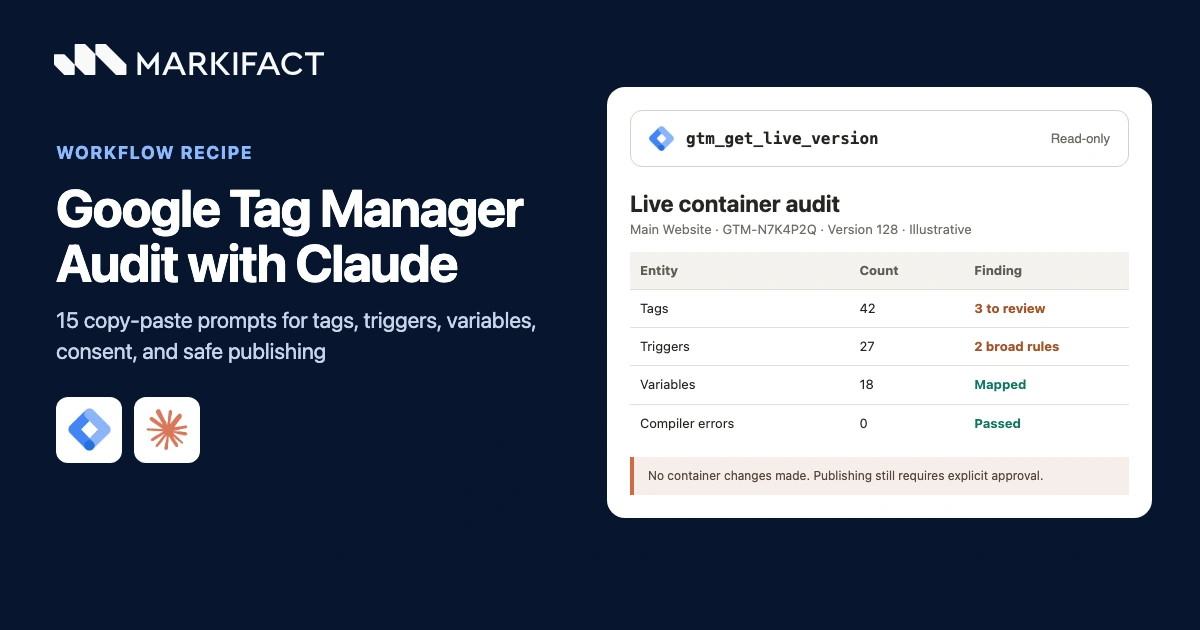
Use Markifact to list my Google Tag Manager accounts and containers. Find the container named Main Website in the Aster Commerce account. Then inspect its live version and summarize the tags, triggers, variables, paused tags, and obvious configuration risks. Read only. Do not create, update, delete, version, or publish anything.
Claude can use operations such as gtm_list_accounts, gtm_list_containers, and gtm_get_live_version. Ask it to repeat the account ID, container ID, public container ID, and live version number in the answer.
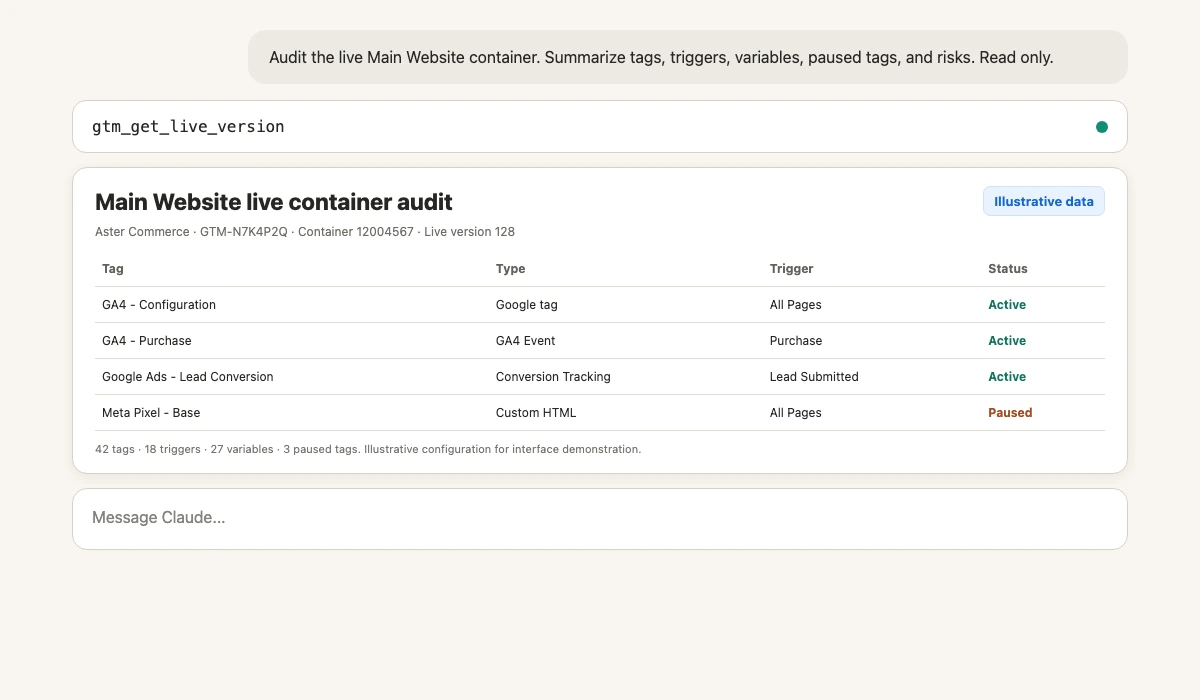
The live-version check matters because a workspace may contain unpublished changes. Auditing only a workspace can make a draft configuration look like the production setup.
Real Google Tag Manager MCP operation examples
Markifact's current GTM registry contains 97 operations: 37 reads and 60 approval-gated writes. The names below are examples, not an exhaustive list.
Useful read examples include:
gtm_list_accountsgtm_list_containersgtm_list_workspacesgtm_list_tagsgtm_list_triggersgtm_list_variablesgtm_get_workspace_statusgtm_get_live_version
Useful write examples include:
gtm_create_taggtm_create_triggergtm_create_variablegtm_update_taggtm_quick_preview_workspacegtm_create_versiongtm_publish_version
The catalog also covers folders, built-in variables, clients, templates, transformations, zones, environments, destinations, container combinations, and recovery operations. The Google Tag Manager MCP page is the best reference for the full surface.
Audit the live container before editing
A useful audit should answer:
- Which version is live?
- Which tags fire on every page?
- Which triggers have no associated tags?
- Which variables appear unused?
- Which tags are paused?
- Are old analytics or advertising tags still present?
- Are naming conventions consistent?
- Are consent checks and initialization order sensible?
Copy this prompt:
Audit the live GTM version for account 6001234567 and container 12004567. List all tags with their type, firing triggers, pause state, and consent configuration. Flag duplicate measurement tags, orphaned triggers, unused variables, broad Custom HTML tags, and inconsistent names. Separate confirmed findings from items that need a human check. Read only.
Claude can structure the result, but it cannot prove browser behavior from container configuration alone. A tag that looks correct may still fail because of consent state, page data, selectors, JavaScript errors, or a destination-side setting. Use GTM Preview and browser validation before publishing.
Build tags, triggers, and variables safely
The best way to use Claude for GTM changes is to make the dependency order explicit. A typical tracking change may need:
- A variable that reads a data-layer value.
- A trigger that defines when the event occurs.
- A tag that sends the event.
- A preview of the workspace.
- A container version.
- A final publish.
Ask Claude to inspect the workspace first and explain the intended payloads:
In the Measurement Cleanup workspace for account 6001234567 and container 12004567, prepare a GA4 purchase event setup. Before any write, inspect existing ecommerce variables, purchase triggers, Google tags, and naming conventions. Propose the exact variable, trigger, and tag payloads, explain dependencies, and wait for approval for each write. Do not create a version or publish.
Every write is approval-gated. Reviewing the exact operation and target is especially important when several accounts use similar container names.
Do not treat the operation names as a fixed limit. gtm_create_tag, gtm_create_trigger, and gtm_create_variable are representative examples from a much larger GTM surface.
Preview, create a version, then publish
There are three different checkpoints:
Preview the workspace
Use a workspace status or quick-preview operation to catch conflicts and inspect the proposed configuration. Then run GTM Preview in a real browser to test consent, data-layer values, firing order, network requests, and duplicate events.
Create a container version
gtm_create_version snapshots the workspace. Google then removes that source workspace and creates a new default workspace, so version creation deserves its own review and approval.
Use a descriptive name and notes:
After I approve, create a container version from the Measurement Cleanup workspace. Name it GA4 Purchase Cleanup. Include notes describing the new purchase event tag, trigger, variables, validation performed, and rollback plan. Do not publish it.
Publish the approved version
gtm_publish_version is separate. Publishing makes the selected version live on every site or app using the container.
Prepare to publish version 129 in account 6001234567 and container 12004567. First restate the current live version, target version, version name, change summary, validation completed, and rollback version. Do not publish until I explicitly approve the gtm_publish_version operation.
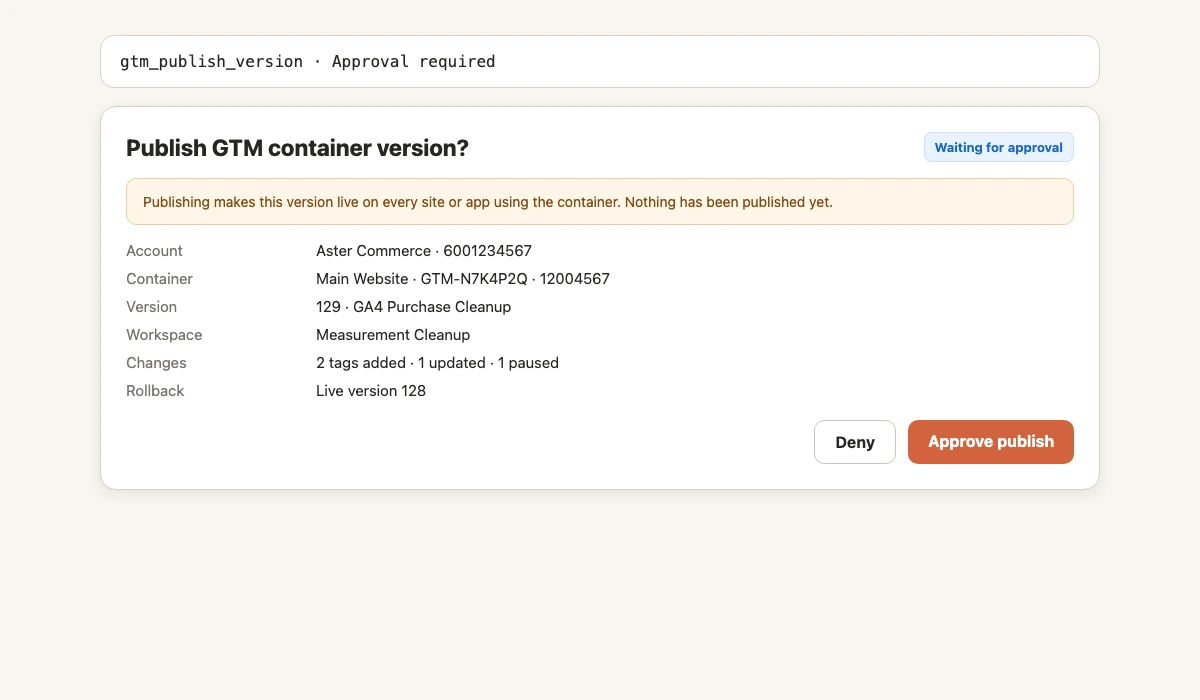
This split prevents a sensible workspace edit from becoming an accidental production release.
Copy-paste GTM prompts for Claude
Find duplicate analytics tags
Inspect the live version of Main Website. Find Google tags, GA4 event tags, and Custom HTML tags that may send duplicate page_view, purchase, generate_lead, or sign_up events. Show the evidence and firing triggers. Read only.
Review a workspace against live
Compare the Measurement Cleanup workspace with the live container version. Summarize added, modified, and deleted tags, triggers, and variables. Flag conflicts, unexpectedly broad triggers, and changes to consent settings. Do not write or publish.
Clean up naming without changing behavior
Audit tag, trigger, variable, and folder names in the workspace. Propose a consistent naming convention and a rename plan. Do not apply any rename until I approve each operation. Do not alter payloads, trigger logic, or publishing state.
Prepare a Google Ads conversion tag
Inspect the existing Google tag, consent setup, lead data-layer event, and conversion tags. Propose a Google Ads lead conversion tag using the existing conventions. Show the exact trigger and tag payload, identify any missing inputs, and wait for approval. Do not create a version or publish.
Document the live container
Create a read-only inventory of the live container grouped by analytics, advertising, consent, utilities, and Custom HTML. Include tag type, trigger, variables, owner inference, and cleanup risk. Clearly label every inference.
Advanced GTM work Claude can prepare
The connector goes beyond basic web tags. Depending on the container and permissions, Claude can work with server-side clients, custom templates, transformations, zones, environments, destinations, folders, and built-in variables.
Some operations carry unusually high risk. For example, combining containers can be irreversible and retire the source container. Deleting or publishing can affect production tracking immediately. Keep high-impact actions isolated, require explicit account and container IDs, and review the approval card carefully.
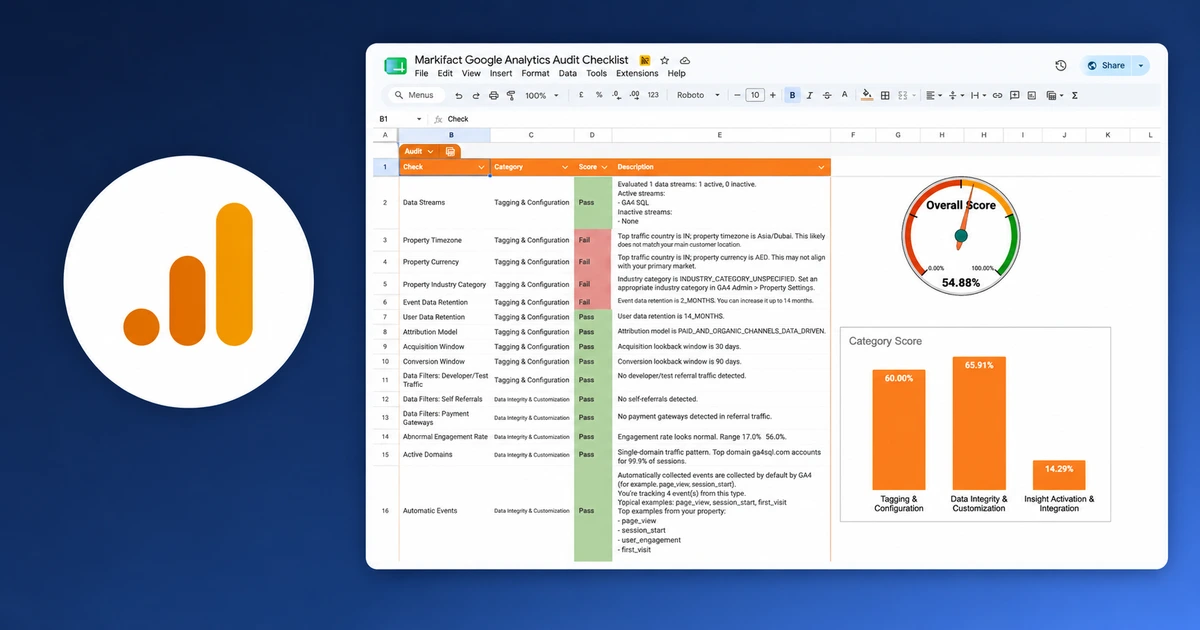
For measurement analysis after implementation, connect GA4 to Claude. GTM tells you how tracking is configured. GA4 tells you what data arrived and how users behaved. The two answer different questions.
Troubleshooting
Claude cannot find the account or container
Open GTM with the same Google account used in Markifact. Confirm the user can see the account and container, then reconnect GTM if permissions changed.
The connector is missing in Claude
Check Settings > Connectors, confirm the Markifact connector exists, and enable it for the current conversation.
A write returns a permissions error
The Google user may have read access but not edit, approve, or publish access. Check GTM user management rather than reconnecting repeatedly.
The workspace changed but the site did not
Workspace edits are not live. Create a version after validation, then publish that version with a separate approval.
Version creation removed the workspace
That is expected GTM behavior. Creating a version snapshots the workspace and replaces it with a new default workspace.
The published tag does not fire
Use GTM Preview, inspect the data layer and consent state, check the tag's trigger and exceptions, and confirm the destination receives the request. Configuration review alone cannot reproduce the browser.
A safe first workflow
- List the GTM accounts and containers.
- Confirm the exact account and container IDs.
- Read the live version.
- Audit tags, triggers, variables, consent, and naming.
- Choose or create a workspace.
- Prepare one small change with explicit dependencies.
- Approve each write separately.
- Review workspace status and run GTM Preview.
- Create a named container version.
- Publish only after a separate review and approval.
- Validate the production site and keep the previous live version as the rollback point.
If you prefer ChatGPT or Codex, the companion guide explains how to connect Google Tag Manager to ChatGPT and Codex.
Frequently asked questions
Can Claude connect to Google Tag Manager?
Yes. Connect GTM to Markifact with Google OAuth, install the approved Markifact connector, and authenticate. Claude can then use the GTM operations available to the connected account.
Is there an official Google Tag Manager MCP server?
As of July 23, 2026, Google's public managed MCP materials do not list an official GTM MCP server. Google provides the official Tag Manager API v2, while Markifact supplies the hosted MCP layer described here.
Can Claude create and publish GTM tags?
Yes. Markifact supports full read and write GTM workflows. Writes, version creation, and publishing require approval, and publishing should remain a separate final step.
Does creating a GTM tag make it live?
No. The tag is created in a workspace. You must validate the workspace, create a container version, and publish that version before the change becomes live.
How many GTM operations does Markifact support?
The current registry contains 97 GTM operations, split into 37 reads and 60 approval-gated writes. Named operations in this guide are examples, not the complete list.
Can Claude work with server-side GTM containers?
Yes. The GTM surface includes server-side resources such as clients and transformations, subject to the connected account's container type and permissions.
Do I need a Google Cloud project or service account?
Not for the Markifact route. Google OAuth authorizes the connection, and Markifact hosts the MCP server.
How do I prevent accidental publishing?
Use read-only prompts first, make workspace writes one at a time, validate in GTM Preview, create a version separately, and require an explicit final approval for gtm_publish_version.