
To connect Google Tag Manager to ChatGPT, connect GTM in Markifact, open the approved Markifact app in ChatGPT, authenticate, and start with a read-only audit of the live container. The same Markifact app can also be enabled in Codex inside the ChatGPT desktop app. You can inspect and manage the full GTM lifecycle, while every write waits for approval before Markifact sends it to Google.
The quick version
- Open the Google Tag Manager MCP page and connect your GTM account.
- Open the approved Markifact app in ChatGPT.
- Select Connect and authenticate your Markifact workspace.
- Add Markifact to a ChatGPT conversation and ask it to list your GTM accounts and containers.
- Read the live container version before preparing a workspace change.
- In Codex, use
/appsto enable Markifact separately when you want the same GTM access in a coding task.
Creating a workspace tag is not the same as publishing it. The reliable path is inspect, prepare, preview, version, approve the publish, then validate production.
What the Google Tag Manager MCP connection does
The connection joins three systems:
- Google Tag Manager remains the source of truth for accounts, containers, workspaces, versions, and live configuration.
- Markifact handles Google OAuth and provides the hosted GTM MCP operations.
- ChatGPT or Codex interprets the request, calls the relevant operation, and presents reads or approval-gated writes.
Google provides the official Tag Manager API v2. As of July 23, 2026, Google's public managed MCP materials do not list an official GTM MCP server. Markifact is the managed MCP route covered here.
Before you connect GTM
You need:
- A Markifact workspace.
- A Google account with access to the relevant GTM accounts and containers.
- Access to ChatGPT apps.
- The correct account, container, and workspace names or IDs.
- A clear line between a read-only audit, a workspace edit, a version, and a publish.
Google applies the connected user's GTM permissions. If that user cannot publish a container in GTM, connecting the app does not grant publishing rights.
The GTM hierarchy also matters: accounts contain containers, containers contain workspaces and versions, and workspaces contain editable tags, triggers, variables, and related entities. The live version is the published production configuration.
1. Connect Google Tag Manager in Markifact
Open Markifact, choose Google Tag Manager from connections, and select Connect. Sign in with the Google account that can access the GTM accounts and containers you want to use.
Markifact requests Google scopes for container editing, account management, container-version editing, and publishing. The approval layer in Markifact is separate from Google's own permissions. Both must allow the action.
Confirm the connection is active before opening ChatGPT.
2. Connect the approved Markifact app in ChatGPT
Open the Markifact app listing, select Connect, and complete authentication.
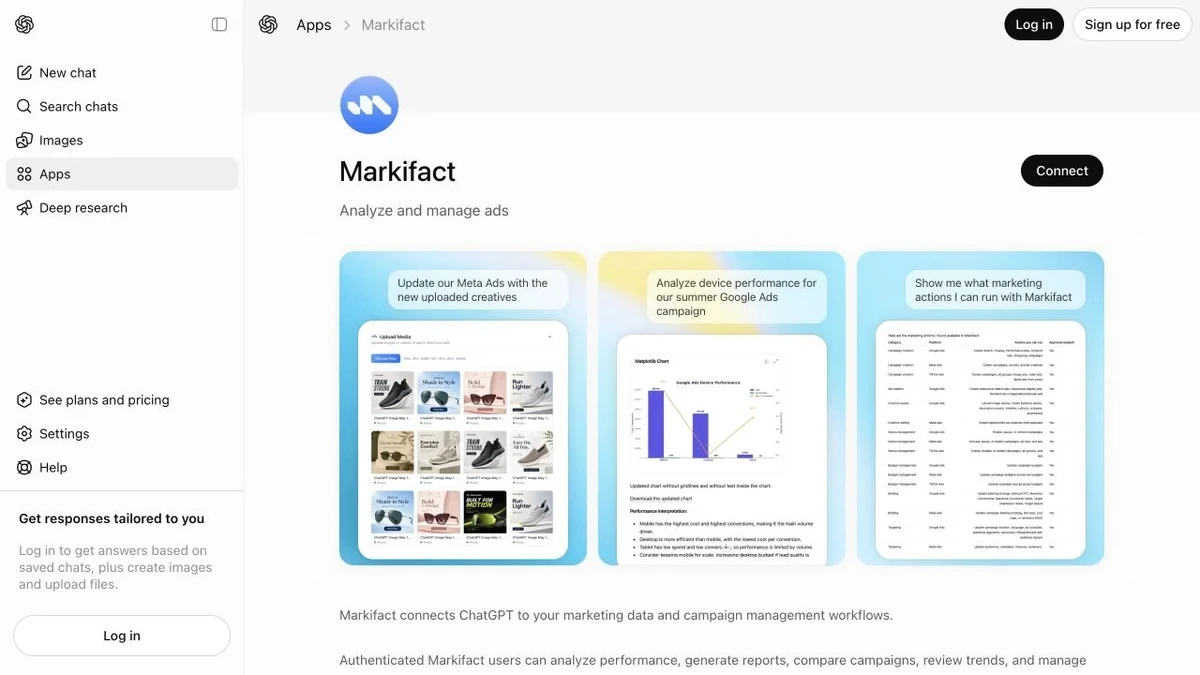
In a conversation, add the Markifact app from the composer and name the GTM target clearly. A safe first prompt is:
Use Markifact to list my Google Tag Manager accounts and containers. Find Main Website in the Aster Commerce account, show its account ID, container ID, public ID, and current live version. Read only. Do not create, update, delete, version, or publish anything.
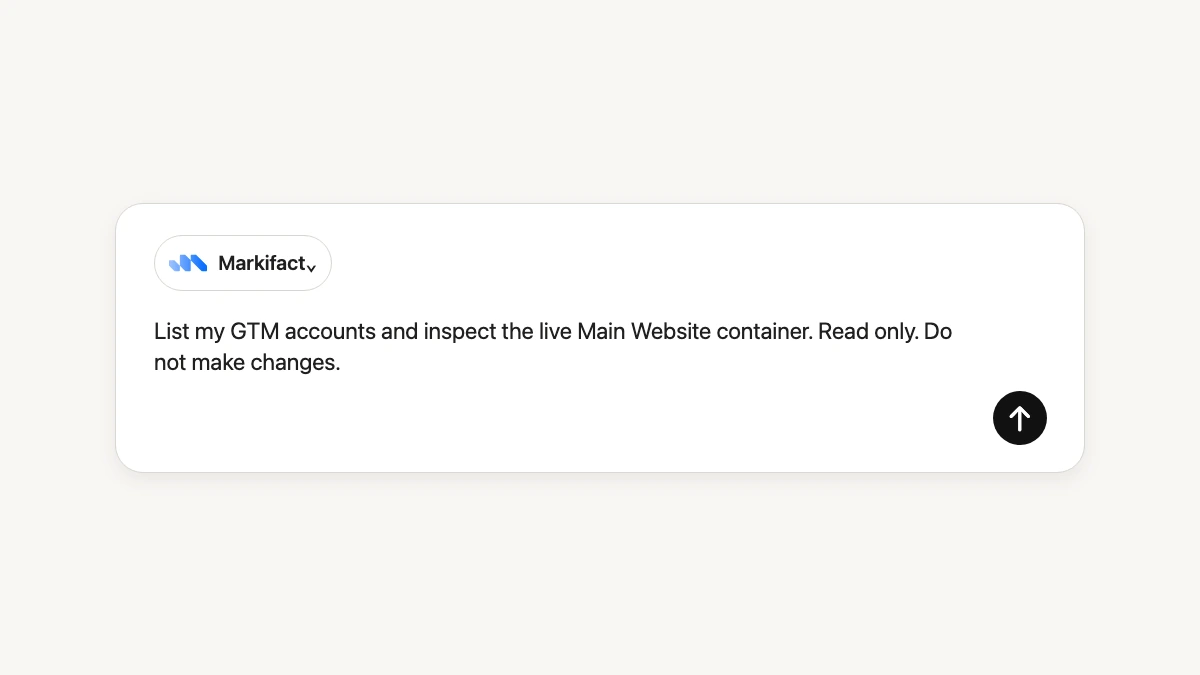
If several containers have similar names, do not proceed until ChatGPT repeats the exact account and container IDs.
3. Audit the live GTM container first
Ask ChatGPT to use the live version, not just an arbitrary workspace:
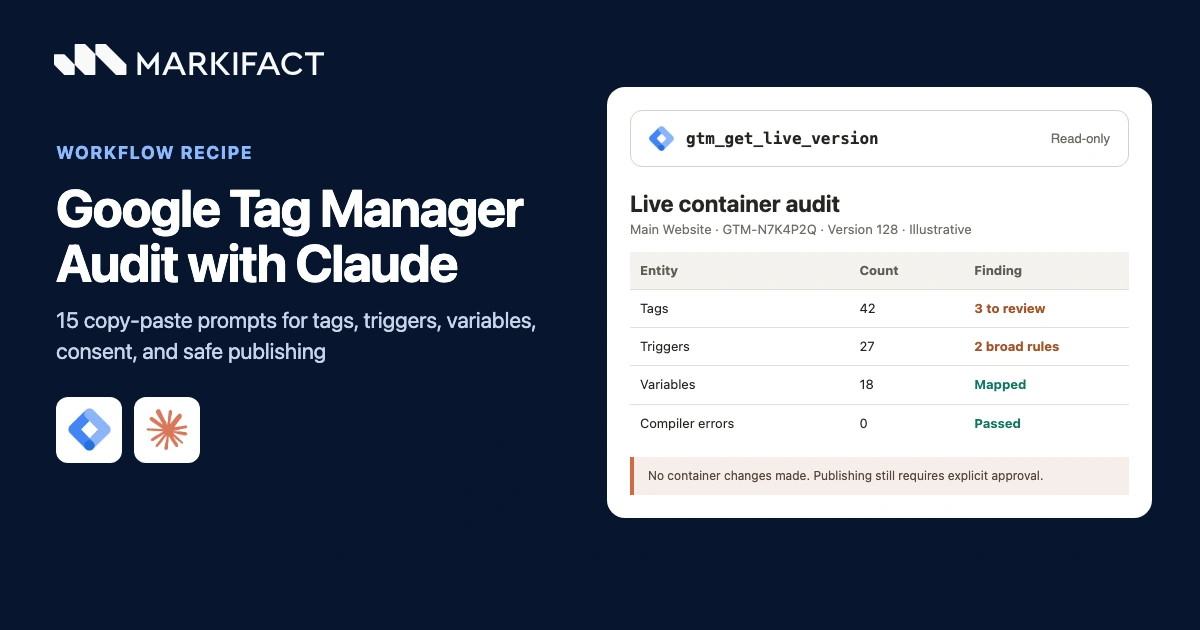
Audit the live version for account 6001234567 and container 12004567. Summarize all tags by type, firing trigger, pause state, and consent configuration. Flag duplicate analytics or advertising tags, orphaned triggers, unused variables, inconsistent naming, and broad Custom HTML tags. Separate confirmed configuration facts from items that require browser testing. Read only.
The relevant read operations can include gtm_list_accounts, gtm_list_containers, gtm_list_workspaces, gtm_list_tags, and gtm_get_live_version.
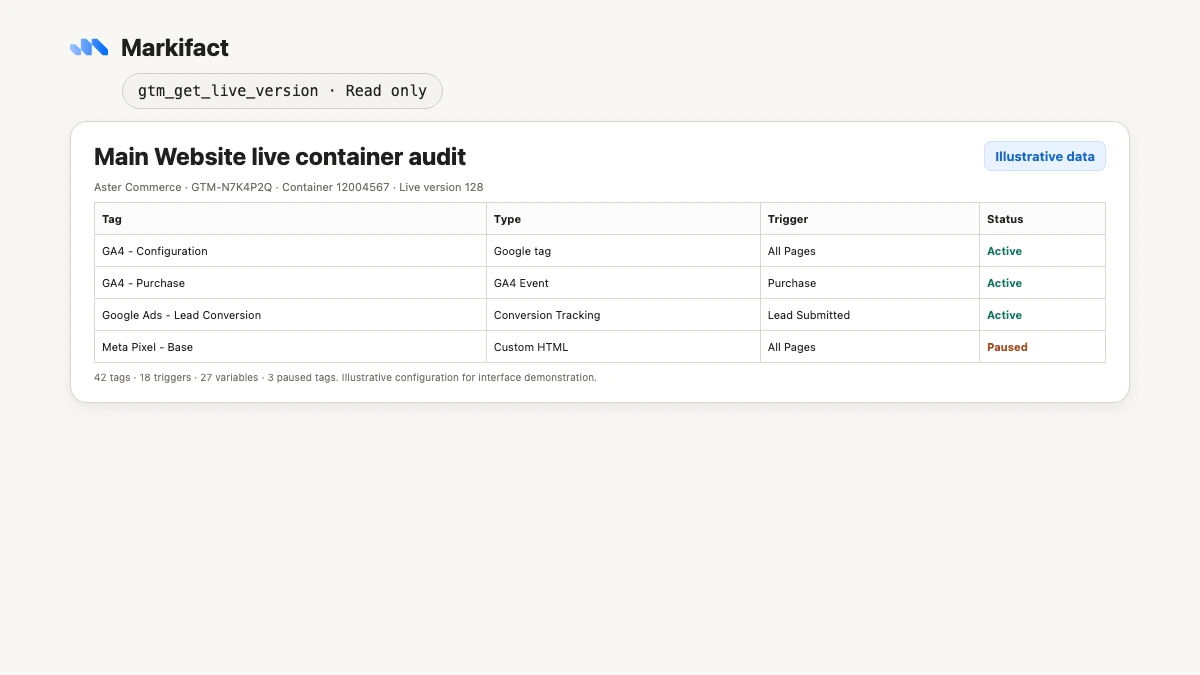
Workspace configuration can differ from production. The live-version operation establishes the baseline that users actually receive.
Real GTM operation examples
Markifact's current registry contains 97 GTM operations: 37 reads and 60 approval-gated writes. The following names are examples, not an exhaustive list.
Read examples:
gtm_list_accountsgtm_list_containersgtm_list_workspacesgtm_list_tagsgtm_list_triggersgtm_list_variablesgtm_get_workspace_statusgtm_get_live_version
Write examples:
gtm_create_taggtm_create_triggergtm_create_variablegtm_update_taggtm_quick_preview_workspacegtm_create_versiongtm_publish_version
The wider catalog includes folders, clients, custom templates, transformations, zones, environments, destinations, built-in variables, container combinations, and recovery actions. See the Google Tag Manager MCP page for the broader operation surface.
4. Use GTM in Codex
Codex is available in the ChatGPT desktop app, but its app permissions are managed separately from a normal ChatGPT conversation.
In Codex:
- Open the command menu.
- Enter
/apps. - Find and enable Markifact.
- Authenticate if prompted.
- Start with a read-only GTM request.
For example:
Use Markifact to inspect the live GTM container for account 6001234567 and container 12004567. Compare it with the Measurement Cleanup workspace and write a Markdown change review in this repository. Do not change GTM and do not edit repository files until you show me the proposed file path and contents.
This can be useful when the tracking specification, data-layer contract, or release checklist lives in the same repository. GTM permissions still come from the Markifact app connection, and any GTM write still requires approval.
5. Prepare a GTM change without publishing
Tracking changes often have dependencies. A purchase event may need a data-layer variable, a custom-event trigger, and a GA4 event tag. Ask ChatGPT to inspect existing conventions before proposing a payload:
In the Measurement Cleanup workspace for account 6001234567 and container 12004567, inspect existing ecommerce variables, purchase triggers, Google tags, and naming conventions. Propose a GA4 purchase event implementation. Show the exact variable, trigger, and tag payloads and their dependencies. Wait for approval for each write. Do not create a version or publish.
Approve writes one at a time. This makes it easier to catch a wrong workspace ID, an overly broad trigger, or a variable that duplicates an existing one.
An operation such as gtm_create_tag creates the tag inside a named workspace. It does not change production by itself.
6. Preview and test the workspace
After the proposed tags, triggers, and variables exist, ask ChatGPT to inspect workspace status and prepare a preview:
Review the Measurement Cleanup workspace against the live version. Summarize every added, modified, and deleted entity. Check for merge conflicts, missing references, broad firing conditions, and consent changes. Prepare a quick preview only after approval. Do not create a version or publish.
Then use GTM Preview in a browser. Confirm:
- The expected data-layer event exists.
- Required parameters have the correct types and values.
- Consent state permits the intended behavior.
- The tag fires once, at the correct time.
- Duplicate network requests do not occur.
- The receiving platform records the event.
ChatGPT can inspect configuration and help reason about test evidence. It cannot replace a browser session or destination-side validation.
7. Create a version and publish separately
Version creation and publishing are distinct operations.
gtm_create_version snapshots the workspace. GTM then deletes that source workspace and replaces it with a new default workspace, so the operation deserves a clear version name, notes, and approval.
Prepare a container version from the Measurement Cleanup workspace. Name it GA4 Purchase Cleanup. Include notes covering the tag, trigger, variables, consent behavior, tests completed, and rollback version. Wait for approval. Do not publish.
After reviewing the resulting version, prepare the publish:
Prepare to publish version 129 for account 6001234567 and container 12004567. Restate the current live version, target version, version name, exact change summary, validation evidence, and rollback version. Wait for explicit approval of gtm_publish_version.
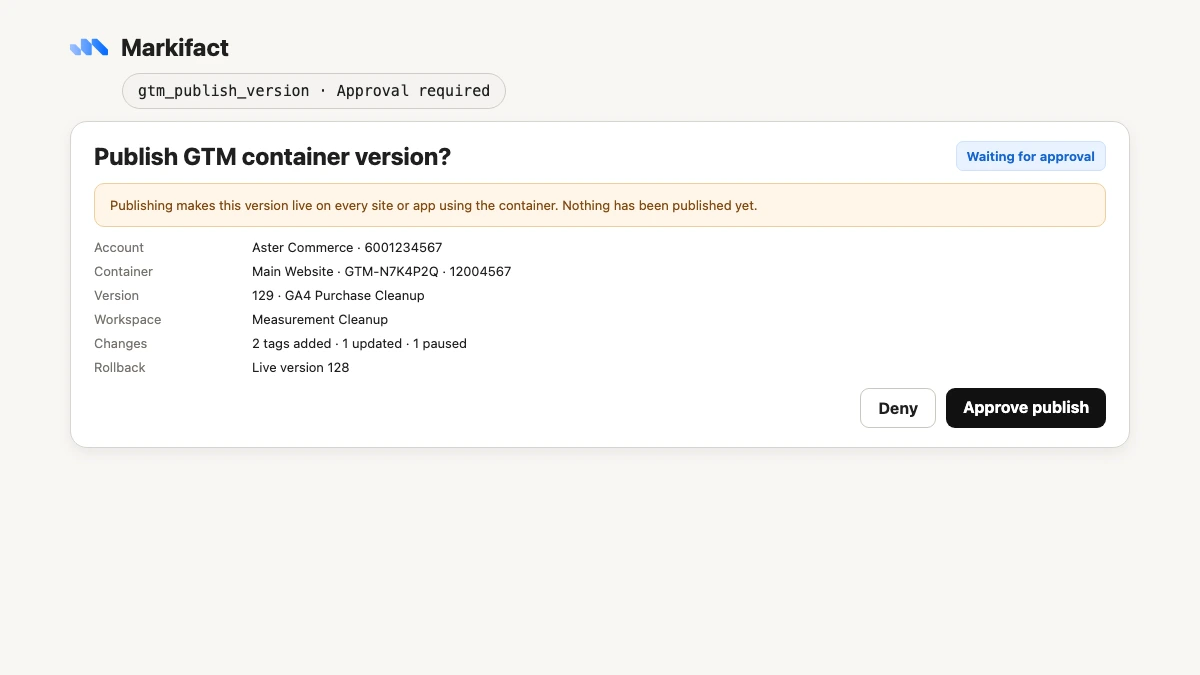
Publishing makes the target version live on all sites or apps using that container. Keep this as the final, isolated action.
Copy-paste GTM prompts for ChatGPT
Find duplicate measurement
Inspect the live GTM version and identify tags that may duplicate page_view, purchase, generate_lead, or sign_up events. Include tag type, trigger, consent configuration, and evidence. Read only.
Compare workspace with production
Compare the Measurement Cleanup workspace with the live version. Group changes into tags, triggers, variables, consent, and advanced resources. Flag conflicts and anything that widens firing scope. Do not make changes.
Audit consent configuration
Audit consent-related settings in the live container. Show default consent behavior, consent updates, tag consent requirements, and tags that may fire before consent initialization. Clearly mark configuration facts versus browser behavior that needs testing. Read only.
Prepare a Google Ads conversion tag
Inspect the existing Google tag, lead event, consent setup, and Google Ads conversion tags. Propose the exact trigger and conversion tag payload for a new qualified-lead conversion. Reuse existing variables where sensible. Wait for separate approval for each write. Do not version or publish.
Create GTM documentation in Codex
Use Markifact to inventory the live GTM container, then prepare a Markdown document grouped by analytics, advertising, consent, utilities, and Custom HTML. Include IDs, types, triggers, variables, and risks. Keep GTM read-only.
GTM and GA4 are different connections
GTM explains how tags and triggers are configured. GA4 shows the events and user behavior that arrived after collection. A correct-looking GTM tag can still produce missing, duplicated, or malformed analytics data.
Use the companion guide to connect GA4 to ChatGPT and Codex. A good validation workflow reads both:
- Inspect the live GTM configuration.
- Check the workspace change.
- Test in GTM Preview.
- Validate GA4 Realtime or DebugView.
- Review subsequent GA4 reports.
Troubleshooting
ChatGPT cannot see Markifact
Open the approved app listing, confirm the app is connected, and add Markifact from the conversation composer.
Codex cannot use Markifact
Run /apps in Codex and enable it there. A connection in a normal ChatGPT conversation does not automatically enable the app in Codex.
The GTM account is missing
Open GTM with the same Google account connected in Markifact. Confirm the account and container are visible, then reconnect if access recently changed.
A write is rejected
Read the operation target and payload in the approval. If Google returns a permission error, check the user's GTM edit or publish rights.
The change exists but is not live
Workspace edits remain drafts. Validate them, create a version, then publish that version separately.
The published tag does not fire
Use GTM Preview and browser developer tools to inspect consent, the data layer, triggers, exceptions, and network requests. Confirm the destination receives the event.
A safe first workflow
- Connect GTM in Markifact.
- Connect the approved Markifact app in ChatGPT.
- List accounts and containers.
- Confirm exact account and container IDs.
- Audit the live version.
- Choose a workspace and prepare one small change.
- Approve each workspace write separately.
- Review workspace status and test in GTM Preview.
- Create a descriptive container version.
- Approve publishing as a separate final action.
- Validate production and retain the previous live version for rollback.
Claude users can follow the companion guide for connecting Google Tag Manager to Claude.
Frequently asked questions
Can ChatGPT connect to Google Tag Manager?
Yes. Connect GTM in Markifact, connect the approved Markifact app in ChatGPT, and add it to a conversation. ChatGPT can then use the GTM operations available to the connected account.
Can Codex use the same Google Tag Manager MCP?
Yes. Enable Markifact with /apps in Codex. App permissions in Codex are managed separately from a normal ChatGPT conversation.
Is there an official Google Tag Manager MCP server?
As of July 23, 2026, Google's public managed MCP materials do not list an official GTM MCP server. Google provides the official Tag Manager API v2, while Markifact supplies the hosted MCP layer described here.
Can ChatGPT create and publish GTM tags?
Yes. Markifact supports full read and write GTM workflows. Each write requires approval, and version publishing should remain a separate final approval.
Does creating a tag change the live container?
No. It changes a workspace. The change becomes live only after validation, container-version creation, and a separate publish.
How many GTM operations are available?
The current Markifact registry contains 97 GTM operations, with 37 reads and 60 approval-gated writes. The named operations in this article are examples, not an exhaustive list.
Do I need a Google Cloud project?
Not for this setup. Markifact handles the hosted MCP layer and uses Google OAuth for the GTM connection.
Can ChatGPT test whether a tag fires in the browser?
It can review configuration and analyze evidence you provide, but it does not replace GTM Preview, browser developer tools, consent testing, or destination-side validation.