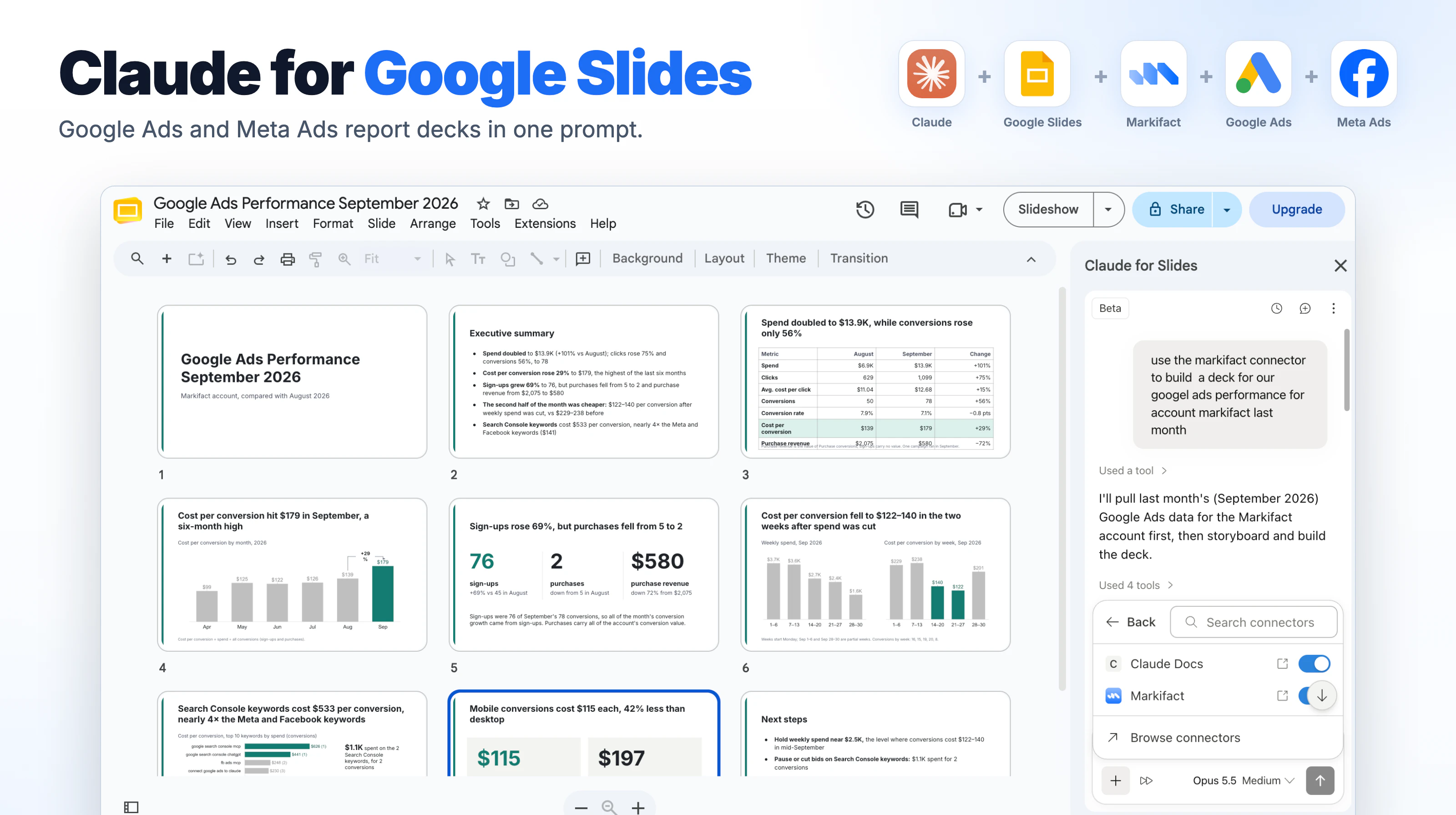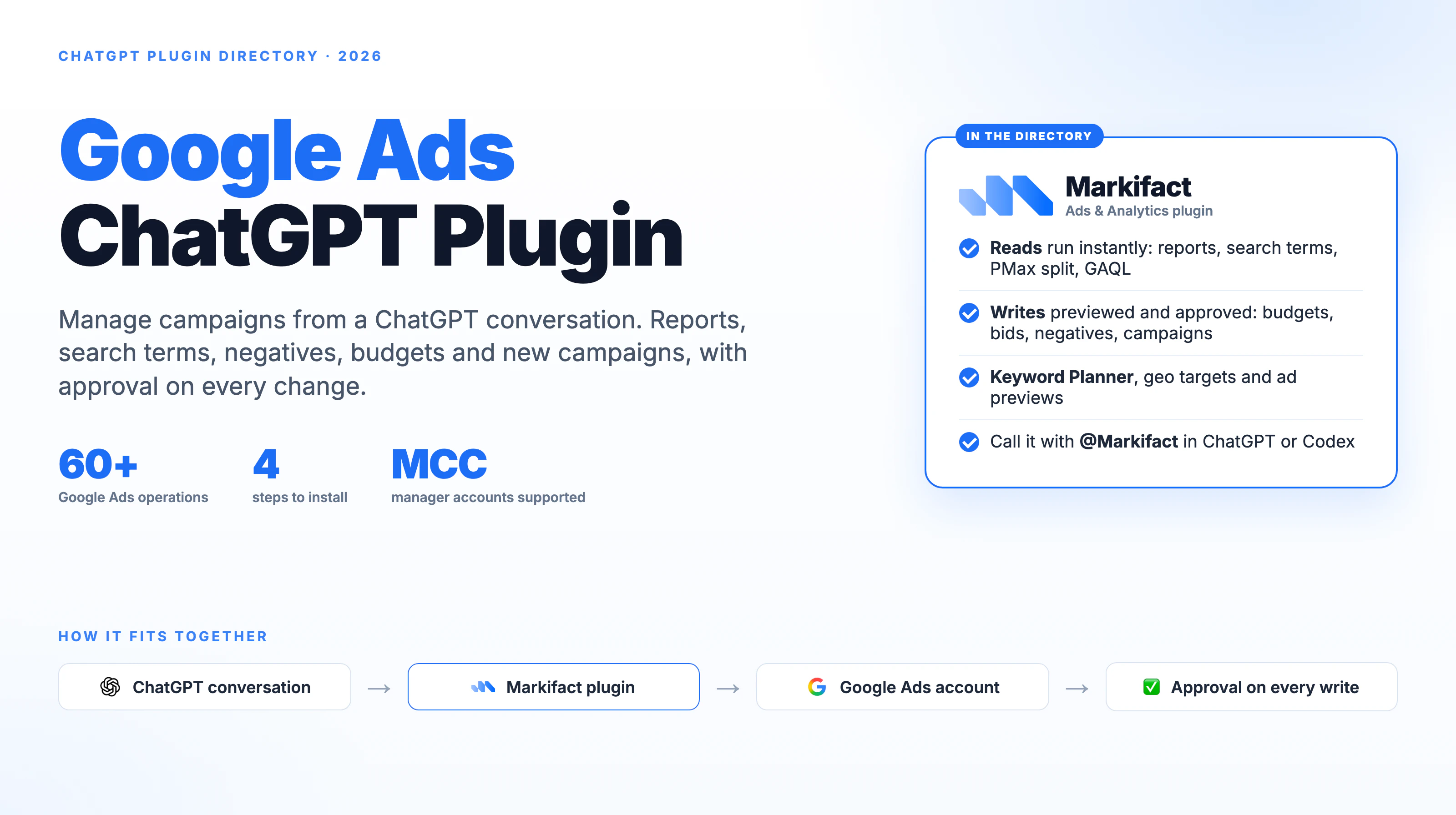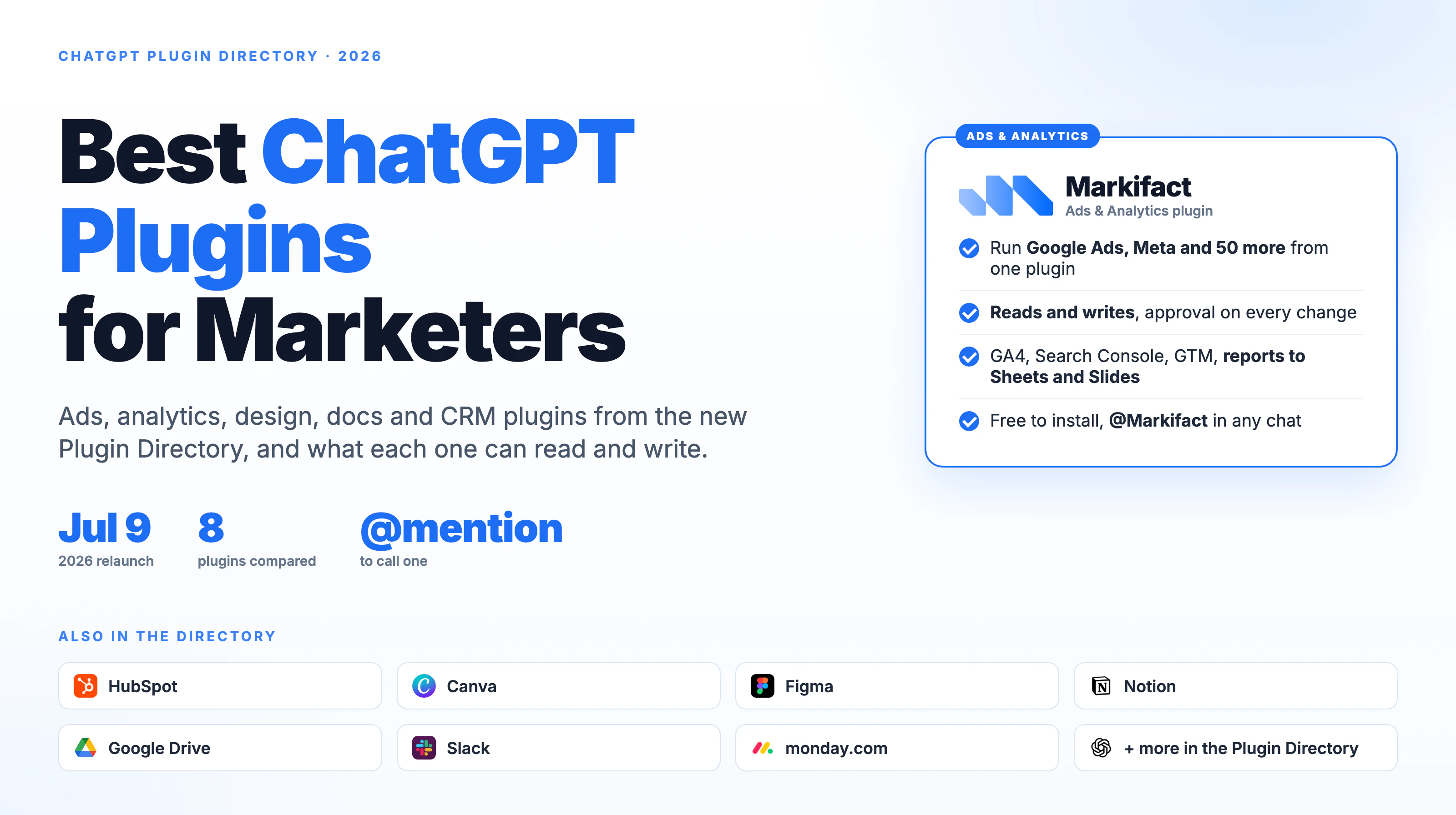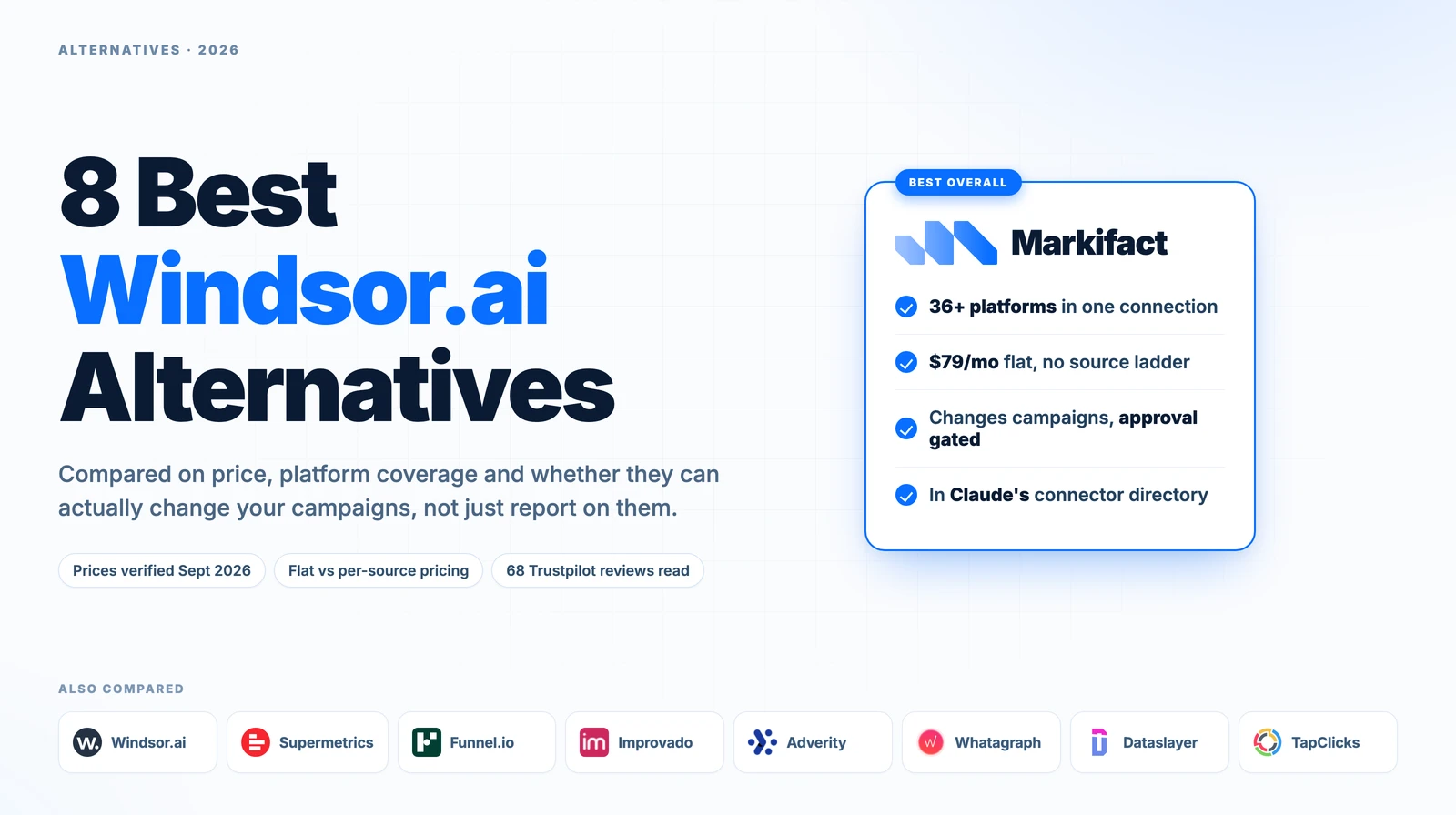

Traditional marketing workflows burn hours on manual spreadsheet exports, repetitive CSV cleaning, and fragmented reporting across Google Ads, GA4, and paid social. Connecting Google Ads directly to Claude via Markifact’s Model Context Protocol (MCP) replaces this manual friction with a conversational, no-code data environment. By establishing a direct server connection, teams can bypass the spreadsheet cleanup and query real-time campaign performance directly within the AI interface. This setup turns raw marketing data into a practical asset, allowing marketers to instantly flag high-CPA campaigns, expose wasted spend, and automate weekly PPC client updates through simple, structured chat interactions.
In This Guide
- What MCP is and why it matters for marketers
- Why Use Markifact as the MCP Layer
- How Markifact connects Google Ads to Claude without code
- How to set up a Markifact MCP server
- How to add Markifact MCP as a custom connector in Claude
- How to turn Google Ads reporting into a conversational workflow
What MCP is and why it matters for marketers
MCP stands for Model Context Protocol. In simple terms, MCP is a structured connection layer that allows AI tools to access external platforms, data sources, and workflows. For marketers, this means an AI assistant like Claude can work with marketing data in a practical way, instead of only responding to copied text, screenshots, or uploaded CSV files.
Most marketers do not care about MCP because it sounds technical. They care because reporting is repetitive.
The traditional workflow is familiar: open Google Ads, export the data, download a CSV, clean the spreadsheet, build formulas, compare spend, CPA, ROAS, conversions, and pacing, then turn the numbers into a client-ready or internal performance update.
That workflow works, but it burns time. It also creates room for mistakes, especially when reports are built across multiple channels and accounts.
With an MCP setup, reporting can become conversational. Instead of downloading data and crunching numbers manually, you can ask Claude questions like:
“Which Google Ads campaigns had the highest CPA last week?”
“Which campaigns spent the most with the fewest conversions?”
“Summarize Google Ads performance in plain English.”
“Create a client-ready weekly PPC update.”
The value is not just automation. It is a better interface for marketing analysis.
Why Use Markifact as the MCP Layer?
Markifact helps simplify the MCP setup by giving marketers one connection layer for their marketing stack.
Instead of setting up separate tools for every platform, Markifact can help teams access Google Analytics 4, Google Ads, Meta Ads, TikTok Ads, and more through one MCP. That matters because performance marketing rarely lives in one dashboard. Google Ads may show paid search performance, GA4 may show website behavior, and Meta or TikTok may explain what is happening across paid social.
For teams running paid social alongside paid search, Meta Ads MCP can support a connected view of campaign performance across channels. That gives marketers a cleaner path to compare Google Ads performance with Meta Ads data instead of reviewing each platform in isolation. Markifact also supports the wider AI workflow. You can connect Claude, ChatGPT, Codex, Cursor, Manus, Gemini CLI, and other MCP-compatible clients to your marketing stack, depending on how your team prefers to work.
How Markifact connects Google Ads to Claude without code
For this guide, the focus is Google Ads MCP with Claude.
Step 1: Connect Google Ads in Markifact
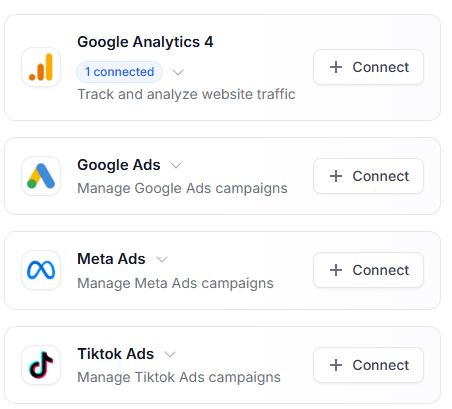
Start inside Markifact’s connections area. Choose [Google Ads] from the available marketing platforms and click [Connect]. This is also where you can see other available marketing connections, including Google Analytics 4, Meta Ads, and TikTok Ads.
Step 2: Open the MCP Section in Markifact
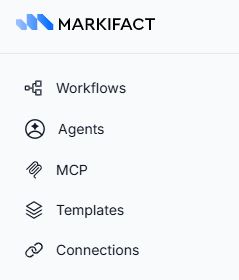
From the Markifact sidebar, click [MCP]. This is where you create the MCP server that will connect your marketing stack to Claude or another MCP-compatible client.
How to set up a Markifact MCP server
Step 3: Create a New MCP Server
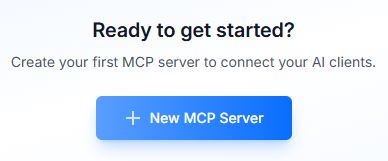
Click [New MCP Server] to start creating the server. This server is the connection point Claude will use to access the Markifact tools.
Step 4: Name the MCP Server
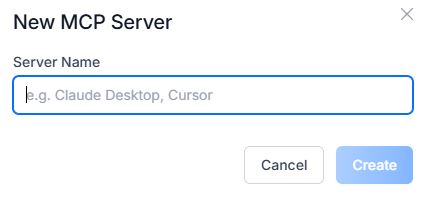
Give the server a clear name. For example, you can use a name like “Claude MCP” or “Claude Desktop” so it is easy to identify later. Avoid vague names. If you manage several AI clients or workspaces, clean naming saves confusion later.
Step 5: Choose Claude as the Client
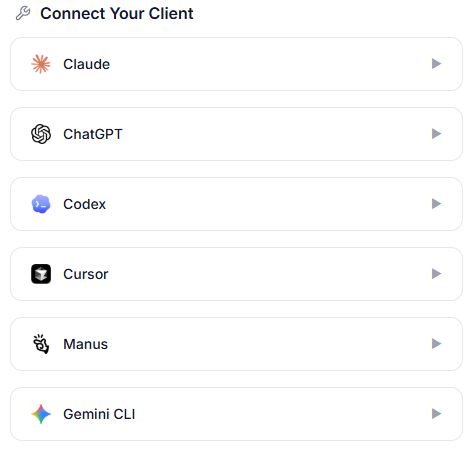
After creating the MCP server, choose [Claude] from the list of supported clients. Markifact also shows other client options, including ChatGPT, Codex, Cursor, Manus, and Gemini CLI. For this setup, select Claude.
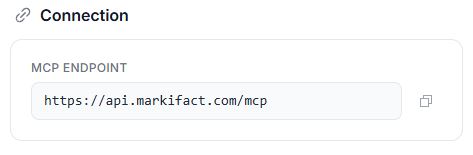
Step 6: Copy the Markifact MCP Endpoint
Markifact will show the MCP endpoint URL. Copy this URL because you will paste it into Claude when adding the custom connector.
How to add Markifact MCP as a custom connector in Claude
Step 7: Open Claude and Go to Customize
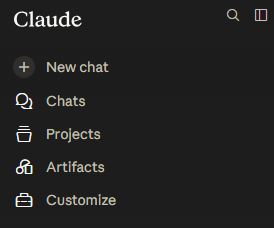
Open Claude. From the left-hand menu, go to [Customize]. This is where Claude manages skills, connectors, and other configuration options.
Step 8: Add a Custom Connector in Claude
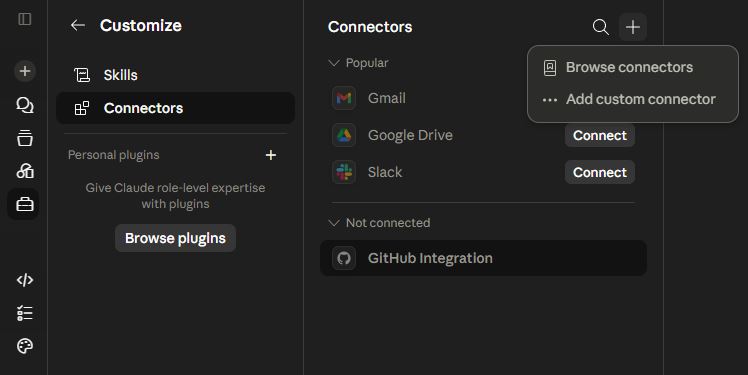
Inside Claude, go to [Connectors]. Click the plus icon, then choose [Add custom connector]. This is the manual connector setup that lets you add the Markifact MCP endpoint.
Step 9: Add the Connector Name and MCP URL
Name the connector clearly, for example Markifact MCP. Then paste the Markifact MCP endpoint URL you copied earlier. The connector name should be simple because it will appear later inside Claude when selecting available tools.
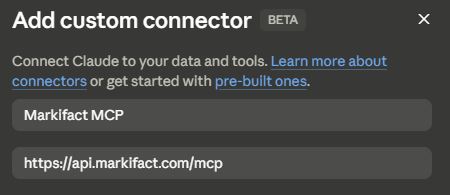
Step 10: Press Connect
After adding the connector details, click [Connect]. Claude will open the Markifact MCP connection flow.
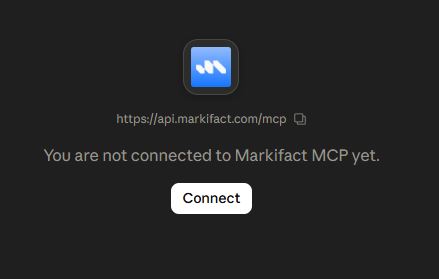
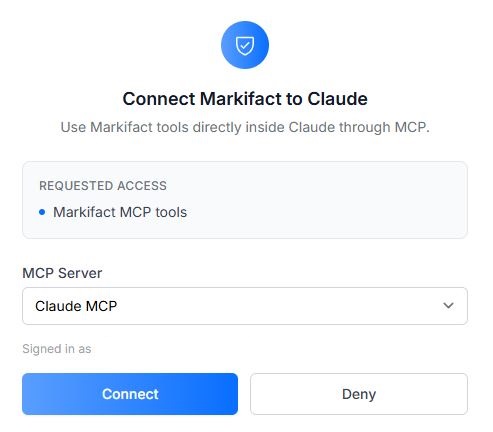
Step 11: Approve the Markifact Connection
Claude will ask you to connect to Markifact MCP. Review the requested access, select the correct MCP server, and click [Connect]. This authorizes Claude to use the Markifact MCP tools.
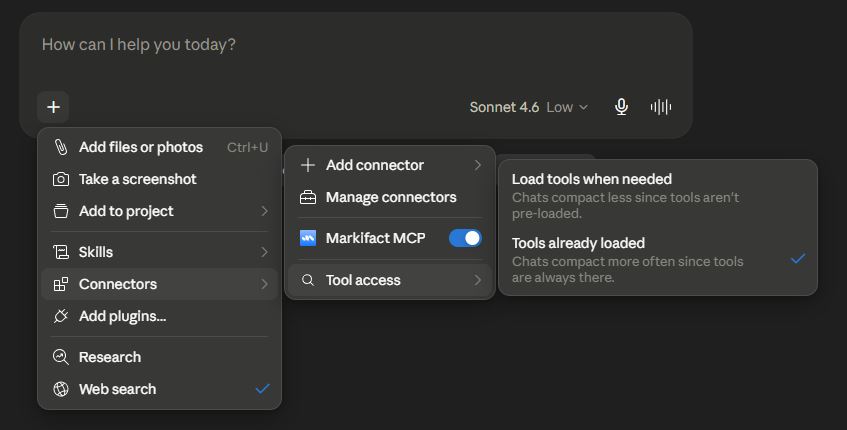
Step 12: Load the Markifact MCP Tools in Claude
Once the connector is added, open a Claude chat and click the plus icon. Go to [Connectors], select Markifact MCP, and choose whether tools should be loaded when needed or already loaded. For regular reporting workflows, loading tools when needed keeps the chat cleaner. If you use Markifact heavily, keeping tools already loaded can make access faster during the session.
How to turn Google Ads reporting into a conversational workflow
Test the Google Ads MCP Connection
Start with a simple reporting prompt before moving into deeper analysis. Try:
- “Show Google Ads campaign performance for the last 7 days.”
- “Which campaigns have high spend and low conversions?”
- “Compare this week’s CPA with last week.”
- “Find wasted spend opportunities.”
- “Write a short Google Ads performance summary for a client.”
The goal is not to ask vague questions like “How are my ads doing?” Start with a clear time range, metric, and output format. Claude performs better when the prompt has structure. For a more structured review, use a Google ads audit checklist to evaluate campaign structure, tracking, wasted spend, keyword quality, and budget allocation before asking Claude for recommendations.
Build Repeatable Marketing Workflows
After the connection works, turn it into a repeatable reporting process. Claude can support weekly PPC summaries, campaign audits, budget pacing checks, wasted spend reviews, and cross-channel reporting when more platforms are connected through Markifact. This is where MCP becomes useful beyond one-off questions. A marketer can move from manual spreadsheet work to structured conversations with campaign data. For example, instead of exporting Google Ads data every Monday, a PPC manager can ask Claude to review recent campaign performance, highlight what changed, and draft a clean update for a client or internal team.
For teams that want to move beyond one-off analysis, Reporting Automation can turn recurring performance checks, weekly summaries, and client updates into repeatable workflows. Markifact can also support competitive research workflows, including ways to spy on competitor ads and compare messaging, offers, and creative angles before updating your own campaigns.
Reality Check
MCP will not fix messy marketing data. If campaign names are unclear, conversion tracking is broken, or account access is poorly managed, the output will still be weak. Start with read-only reporting and analysis workflows first. Clean account structure, naming conventions, and conversion tracking before relying on AI-generated recommendations.
Summary
Google Ads MCP with Claude helps turn reporting from a manual spreadsheet task into a conversational workflow. Markifact makes this easier by creating one MCP layer for Google Ads and other marketing platforms like GA4, Meta Ads, and TikTok Ads. Instead of building separate integrations for every platform, marketers can connect their marketing stack through Markifact and use it with Claude, ChatGPT, Codex, Cursor, Manus, Gemini CLI, and other MCP-compatible clients. The result is less exporting, faster analysis, and cleaner reporting workflows without code.