

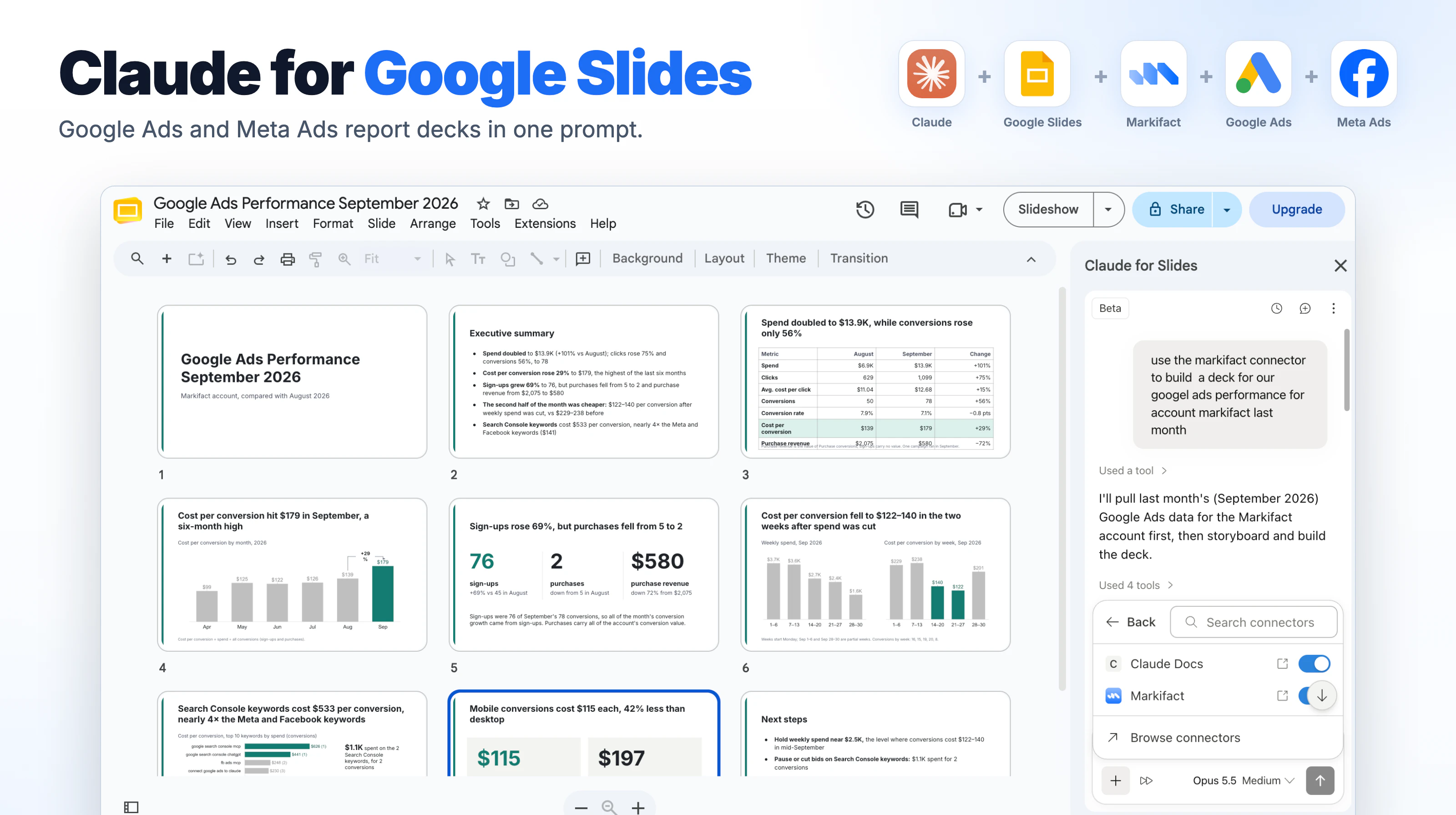
Anthropic put Claude inside Google Slides on October 6, 2026. The Claude for Google Workspace add-on opens a sidebar next to your deck, reads the slides you have open, and edits them with your approval. Turn on the Markifact connector in that sidebar and the same chat can pull your Google Ads or Meta Ads numbers and turn them into a report deck, in one prompt. This guide shows the install, the connector, the prompt, and what came out when we ran it on our own Google Ads account.
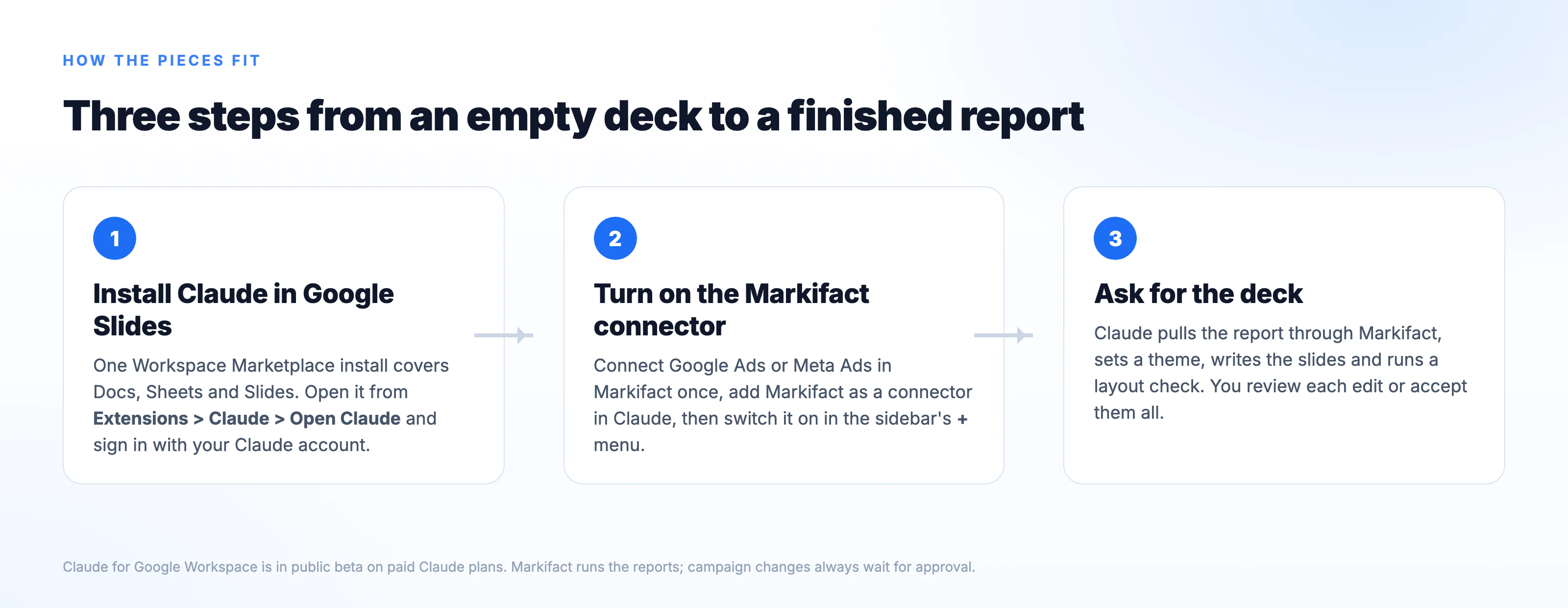
The whole process is three steps:
- Install the Claude add-on in Google Slides from the Workspace Marketplace.
- Add the Markifact connector in Claude, connect your ad account, switch it on in the sidebar.
- Ask for the deck in one prompt.
What Claude for Google Slides is
The official name is Claude for Google Workspace. In the Google Workspace Marketplace it is listed as "Claude" by Anthropic, and the sidebar inside a deck is titled "Claude for Slides". One install covers Google Docs, Google Sheets and Google Slides. It is in public beta and needs a paid Claude plan: Pro, Max, Team or Enterprise.
In Slides, Anthropic says Claude can draft new slides from the deck's own layouts and theme, restructure or tighten existing ones, restyle a deck to match its formatting, add charts in the deck's colours, and flag overlapping elements, text running off the slide and text that is hard to read. Edits come in two modes. "Ask before edits", the default, shows each change as a card you approve. "Accept all edits" applies them and only pauses for links, web images and sharing changes.
Because "Claude" and "Slides" now appear together in four different products, here is the map.
| Option | Where you start | Best for |
|---|---|---|
| Claude for Google Workspace add-on (this guide) | Inside the deck, in Google Slides | Building or fixing a specific deck, with your ad data through connectors |
| Google Slides connector in Claude | claude.ai or the desktop app, paste a Slides link | Starting from a chat, or work that spans several files |
| Claude Slides | claude.ai, no Google account needed | Decks that live in Claude and export to PowerPoint or PDF |
| A Google Slides MCP server | Claude, Codex, Cursor or an AI agent | Decks built by workflows on a schedule, such as monthly client reports |
The rest of this guide is the first row.
Step 1: Install Claude in Google Slides
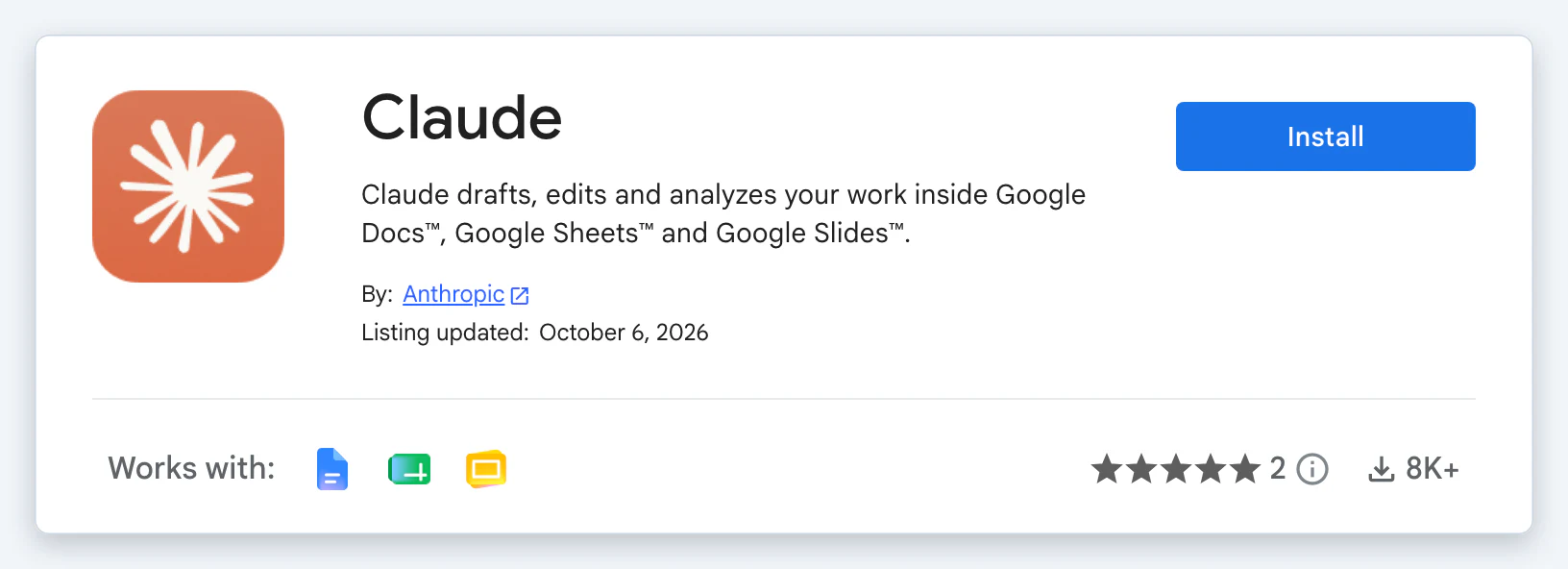
- Open the Claude listing in the Google Workspace Marketplace and click Install. Pick the Google account you use for Slides, click Continue, review the two permissions Google shows, and click Allow.
- Reload any deck you already have open.
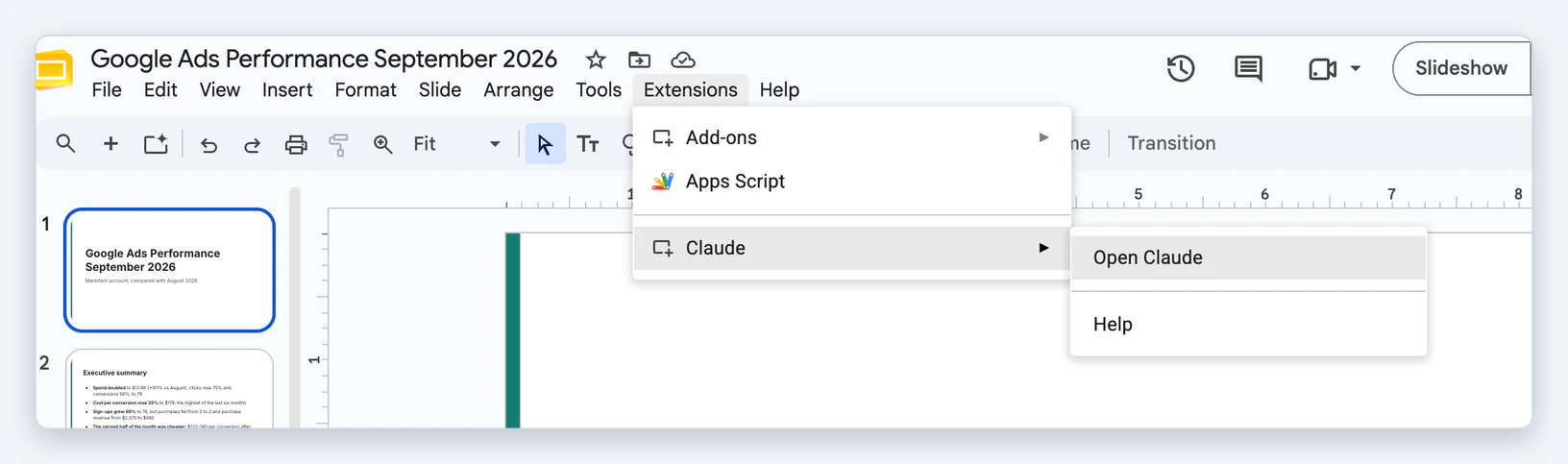
- In the deck, go to Extensions > Claude > Open Claude. The sidebar opens on the right.
- Sign in with your Claude account.
- That is the whole install. The same sidebar now appears under Extensions in Docs and Sheets too.
Three things worth knowing before you start. The two permissions limit Claude to its sidebar and the file you opened it in; it cannot browse your Drive from the add-on. It works in Chrome, Edge and Safari, not Firefox, during the beta. And on a Google Workspace domain, a super admin can install it for everyone from the same listing with Admin install; if the Install button is greyed out or you see "This application is not allowed by your administrator", that is the person to ask.
Step 2: Turn on the Markifact connector
The sidebar can use any connector you have already enabled in your Claude account. So the connector is added once in Claude, and switched on per file in Slides.
- Open the Markifact connector in Claude and click Connect. Sign in with your Markifact account, or create one; a free account is enough to start.
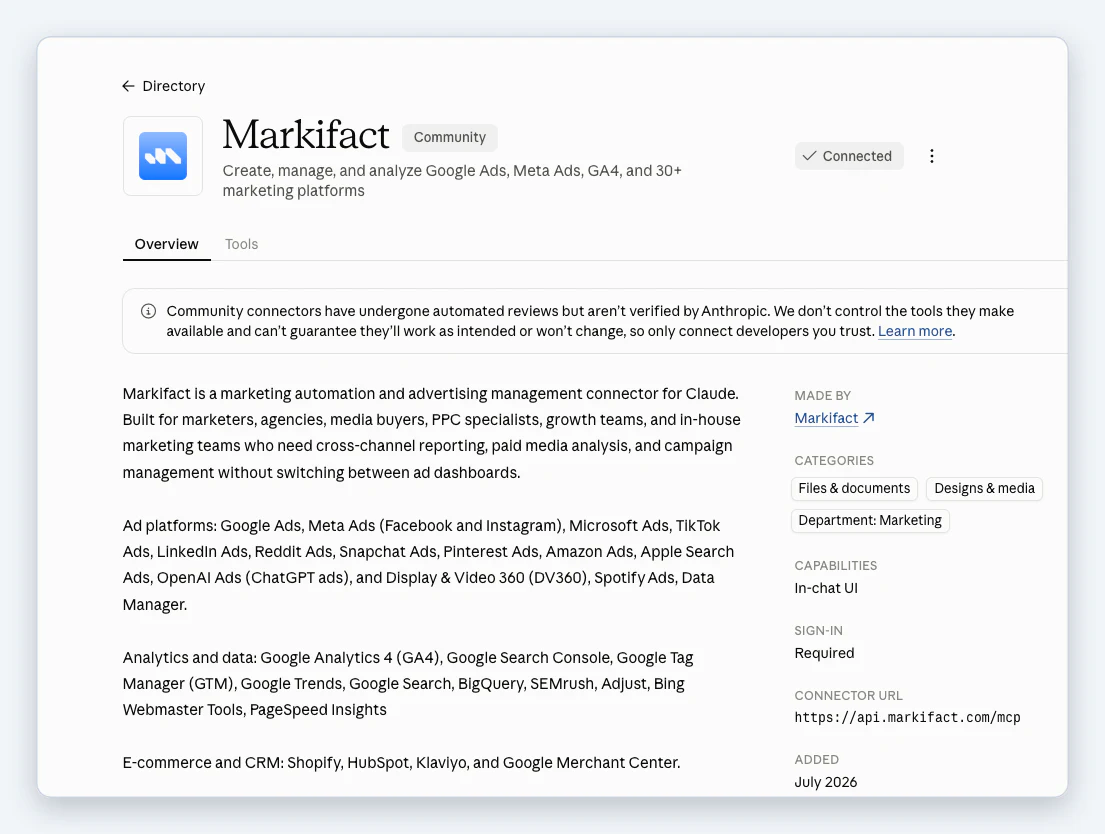
- In Markifact, connect Google Ads or Meta Ads under Connections. You authorize the ad platform here, not in Claude.
- Back in Slides, click + in the sidebar composer, open the connectors list, and switch Markifact on.
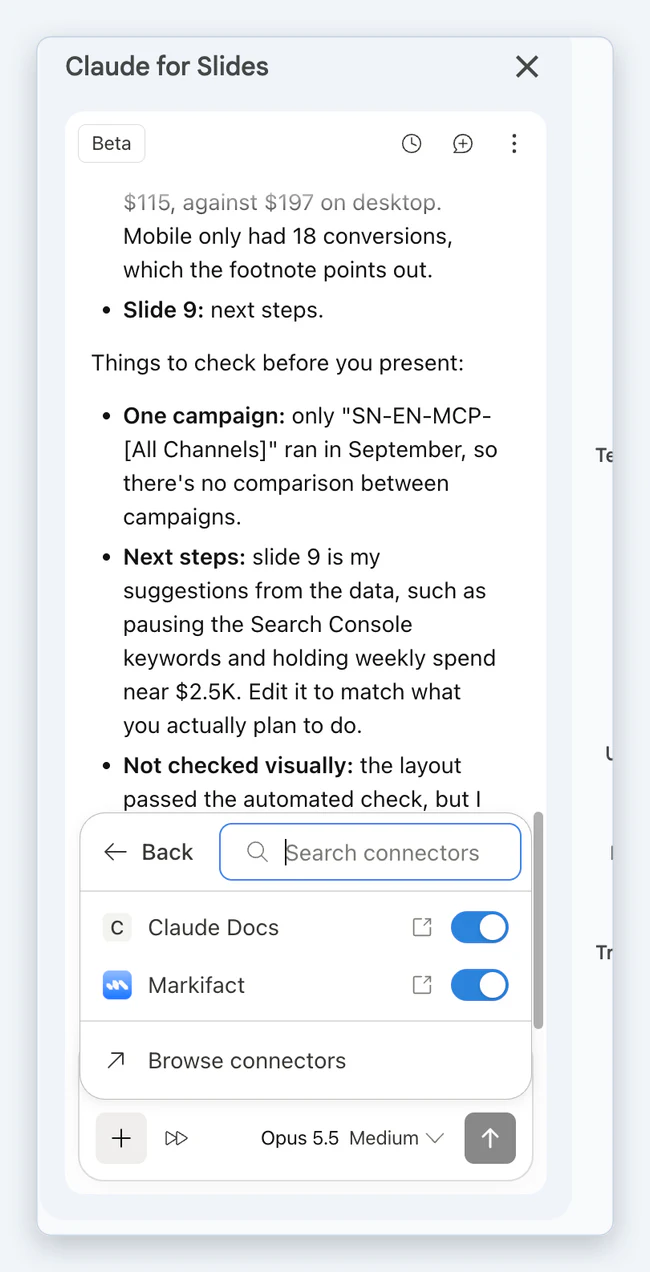
If Markifact is missing from the list, add it at claude.ai first, then close and reopen the sidebar.
Step 3: Build a Google Ads report deck with one prompt
Open a blank presentation, open the sidebar, and type:
Use the Markifact connector to build a deck for our Google Ads
performance for account [account name] last month.
That is the whole prompt. We typed it with a typo in "Google" and it still worked. Replace the account name with the one you connected, or leave it out if you have only one.
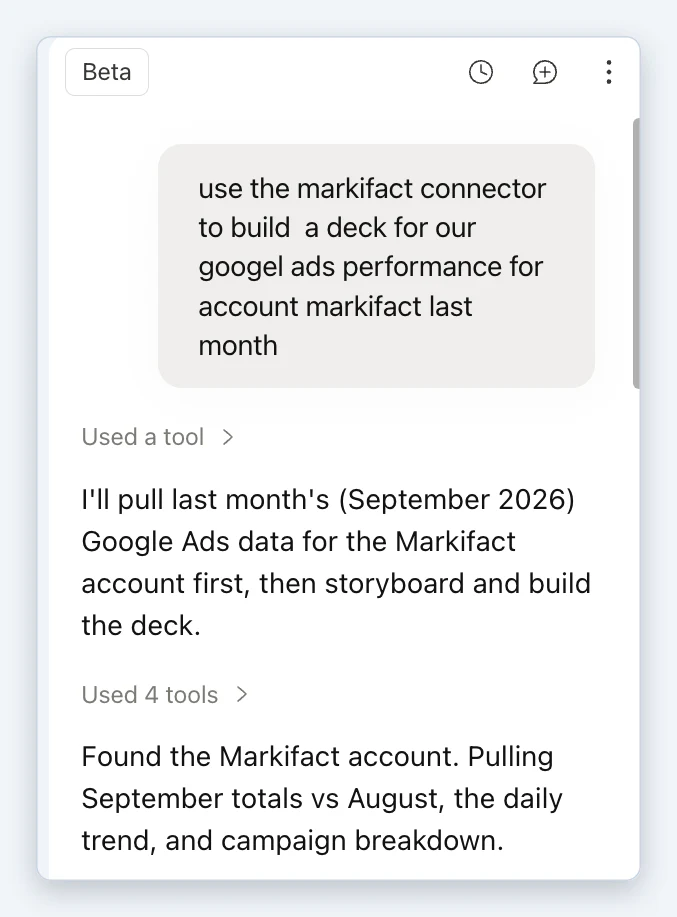
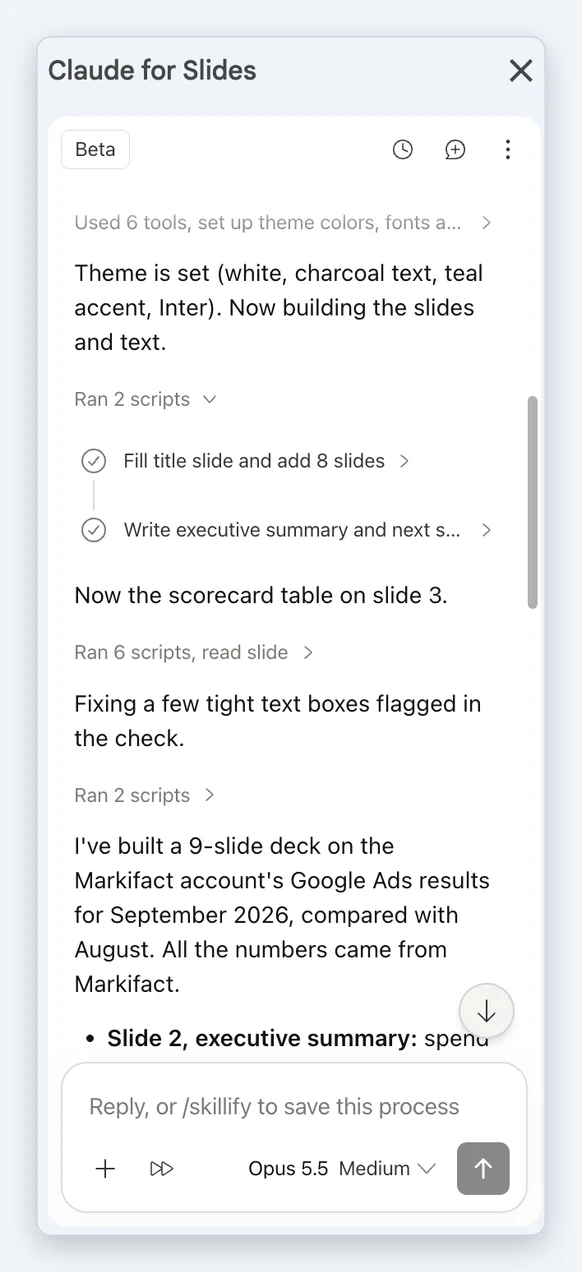
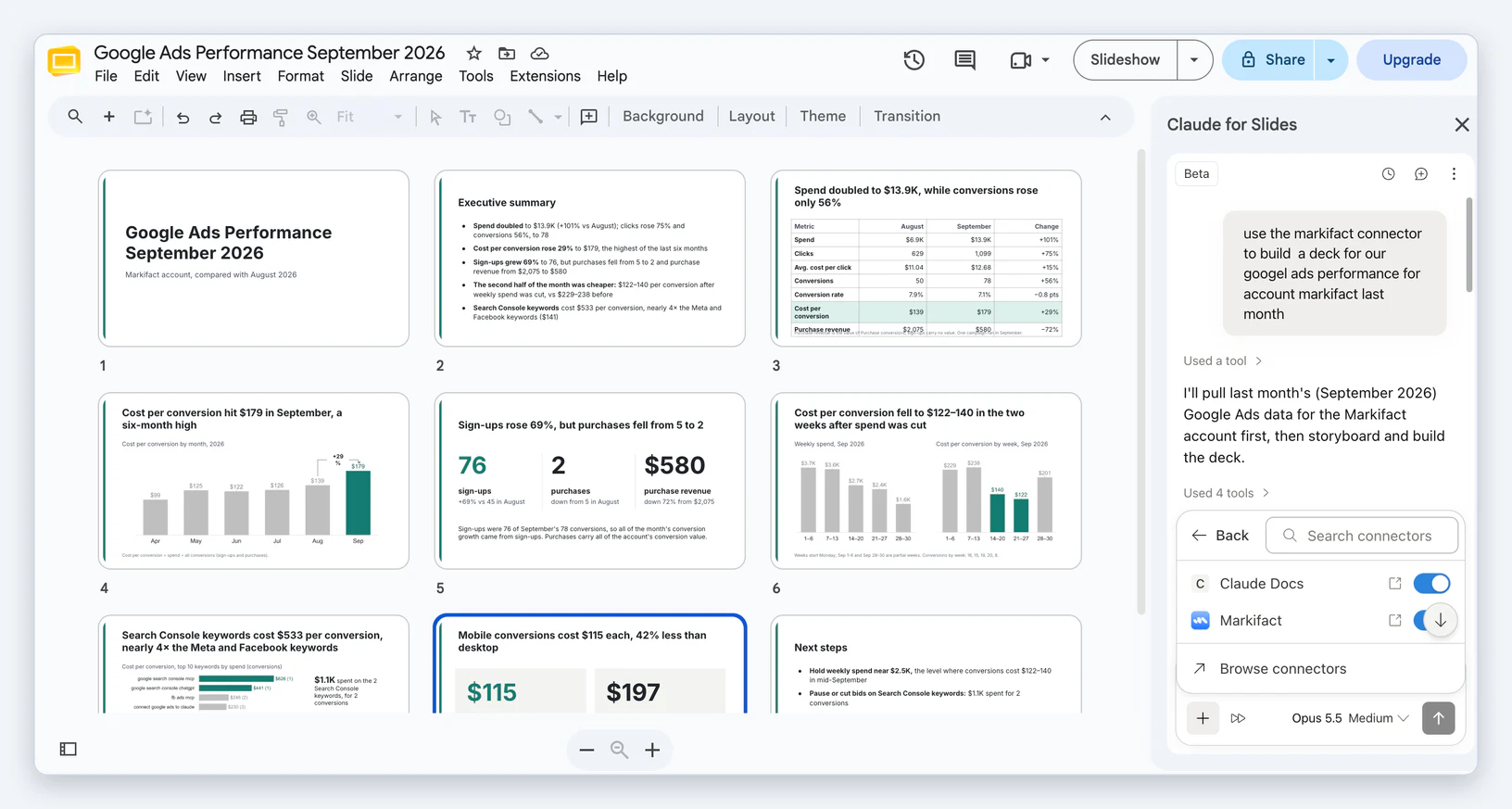
Here is what Claude did, taken from the sidebar log:
- Found the Markifact account through the connector.
- Pulled September totals against August, the daily trend and the campaign breakdown.
- Set a theme: white background, charcoal text, teal accent, Inter.
- Filled the title slide and added eight more.
- Wrote the executive summary, the scorecard table, the charts and the next steps.
- Ran a layout check and fixed a few tight text boxes it flagged.
What the nine slides contain
- Title. Google Ads performance, September 2026, compared with August.
- Executive summary. Five bullets: spend doubled to $13.9K, conversions up 56% to 78, cost per conversion up 29% to $179, sign-ups up while purchases fell, and a cheaper second half of the month after weekly spend was cut.
- Scorecard table. August next to September with the change: spend, clicks, average CPC, conversions, conversion rate, cost per conversion, purchase revenue.
- Cost per conversion by month. A six-month bar chart with September highlighted.
- Sign-ups against purchases. 76 sign-ups, 2 purchases, $580 in purchase revenue.
- Weekly spend against cost per conversion. Cost per conversion fell to $122 to $140 in the two weeks after the spend cut.
- Keyword cost. Search Console keywords at $533 per conversion against Meta and Facebook keywords at about $141.
- Device. Mobile at $115 per conversion against desktop at $197, with a footnote that mobile is 18 conversions and should be read as a test case.
- Next steps. Five suggestions drawn from the data.
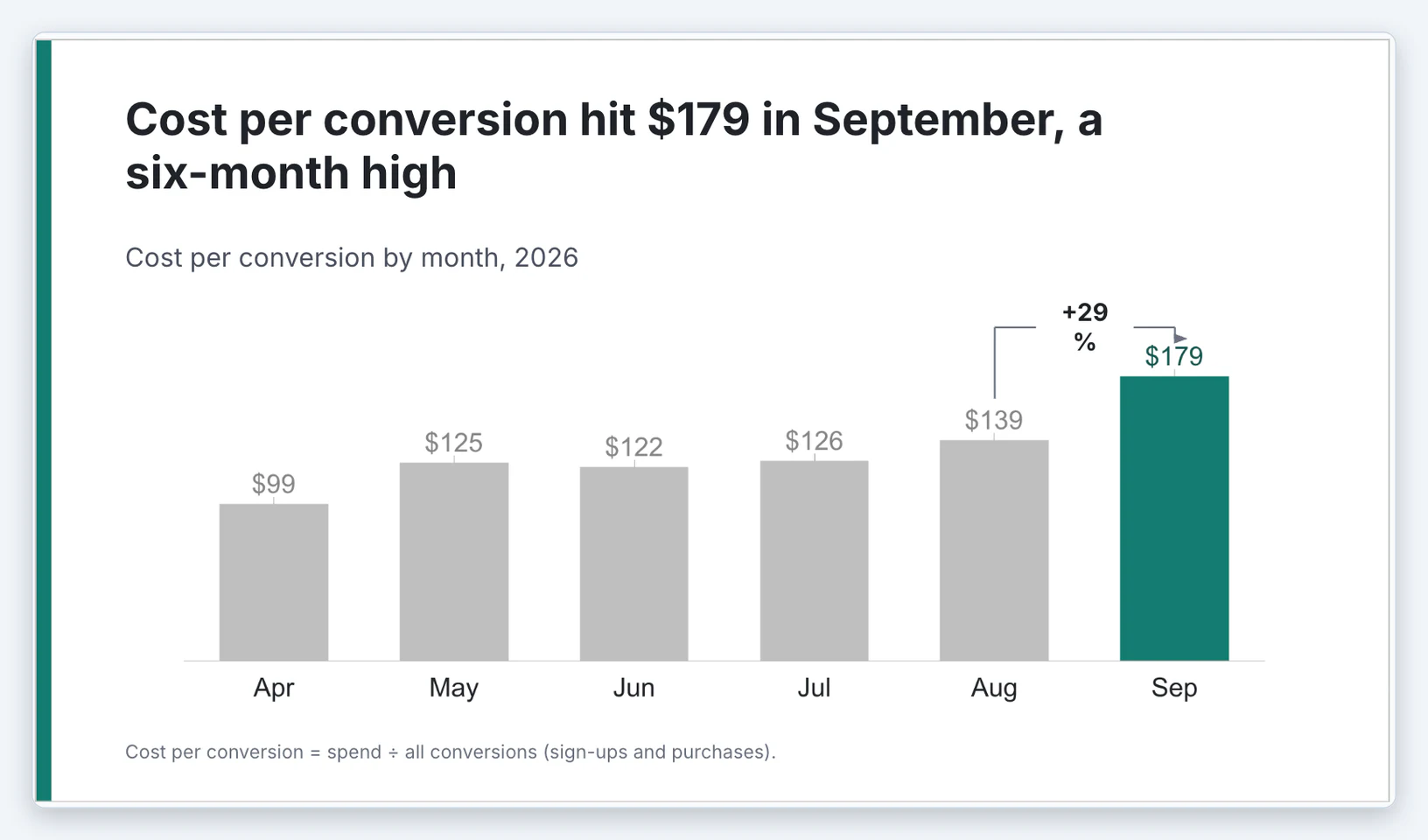
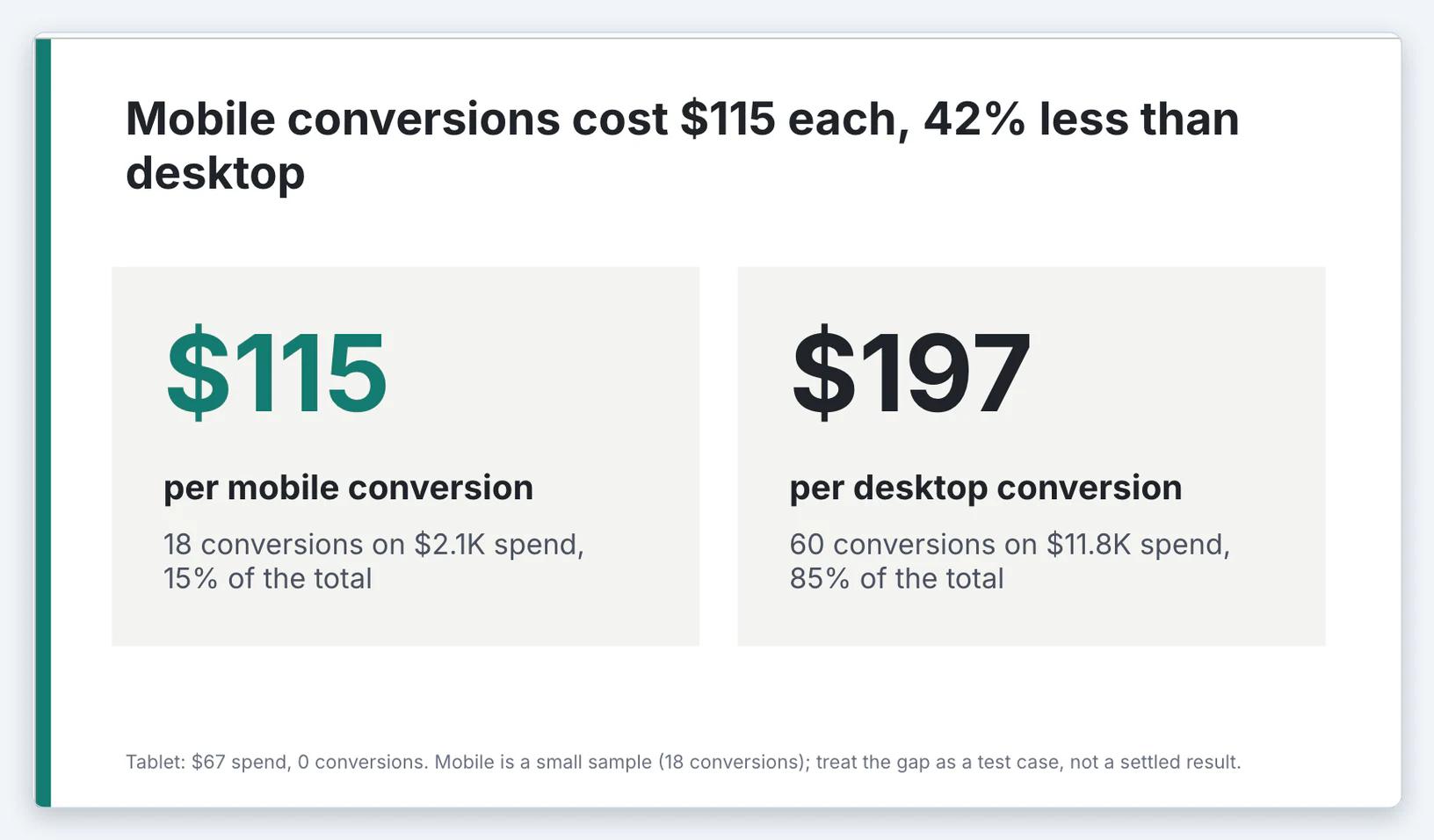
Two things stand out. Every title is a sentence with a number in it, not a label, which is what a client deck should look like. And the footnotes carry the caveats: the cost per conversion formula on slide 4, the 18-conversion sample on slide 8.
What Claude told us to check
The run ended with a short list of things it could not decide for us, which is the right behaviour:
- One campaign. Only one campaign ran in September, so there is no campaign comparison in the deck.
- Next steps are suggestions. Slide 9 proposes pausing the Search Console keywords and holding weekly spend near $2.5K. Edit it to match what you actually plan to do.
- Not checked visually. The layout passed the automated check, but you should flip through the slides before presenting.
The same prompt for a Meta Ads report deck
Connect Meta Ads in Markifact, then change the platform in the prompt:
Use the Markifact connector to build a deck for our Meta Ads performance
for ad account [account name] last month, compared with the month before.
Include spend, results, cost per result, ROAS, the daily trend, the top
campaigns, and the five ads with the most spend.
The deck comes out with the same shape: scorecard, trend, breakdowns, next steps. Two Meta-specific tips. Name the result you optimize for (purchases, leads, add to carts) so the cost per result on the scorecard is the one you report. And ask for a placement slide (Feed, Reels, Stories, Audience Network) if you want the deck to say where the money went.
Prompts that work for ads decks
Every prompt that works names the same things: the account, the period, the comparison, what to include, and whether Claude may change the deck's existing content.
Monthly client deck
Use the Markifact connector to build a Google Ads report deck for
[account] for last month vs the month before: scorecard, daily spend and
conversions, campaign table sorted by cost, search terms with spend and no
conversions, device split, and next steps. Titles must state the finding.
Update last month's deck
Update this deck with last month's numbers from Markifact. Keep every
layout, change only the figures, the charts and the summary bullets, and
flag any slide where the story changed.
Add one slide
Add a slide after slide 4 on search terms: the ten search terms with the
most spend and zero conversions last month, with a one-line recommendation
for each.
Restyle to the client's brand
Restyle the whole deck to match slide 1: navy headings, orange accent,
Montserrat. Do not change any numbers or wording.
QA pass
Check every slide for overlapping elements, text running off the slide
and text smaller than 12 pt, and fix what you find.
Speaker notes
Write speaker notes for each slide: two sentences on what the number
means and one on what we do next.
Google Ads and Meta Ads in one deck
Use the Markifact connector to build a combined deck for last month: one
scorecard slide for Google Ads, one for Meta Ads, a blended cost per
conversion slide, and next steps.
Make it repeatable
Save the process as a skill. After a run you are happy with, type /skillify in the composer. Claude saves the steps, and next month you run the skill on the new dates instead of writing the prompt again.
Pick the edit mode for the job. "Accept all edits" is fine for a fresh deck in an empty file. Switch back to "Ask before edits" when Claude is working inside a deck a client has already seen.
Split big accounts into two prompts. A single operation stops after six minutes. If an account has dozens of campaigns, ask for the data pull and a summary first, then "now build the slides".
Keep the sidebar open until the run finishes, and keep in mind that the chat history is stored per file in your browser.
Linked charts. The add-on cannot refresh charts that are linked to a Google Sheet. Ask for native charts, or use a Markifact workflow that refreshes the Sheet behind the chart.
When a scheduled workflow is the better tool
The sidebar is the right tool for a deck you need today. For the same deck every month, across several clients, a scheduled workflow is cheaper and does not need anyone at the keyboard. Markifact has templates that pull the data, write the AI insights and refresh the Slides on a schedule: Google Ads monthly slides, Meta Ads monthly slides and a combined Google and Meta deck. The build is explained in how to automate Google and Meta Ads monthly reports.
Pricing
The add-on itself has no separate price; it needs a paid Claude plan (Pro, Max, Team or Enterprise). Markifact comes with a free account and 200 one-time credits to test the connector. Paid plans start at $79 a month for one seat with unlimited ad accounts, and the same account serves Claude, ChatGPT and Codex. Details are on the pricing page.
Frequently asked questions
Can Claude make Google Slides?
Yes. With the Claude for Google Workspace add-on, Claude builds and edits slides inside the deck you have open. From claude.ai, the Google Slides connector creates or edits a deck from a chat when you paste its link. Claude Slides, a separate feature, makes decks that live in Claude and export to PowerPoint or PDF.
Is Claude for Google Slides free?
No. The add-on is in public beta on paid Claude plans: Pro, Max, Team and Enterprise. Markifact, which supplies the ad data, has a free account to start.
Does the add-on also work in Google Docs and Sheets?
Yes. One install from the Google Workspace Marketplace adds Claude under Extensions in Docs, Sheets and Slides. In Sheets it writes formulas and cleans data; in Docs it drafts and restructures text.
What is the difference between Claude Slides and Claude for Google Slides?
Claude Slides is a presentation feature inside claude.ai; the deck is a Claude file you can present there or download. Claude for Google Slides is the Workspace add-on that puts Claude in a sidebar inside Google Slides, where the deck stays a Google file.
Can Claude pull my Google Ads or Meta Ads data into a deck?
Yes, through a connector. Connect Google Ads or Meta Ads in Markifact, add Markifact as a connector in Claude, switch it on in the Slides sidebar, and ask for the report. The numbers come from the ad platform's API at the time you ask.
Can Claude change my campaigns from Slides?
Only if you ask it to, and every change waits for your approval in Markifact. Building a deck uses read operations only, so a report prompt cannot pause a campaign or move a budget.
Can it edit an existing deck or only create new slides?
Both. It can add slides, rewrite the ones you select, restyle the whole deck to match its theme, and refresh the numbers in a deck you built last month.
Why is the Install button greyed out?
Your Google Workspace admin has not allowed the add-on yet. Ask them to allow it or to install it for the domain with Admin install from the same Marketplace listing.