
To connect Google Ads to Grok Bot, send your bot one message, install https://api.markifact.com/mcp, approve the connector, and sign in to Markifact. From then on your bot can report on your Google Ads accounts and build campaigns, with every change waiting for your OK.
Key takeaways
- Grok Bot adds Markifact as a custom remote connector by itself. There is no config file and no developer setup.
- You connect Google Ads once in Markifact, and the bot sees every account you authorize.
- A dedicated Google Ads bot can run reports, find wasted spend and build Search campaigns.
- The bot asks before anything is written to your account, and new campaigns are created paused.
Disclosure: Markifact publishes this blog and builds the connector. The screenshots come from our video below, with account names and ids replaced.
The whole setup is three steps:
- Ask Grok Bot to install the Markifact MCP.
- Sign in and connect Google Ads.
- Create a Google Ads bot and give it a job.
What Grok Bot is
Grok Bot is xAI's always-on AI agent, in early beta since August 11, 2026. Each bot runs on a cloud computer of its own, signs in to the tools you give it, and keeps working when you close the app. You can run several bots side by side, give each one a role, and let them message each other.
It runs as a desktop app for macOS and Windows and on iPhone. Access comes with SuperGrok Heavy, Cursor Ultra or Cursor Teams Premium.
Grok Bot can reach your tools in two ways: by clicking through websites like a person, or through connectors (MCP servers). For Google Ads, a connector is the reliable route. Markifact's Google Ads MCP calls the Google Ads API directly instead of clicking through the Google Ads interface.
Step 1: Ask Grok Bot to install the Markifact MCP
- Open Grok Bot and pick any bot.
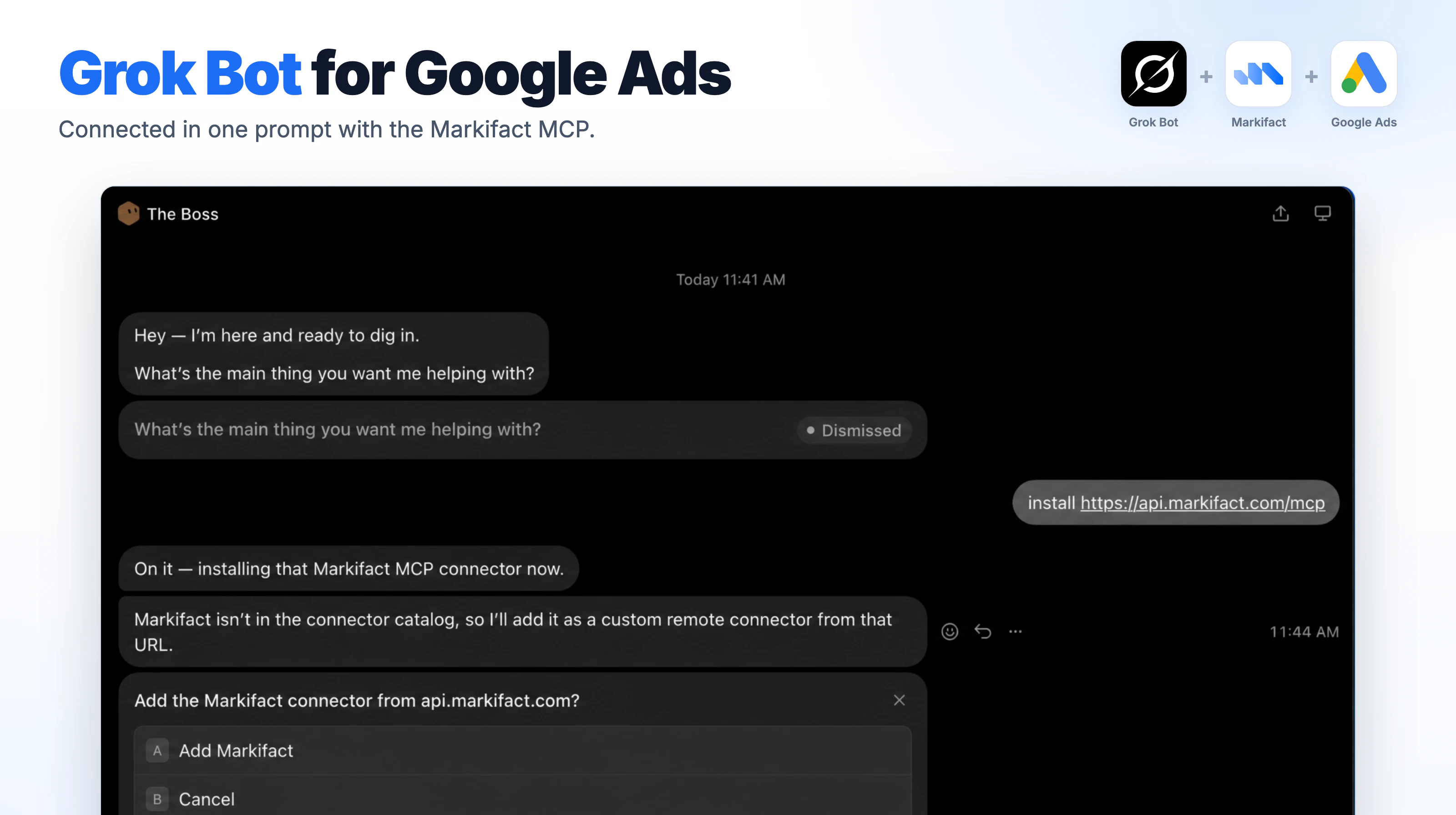
- Send this message:
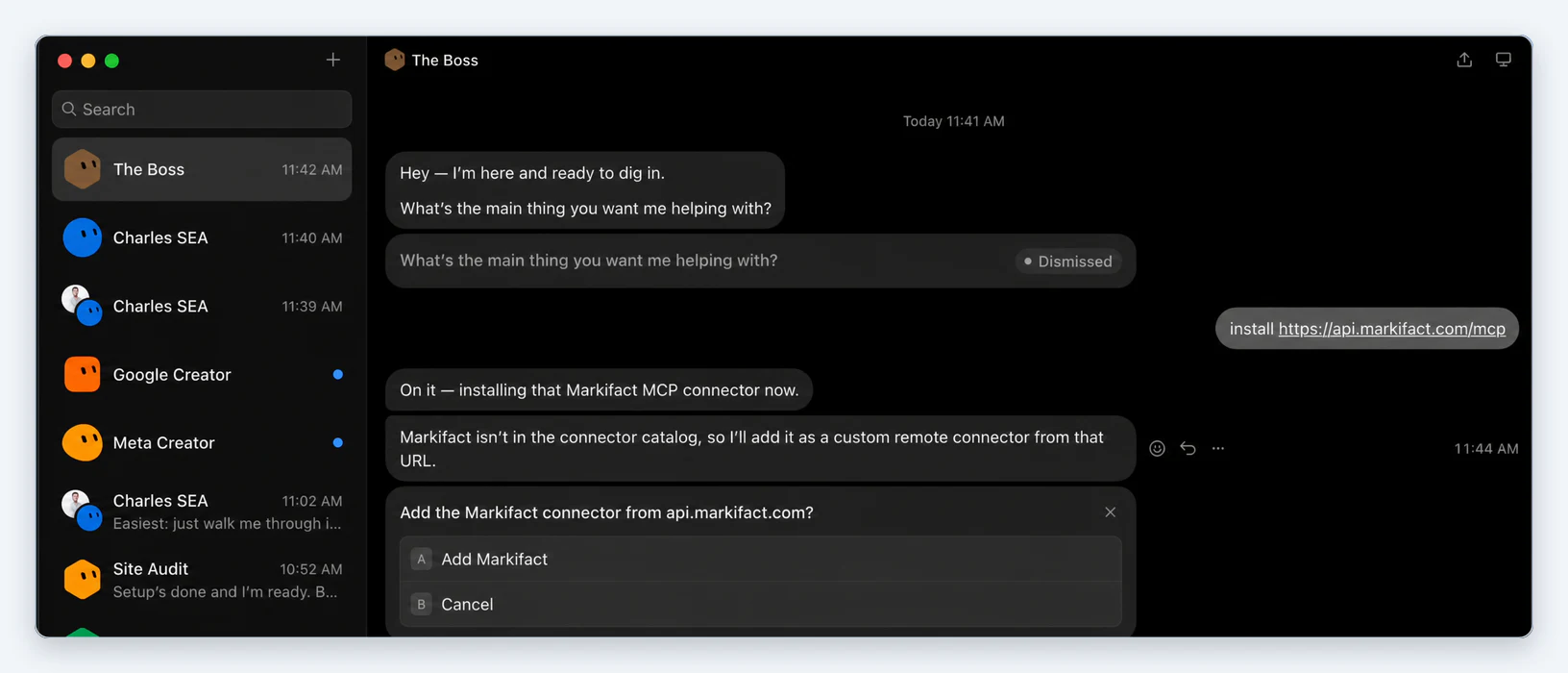
install https://api.markifact.com/mcp
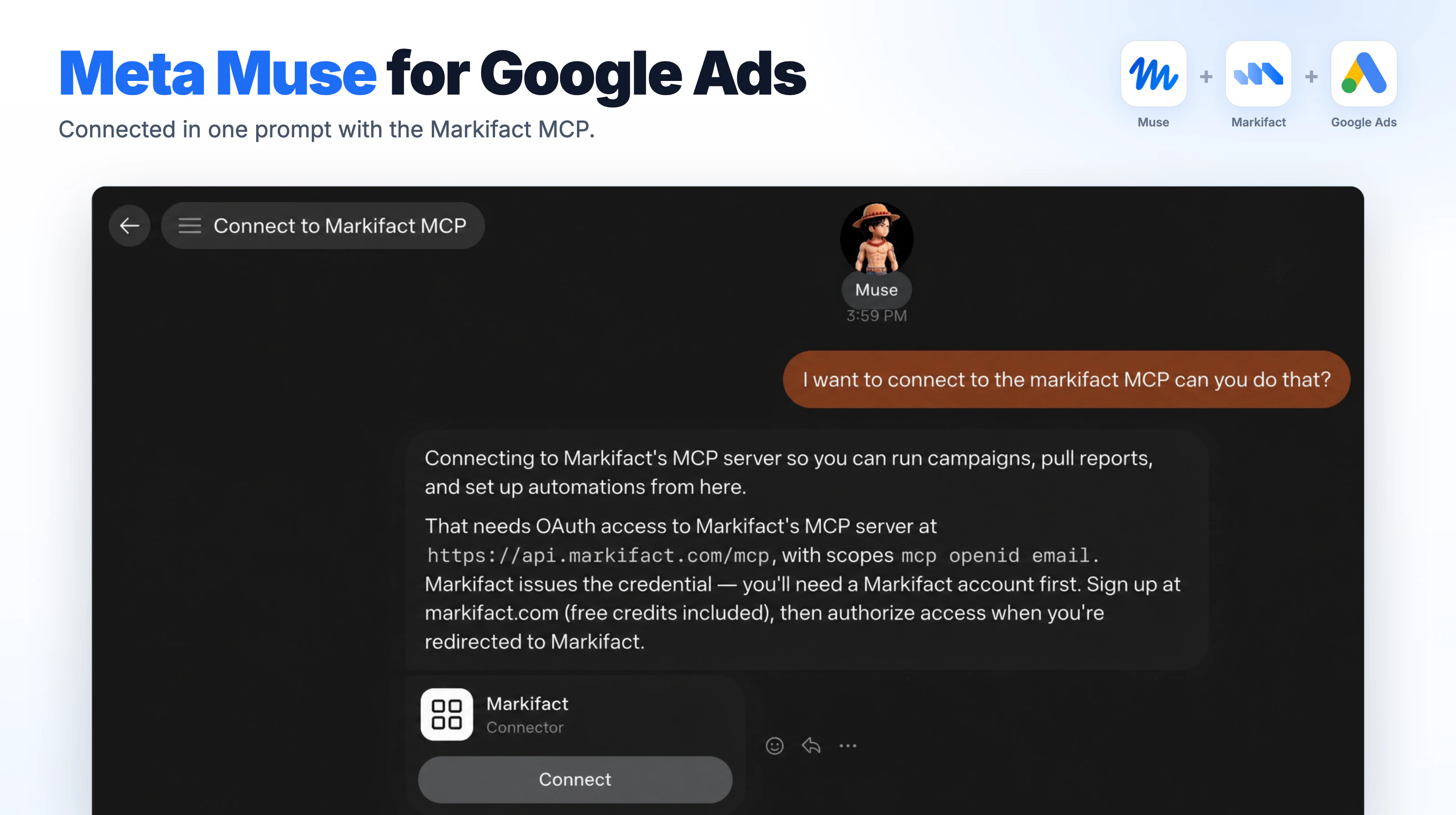
- The bot replies that Markifact is not in its connector catalog yet and offers to add it as a custom remote connector. Click Add Markifact.
Step 2: Sign in and connect Google Ads
- Grok Bot opens the Markifact sign-in. Log in, or create a free account, and approve the access request.
- In Markifact, connect Google Ads under Connections. You authorize Google Ads here, once, not inside Grok Bot.
- Back in Grok Bot, the bot confirms the connection and lists the accounts it can see.

If another bot later asks you to sign in to Markifact, approve it the same way.
Step 3: Create a Google Ads bot and give it a job
Grok Bot works best with one bot per job. In our setup, a Google Creator bot builds Search campaigns and a coordinator bot hands it tasks.
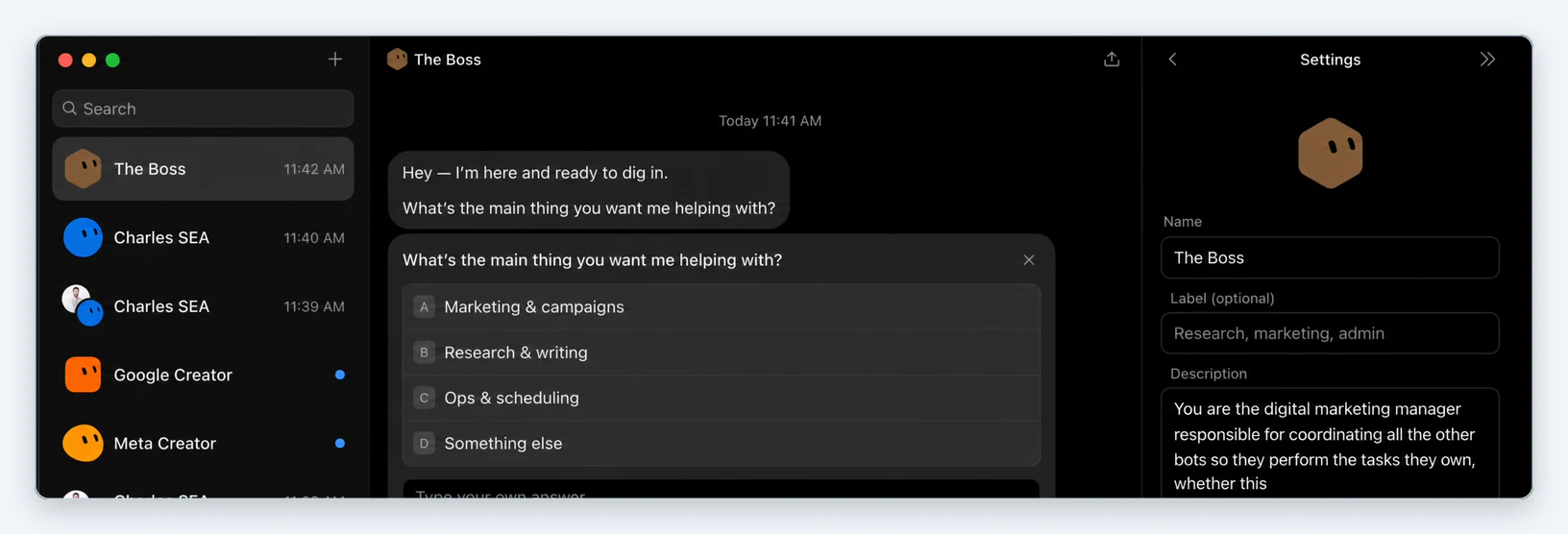
- Click + at the top of the sidebar to create a bot.
- In Settings, give it a Name and a Description that says what it is responsible for. The description works like a job brief, for example: "You manage Google Ads for [brand]. You build Search campaigns, review performance weekly and never enable anything without approval."
- Give the bot a task. We attached the course creative and asked for a Search campaign:
Create a Google Search campaign in [Google Ads account name or ID]
for [product], landing page [URL]. Write the ads yourself, pick
the keywords, set the budget to [amount] per day and create
everything paused.
What the bot built
The Google Ads bot drafted the plan before touching the account: three ad groups with phrase and exact match keywords, one responsive search ad per group, and the final URL. Then it asked for approval.
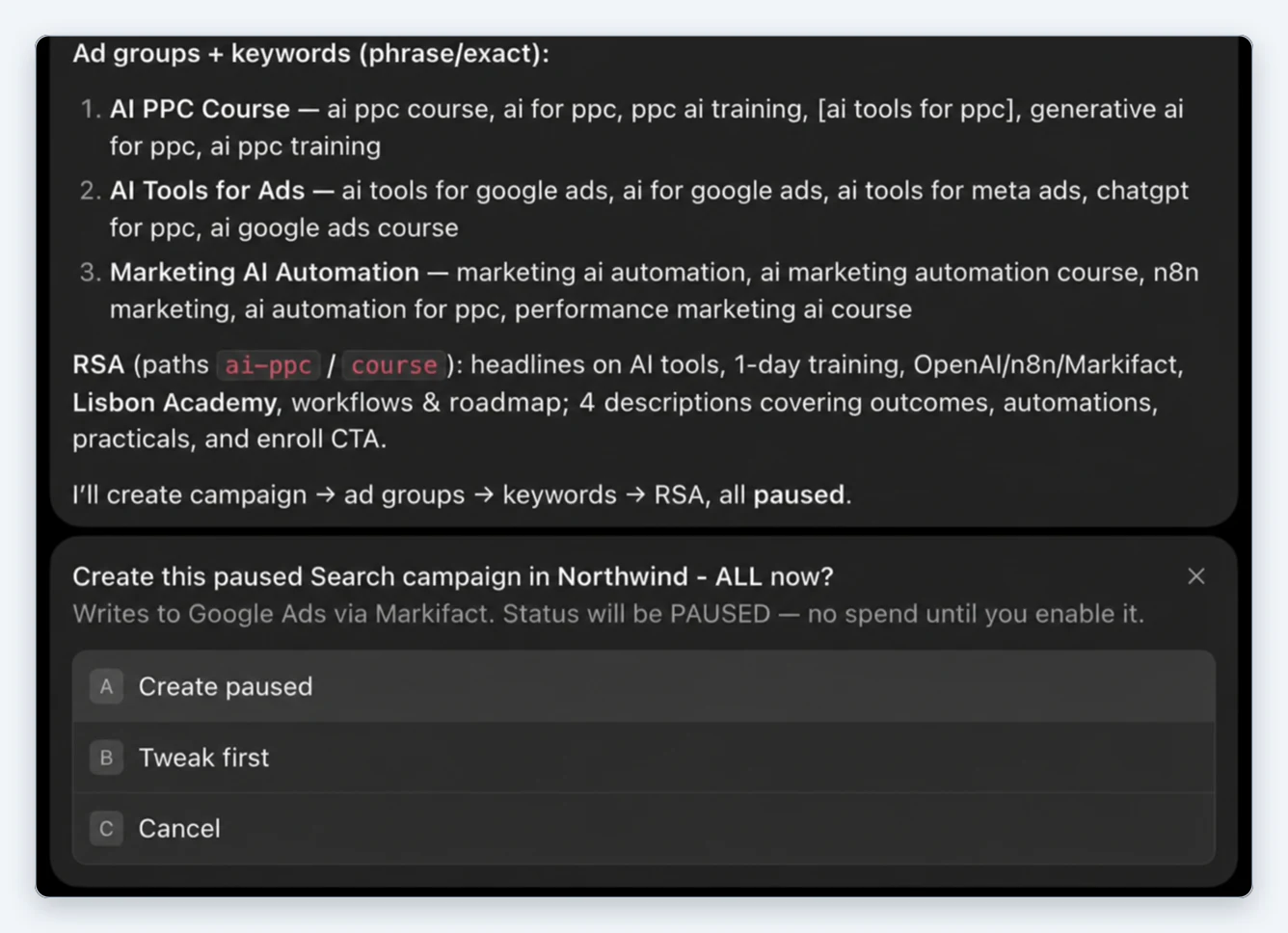
After we picked Create paused, the bot built the campaign, ad groups, keywords and ads, and reported back with the campaign id.
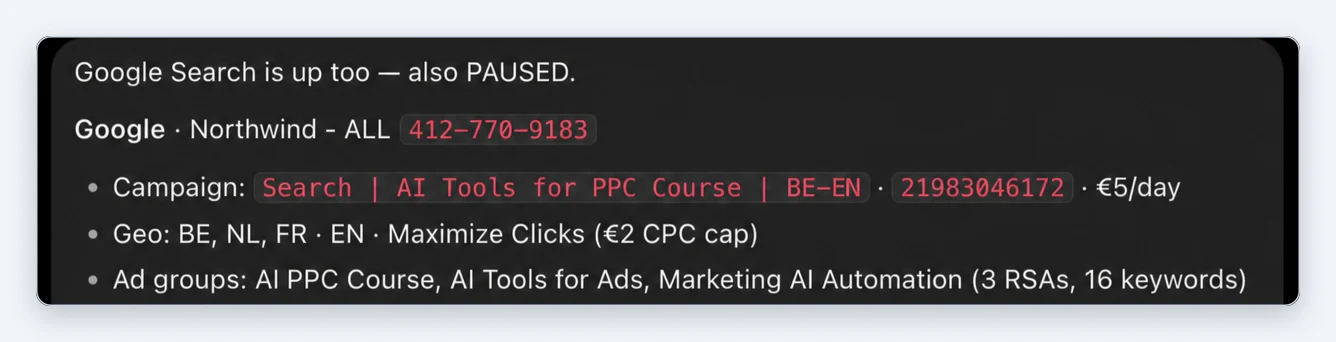
We then opened the account in Google Ads. The campaign, budget, keywords and ads were all there as described.
Prompts to try next
Weekly performance check
Pull last week's Google Ads performance for [account] by campaign,
compared with the week before. Flag any campaign where cost per
conversion rose more than 20% and tell me why.
Search term clean-up
List search terms from the last 30 days in [account] that spent
more than [amount] with no conversions. Suggest negative keywords
and wait for my OK before adding them.
Budget pacing
Every Monday, check month-to-date spend against budget for each
campaign in [account]. Tell me which campaigns are pacing more than
10% over or under, and suggest new daily budgets.
Ad copy review
Review the responsive search ads in [campaign]. Show the headlines
and descriptions with their performance labels, and draft
replacements for any asset rated Low.
What Markifact gives Grok Bot
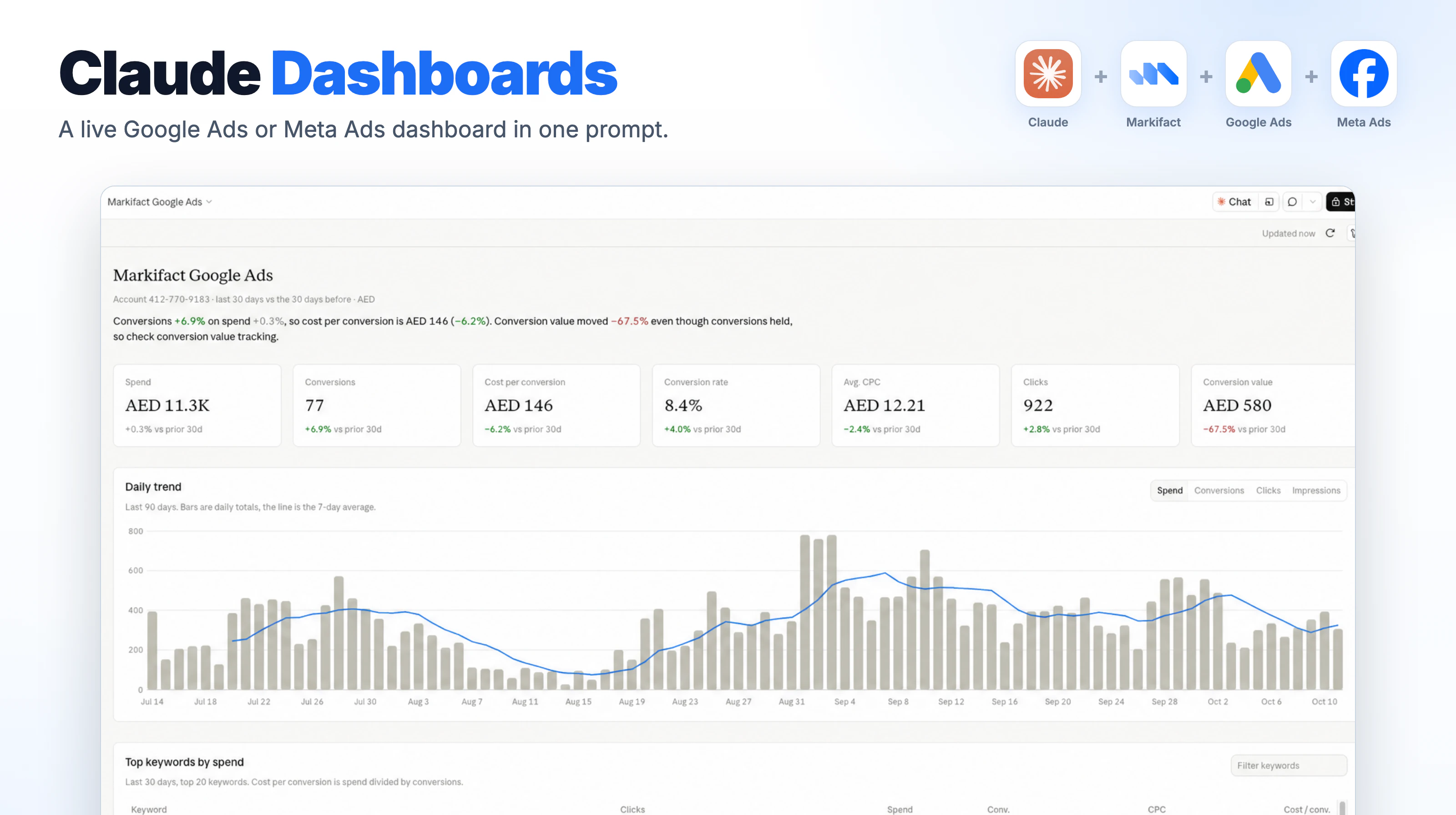
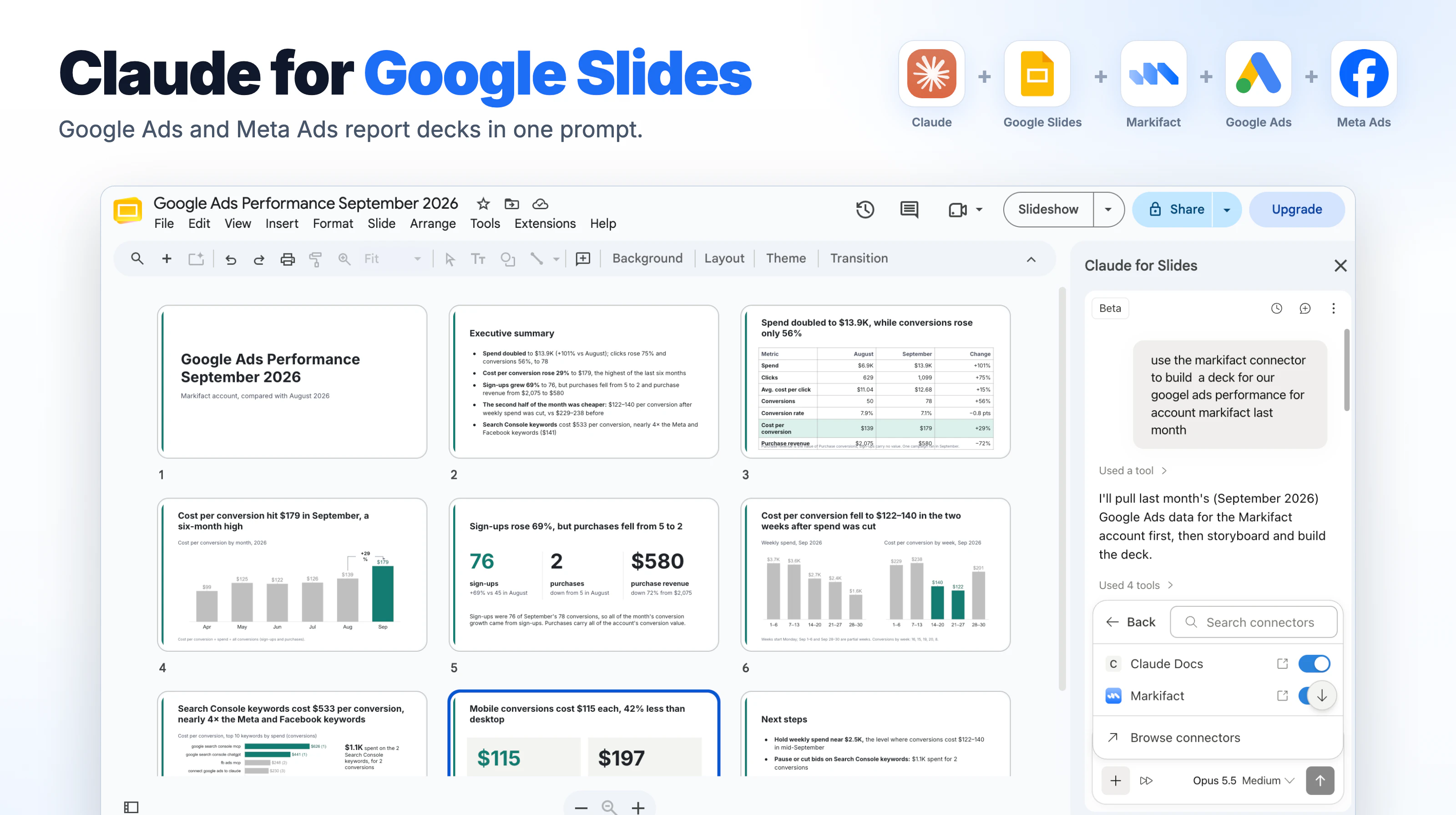
- Reporting: campaign, ad group, keyword, search term, asset and conversion reports, with comparisons between periods.
- Management: budgets, bids, statuses, keywords, negative keywords, ads and assets.
- Creation: Search, Performance Max and Demand Gen campaigns, ad groups and ads.
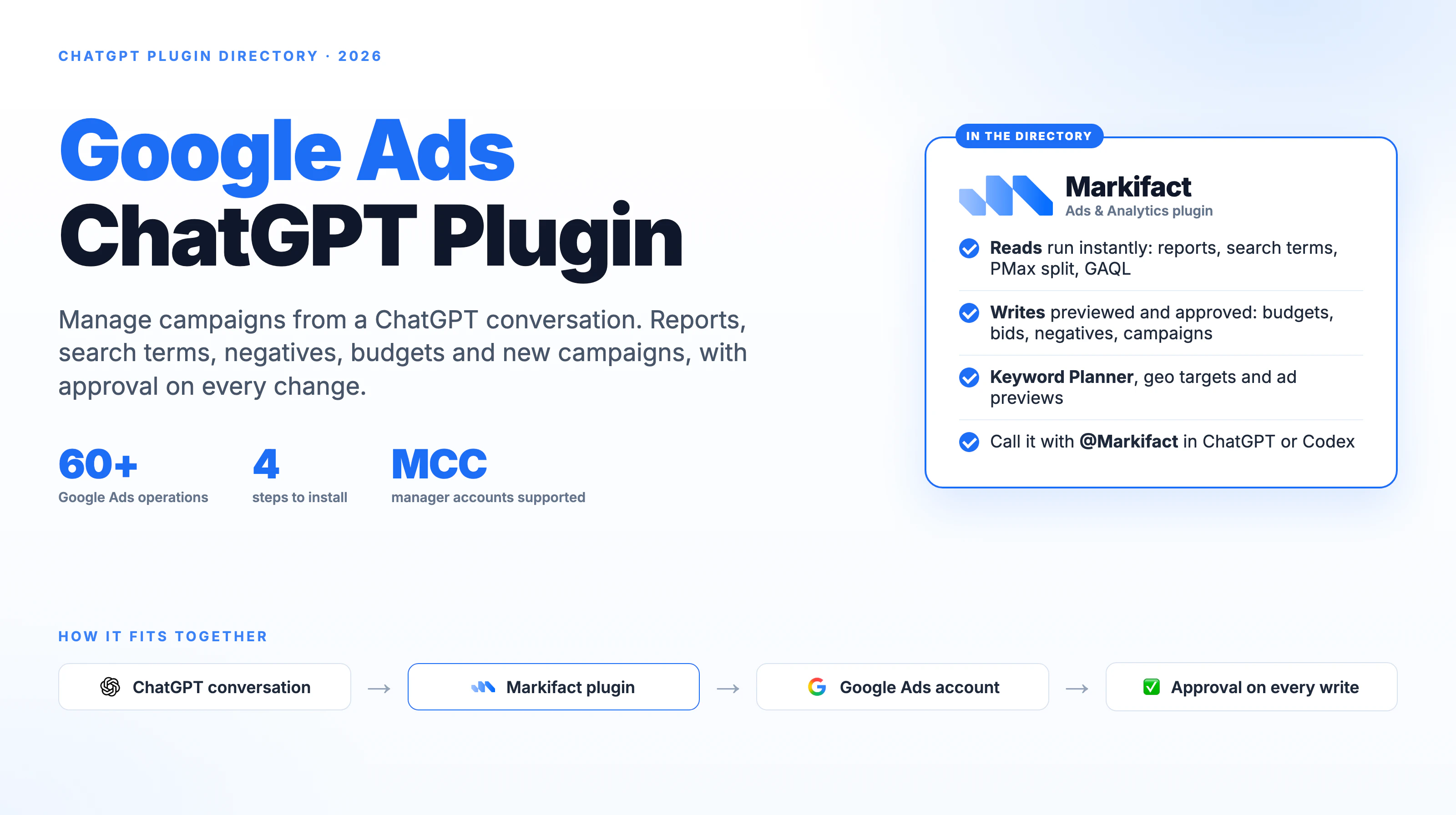
- Approval on every write. Reads run straight away; anything that changes the account waits for your confirmation.
The same connection also covers Meta Ads and 50+ other platforms; the Meta Ads version of this guide uses the same setup. The same Markifact account also works in Claude and ChatGPT.
Pricing
Markifact has a free account with 200 one-time credits to test the connector. Paid plans start at $79 a month for one seat with unlimited ad accounts. Details are on the pricing page. Grok Bot itself comes with SuperGrok Heavy, Cursor Ultra or Cursor Teams Premium.
Frequently asked questions
Can Grok Bot run Google Ads?
Yes, through an MCP connector. Install the Markifact MCP in Grok Bot, connect your Google Ads account in Markifact, and the bot can report on campaigns and create or change them with your approval.
How do I add an MCP server to Grok Bot?
Send any bot a message with install and the server's URL, for example install https://api.markifact.com/mcp. Grok Bot adds it as a custom remote connector and asks you to confirm, then you sign in to the service.
Can Grok Bot create Google Ads campaigns?
Yes. In our test the bot planned and built a Search campaign with three ad groups, 16 keywords and three responsive search ads, created paused.
Will Grok Bot change my campaigns without asking?
No. Markifact asks for confirmation before any write to your account, and new campaigns are created paused, so nothing spends until you turn it on.
Does it work with a Google Ads manager account (MCC)?
Yes. Connect the Google login that has access to your manager account, and the bot can work with every client account under it. Name the account in your prompt when you have several.
Does this work in regular Grok chat too?
xAI's documentation says grok.com supports custom MCP connectors under Connectors, New Connector, Custom, using the same server URL. Our test above was in Grok Bot.