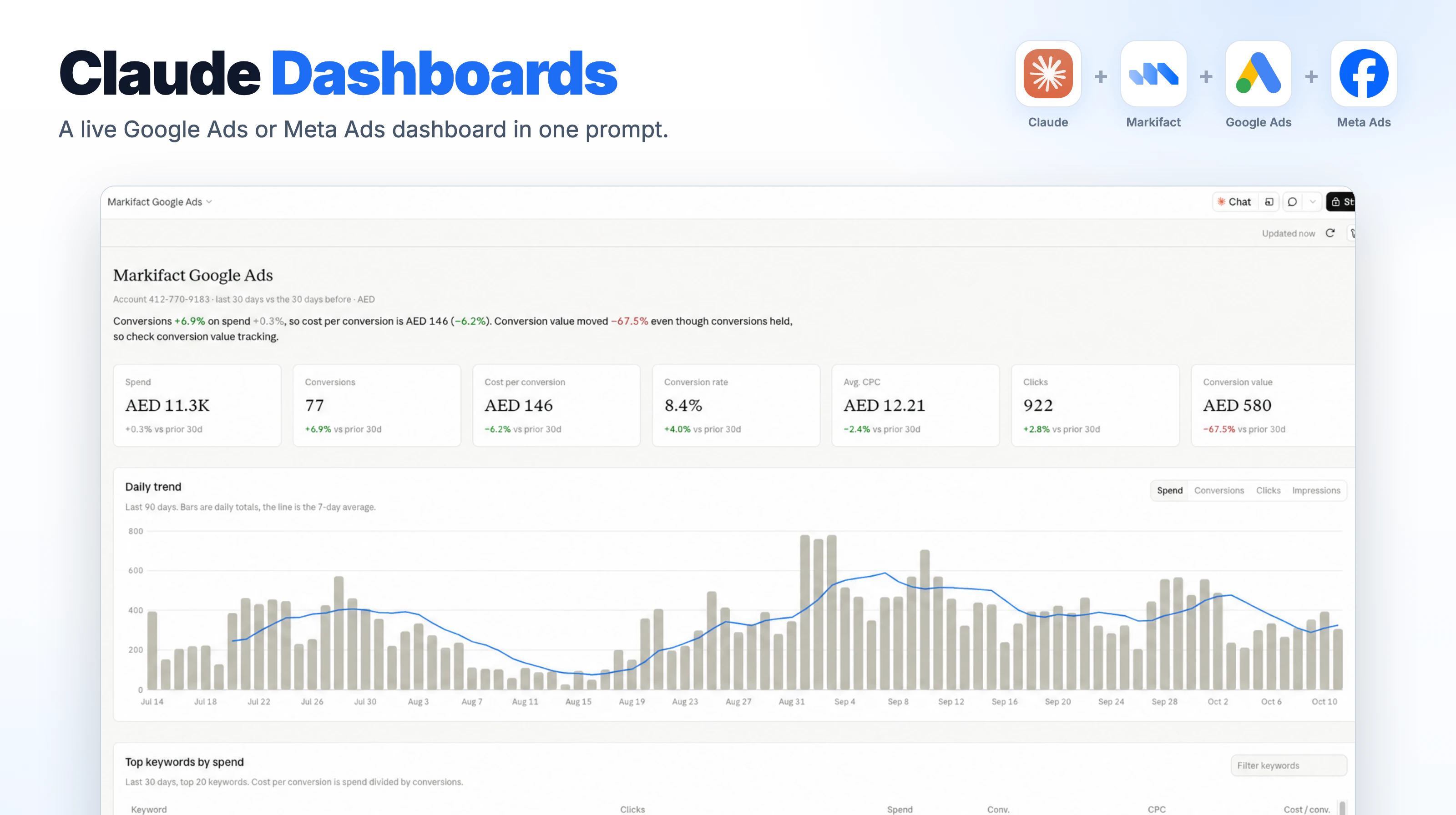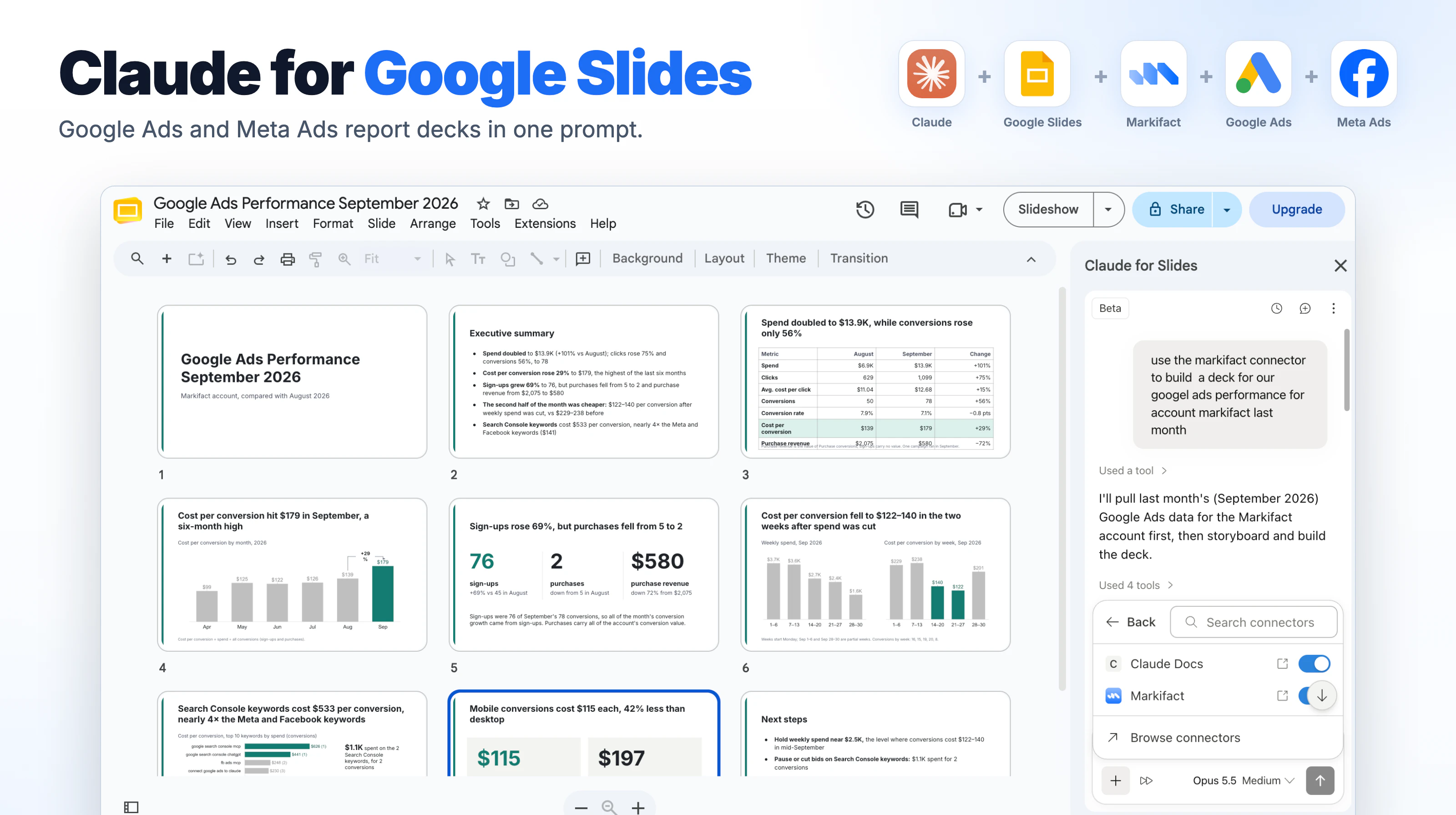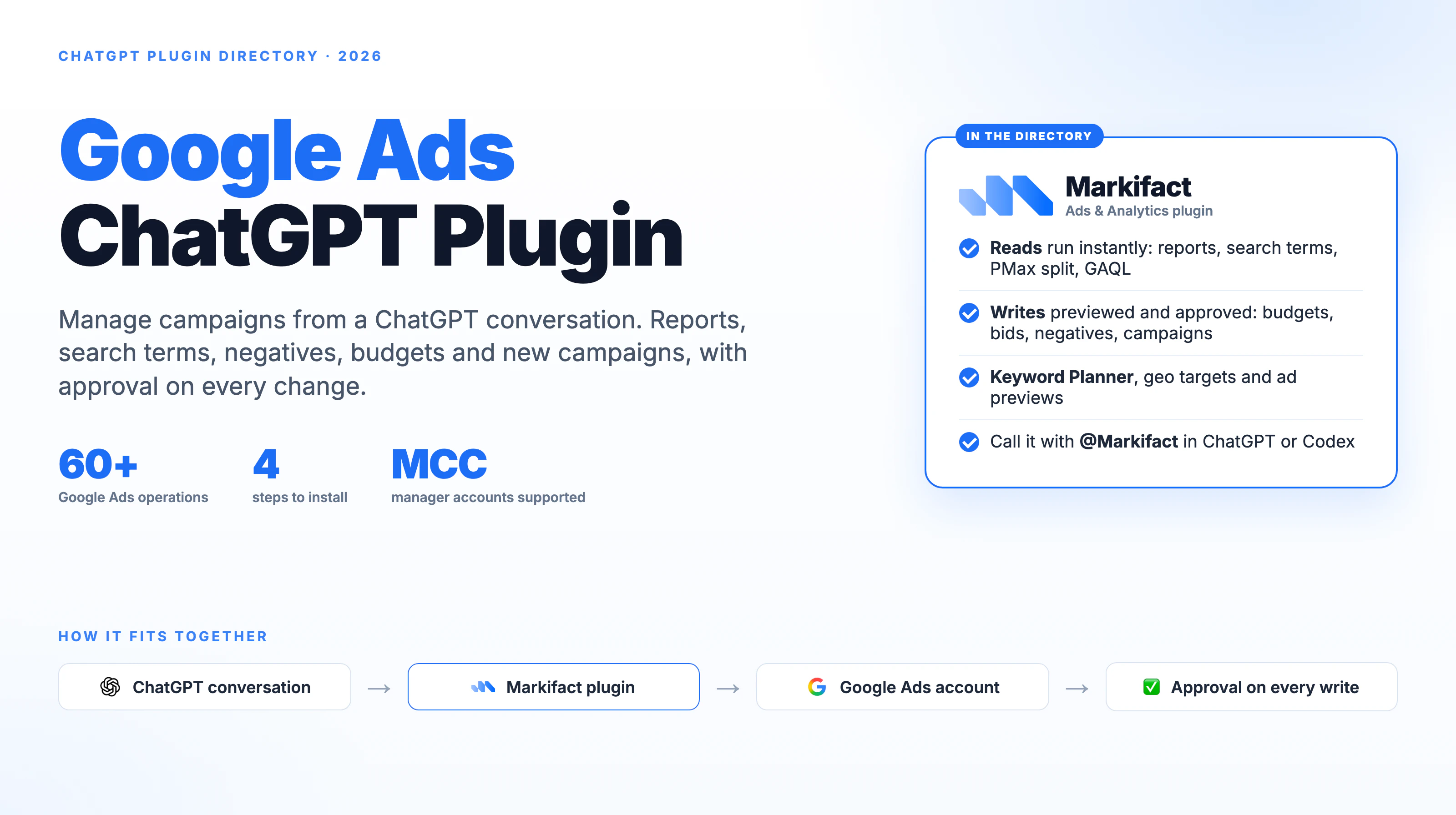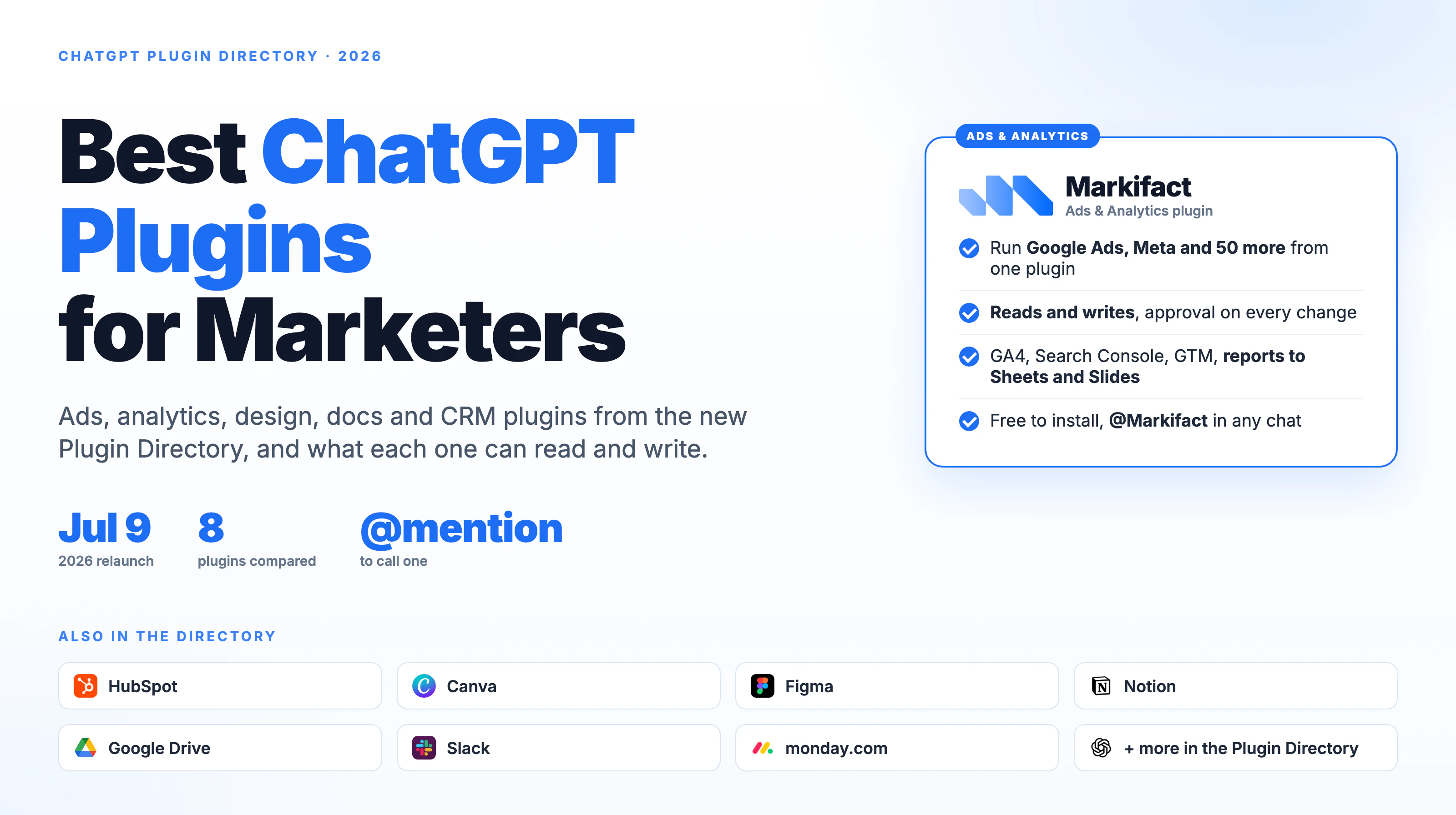

ChatGPT and Codex become far more useful for Google Ads when they can work with the right account data. Without a connection, you are copying reports into prompts, losing context between analyses, and turning every recommendation into another manual task.
Markifact closes that gap. Connect Google Ads inside Markifact, connect the approved Markifact app to ChatGPT, and you can pull reports, investigate performance, and prepare approval-gated account changes from a conversation. Codex is available from the ChatGPT desktop app and uses the same ChatGPT account and Markifact connection, so it does not need a separate Google Ads setup.
The connection has two parts: Google Ads to Markifact, then Markifact to ChatGPT. Once both sides are authorized, start with a read-only report and verify the account, currency, date range, and conversion fields before requesting any change.
This guide walks through the complete setup for ChatGPT and Codex, a safe first report, copy-paste prompts, troubleshooting, and the approval boundary for live budget changes.
Connecting the Markifact app does not connect Google Ads by itself. The Google Ads connection must already exist in the Markifact workspace you authorize.
What you need
Before starting, make sure you have:
- A Markifact account
- Access to the Google Ads account you want to analyze
- A Google Ads connection inside the correct Markifact workspace
- Access to the public Markifact app in ChatGPT
- The ChatGPT desktop app if you want to use Codex from the ChatGPT dropdown
If you use a managed ChatGPT workspace, your administrator may control whether the app is available and which actions it can run. Do not use a custom setup to bypass a workspace policy.
1. Connect Google Ads inside Markifact
Open Connections in Markifact, find Google Ads, and start the connection. Sign in with the Google user that has access to the ad accounts you need.
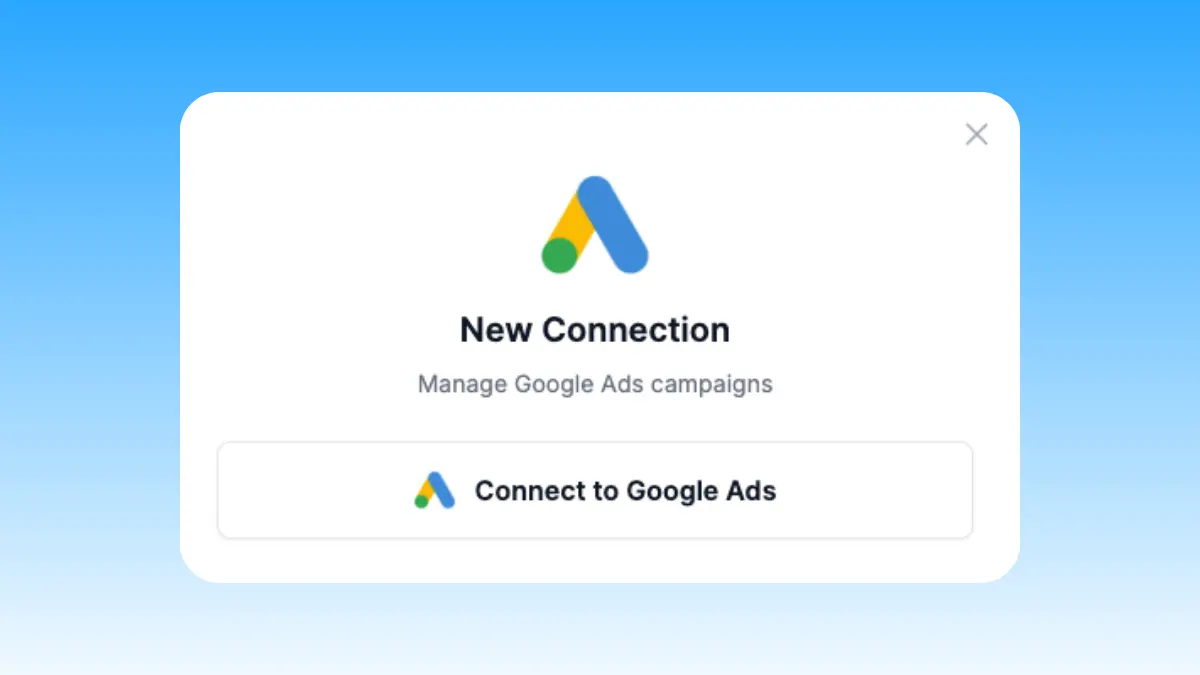
The accounts available later in ChatGPT depend on the Google user's access and the saved connection in Markifact. If you manage several brands or clients, name the connection clearly so you can identify it during reporting.
The Markifact route uses managed OAuth. You do not need to create and maintain your own developer token, OAuth app, Google Cloud project, local service, or MCP server.
You can review the available reporting and campaign-management capabilities on the Markifact Google Ads MCP page.
2. Connect the Markifact app in ChatGPT
Open the public Markifact listing in ChatGPT. The current listing is named Markifact, uses the description Analyze and manage ads, and presents a Connect button.
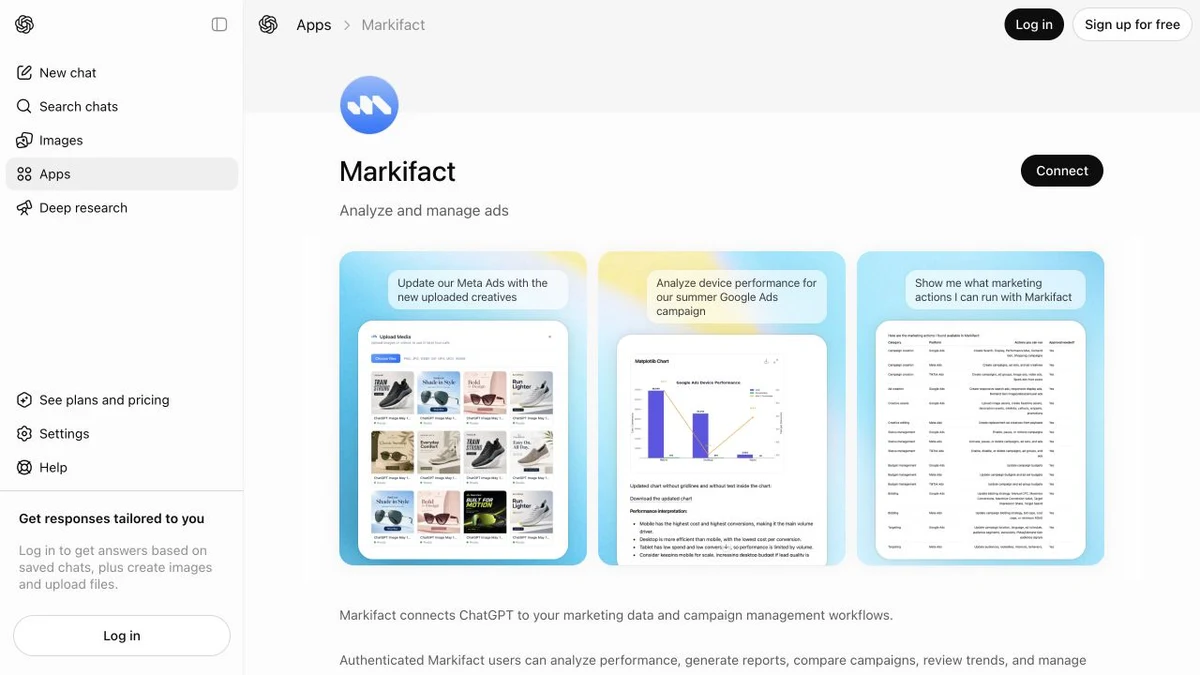
Click Connect. Sign in to the Markifact workspace that contains the Google Ads connection from step one, then complete the authorization flow.
After ChatGPT returns, confirm that Markifact shows as connected. If you authorized the wrong workspace, disconnect it and repeat the flow with the correct account before running any report.
If you prefer Codex, open the ChatGPT desktop app and select Codex from the ChatGPT dropdown. Sign in with the same ChatGPT account and use the same Markifact workspace. Google Ads remains authorized inside Markifact, so there is no second Google OAuth flow for Codex. The prompts and approval boundaries in this guide stay the same.
3. Add Markifact to a conversation
Open a new ChatGPT conversation. Click + beside the composer, choose More, and select Markifact from the available apps.
OpenAI documents this as the step that adds an app to the conversation context. It makes the intended data source explicit before you ask for Google Ads data.
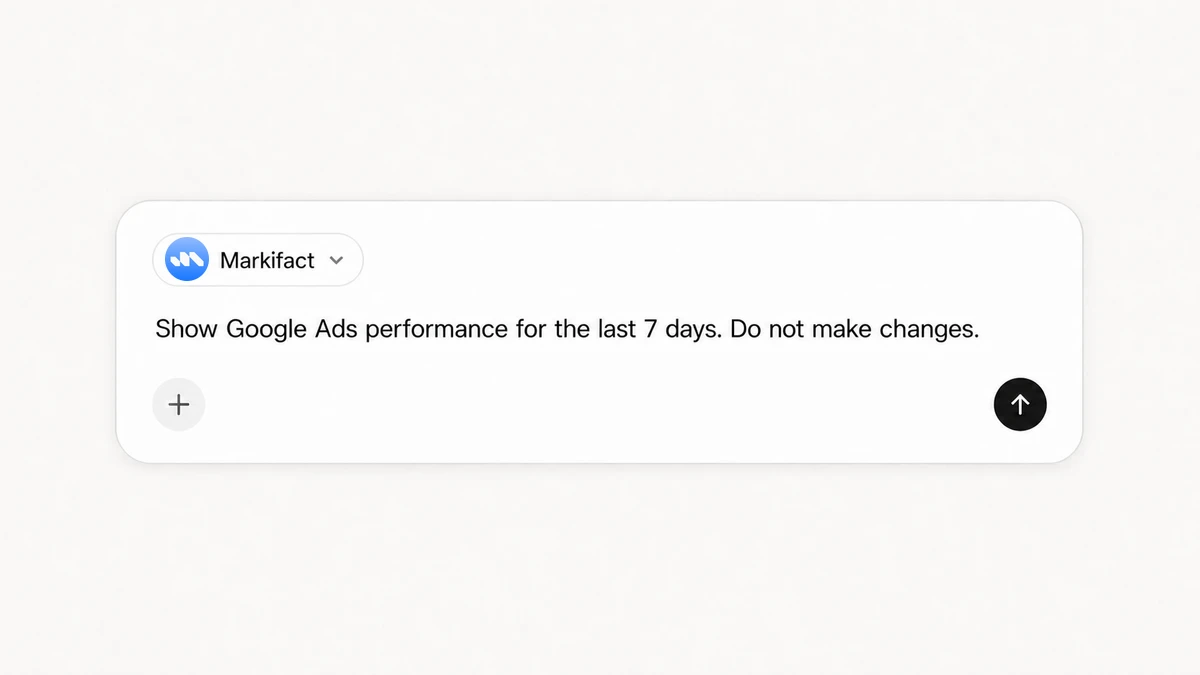
For the first test, keep the request narrow. Name the date range, metrics, output, and change boundary.
4. Run a read-only report first
Copy this prompt:
Use Markifact and my connected Google Ads account.

Show performance by campaign for the last 7 complete days.
Include cost, impressions, clicks, CTR, conversions, CPA, and ROAS
where those fields are available. Sort by cost from highest to lowest.
State which account and currency you used. Do not make any changes.
Markifact can use the read-only gads_get_report operation for this request. The operation supports account selection, date ranges, metrics, dimensions, filters, and sorting. It does not change the Google Ads account.
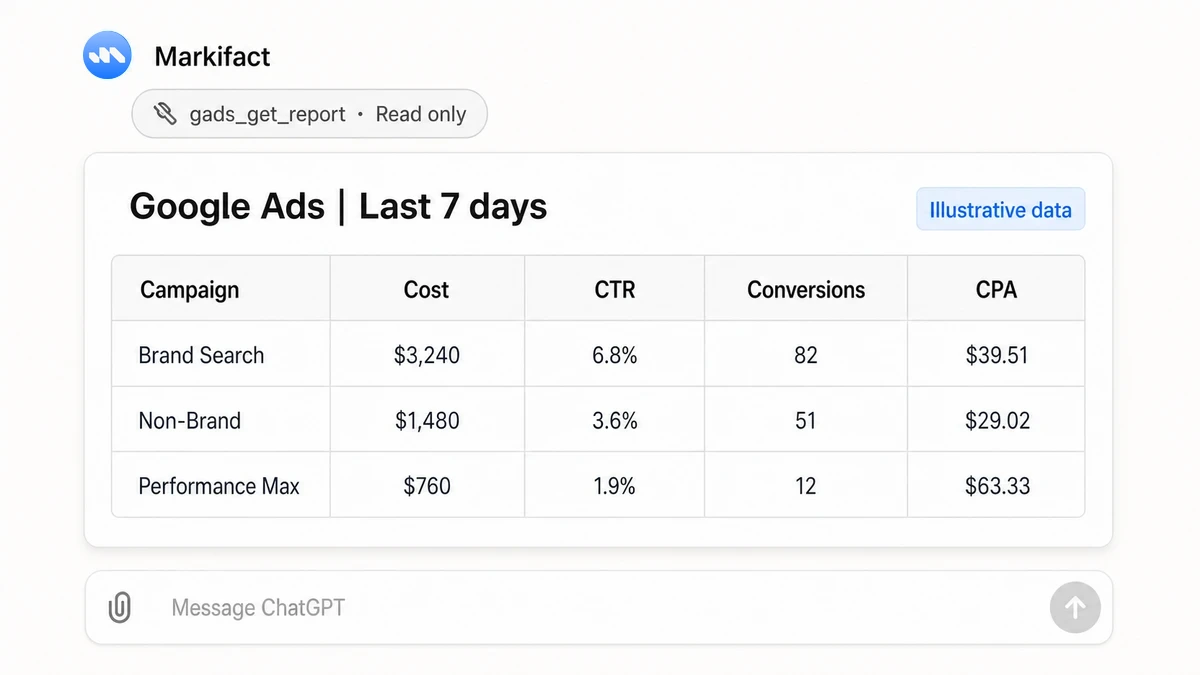
The figures in the image are illustrative. Your report will use the data available through your connected Google Ads account.
Before asking ChatGPT to interpret the result, verify:
- The Google Ads customer account is correct.
- The account currency is correct.
- The report covers complete dates.
- The conversion field matches the primary action your team uses.
- The totals are plausible compared with Google Ads.
If any of those checks fail, fix the scope before continuing. A polished analysis of the wrong account is still wrong.
Useful Google Ads prompts for ChatGPT and Codex
The prompt structure is the same in ChatGPT and Codex. The most reliable requests name the account scope, date range, metrics, comparison, output format, and whether writes are allowed.
Weekly performance report
Use Markifact to pull Google Ads campaign performance for the last
7 complete days and compare it with the previous 7 complete days.

Include cost, impressions, clicks, CTR, conversions, conversion rate,
CPA, conversion value, and ROAS where available.

Return a table followed by the three largest changes.
Show the figures behind each conclusion. Do not make changes.
Find campaigns that need attention
Use Markifact to review active Google Ads campaigns for the last 30 days.

Flag campaigns that spent at least $500 and have a CPA at least 25%
above the account average. Show cost, conversions, CPA, and ROAS for
every flagged campaign. Recommend next steps, but do not apply them.
The dollar threshold is an instruction for your account, not a claim about real performance. Replace it with a meaningful amount.
Compare brand and non-brand campaigns
Use Markifact to compare brand and non-brand Google Ads campaigns for
the last 30 complete days. Show cost, clicks, CTR, conversions, CPA,
conversion value, and ROAS.

List the campaign names included in each group. Explain the largest
differences and do not make changes.
Build an account review
Use Markifact to review Google Ads performance for the last 30 complete days.

Start with campaign-level cost, conversions, CPA, and ROAS. Then identify
the five campaigns that deserve investigation. For each one, show the data,
explain the issue, and give one next diagnostic question.

Do not change the account.
Write a client update
Use the verified Google Ads report in this conversation to write a client update.

Use three sections: wins, issues, and next actions. Include the numbers
supporting every point. Keep it under 250 words. Do not make changes.
Keeping the report and the narrative in the same conversation makes it easier to check each sentence against the source data.
What happens when you request a budget change
Reporting and account changes are separate operations.
If you ask ChatGPT or Codex to update a campaign budget, Markifact can prepare gads_update_campaign_budget. This is a write operation, and Markifact marks it as requiring approval.
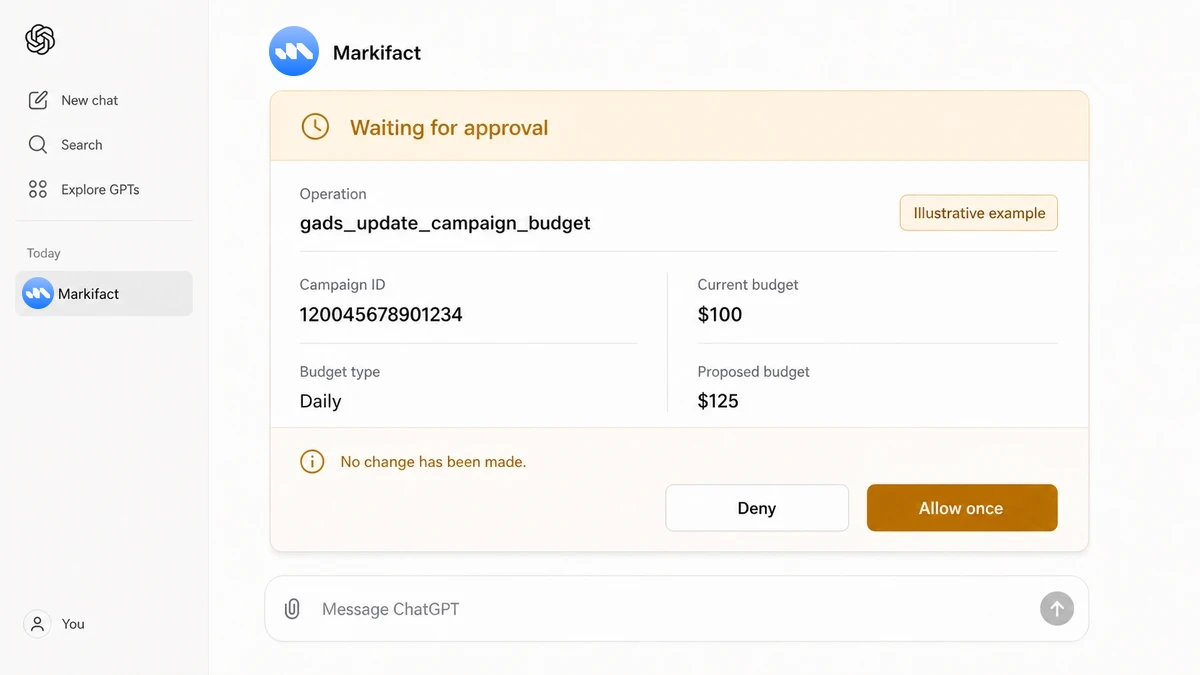
The campaign ID and budgets in the image are illustrative. Waiting for approval means the proposed change has not been applied.
Use this prompt before requesting a write:
Use Markifact to review campaign budget pacing for the last 30 complete days.

Before changing anything, show the account, campaign name, campaign ID,
current daily budget, cost, conversions, CPA, and ROAS.

If a budget change is justified, propose one new daily budget and explain
the percentage change and evidence. Do not update the budget until I approve
the exact account, campaign ID, current budget, and proposed budget.
Before approving, verify:
- The Markifact workspace
- The Google Ads customer account
- The campaign name and campaign ID
- The account currency
- The current budget
- The proposed budget
- Whether the value is a daily budget
The Markifact budget operation accepts values in the account currency, not micros. That detail matters because raw Google Ads API money fields can use micros, while the Markifact write input expects the readable currency value.
Understand the two permission layers
There are at least two separate approval boundaries in this setup.
First, ChatGPT app permissions determine when ChatGPT asks before using an app. OpenAI currently documents:
- Always ask: asks before retrieving information or making changes
- Ask before making changes: retrieves information automatically but asks before changes
- Ask only before important changes: the documented default, which asks before consequential actions
For a live advertising account, Ask before making changes is the clearest team rule when it is available. Reports can run without repeated prompts, while writes still stop for confirmation.
Second, Markifact classifies operations separately. gads_get_report is read-only. gads_update_campaign_budget requires approval.
Changing a ChatGPT permission does not expand the Google accounts available to Markifact, and it does not change the access granted to the Google user. Each layer has its own job.
OpenAI explains the current app-selection and permission behavior in its Connect from ChatGPT documentation.
Troubleshooting
Markifact does not appear in ChatGPT
Open the direct listing linked above. In a managed workspace, ask the administrator whether Markifact is enabled for your role.
The Connect button is unavailable
A workspace administrator may have restricted apps or write actions. Ask the administrator to review the Markifact app rather than trying to bypass the policy.
ChatGPT is connected but cannot find Google Ads
Open Markifact and confirm that Google Ads is connected in the same workspace authorized from ChatGPT. Connecting the Markifact app does not create a Google Ads connection automatically.
The wrong Google Ads account appears
Stop before analysis or changes. Confirm which Google login and saved Markifact connection you authorized, then name the intended customer account explicitly in the prompt.
The report is empty
Try a wider date range, remove optional filters, and confirm that the account delivered during the requested period. An empty report does not always mean authentication failed.
ChatGPT did not ask before a change
Review the app-specific permission in ChatGPT Settings, then Apps. Choose Ask before making changes if you want every write to stop at the ChatGPT layer. Markifact operations that require approval keep their separate approval boundary.
A practical first workflow
Once the connection works, use the same sequence every week:
- Pull a campaign report for complete dates.
- Verify the account, currency, conversion field, and totals.
- Ask ChatGPT to explain the largest changes with supporting figures.
- Request recommendations without applying them.
- Review one proposed action at a time.
This separation keeps diagnosis and execution clear. It also gives you a clean point to stop when the data is incomplete.
If you also use Claude, the Google Ads and Claude connection guide covers that setup. For another example of the approved ChatGPT app route, see the Meta Ads to ChatGPT guide.
Frequently asked questions
Do I need ChatGPT developer mode?
No. This guide uses the public Markifact app in ChatGPT. Open the listing, click Connect, and authorize your Markifact workspace.
Do I need a separate Google Ads connection for Codex?
No. OpenAI makes Codex available from the ChatGPT desktop app. Use the same ChatGPT account and Markifact workspace. The Google Ads OAuth connection remains inside Markifact, so you do not repeat the Google Ads setup for Codex. Workspace availability and app controls may still depend on your administrator.
Do I need a Google Ads developer token or Google Cloud project?
No. Markifact manages the Google Ads connection for this route. You do not need to create your own developer token, OAuth app, Cloud project, or local MCP service.
Does connecting Markifact also connect Google Ads?
No. Connect Google Ads inside Markifact first, then authorize that Markifact workspace from ChatGPT.
Can ChatGPT report across several Google Ads accounts?
Markifact supports multi-account reporting when those accounts are available through the connected Google user and Markifact workspace. Name the intended accounts clearly and verify them in the result.
Can ChatGPT change a live Google Ads budget?
Markifact can expose gads_update_campaign_budget. It is an approval-gated write operation. Verify the account, campaign ID, currency, current budget, and proposed budget before allowing it.
Is Markifact Google's official Google Ads MCP server?
No. Markifact is a managed third-party platform that connects Google Ads to ChatGPT and other AI clients through OAuth and approval-based operations.