
Meta Ads Manager gives you the data, but getting to a useful answer can still mean opening the right account, fixing the date range, rebuilding a report, and explaining the numbers to someone else. Repeat that across several campaigns or clients, and a simple check becomes a recurring task.
Connecting Meta Ads to ChatGPT changes the working surface. You can ask for a campaign report, compare Facebook with Instagram, investigate a performance change, and prepare the next action in one conversation. The important part is connecting it in a way that keeps account access and live changes under control.
The shortest route is the approved Markifact app in ChatGPT. Connect Meta Ads inside Markifact, open the Markifact listing in ChatGPT, click Connect, authorize your Markifact account, and invoke @Markifact in a chat. You do not need developer mode, an API key, or an MCP URL for this setup.
This guide covers that Markifact route. It is different from adding Meta's direct MCP endpoint or building a custom ChatGPT app.
The quick version
- In Markifact, open Connections and connect Meta Ads.
- Open the approved Markifact listing in ChatGPT.
- Click Connect and complete the Markifact authorization flow.
- Start a new conversation and add Markifact with
@Markifactor from+, then More. - Run a read-only campaign report before requesting any account change.
That is the full connection path. ChatGPT may label the discovery area Plugins or Apps as the directory rollout changes, but the Markifact listing and Connect flow are the same.
What you need before connecting
You need:
- A Markifact account
- Access to the Meta business and ad account you want to use
- A Meta Ads connection in your Markifact workspace
- A ChatGPT account where the Markifact Connect button is available
The ChatGPT listing can be visible even when a workspace administrator has disabled the app or restricted its write actions. Availability can depend on your plan, region, workspace settings, role, and the ChatGPT surface you are using.
If you use a managed Business, Enterprise, or Edu workspace and the button is disabled, ask the workspace administrator to enable Markifact. Do not switch to developer mode to work around an organizational policy.
1. Connect Facebook and Instagram ads in Markifact
Open Connections in Markifact, find Meta Ads, and click Connect.
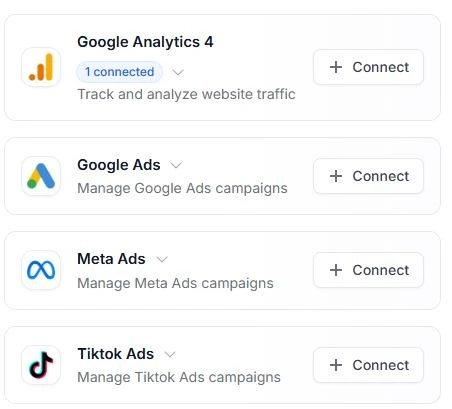
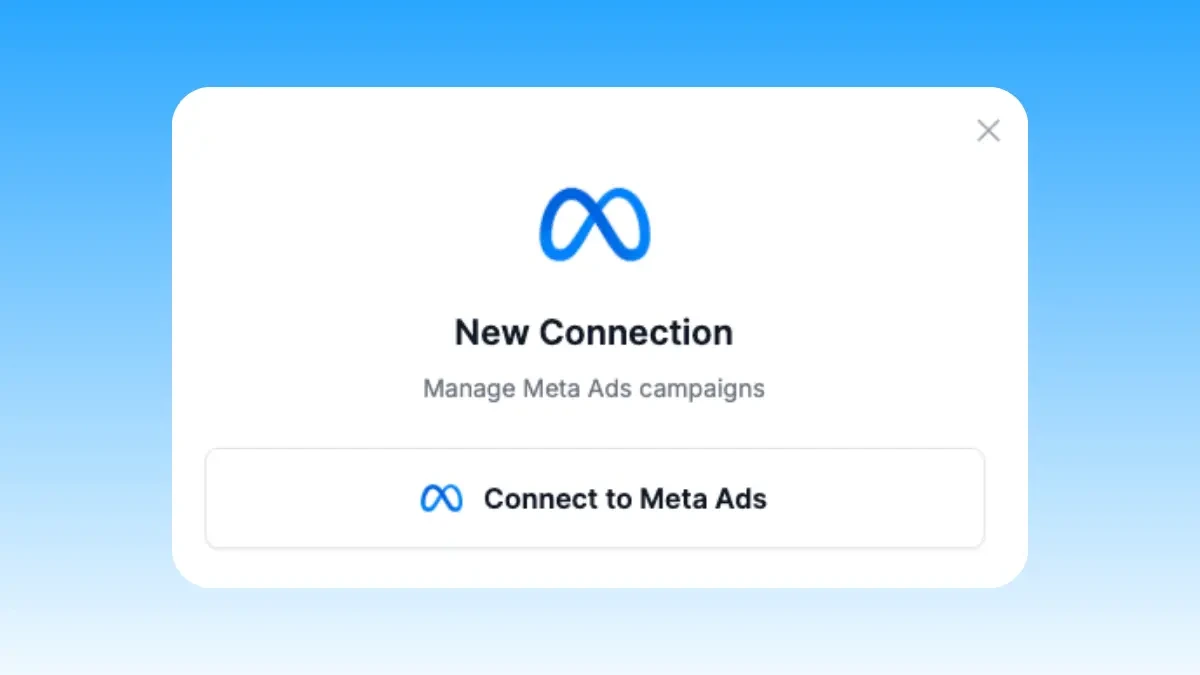
The Meta authorization flow asks you to sign in and grant access to available business assets. The ad accounts Markifact can use depend on the permissions of that Meta user. Markifact and ChatGPT cannot expand those Meta permissions.
When the flow returns to Markifact, confirm that Meta Ads shows as connected. If your workspace has several Meta logins, give the connection a name that identifies the brand or client clearly.
You can review the available reporting and campaign-management use cases on the Markifact Meta Ads MCP page.
2. Open the approved Markifact app in ChatGPT
Open the Markifact ChatGPT listing. The current listing is named Markifact, uses the description Analyze and manage ads, and shows a Connect button.
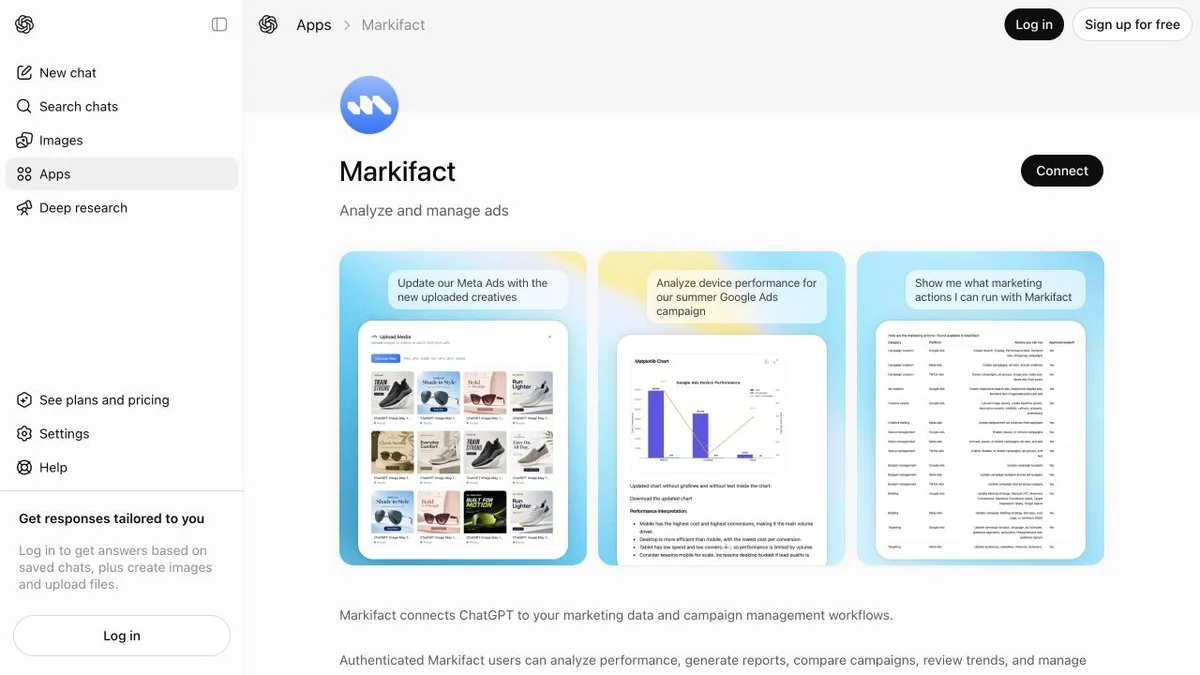
The listing identifies Markifact as an interactive app with write capabilities. That does not mean a campaign changes as soon as you connect it. It means the app can expose both reporting operations and controlled actions, subject to your ChatGPT, Markifact, and Meta permissions.
Click Connect. ChatGPT will send you through the Markifact login and authorization flow. Sign in to the Markifact workspace that contains the Meta connection you prepared in the first step.
After authorization, return to ChatGPT and confirm that Markifact is connected.
3. Add Markifact to a ChatGPT conversation
Start a new chat and invoke Markifact in either of these ways:
- Type
@Markifactin your prompt and select the app. - Click
+, choose More, and select Markifact.
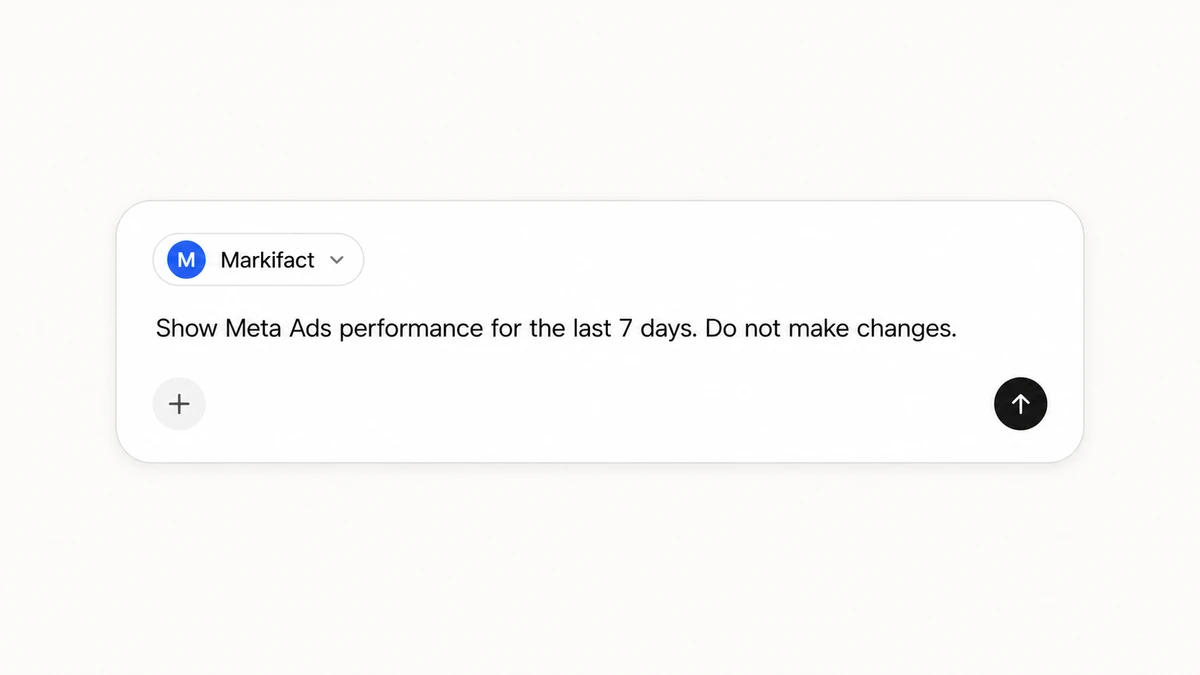
I prefer the explicit @Markifact mention for the first few requests. It makes the intended data source clear and reduces ambiguity when other marketing apps are connected.
4. Run a read-only Meta Ads test first
Do not begin with “optimize my ads.” That request has no account, date range, success metric, or boundary around changes.
Start with this:
@Markifact, use my connected Meta Ads account.

Show campaign performance for the last 7 complete days.
Include spend, impressions, clicks, CTR, conversions, cost per result,
and conversion value where available.
Group by campaign and sort by spend from highest to lowest.
Flag missing data. Do not make any changes.
For this request, Markifact can use the read-only meta_ads_get_report operation. It retrieves reporting data across campaign, ad set, or ad levels. It does not change the account.
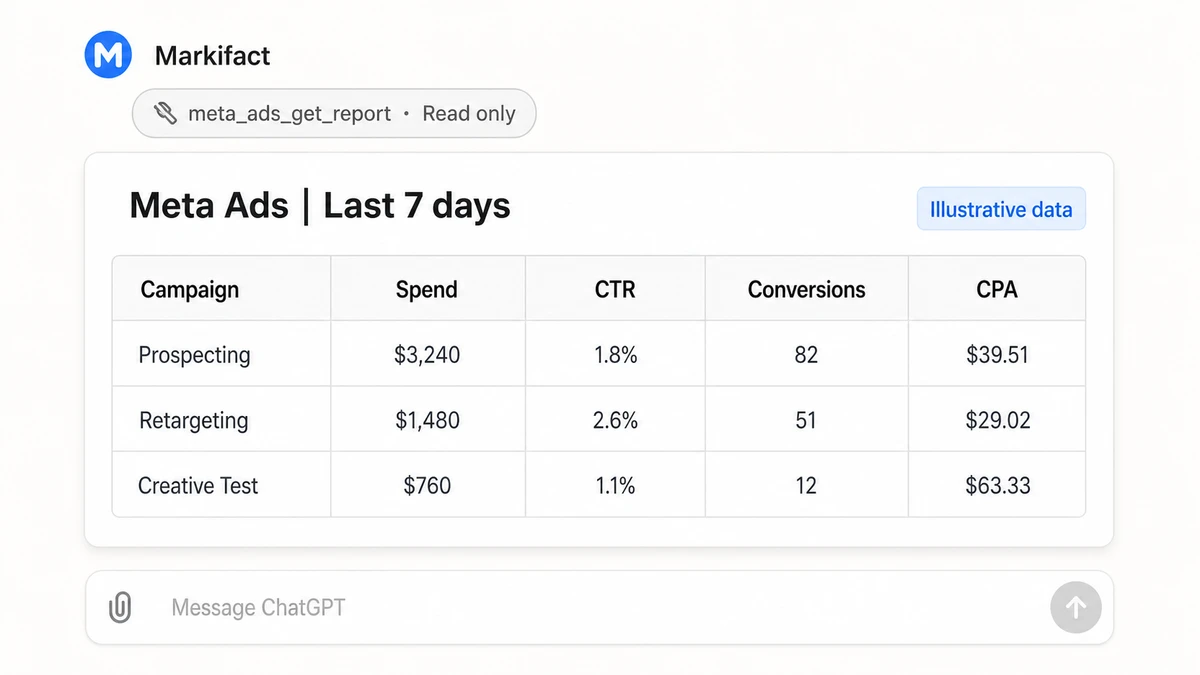
The values in the example image are illustrative. Your response will use the account, fields, and date range available through your connected workspace.
Before asking ChatGPT to interpret the result, verify:
- The ad account is correct.
- The account currency is correct.
- The reporting dates are complete days.
- The conversion field matches the event your team uses.
- The totals are plausible compared with Ads Manager.
If the wrong account appears, stop and fix the connection scope. A well-written analysis of the wrong account is still the wrong answer.
What ChatGPT can do after the connection works
Once the reporting test is correct, the useful part is the follow-up conversation.
Report at the level you need
Ask for campaign, ad set, or ad-level results. Specify the metrics, date range, comparison period, filters, and sort order instead of relying on a default report.
Compare Facebook and Instagram
Break down performance by platform or placement to see whether cost, click-through rate, or conversion rate explains the difference.
Investigate a change
Ask ChatGPT to compare two periods and show the data behind every conclusion. This is more useful than asking for a generic account audit.
Prepare a client update
Turn the verified report into a short summary with wins, issues, and next actions. Keep the report and the narrative in the same conversation so every claim can be traced back to the data.
Propose a controlled account change
After reviewing the evidence, you can ask Markifact to prepare a change. Treat that as a separate step from the analysis and inspect the approval card before anything runs.
Copy-paste prompts for Meta Ads work
Weekly campaign report
@Markifact, pull Meta Ads campaign performance for the last 7 complete days.
Compare it with the previous 7 complete days.
Include spend, impressions, clicks, CTR, conversions, CPA,
conversion value, and ROAS where available.
Return a table followed by the three largest changes.
Do not make account changes.
Facebook versus Instagram
@Markifact, break down Meta Ads performance by platform for the last 14 days.
Compare Facebook and Instagram on spend, CPM, CTR, conversions, CPA, and ROAS.
Explain whether each difference comes from media cost, click-through rate,
or conversion rate. Do not make changes.
Find campaigns that need attention
@Markifact, review active Meta campaigns for the last 30 days.
Flag campaigns that spent at least $500 and have a CPA at least 25% above
the account average. Show the data behind every flag.
Recommend next steps, but do not apply them.
Replace the threshold with an amount that is meaningful for your account. The dollar values above are instructions, not claims about real performance.
Review possible creative fatigue
@Markifact, compare ad-level performance across the last four complete weeks.
Show weekly frequency, CTR, CPM, conversions, and CPA where available.
Flag ads where frequency increased while CTR fell and CPA rose.
Explain the evidence for each flag. Do not make changes.
Write a client-ready update
@Markifact, create a concise client update from the last 7 complete days
of Meta Ads data. Use three sections: wins, issues, and next actions.
Include the figures supporting each point. Keep it under 250 words.
Do not make account changes.
The pattern is consistent: name Markifact, define the account scope, specify complete dates and metrics, request an output format, and state whether changes are allowed.
What happens when you ask ChatGPT to change a budget
Reporting and live account changes are separate operations.
If you ask ChatGPT to increase a campaign budget, Markifact can prepare meta_ads_update_campaign_budget. This is a write operation and Markifact marks it as requiring approval.
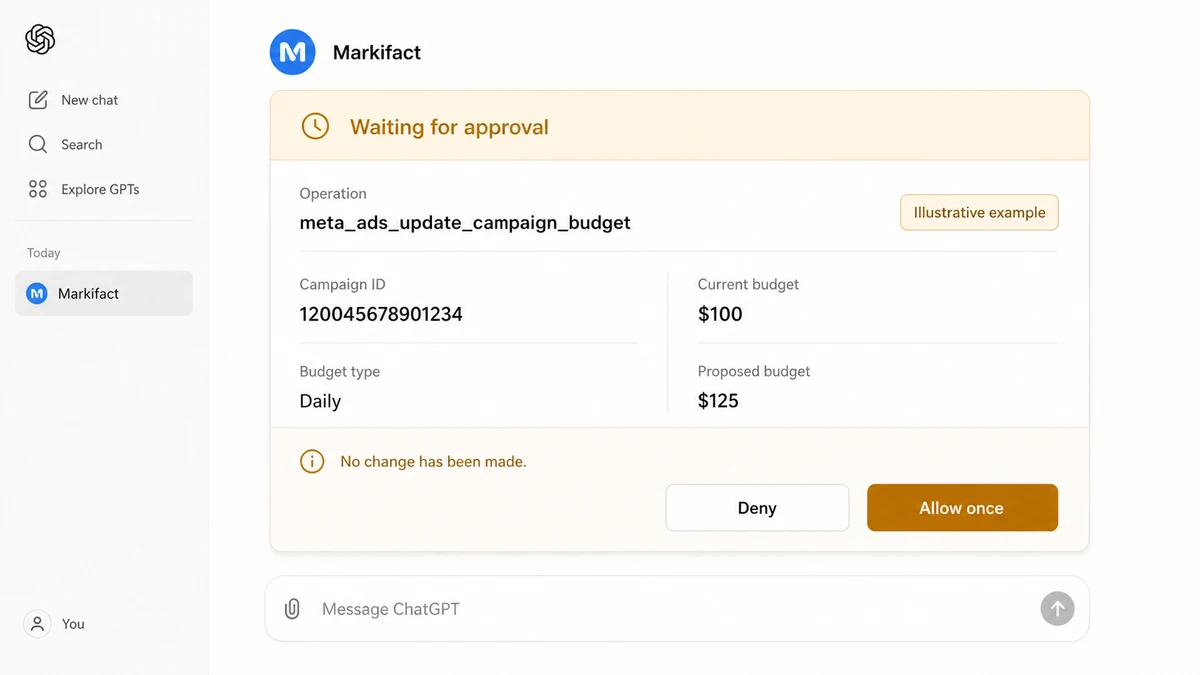
The values in the example are illustrative. The important state is Waiting for approval. The proposed change is not live yet.
Before approving a budget update, verify:
- The Markifact workspace and Meta ad account
- The campaign name and campaign ID
- Daily budget versus lifetime budget
- The account currency
- The current budget
- The proposed budget
Do not rely on the campaign name alone. Names are often duplicated across markets or test campaigns.
Set safer ChatGPT app permissions
ChatGPT app permissions control when ChatGPT asks before using an app. They do not give Markifact new access, and they do not change the Meta permissions granted during account connection.
OpenAI currently documents these possible settings:
- Always ask: asks before reads and writes
- Any changes: allows reads but asks before any change
- Important actions: allows reads but asks before actions ChatGPT considers important
- Never ask: may allow actions without a confirmation prompt
Important actions is the documented default. For a live advertising account, I prefer Any changes when it is available because the rule is easier to explain to a team: reports can run, but every write asks first.
I would not use Never ask for live campaign management. Markifact still applies its own approval requirements, but removing a ChatGPT confirmation layer gives you less context at the moment a change is proposed.
You can review the current behavior in OpenAI's Apps in ChatGPT documentation.
Troubleshooting
The Markifact app does not appear in search
Open the direct Markifact listing linked above. If the listing is visible but unavailable, check your ChatGPT plan, region, and supported surface.
The Connect button is disabled
Your workspace administrator may have disabled the app or limited it to specific roles. Ask the administrator to enable Markifact and review its read and write actions.
ChatGPT is connected but cannot find Meta Ads
Open Markifact and confirm that the Meta Ads connection is active in the same workspace you authorized from ChatGPT. Connecting Markifact to ChatGPT does not create the Meta connection for you.
The wrong Meta ad account appears
Confirm which Meta login and saved connection the Markifact workspace is using. If several connections exist, narrow the request to the intended connection and ad account before continuing.
Authorization keeps reopening
Disconnect Markifact in ChatGPT, confirm that you can sign in to the correct Markifact workspace directly, then reconnect from the approved listing.
The report is empty
Use a wider date range and remove optional filters. Confirm that the selected account delivered during that period. An empty report is not always an authentication failure.
ChatGPT did not ask before a change
Review the app-specific permission in ChatGPT Settings. Choose Any changes if you want every write to require a ChatGPT confirmation. Markifact write operations that require approval still keep their own approval boundary.
A practical first workflow
Once the connection is stable, save one reporting prompt and run it on the same day each week. Keep the metrics and comparison window consistent so the conversation has a repeatable job.
I would use this sequence:
- Pull the report.
- Verify the account, dates, currency, and conversion field.
- Ask ChatGPT to explain the largest changes.
- Request recommendations without applying them.
- Review one proposed action at a time.
If you also use Claude, the Meta Ads and Claude connection guide explains installation from Claude’s approved connector directory. Both clients can use the same Markifact workspace, while their connection and permission controls remain separate.
Frequently asked questions
Do I need ChatGPT developer mode?
No. The approved Markifact app is available through its ChatGPT listing. Open the listing, click Connect, and authorize your Markifact account.
Do I need the Markifact MCP URL?
No. The approved ChatGPT app flow does not require you to paste an MCP URL or configure a custom app.
Can ChatGPT access both Facebook and Instagram ad data?
Yes, when those assets are available through the connected Meta Ads account. The reporting scope still depends on the permissions of the Meta user and the connection available in Markifact.
Can ChatGPT change a live Meta Ads budget?
Markifact can expose the meta_ads_update_campaign_budget write operation. It requires approval, and you should verify the account, campaign ID, budget type, currency, current value, and proposed value first.
Can I restrict access to one Meta Ads connection?
Yes. Markifact can restrict the saved connections and operations available to an integration. ChatGPT cannot expand that configured access.
Is this Meta's official MCP or the Markifact app?
This guide covers the approved Markifact app in ChatGPT. Markifact provides the managed connection to Meta Ads and the rest of your marketing stack. It is not a guide to Meta's direct MCP endpoint.