

To connect Google Search Console to Claude, connect Google Search Console in Markifact, install the approved Markifact connector, and sign in to your workspace. This puts live queries, pages, clicks, impressions, CTR, and average positions inside the same Claude conversation where you plan SEO work. The setup takes a few minutes, and this guide shows the full route plus the first reports worth running.
The quick version
- In Markifact, open Connections and connect Google Search Console with your authorized account.
- Open the approved Markifact connector in Claude and click Connect.
- Sign in to the same Markifact workspace and review the connection access.
- Enable Markifact in the Claude conversation.
- Ask Claude to confirm the exact account or property, then run a read-only report before requesting changes.
The important boundary is simple: Markifact's Search Console connection is read-only reporting. Claude can analyze search performance, but it cannot submit a sitemap, request indexing, change a property, or modify your website through this connector.
What you are actually connecting
There are three parts in the connection:
- Google Search Console holds the search performance data and decides which verified properties your Google account can access.
- Markifact handles Google OAuth and exposes Search Console reporting as MCP operations.
- Claude interprets your request, calls the right operation, and explains the returned data.
Google provides an official Search Console API, but as of July 21, 2026, its public managed MCP materials do not list an official Search Console MCP server. That is different from saying Google has no MCP program. Google has a broad managed MCP program, but Search Console is not one of the publicly listed servers at the time of writing.
Markifact is the managed route covered here. It avoids a local server and Google Cloud credential setup, supports several properties, and lets Claude combine Search Console with Google Ads, GA4, Trends, Sheets, Docs, and other marketing tools.
The video may show the earlier manual connector setup. Follow the directory installation steps in this article for the current connection route.
Before you start
You need:
- A Markifact workspace.
- A Google account with access to at least one verified Search Console property.
- A Claude account and workspace that allow the Markifact connector.
- The exact property you want to test, especially if you manage several domains or URL-prefix properties.
Your Google permissions remain the source of truth. If sc-domain:example.com is not visible to the connected Google account in Search Console, Claude cannot make it appear.
For period comparisons, use complete dates. Google can mark recent Search Analytics data as incomplete, so a comparison such as “the last 28 complete days versus the previous 28” is safer than including today.
1. Connect Google Search Console in Markifact
Open Markifact, go to your connections, choose Google Search Console, and select Connect. Sign in with the Google account that owns or can read the properties you want Claude to analyze.
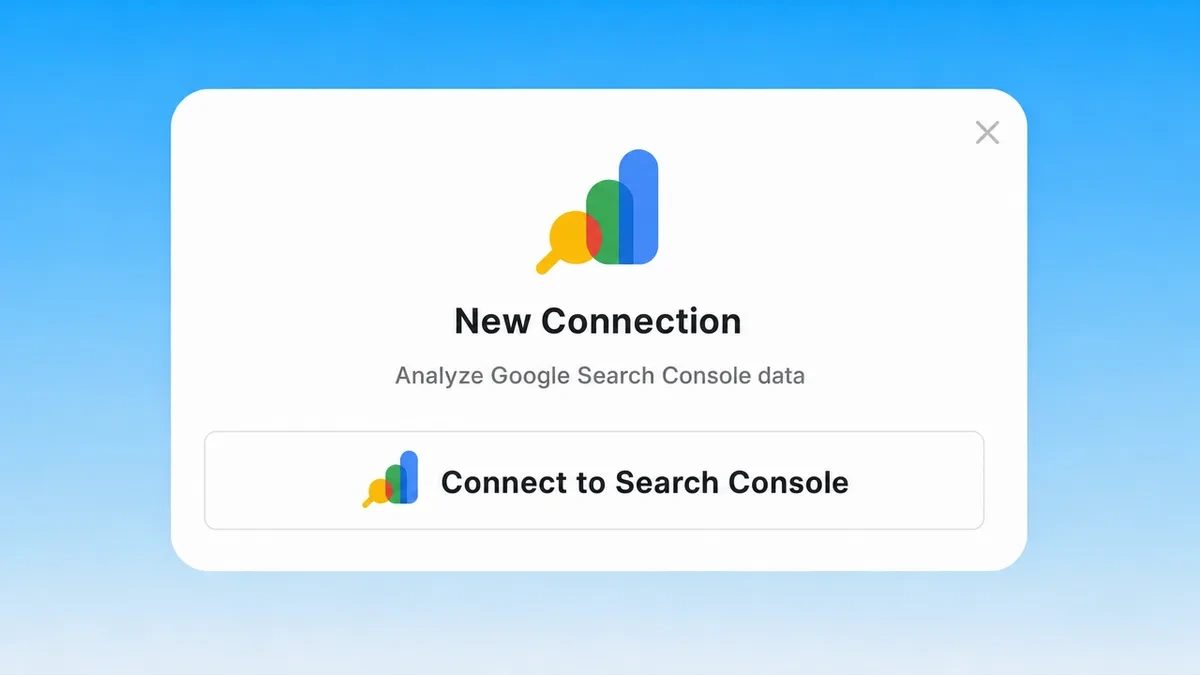
Markifact requests the read-only Search Console scope. The connection can retrieve search performance data, but it cannot edit Search Console settings or your site.
After the OAuth flow finishes, confirm the connection shows as active. If you work across clients, it is worth checking that the account exposes every expected property before moving to Claude.
2. Check workspace access and optional server scope
The directory install is the default route. The settings below are useful if your workspace uses a dedicated MCP server to limit connection or tool access; creating a new server is not a prerequisite for every reader.
Inside Markifact, use the MCP server attached to the workspace where Search Console is connected. The endpoint for Claude is:
https://api.markifact.com/mcp
Do not paste a Google OAuth token or a Google API key into Claude. Markifact handles the authorization flow and keeps the Google credential outside the conversation.
3. Install Markifact from the Claude directory
Markifact is approved in Claude's connector directory. Open the Markifact listing and click Connect. Complete the Markifact sign-in, choose the intended workspace, and review the requested access. If prompted to choose an MCP server, select the one with the connections you want to use.
In a Claude conversation, open + > Connectors and enable Markifact. You do not need to add a custom connector or paste a server URL for this setup. If your organization manages connector access, an administrator may need to allow Markifact first.
4. Run a safe first Search Console report
Start with a narrow, read-only request that names the property, date range, metrics, and dimensions. For example:
Use Markifact to list the Search Console properties available to me. Then use the property for example.com and show clicks, impressions, CTR, and average position by query for the last 28 complete days. Return the top 20 queries by impressions. Do not use any write operations in other apps.
Claude can first use gsc_select_accounts when property discovery is needed, then use gsc_get_report for the performance data. If you already named a valid property, the report operation can use it directly.
The result should identify the property and dates before presenting the rows. Verify both. A polished table for the wrong property is still the wrong answer.
Real Google Search Console MCP operation examples
The dedicated Markifact Search Console reporting surface currently includes:
gsc_get_reportfor Search Analytics reports.gsc_list_report_fieldsfor discovering valid metrics and dimensions.gsc_select_accountsfor listing or selecting verified properties.
These are examples, not an exhaustive list of what Markifact can do across connected platforms. The Search Console connector itself is intentionally focused on these three read-only reporting operations.
gsc_get_report supports one or multiple properties, exact or preset dates, built-in comparisons, filters, sorting, row limits, and output formatting. Common metrics include clicks, impressions, ctr, and position. Common dimensions include query, page, country, device, and date.
Use gsc_list_report_fields when you are unsure whether a requested field exists. Guessing a field name is a common reason an otherwise sensible prompt fails.
Find striking-distance keywords in Claude
One of the highest-value first reports is a list of queries that already have visibility but sit just outside the strongest positions.
Use gsc_get_report for sc-domain:example.com. Analyze the last 28 complete days. Return queries with average position from 8 through 15 and at least 500 impressions. Show clicks, impressions, CTR, and position, sort by impressions descending, and explain the likely opportunity for each query. Do not make changes.
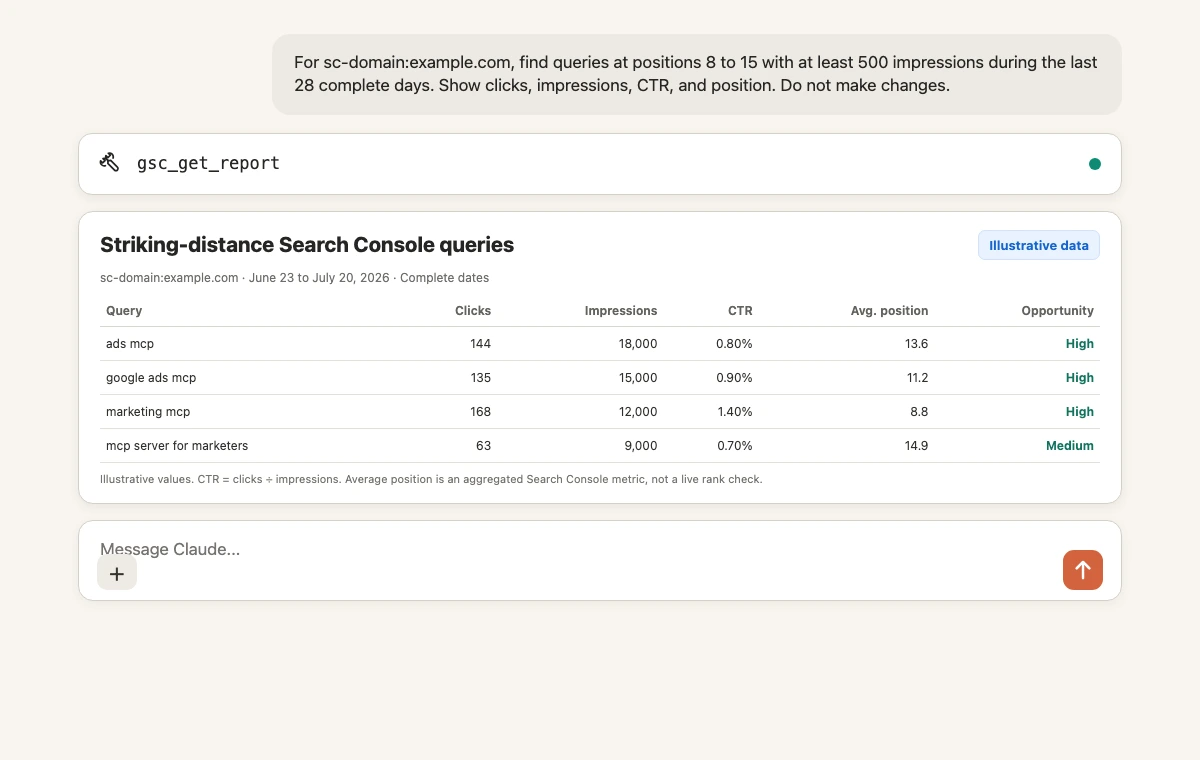
Average position is not a live rank-tracker reading. It is an aggregate Search Console metric across the impressions included in the report. Treat it as an opportunity signal, then inspect the actual page, search intent, and current results before changing content.
Copy-paste Search Console prompts for Claude
Find pages losing organic traffic
For sc-domain:example.com, compare the last 28 complete days with the previous 28 days using the built-in report comparison. Group by page. Show clicks, impressions, CTR, and average position for both periods plus the percentage change. Flag pages with at least 100 previous-period clicks and a click decline of 20 percent or more. Separate likely ranking losses from likely demand declines.
If clicks and position both fall, a ranking or relevance problem is plausible. If impressions fall while position stays similar, demand may have declined. That is a starting diagnosis, not proof.
Find low-CTR queries with real visibility
Show queries for sc-domain:example.com over the last 28 complete days with at least 1,000 impressions, average position better than 8, and CTR below 2 percent. Include the top page for each query when available. Sort by impressions descending and suggest what to inspect in the title, description, and search intent.
Compare mobile and desktop performance
Compare mobile and desktop Search Console performance for sc-domain:example.com over the last 28 complete days. Show clicks, impressions, CTR, and average position by device. Then identify pages where mobile CTR trails desktop materially despite similar position.
Compare several sites or clients
List the Search Console properties available to me. For the three properties whose names contain "Aster", compare total clicks, impressions, CTR, and average position for the last complete calendar month. Break the result down by property and clearly label each site.
Separate rankings from demand with Google Trends
Use Search Console to find the five query groups with the largest year-over-year impression decline for sc-domain:example.com. Then use Google Trends for the same topics and market. Explain which declines look site-specific and which may reflect lower market demand. Keep the Search Console step read-only.
Compare organic and paid search in one conversation
Search Console becomes more useful when it sits beside Google Ads. You can find queries where you rank strongly but still buy a meaningful amount of traffic, or queries where paid search is covering an organic weakness.
For the last 28 complete days, use gsc_get_report for sc-domain:example.com and gads_get_report for Google Ads account 123-456-7890. Match Search Console queries with paid search terms where possible. Show organic clicks, impressions, CTR, and average position beside paid clicks, cost, conversions, and CPA. Flag strong organic queries that still have material paid spend, but do not recommend budget cuts without checking incrementality and conversion quality.
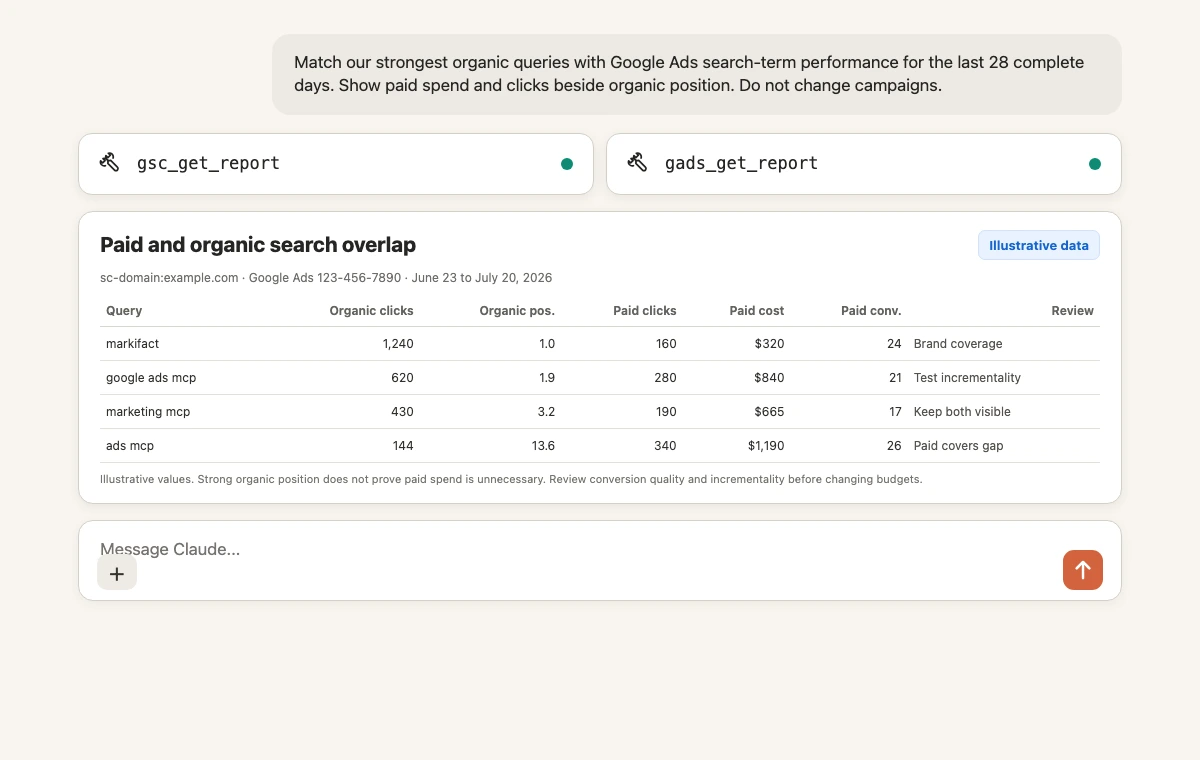
This is analysis, not an instruction to pause ads. Search Console reports clicks and visibility, while Google Ads reports paid outcomes. A query with position 1 organically can still benefit from paid coverage, different landing pages, or stronger conversion intent.
For a repeatable paid-search review, the 15-minute Google Ads audit in Claude provides a useful companion workflow.
Search Console stays read-only
Markifact uses the webmasters.readonly Google scope for this connection. Claude can retrieve and analyze performance, but it cannot:
- Submit or delete a sitemap.
- Request indexing.
- Add or remove a Search Console property.
- Change users or permissions.
- Edit your website, canonical tags, redirects, or robots.txt.
Google's broader Search Console API has services beyond Search Analytics, including Sitemaps, Sites, and URL Inspection. Markifact deliberately limits this connector to reporting. If Claude later prepares a Sheets export, a Docs brief, or a Slack update through another app, that separate write should show its exact destination and wait for approval.
Why Claude and Search Console may show different numbers
Several legitimate causes exist:
- Dates: Search Console dates use Pacific Time, and recent dates may be incomplete.
- Property: A domain property and a URL-prefix property do not necessarily cover the same URLs.
- Aggregation: Property-level totals and page-grouped data can be aggregated differently.
- Canonical URLs: Search Console generally assigns performance to Google's selected canonical URL.
- Filters: Query, page, country, device, and search appearance filters change the included rows.
- Row limits: A table of top queries is not the same thing as an unfiltered property total.
When numbers differ, ask Claude to restate the property, dates, dimensions, filters, row limit, and comparison method. That usually exposes the mismatch.
Troubleshooting the Search Console connector
The property is missing
Open Search Console with the same Google account used in Markifact. Confirm the property is visible there, then reconnect the Search Console connection if access changed recently.
Claude does not show Markifact
Check Settings > Connectors, confirm the Markifact connector still exists, and enable it for the current conversation.
Authentication keeps reopening
Sign out of stale Google accounts, reconnect Search Console inside Markifact, and then reauthenticate the Claude connector. If the underlying error is invalid_grant, the Markifact Search Console connection needs reconnection.
The report is empty
Confirm the property string and dates. New properties, narrow URL-prefix properties, or heavily filtered requests may return no rows.
A metric or dimension is invalid
Ask Claude to run gsc_list_report_fields, then retry with exact field IDs. Do not guess a GA4 or Google Ads field name and assume Search Console uses it too.
The comparison looks wrong
Use the report's built-in comparison option in one request. Two separately generated reports can accidentally use different filters, dates, or properties.
A practical first workflow
After setup, run this sequence:
- List the properties Claude can access.
- Pull total clicks, impressions, CTR, and position for the last 28 complete days.
- Find queries at positions 8 to 15 with meaningful impressions.
- Find pages losing clicks versus the previous period.
- Check whether the decline came from position, impressions, or CTR.
- Cross the priority queries with GA4 outcomes or Google Ads data.
- Ask Claude to draft recommendations with evidence and uncertainty clearly labeled.
If you also need landing-page engagement and key-event data, use the companion guide for connecting GA4 to Claude.
Frequently asked questions
Can Claude connect to Google Search Console?
Yes. Connect Search Console to Markifact with Google OAuth, install the approved Markifact connector, and query verified properties with read-only reporting operations.
Is there an official Google Search Console MCP server?
As of July 21, 2026, Google's public managed MCP materials do not list an official Search Console MCP server. Google does provide the official Search Console API, while Markifact supplies the hosted MCP layer described here.
Do I need a Google Cloud project or service account?
Not for the Markifact route. You connect with Google OAuth, and Markifact manages the hosted MCP connection without asking you to create a project, service account, or local server.
Can Claude change Search Console settings or my website?
No. Markifact's Search Console connector is read-only and focused on search performance reporting. It cannot submit sitemaps, request indexing, change properties, or edit the site.
Which Search Console data can Claude analyze?
Claude can analyze clicks, impressions, CTR, and average position by dimensions such as query, page, country, device, and date, with filters, ordering, comparisons, and multi-property selection.
Can Claude analyze multiple Search Console properties?
Yes. gsc_select_accounts can list or filter available properties, and gsc_get_report can query one or multiple property identifiers in the same request.
Why is average position different from my rank tracker?
Search Console average position aggregates actual impressions across the selected dates, locations, devices, and result contexts. A rank tracker usually checks a controlled query from specific locations and devices, so the two measurements answer different questions.
Can Claude combine Search Console with Google Ads or GA4?
Yes. Markifact can run Search Console, Google Ads, and GA4 reports in one conversation. Keep account IDs and date ranges explicit, and treat any later write in another app as a separate approval-gated action.