
To connect Google Merchant Center to ChatGPT and Codex, authorize Merchant Center in Markifact, install the Markifact plugin from the shared Plugins directory, and connect the Markifact service in a supported Work or Codex surface. The integration supports full catalog management, including product reports, diagnostics, data sources, ProductInput creation and updates, promotions, local and regional inventory, and approved deletes. This guide separates plugin setup, Google access, Markifact approvals, and Google's later processing so a successful tool call is never mistaken for product approval.
The quick version
- In Markifact, open Connections and connect Google Merchant Center.
- Verify the merchant accounts visible to the authorized Google user.
- Open the Markifact plugin listing.
- Install Markifact and connect the Markifact service when prompted.
- Start a new ChatGPT Work chat or Codex task.
- Invoke
@Markifactexplicitly when you want to use the Merchant Center catalog. - Run
gmc_get_reportor a product-status lookup before preparing any write. - Review every merchant ID, data-source ID, product ID, field mask, inventory target, promotion, and value before approval.
ChatGPT and Codex use the same public plugin directory on supported surfaces. Installing the plugin makes the capabilities available; connecting the service authorizes the Markifact workspace; the Google OAuth connection determines which Merchant Center accounts Markifact can reach.
What full Merchant Center management includes
The Markifact Google Merchant Center MCP exposes a current catalog of 37 registry-backed operations. The useful split is between inspection and action.
These are examples from a broader operation catalog, not an exhaustive list.
Inspect and analyze
- Select merchant accounts with
gmc_select_accounts. - Browse supported report fields with
gmc_list_report_fields. - Run product-performance reports with
gmc_get_report. - Inspect non-product traffic with
gmc_get_non_product_performance_report. - List products and retrieve the final processed Product.
- Check product status, account issues, and aggregate product issues.
- Analyze best-selling products and brands.
- Compare price benchmarks and price suggestions.
- Review competitive visibility.
- List data sources, promotions, regions, and local or regional inventory.
Create and manage
- Create, update, fetch, or delete data sources.
- Insert, patch, or delete ProductInputs in API data sources.
- Insert or replace promotions.
- Create regions.
- Insert or delete regional inventory overrides.
- Insert or delete store-level local inventory.
Reads retrieve live account data. Every create, update, immediate fetch trigger, or delete is approval-gated through Markifact.
Google's official MCP also deserves credit
Google provides an official Merchant API MCP Access Service. It is currently an experimental alpha and supports authorized Merchant Center data, reports, product diagnostics, data sources, and a safety-focused set of read-only and low-risk writes.
Use Google's official MCP when that current toolset and its service-account setup fit your workflow. Google recommends restrictive credentials, explicit tool filtering, and test or non-live accounts because the service is alpha and shares Merchant API quotas.
Markifact is the route in this guide because it provides hosted OAuth plus broader controlled writes for ProductInputs, promotions, inventory, regions, and data sources. The two options are not mutually exclusive, but they should not be described as having identical scope or setup.
ProductInput and Product are different resources
Merchant API writes act on ProductInput, the data submitted to a specific primary or supplemental data source. The final Product is a read-only resource produced after Google processes inputs, applies rules, merges supplemental data, and determines status.
That gives every product workflow three stages:
- Inspect the existing Product and the source that owns its input.
- Submit an approved ProductInput insert, patch, or delete.
- Wait for processing and retrieve the final Product again.
A successful write response confirms submission. It does not mean the product is approved for Shopping ads or free listings.
Three permission layers to verify
Before setup, separate these layers:
- Google permission: the authorized Google user can expose only Merchant Center accounts and resources allowed by that user's role.
- Markifact permission: the workspace, saved connection, and available operations determine what the plugin can reach.
- ChatGPT or Codex permission: the plugin must be installed, its connector authenticated, and the active surface allowed to use it.
The write approval is another control, not a substitute for those permissions. Approving gmc_update_product_input cannot make an invalid data source writable or bypass Google's product policies.
1. Connect Google Merchant Center in Markifact
Open Connections in Markifact, find Google Merchant Center, and select Connect.
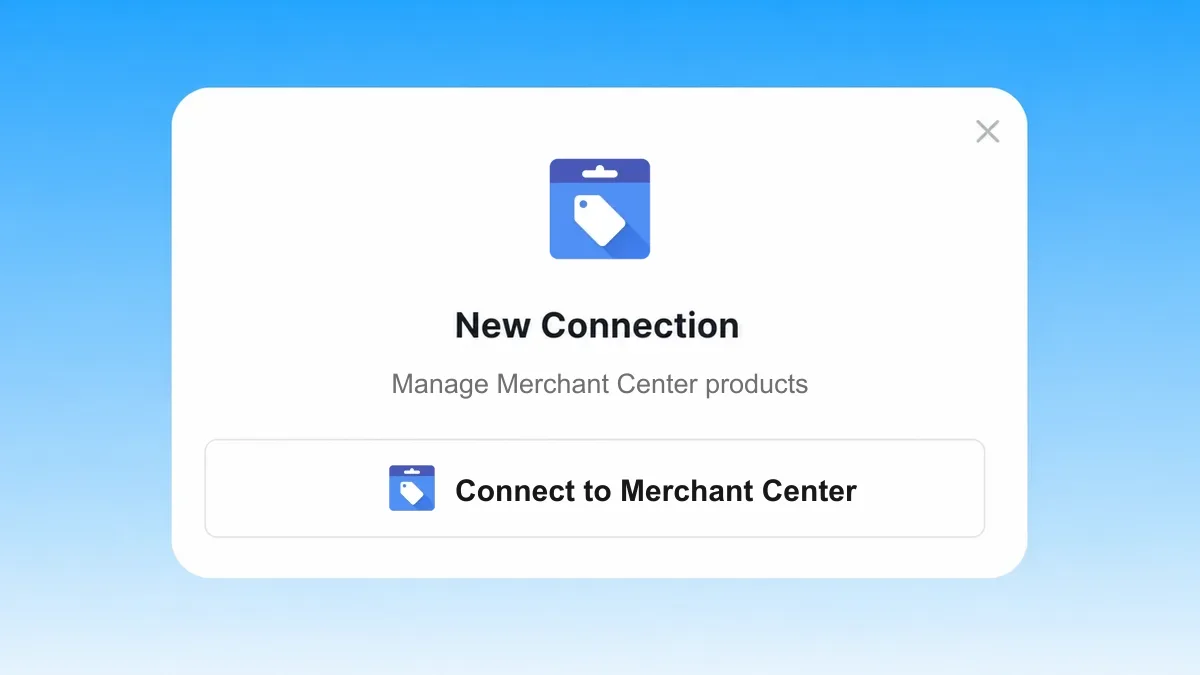
After Google returns you to Markifact:
- Confirm that the connection is active.
- Verify the merchant accounts it can list.
- Give the connection a clear merchant or client name.
- Confirm the user's account role before attempting writes.
If the account sits under an advanced account, make sure the intended sub-account is visible. Do not infer an account ID from a store domain or Google Ads customer ID.
2. Install and connect the Markifact plugin
Open the Markifact listing. The real listing is named Markifact, uses the description Analyze and manage ads, and has a Connect action.
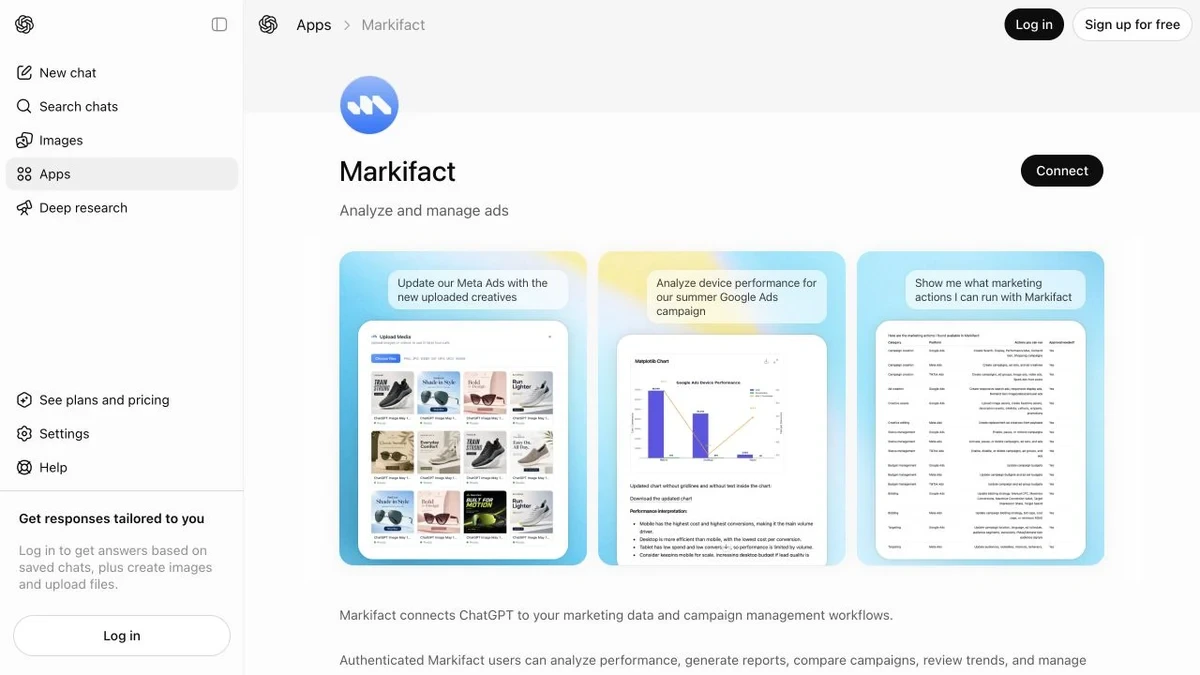
On ChatGPT web, turn on Work and open Plugins. In the ChatGPT desktop app, select ChatGPT with Work enabled or select Codex, then open Plugins. Install Markifact, connect the service, and start a new chat or task.
In Codex CLI, open /plugins, install or enable Markifact, and begin a new session. Plugins are not currently available in Chat, mobile, or the IDE extension.
When you want to make the tool choice explicit, type @Markifact in the prompt.
3. Run a read-only product report in ChatGPT
Start with a narrow report:
@Markifact, use the selected Google Merchant Center account.

Report product performance for the last 30 complete days. Include product ID,
title, impressions, clicks, CTR, conversions, and conversion value. Sort by
clicks, flag declining products, and do not make changes.
Markifact can use gmc_get_report, with gmc_list_report_fields first when field discovery is needed.
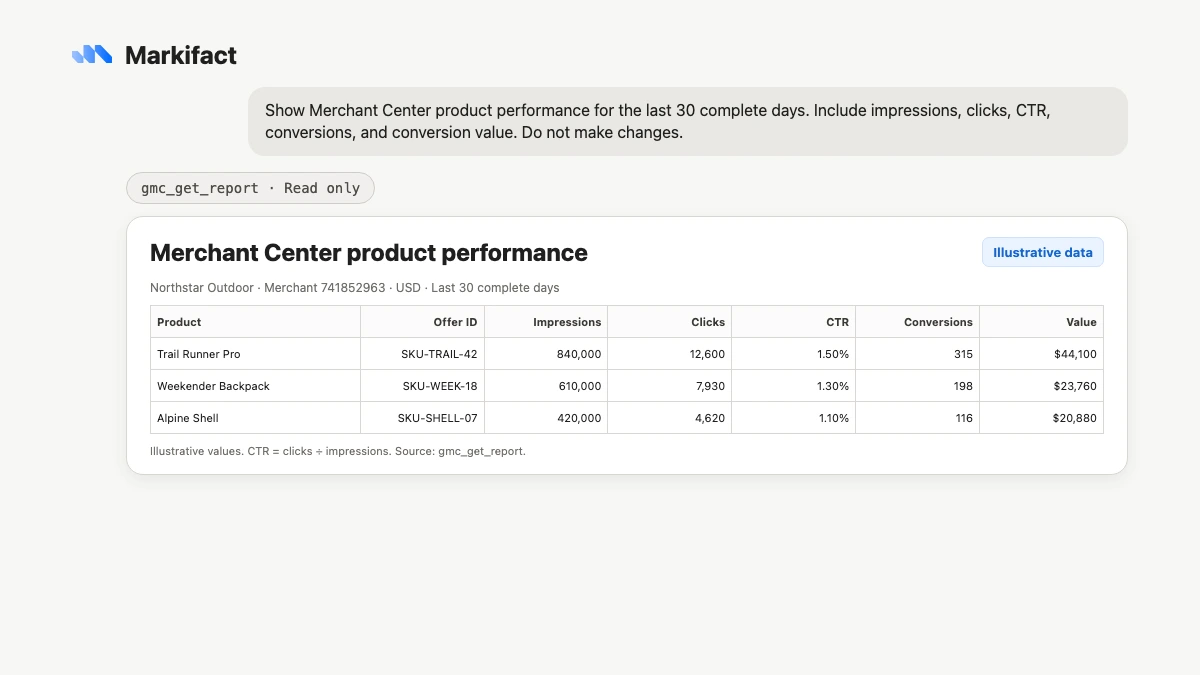
Check the merchant ID, feed label, language, date range, product IDs, conversion definition, and conversion-value currency. If any of those are wrong, stop before diagnosis or write preparation.
4. Diagnose before changing the feed
A sound diagnostic workflow combines:
gmc_list_account_issuesfor account-wide restrictions and setup problemsgmc_list_aggregate_product_statusesfor recurring issue categoriesgmc_get_product_statusfor one offer's destination statusgmc_get_productfor final processed attributes and issuesgmc_list_data_sourcesfor source ownership and configuration
Try this:
@Markifact, audit Merchant Center health without changing anything.

List account issues and aggregate product issues. For the ten largest product
issue groups, show severity, affected count, destination, likely source, and
the exact evidence needed before a fix. Do not prepare a bulk update.
The requested fix must match the actual cause. A price mismatch may need source-system synchronization; a missing GTIN needs verified product data; a policy issue may need a business or landing-page change rather than a feed mutation.
5. Create or update products
Product writes require an API data source. Use gmc_list_data_sources first and verify the data-source type and owner.
The product operations are:
| Action | Operation | Important behavior |
|---|---|---|
| Insert or replace ProductInput | gmc_insert_product_input |
One or up to 200 rows; asynchronous processing |
| Patch ProductInput | gmc_update_product_input |
Explicit update mask supported; asynchronous processing |
| Delete ProductInput | gmc_delete_product_input |
Deletes from a specific API data source |
| Retrieve processed Product | gmc_get_product |
Read-only verification after processing |
For a partial change, the update mask decides what can change. Fields inside the mask but absent from the body are deleted. Fields outside the mask remain unchanged.
@Markifact, prepare a Merchant Center patch for product en~US~SKU-TRAIL-42.

Use the approved API data source. Update only productAttributes.price and
productAttributes.availability. Show the old and proposed values, merchant ID,
data-source ID, product input ID, update mask, and exact JSON body. Wait for
approval before gmc_update_product_input.
Do not let ChatGPT invent product identifiers, GTINs, URLs, prices, currencies, or availability. Those values should come from a verified source of truth.
6. Create a promotion with an explicit approval
gmc_insert_promotion inserts or replaces a promotion in a promotion API data source. Reusing the same promotionId replaces the existing promotion, so the approval card must make that identity obvious.
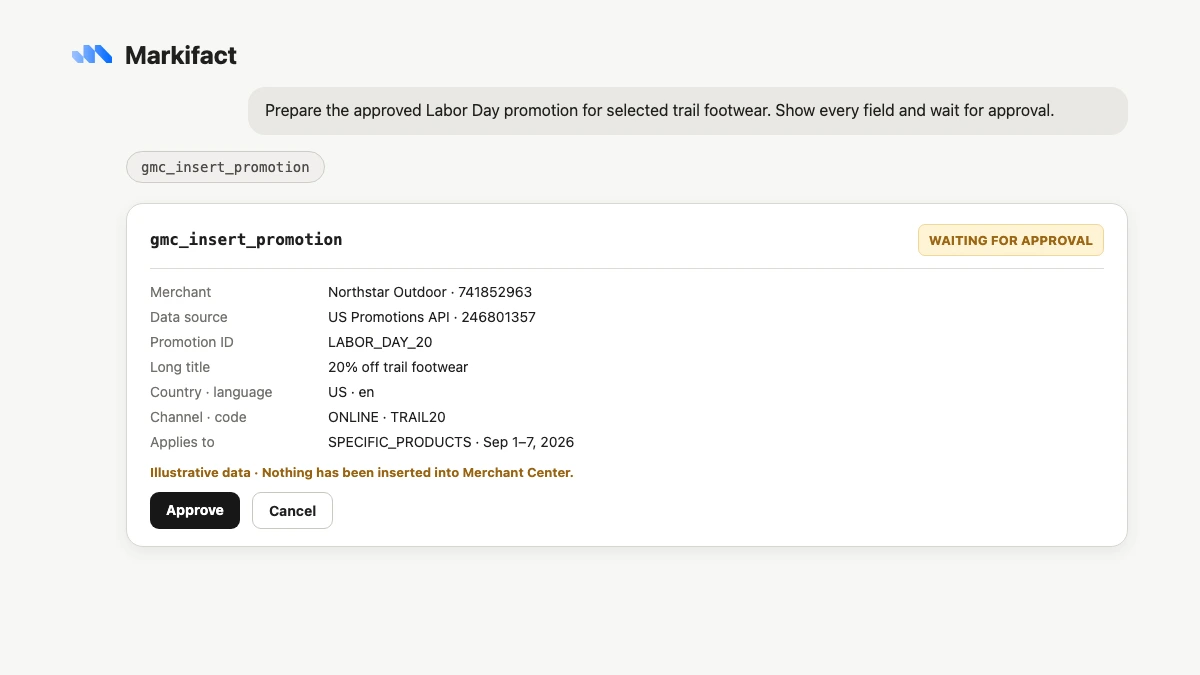
Before approving, verify:
- Merchant and promotion data-source IDs
- Promotion ID
- Target country and content language
- Redemption channel
- Long title and offer type
- Coupon type, value, and code
- Product applicability
- Effective start and end time
Approval submits the promotion to Merchant Center. Google still applies editorial, policy, and SKU review before the offer can show.
7. Manage local and regional inventory
Merchant Center can hold store-level and region-level overrides separately from the base product input.
gmc_list_local_inventoriesandgmc_list_regional_inventoriesinspect existing overrides.gmc_insert_local_inventorysets store-level price, availability, and quantity.gmc_insert_regional_inventorysets regional price and availability.gmc_create_regionprepares a new postal-code or geotarget region and requires admin access.- The delete operations remove an override so base data applies again.
Each write should show product ID, store code or region ID, current value, proposed value, currency, and the row count. Bulk input support does not justify approving an unexplained spreadsheet of changes.
8. Use Google Merchant Center from Codex
Codex is useful when catalog work also needs local artifacts, such as a CSV of affected products, a JSON payload review, a merchandising brief, or a change log.
In Codex desktop:
- Open Plugins from the left navigation.
- Install Markifact if it is not already installed.
- Connect the Markifact service.
- Start a new task in the correct project.
- Invoke Markifact explicitly for live Merchant Center operations.
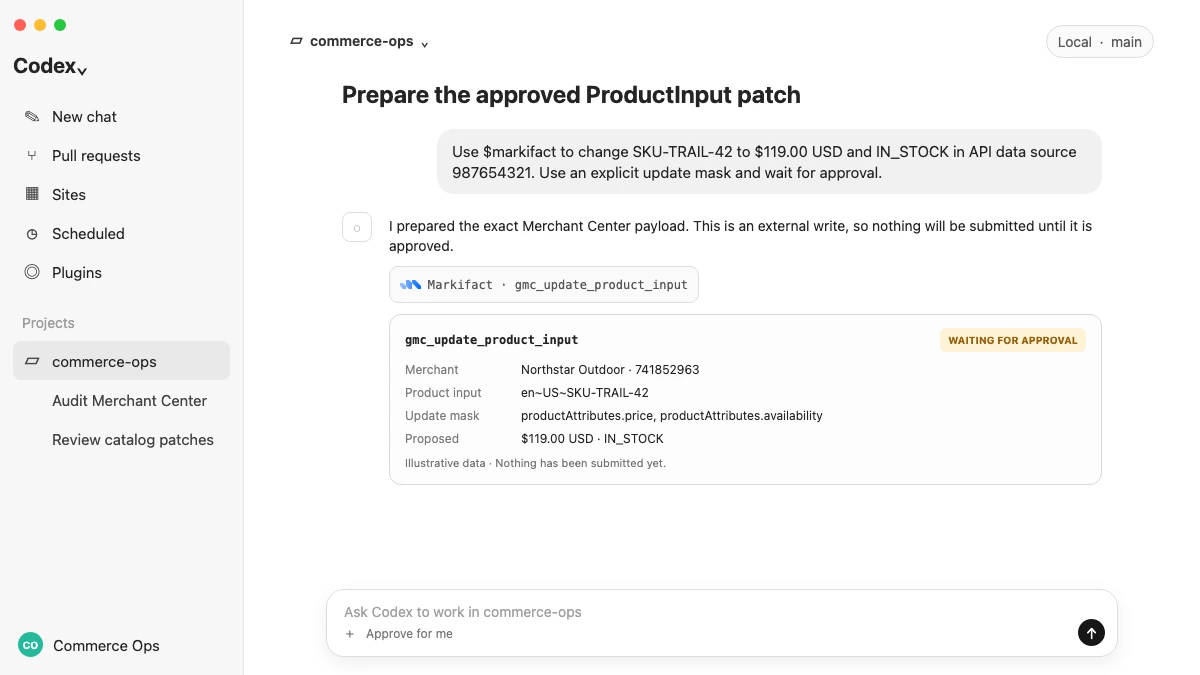
Codex may safely write a local review file without changing Merchant Center. The external product operation remains separate and still waits for Markifact approval.
Copy-paste prompts for ChatGPT and Codex
Full catalog inventory
@Markifact, list Merchant Center data sources, products, account issues,
aggregate product issues, promotions, and regions for the selected account.
Return IDs and status. Do not make changes.
Product-performance and issue join
@Markifact, report product performance for the last 30 complete days and join
the highest-click products to their final product status. Include impressions,
clicks, CTR, conversions, conversion value, status, and issues. No changes.
Prepare a new ProductInput
@Markifact, list API data sources, then prepare one ProductInput using the
approved offer ID, language, feed label, title, description, link, image,
availability, condition, GTIN, and price. Wait for approval before inserting.
Prepare a price and availability patch
@Markifact, prepare updates for the approved product input IDs in DATA_SOURCE.
Use explicit update masks and show old and new price, currency, and availability
for every SKU. Wait for approval before gmc_update_product_input.
Prepare a promotion
@Markifact, list promotion data sources and existing promotions. Prepare the
approved online promotion with its ID, title, country, language, channel,
applicability, offer type, coupon details, and dates. Wait for approval.
Compare local inventory
@Markifact, compare the supplied stock file with Merchant Center local
inventory for the approved stores. Produce a local CSV of differences first.
Prepare only confirmed price, quantity, and availability writes for approval.
Verify after a write
@Markifact, check the final processed Product for PRODUCT_ID after the approved
update. Show processed attributes, destination status, and issues. Do not make
another change.
Approval rules for catalog operations
Use these boundaries:
- Never approve a write without the merchant ID and target resource.
- List the owning data source before ProductInput writes.
- Use explicit update masks for partial product changes.
- Treat missing masked fields as deletions.
- Separate product submission from processed-product verification.
- Treat promotion insertion and Google promotion approval as different events.
- Show every row in a bulk price or availability update.
- Keep delete operations isolated and clearly labeled.
The safest instruction is not “fix my Merchant Center.” It is “diagnose, cite the affected resources, prepare one bounded change set, and wait.”
Troubleshooting
Markifact does not appear in Plugins
Confirm that you are using ChatGPT Work, Codex desktop, or Codex CLI. Plugins are not available in Chat, mobile, or the IDE extension. Start a new chat after installation.
The plugin is installed but Merchant Center is unavailable
Connect the Markifact service and confirm that the same workspace contains an active Google Merchant Center connection.
The merchant account is missing
Verify the Google user's Merchant Center access and advanced-account structure, then reconnect. A Google Ads customer ID is not the Merchant Center account ID.
Reports work but writes fail
Check the Google user's role, API data-source type, data-source ID, ProductInput identifier, update mask, payload fields, and applicable API limits.
The write succeeded but the catalog did not change
Wait for asynchronous processing, then retrieve the final Product. A write response is not the processed catalog resource.
The promotion is pending or disapproved
Check program eligibility, target country, language, dates, coupon fields, product mapping, editorial requirements, and policy review status.
Codex cannot see Markifact
Open Plugins in Codex desktop or /plugins in Codex CLI, install or enable Markifact, connect it, and begin a new task or session.
Frequently asked questions
Can ChatGPT connect to Google Merchant Center?
Yes. Connect Merchant Center in Markifact, install the Markifact plugin in ChatGPT Work, connect the service, and start a new chat.
Can Codex manage Google Merchant Center?
Yes. Codex can use the same Markifact plugin for reports and approval-gated catalog operations while also producing local audit or change-review files.
Can ChatGPT update Merchant Center products?
Yes. Markifact supports ProductInput insert, patch, and delete operations for API data sources. Every write requires approval and Google processes it afterward.
Can ChatGPT create Merchant Center promotions?
Yes. Markifact can insert or replace a promotion in a promotion API data source after approval. Google still reviews it for policy and product eligibility.
Can ChatGPT manage local inventory?
Yes. It can list and prepare approval-gated store-level or regional inventory changes using the exact product, store, and region identifiers.
Is there an official Google Merchant Center MCP?
Yes. Google's Merchant API MCP Access Service is an experimental alpha focused on authorized data, insights, read-only tools, and selected low-risk writes. Markifact is a separate hosted full-management option.
Is the Markifact Merchant Center plugin read-only?
No. It includes reports and diagnostics plus approval-gated ProductInput, data-source, promotion, inventory, region, fetch-trigger, and delete operations.
Does plugin approval guarantee a product will show on Google?
No. Approval authorizes the submitted Merchant API operation. Google still processes the data and applies destination, quality, policy, and promotion reviews.
Do I need to write code or configure a Google service account?
Not for the hosted Markifact flow. You authorize Google Merchant Center with OAuth. Self-hosted official or community MCP servers have their own Google Cloud and credential requirements.
For Claude, use the companion guide: How to Connect Google Merchant Center to Claude. You can also connect the merchandising and advertising sides through the Google Ads guide for ChatGPT and Codex and browse the wider MCP directory.