
To connect LinkedIn Ads to ChatGPT and Codex, connect LinkedIn Ads inside Markifact, install the approved Markifact app in ChatGPT, select it in the conversation or Codex prompt, and test the connection with a read-only report. This gives both OpenAI surfaces access to the Campaign Manager accounts authorized through your Markifact workspace, without developer mode, a LinkedIn developer app, or a local MCP server. You can then analyze performance, research B2B targeting, build campaigns and ads, and prepare account changes that wait for approval.
The LinkedIn OAuth connection stays inside Markifact, while ChatGPT and Codex each control how the Markifact app can be used on their surface.
The quick version
For ChatGPT:
- Connect LinkedIn Ads inside Markifact.
- Open the public Markifact app listing in ChatGPT and select Connect.
- Authorize the Markifact workspace containing the LinkedIn Ads connection.
- Start a new conversation and add Markifact from the plus menu, then More.
- Select the exact LinkedIn ad account and run a read-only report.
- Review and approve any later campaign, budget, targeting, or ad change.
For Codex:
- Open Codex from the ChatGPT desktop app.
- Browse apps or connectors and select Markifact where it is available.
- Authenticate Markifact if Codex asks, even when the app is already connected in ChatGPT.
- Apply Codex-specific permission controls.
- Run the same account check and read-only report before requesting a write.
Installing the Markifact app does not automatically create a LinkedIn Ads connection. Connect the ad account inside the Markifact workspace first.
What you are actually connecting
The setup has two authorization layers:
LinkedIn Ads → Markifact
This is the LinkedIn OAuth connection. It gives Markifact access to the ad accounts and actions permitted to the signed-in LinkedIn member.
Markifact → ChatGPT or Codex
This lets the selected OpenAI surface call the LinkedIn Ads operations available through that Markifact workspace.
The complete path is:
ChatGPT or Codex → Markifact → your authorized LinkedIn ad account
The LinkedIn Ads MCP page explains the current managed capabilities. Markifact handles the hosted connection, LinkedIn authentication, operation catalog, and approval boundary.
LinkedIn also provides official Marketing APIs for developers. This route does not require you to create a developer application, request an API access tier, host a server, or maintain version migrations.
What you need before starting
You need:
- A Markifact workspace
- A LinkedIn member with access to the intended Campaign Manager account
- Access to the public Markifact app in ChatGPT
- The ChatGPT desktop app if you want to use Codex from the same product
- Permission to use apps or connectors if your OpenAI workspace is managed
LinkedIn account roles still apply. A Viewer can see reports but cannot create or edit campaigns or ads. Creative Manager, Campaign Manager, Account Manager, and Account Billing Admin roles provide broader access. ChatGPT and Codex cannot expand the authority of the LinkedIn member connected inside Markifact.
Use current Campaign Manager terms in your prompts: campaigns, ad sets, and ads. Markifact handles the underlying LinkedIn API resource naming.
1. Connect LinkedIn Ads inside Markifact
Open Connections in Markifact, choose LinkedIn Ads, and click Connect.
Complete the LinkedIn OAuth flow with the LinkedIn member that can already open the required ad account. If you manage several clients, verify the account list after authorization instead of assuming the first account is correct.
Markifact requests reporting and management permissions for its LinkedIn Ads operations. LinkedIn still enforces the connected member's account role. A Viewer remains read-only even when an application supports writes.
After authorization, confirm that LinkedIn Ads appears in your Markifact connections. Use a clear connection name when the workspace contains several LinkedIn identities or agency clients.
2. Connect the approved Markifact app in ChatGPT
Open the public Markifact listing in ChatGPT and select Connect.
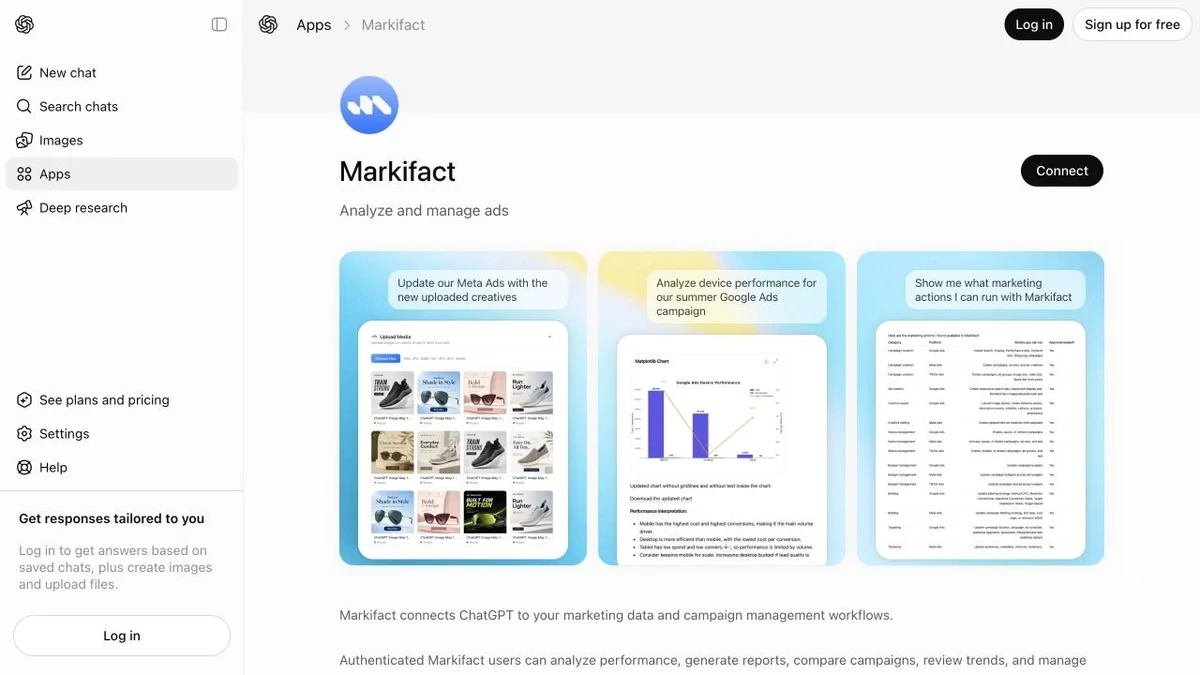
Sign in to the Markifact workspace containing the LinkedIn Ads connection from step one. Complete authorization and return to ChatGPT.
If you authorize the wrong workspace, disconnect Markifact on that OpenAI surface and repeat the process before running a report. An installed app cannot retrieve an account that is connected to a different Markifact workspace.
This approved-app route does not require ChatGPT developer mode. It also does not require you to paste https://api.markifact.com/mcp into ChatGPT.
3. Add Markifact to a ChatGPT conversation
Start a new ChatGPT conversation. Click the plus button beside the composer, choose More, and select Markifact from the available apps.
OpenAI documents this app-selection step as the way to add a connected app to the conversation context.
Before asking for performance, identify the available ad accounts:
Use Markifact to list the LinkedIn Ads accounts available to this workspace.
Return the account name, account ID, currency, and status.
Do not run a report and do not make any changes.
A read-only operation such as linkedin_ads_select_accounts can identify the account. Select by both account name and ID because agency workspaces often contain similar campaign names.
4. Run a read-only LinkedIn Ads report first
Once you have the account ID, use a precise first prompt:
Use Markifact and LinkedIn Ads account [ACCOUNT_ID].

Compare the last 30 complete days with the previous 30 complete days.
Break down performance by campaign.
Include spend, impressions, clicks, CTR, leads, conversions,
cost per conversion, and ROAS where available.

Before the table, confirm the account name, account ID, currency,
timezone, and exact date ranges used.
If a field is unavailable, tell me instead of substituting it.
Do not make any changes.
For a request like this, Markifact can use linkedin_ads_get_report. It supports one or multiple accounts, date comparisons, metrics, dimensions, filters, sorting, and limits.
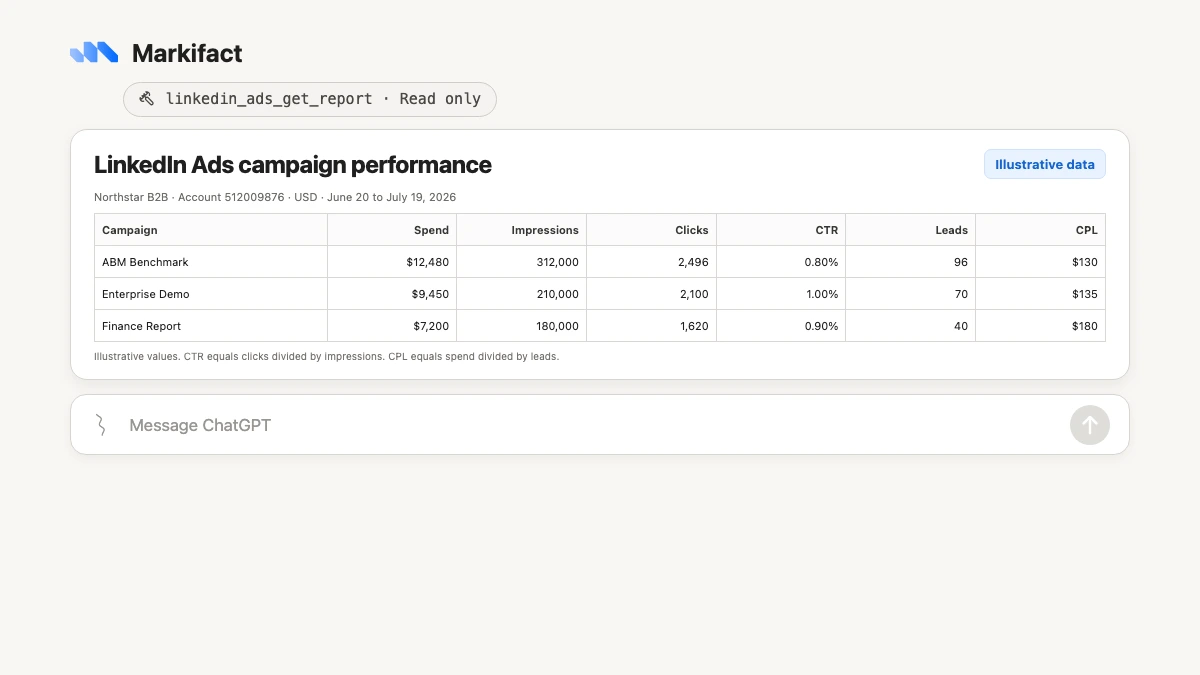
The values shown are illustrative. Your result uses the selected account, dates, and available LinkedIn reporting fields.
Before asking ChatGPT to diagnose performance, verify:
- The account name and ID are correct.
- The account currency and timezone are correct.
- Both date ranges contain complete days.
- The lead or conversion definition matches the business outcome.
- Any calculated ratio agrees with the displayed values.
Common metric examples include impressions, clicks, cost, conversions, costPerConversion, conversionValue, ctr, cpc, cpm, roas, and jobApplications. These are examples, not a promise that every field exists in every report.
5. Prepare a budget change and keep it behind approval
After the read-only test works, prepare one narrow change:
For LinkedIn Ads account [ACCOUNT_ID], inspect campaign [CAMPAIGN_ID].

Show its current daily budget, status, last-30-day spend,
conversions, and cost per conversion.
Then prepare a change from the current daily budget to [NEW_BUDGET]
in the account currency.

Do not execute the update until I approve the exact account,
campaign, current budget, proposed budget, and budget type.
Markifact can use linkedin_ads_update_campaign_budget. The operation accepts daily or lifetime budgets, supports single or bulk updates, and uses actual account-currency values.
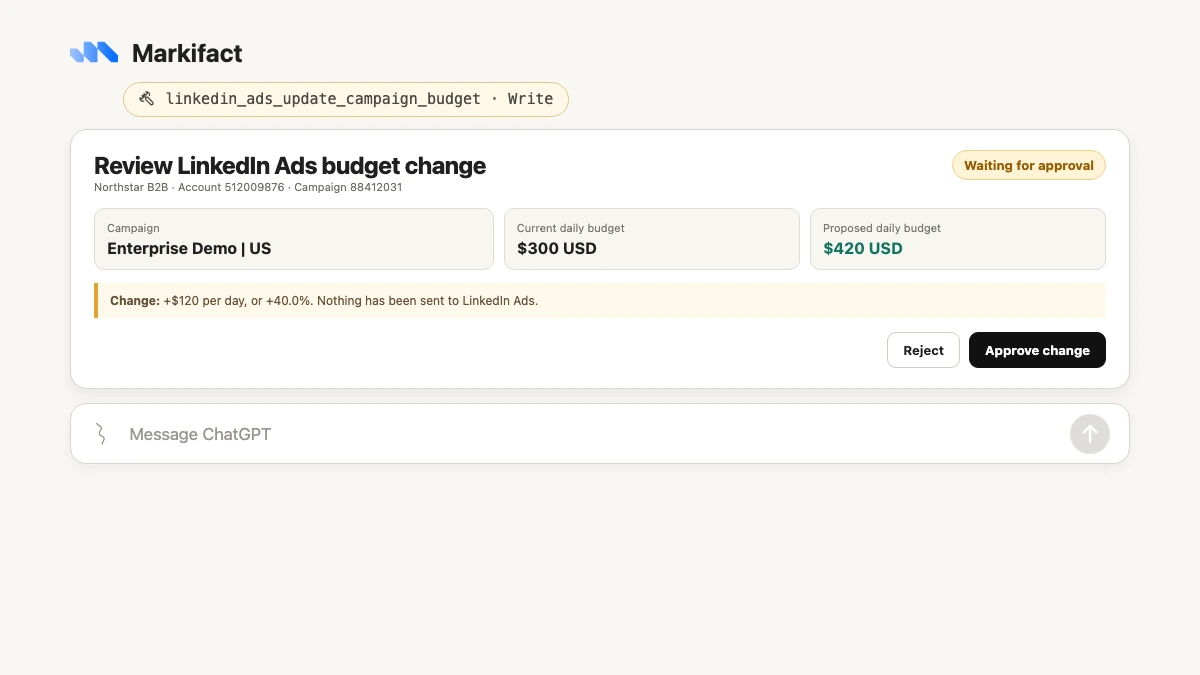
The image uses illustrative values. The operation name and approval state are real. Review the account, campaign ID, current value, proposed value, currency, and budget type before approving.
The same approval rule covers campaign creation, ad-set creation, image, video, carousel, text, and Spotlight ads, sponsored posts, status changes, renames, targeting, conversion assignment, and lower-level updates. These are examples from a broader LinkedIn Ads catalog, not an exhaustive list.
6. Use the same LinkedIn Ads connection from Codex
OpenAI added Codex to the ChatGPT desktop app on macOS and Windows. Open the desktop app and switch to Codex.
Browse apps or connectors and select Markifact where it is available. In the Codex CLI, the current `/apps` command opens the app browser and lets you attach an available app to a prompt.
Codex may ask you to authenticate Markifact separately. This does not mean you need another LinkedIn OAuth connection. The LinkedIn account remains connected inside Markifact, while Codex creates its own permission to use the Markifact app.
ChatGPT app permissions do not automatically control apps authenticated in Codex. Review the Codex permission mode before running the first request. Then reuse the account-selection prompt and read-only report prompt from the previous sections.
If you want to automate a recurring report from a technical workspace, start by keeping the workflow read-only. Add approval-gated LinkedIn Ads writes only after the account selection, prompt, and output have been reviewed manually.
Real LinkedIn Ads operation examples
Markifact exposes a broad set of tools that ChatGPT or Codex can select based on the request. Read examples include:
linkedin_ads_select_accountslinkedin_ads_get_reportlinkedin_ads_list_campaigns,linkedin_ads_list_adsets, andlinkedin_ads_list_adslinkedin_ads_get_adandlinkedin_ads_list_postslinkedin_ads_search_targetinglinkedin_ads_list_conversionslinkedin_ads_list_lead_formsandlinkedin_ads_retrieve_leadslinkedin_ads_library
Write examples include:
linkedin_ads_create_campaignandlinkedin_ads_create_adsetlinkedin_ads_create_image_ad,linkedin_ads_create_video_ad,linkedin_ads_create_carousel_ad,linkedin_ads_create_text_ad, andlinkedin_ads_create_spotlight_adlinkedin_ads_create_ad_from_postlinkedin_ads_update_campaign_budgetandlinkedin_ads_update_adset_budget- Campaign, ad-set, and ad status updates, renames, lower-level edits, and conversion assignment
Every write requires approval. The operation names above are examples, not the full LinkedIn Ads support surface.
Copy-paste prompts for ChatGPT and Codex
Lead-generation performance
Use Markifact and LinkedIn Ads account [ACCOUNT_ID].
Compare the last 30 complete days with the previous 30 days
by campaign and ad set.

Include spend, leads, conversions, cost per conversion, CTR, and CPM.
Flag rows with at least [MINIMUM_SPEND] spend and no leads.
Separate evidence from recommendations and do not make changes.
Replace the threshold with a value appropriate for your account. It is not a universal benchmark.
Creative fatigue check
Analyze active LinkedIn ads in account [ACCOUNT_ID] for the last 8 weeks.
Show weekly impressions, clicks, CTR, spend, conversions,
and cost per conversion by creative.

Flag ads with three consecutive weeks of falling CTR and rising frequency
where those fields are available. Return each ad name and ID.
Do not pause or edit anything.
B2B targeting research
Use LinkedIn Ads targeting search to find valid values for:
[JOB_TITLES], [SENIORITY_LEVELS], [INDUSTRIES], [COMPANY_SIZES],
and [LOCATIONS].

Return the exact label and identifier for each match.
Do not create an audience, ad set, or campaign yet.
Lead form review
List the Lead Gen Forms available to LinkedIn Ads account [ACCOUNT_ID].
For form [FORM_ID], retrieve available leads for the last 30 days.
Summarize lead volume by campaign and ad and flag missing fields.
Do not update campaigns, forms, or lead records.
LinkedIn Ads Library research
Search the LinkedIn Ads Library for [COMPETITOR_OR_KEYWORD].
Group results by offer, format, audience angle, and call to action.
Separate observed creative patterns from interpretation.
Do not create ads from the findings.
Cross-account B2B report
Compare these LinkedIn Ads accounts: [ACCOUNT_A], [ACCOUNT_B], [ACCOUNT_C].
Use the last 30 complete days and each account's currency and timezone.
Return spend, impressions, clicks, CTR, leads, conversions,
and cost per conversion by account.
Label every row with account name and ID. Do not combine currencies.
Understand the three permission layers
The workflow has three different controls:
- LinkedIn role: controls account access and the actions permitted to the connected member.
- ChatGPT or Codex app permission: controls how the OpenAI surface may use Markifact.
- Markifact approval: stops every LinkedIn Ads write until the exact change is approved.
OpenAI currently documents three ChatGPT app permission levels: Always ask, Ask before making changes, and Ask only before important changes. The last is the documented default. Personal accounts can set global or per-app preferences in Settings, then Apps, while Business and Enterprise administrators control workspace defaults and overrides.
Apps authenticated in Codex use separate permission controls. Neither OpenAI permission system expands the connected LinkedIn member's account role, and neither replaces Markifact's write approval.
If you prefer Claude's custom-connector flow, see How to Connect LinkedIn Ads to Claude. For the broader official and third-party landscape, see The State of Advertising MCPs in 2026.
Troubleshooting
Markifact does not appear in ChatGPT
Open the direct public listing linked above. If you use a managed workspace, ask the administrator whether Markifact is available for your role.
Markifact appears in ChatGPT but not Codex
Availability can differ by surface and workspace policy. Browse apps or connectors from Codex and confirm that Markifact is discoverable. Do not assume the ChatGPT app connection carries into Codex.
The LinkedIn ad account is missing
Confirm that the LinkedIn member connected inside Markifact can open the account in Campaign Manager. Then verify that ChatGPT or Codex authenticated the Markifact workspace containing that connection.
Reports work but writes do not
Check the connected member's LinkedIn role, the OpenAI surface's app permission, and the Markifact approval request. A Viewer cannot make changes.
Authentication keeps reopening
Confirm the Markifact workspace and LinkedIn identity. If necessary, disconnect the app on the affected OpenAI surface and authenticate again without switching accounts midway.
The report is empty
Verify the account ID, dates, filters, and campaign delivery. Remove optional filters and run a basic spend and impressions report before adding conversions or creative dimensions.
A targeting value is invalid
Use linkedin_ads_search_targeting and request the exact label and identifier. Do not invent a similar title, company, industry, skill, seniority, or location value.
The approval prompt does not appear
Confirm that Markifact is the selected app and that the request actually contains a write. A reporting or listing operation is read-only and should not generate a write approval.
A practical first workflow
Use the same sequence on ChatGPT or Codex:
- Select the account by name and ID.
- Pull a 30-day report with a previous-period comparison.
- Verify spend, lead definitions, currency, and timezone.
- Narrow one issue by ad set, creative, audience, or placement.
- Request a recommendation with exact resource IDs.
- Prepare one change and review the approval request.
- Save the verified prompt for the next reporting cycle.
This sequence keeps account selection, evidence, interpretation, and execution separate. It also makes a later approval easier to review because the target has already been verified in the same conversation.
Frequently asked questions
Can ChatGPT connect to LinkedIn Ads?
Yes. Connect LinkedIn Ads inside Markifact, connect the approved Markifact app in ChatGPT, add it to a conversation, and select the exact ad account.
Do I need ChatGPT developer mode?
No. This guide uses the public Markifact app listing. You do not need developer mode, a custom app, a pasted MCP endpoint, or a local server.
Do I need a separate LinkedIn connection for Codex?
No. The LinkedIn OAuth connection stays inside Markifact. Codex may require separate Markifact authentication and permissions, but you do not reconnect the LinkedIn ad account.
Does the ChatGPT app permission carry into Codex?
No. Apps authenticated in Codex use separate permission controls. Review the permission mode on both surfaces.
Can ChatGPT create LinkedIn campaigns and ads?
Yes, when the connected LinkedIn member has sufficient permissions. Markifact supports campaigns, ad sets, several ad formats, targeting, conversions, budgets, statuses, and lower-level operations. Every write waits for approval.
Which LinkedIn role is required?
The connected member must have access to the ad account. A Viewer can retrieve reports but cannot make changes. Broader roles provide additional campaign, creative, account, or billing authority.
Can ChatGPT manage multiple LinkedIn ad accounts?
Yes. Markifact can expose multiple authorized accounts and report across selected accounts. Label results with account names and IDs and never combine currencies without conversion.
Is the operation list in this guide complete?
No. The named operations are examples. Markifact supports a much broader LinkedIn Ads surface, including lower-level campaign, ad-set, ad, targeting, conversion, lead, and reporting operations.
Why can ChatGPT report but not change a campaign?
The LinkedIn member may have a Viewer role, the OpenAI app permission may block writes, or the Markifact approval may still be pending. Check all three layers.