

To connect LinkedIn Ads to Claude, connect LinkedIn Ads in Markifact, install the approved Markifact connector, and sign in to your workspace. This gives Claude live access to the Campaign Manager accounts your LinkedIn member can use, without requiring you to build a LinkedIn developer app or maintain a local MCP server. You can then analyze performance, research targeting, create campaigns and ads, and prepare account changes that wait for your approval.
This guide covers the complete setup and a practical first workflow for B2B marketers and agencies.
The quick version
- In Markifact, open Connections and connect LinkedIn Ads with your authorized account.
- Open the approved Markifact connector in Claude and click Connect.
- Sign in to the same Markifact workspace and review the connection access.
- Enable Markifact in the Claude conversation.
- Ask Claude to confirm the exact account or property, then run a read-only report before requesting changes.
The connection supports both reporting and campaign management. The safety boundary is equally important: Markifact holds every LinkedIn Ads write for explicit approval.
What you are actually connecting
Claude is not receiving your LinkedIn password. It sends a structured request through the Model Context Protocol, and Markifact executes the appropriate LinkedIn Ads operation using the OAuth connection you authorized.
The video may show the earlier manual connector setup. Follow the directory installation steps in this article for the current connection route.
The path is:
Claude → Markifact MCP → your authorized LinkedIn ad account
The managed remote MCP endpoint is:
https://api.markifact.com/mcp
Your Markifact workspace, saved LinkedIn connection, MCP server scope, and LinkedIn member role determine what Claude can see or change. The LinkedIn Ads MCP page lists the current managed capabilities.
LinkedIn also offers official Marketing APIs for developers. This guide uses the managed route, so you do not need to create a LinkedIn developer application, apply for your own API access tier, host a server, or track API version migrations.
Before you start
You need:
- A Markifact workspace
- A LinkedIn member with access to the intended ad account in Campaign Manager
- A Claude account with permission to use the Markifact connector
- Permission to add or use connectors if your Claude workspace is managed
LinkedIn account roles matter. A Viewer can inspect campaign data and reports but cannot create or edit campaigns or ads. Creative Manager, Campaign Manager, Account Manager, and Account Billing Admin roles have broader permissions. Claude cannot expand the authority of the LinkedIn member you connect.
Use the current Campaign Manager terms in your prompts: campaigns, ad sets, and ads. LinkedIn's underlying API uses some older resource names, but Markifact maps those details so marketers can ask for the objects they recognize in the interface.
Claude connector availability follows your account and organization settings. Use the approved Markifact directory listing; in a managed workspace, ask an administrator to allow it if necessary.
1. Connect LinkedIn Ads in Markifact
Open Connections in Markifact, choose LinkedIn Ads, and click Connect.
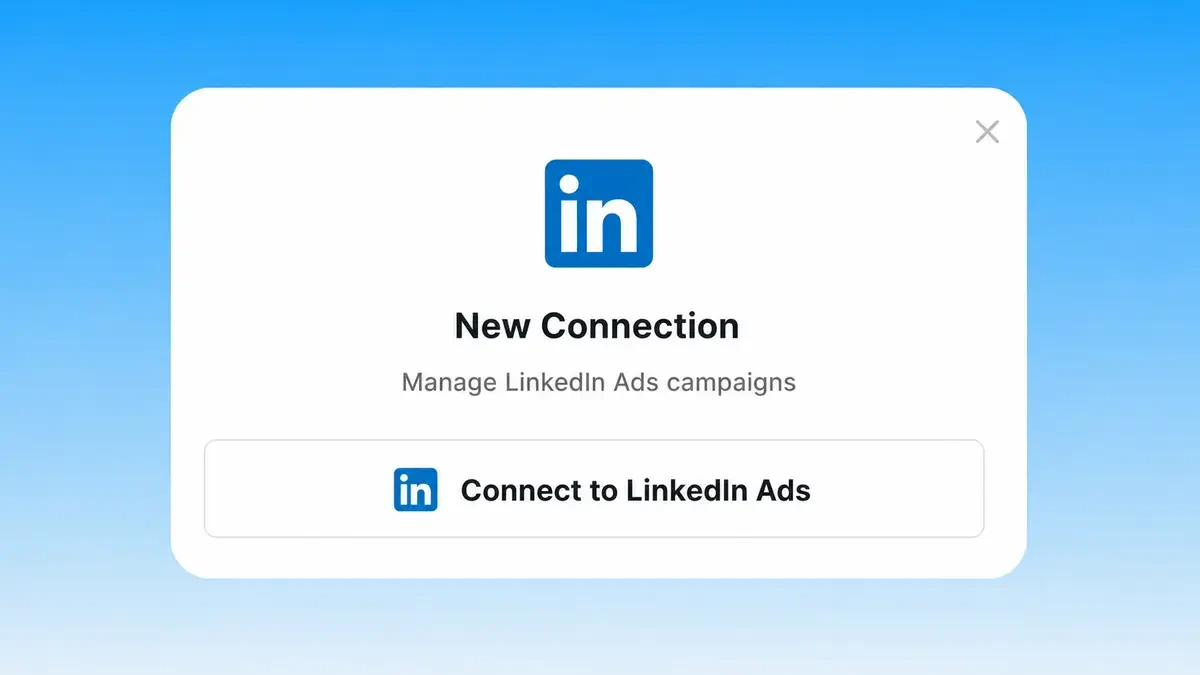
Complete the LinkedIn OAuth flow. Use the LinkedIn member that can already open the intended account in Campaign Manager. If you work across several clients, verify the account list after authorization instead of assuming the first account is correct.
Markifact requests the reporting and management permissions required for its LinkedIn Ads operations. LinkedIn still applies the connected member's account role. If the member is a Viewer, read-only reporting can work while account changes remain unavailable.
After authorization, return to Markifact and confirm that the LinkedIn Ads connection appears. Give it a clear name if your workspace contains several LinkedIn identities or agency accounts.
2. Check workspace access and optional server scope
The directory install is the default route. The settings below are useful if your workspace uses a dedicated MCP server to limit connection or tool access; creating a new server is not a prerequisite for every reader.
Open MCP in Markifact. Create a server for Claude or use an existing one that exposes the correct LinkedIn Ads connection.
A useful agency naming pattern is:
Claude - LinkedIn Ads - Client Name
If the server can be scoped to selected connections, include only the account or client needed for this workflow. Narrow scope reduces the chance of selecting the wrong account when several clients use similar campaign names.
Markifact supports a broad LinkedIn Ads surface. Real operation examples include:
linkedin_ads_select_accountsto discover accessible ad accountslinkedin_ads_get_reportto retrieve custom performance reportslinkedin_ads_list_campaigns,linkedin_ads_list_adsets, andlinkedin_ads_list_adsto inspect account structurelinkedin_ads_search_targetingto resolve valid B2B targeting valueslinkedin_ads_list_lead_formsandlinkedin_ads_retrieve_leadsfor lead-generation workflowslinkedin_ads_libraryfor Ads Library research- Campaign, ad-set, creative, targeting, conversion, status, and budget operations
These are examples, not an exhaustive list. Markifact also supports lower-level LinkedIn Ads operations when a workflow needs more control.
3. Install Markifact from the Claude directory
Markifact is approved in Claude's connector directory. Open the Markifact listing and click Connect. Complete the Markifact sign-in, choose the intended workspace, and review the requested access. If prompted to choose an MCP server, select the one with the connections you want to use.
In a Claude conversation, open + > Connectors and enable Markifact. You do not need to add a custom connector or paste a server URL for this setup. If your organization manages connector access, an administrator may need to allow Markifact first.
4. Enable Markifact and select the account
Adding the connector does not mean every Claude conversation uses it automatically. Start a new chat, open the plus menu, choose Connectors, and enable Markifact.
Before asking for performance, identify the available LinkedIn ad accounts:
Use Markifact to list the LinkedIn Ads accounts available to this connection.
Return the account name, account ID, currency, and status.
Do not run a report and do not make any changes.
Claude can use a read-only operation such as linkedin_ads_select_accounts. Select the account by both name and ID. Agency workspaces often contain repeated campaign names, so an account ID is safer than a name alone.
5. Run a safe first LinkedIn Ads report
Your first test should be read-only, use complete dates, and request metrics that you can verify in Campaign Manager.
Use LinkedIn Ads account [ACCOUNT_ID].

Compare the last 30 complete days with the previous 30 complete days.
Break down performance by campaign.
Include spend, impressions, clicks, CTR, leads, conversions,
cost per conversion, and ROAS where available.

Before the table, confirm the account name, account ID, currency,
timezone, and exact date ranges used.
If a field is unavailable, tell me instead of substituting it.
Do not make any changes.
For a request like this, Claude can use linkedin_ads_get_report. It supports multiple accounts, date comparisons, metrics, dimensions, filters, sorting, and limits.
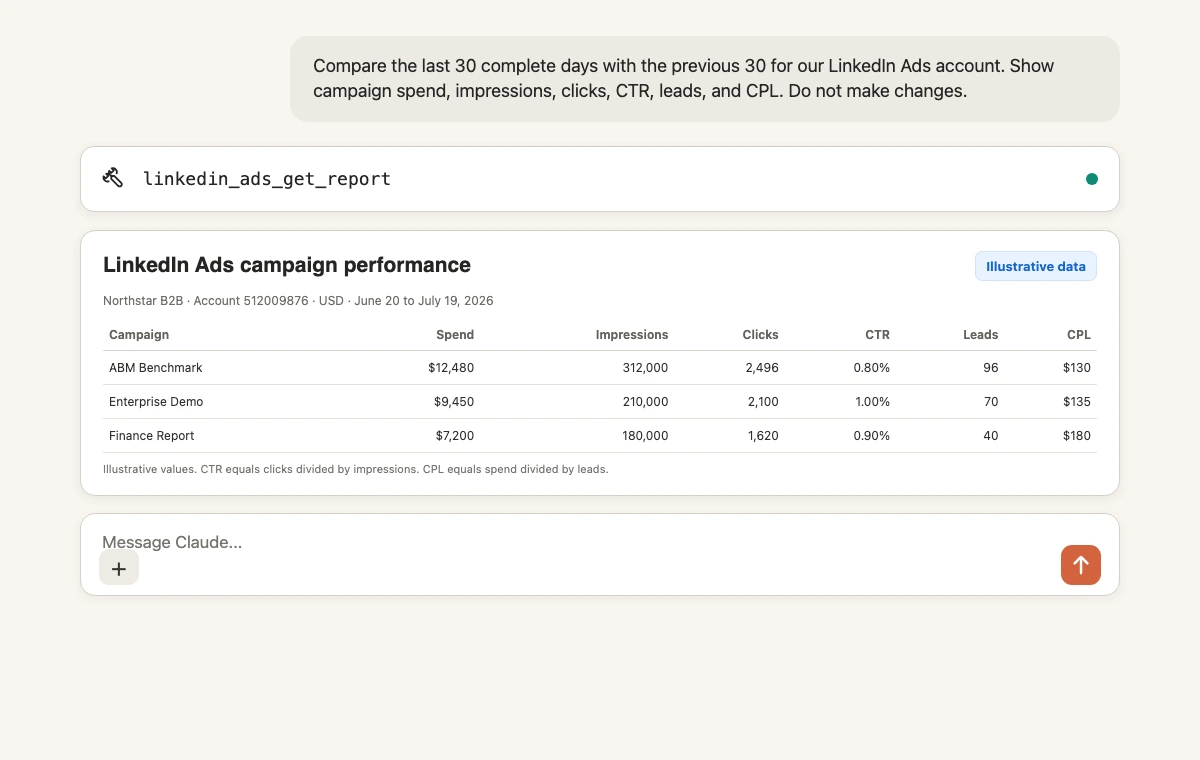
The values in the image are illustrative. Your result comes from the selected account and dates.
Before interpreting the report, verify:
- The account ID and currency are correct.
- Both periods use complete dates in the account timezone.
- The conversion or lead definition matches the business outcome.
- The campaign names and IDs match Campaign Manager.
- Any ratio in the response is consistent with the underlying values.
Common reporting examples include impressions, clicks, cost, conversions, costPerConversion, conversionValue, ctr, cpc, cpm, roas, and jobApplications. Available fields depend on the selected report and account data.
6. Prepare a LinkedIn Ads change for approval
Once the read-only connection is verified, Claude can prepare changes. Start with one narrow, reversible request rather than a large batch.
For LinkedIn Ads account [ACCOUNT_ID], inspect campaign [CAMPAIGN_ID].

Show its current daily budget, status, last-30-day spend,
conversions, and cost per conversion.
Then prepare a change from the current daily budget to [NEW_BUDGET]
in the account currency.

Do not execute the update until I approve the exact account,
campaign, current budget, proposed budget, and budget type.
Markifact can use linkedin_ads_update_campaign_budget for a request like this. The operation supports daily and lifetime budget updates, single or bulk changes, and actual account-currency values.
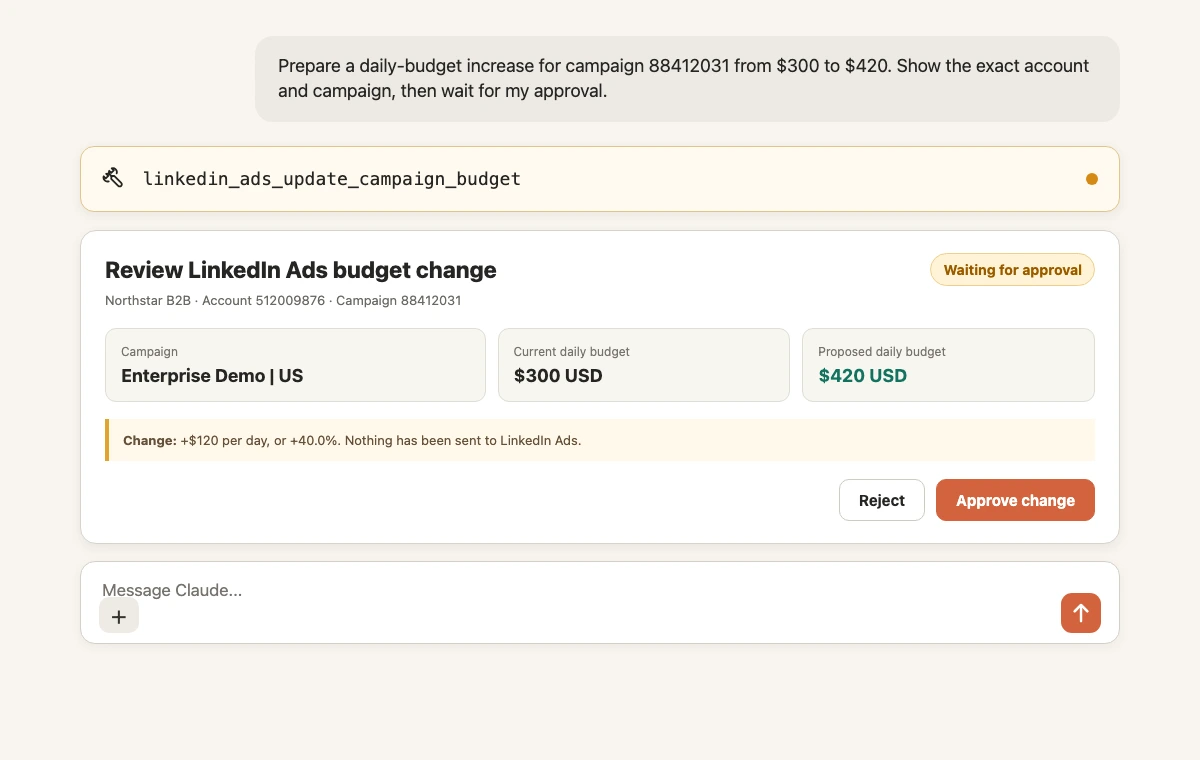
The operation and figures in the image are illustrative, but the approval state is the real boundary. No LinkedIn Ads write should run before you review the exact target and proposed value.
Campaign creation, ad-set creation, multiple ad formats, status updates, renames, conversion assignments, and lower-level edits follow the same rule. Their operation names are examples from a much larger LinkedIn Ads catalog, not the complete list.
Copy-paste prompts for common LinkedIn Ads work
Lead-generation performance
For LinkedIn Ads account [ACCOUNT_ID], compare the last 30 complete days
with the previous 30 days by campaign and ad set.

Include spend, leads, conversions, cost per conversion, CTR, and CPM.
Flag rows with at least [MINIMUM_SPEND] spend and no leads.
Separate evidence from recommendations and do not make changes.
Replace the spend threshold with a value appropriate for your account. It is not a universal benchmark.
Creative fatigue check
Analyze active LinkedIn ads in account [ACCOUNT_ID] for the last 8 weeks.
Show weekly impressions, clicks, CTR, spend, conversions,
and cost per conversion by creative.

Flag ads with three consecutive weeks of falling CTR and rising frequency
where those fields are available. Return the ad name and ID.
Do not pause or edit anything.
B2B targeting research
Use LinkedIn Ads targeting search to find valid values for:
[JOB_TITLES], [SENIORITY_LEVELS], [INDUSTRIES], [COMPANY_SIZES],
and [LOCATIONS].

Return the exact label and identifier for each match.
Do not create an audience or campaign yet.
Use linkedin_ads_search_targeting instead of asking Claude to invent targeting identifiers.
Lead form and lead review
List the Lead Gen Forms available to LinkedIn Ads account [ACCOUNT_ID].
For form [FORM_ID], retrieve the leads available for the last 30 days.
Summarize lead volume by campaign and ad, and flag missing fields.
Do not update campaigns, forms, or lead records.
LinkedIn Ads Library research
Search the LinkedIn Ads Library for [COMPETITOR_OR_KEYWORD].
Group the results by offer, format, audience angle, and call to action.
Separate observed creative patterns from your interpretation.
Do not create ads from the findings.
Cross-account agency report
Compare these LinkedIn Ads accounts: [ACCOUNT_A], [ACCOUNT_B], [ACCOUNT_C].
Use the last 30 complete days and each account's currency and timezone.
Return spend, impressions, clicks, CTR, leads, conversions,
and cost per conversion by account.
Label every row with account name and ID. Do not combine currencies.
Approval and permission boundaries
There are three separate controls:
- LinkedIn role: determines which accounts the connected member can access and whether the member can make changes.
- Markifact scope: determines which saved connections and operations the MCP server exposes.
- Approval: stops every LinkedIn Ads write until a person approves the exact request.
A Claude response cannot bypass a LinkedIn Viewer role. Likewise, a LinkedIn Campaign Manager role does not mean every suggested change should run automatically. Verify the account, resource ID, current value, proposed value, currency, and expected effect before approval.
If you want a broader view of official and third-party ad-platform integrations, see The State of Advertising MCPs in 2026. The Meta Ads to Claude guide shows the same managed-connector pattern for Facebook and Instagram campaigns.
Troubleshooting the LinkedIn Ads connector
The ad account is missing
Confirm that the LinkedIn member connected in Markifact can open the account in Campaign Manager. Then check the Markifact workspace and MCP server scope. Reconnecting with another LinkedIn member only helps if that member has the required account role.
Reports work but writes do not
Check the LinkedIn member's role. A Viewer remains read-only. Also verify that the requested Markifact operation requires approval and that you completed the approval step.
Claude does not show Markifact
Open Customize, then Connectors, and confirm that Markifact is connected. Enable it for the current conversation. In a managed organization, ask an owner whether the connector is available to your account.
Authentication keeps reopening
Confirm the intended Markifact workspace and LinkedIn login. If the loop persists, reconnect Markifact through its Claude directory listing, and complete the sign-ins without switching accounts midway.
The report is empty
Verify the account ID, dates, filters, and campaign delivery. Remove optional filters and request a basic spend and impressions report before adding conversions or creative dimensions.
A targeting value is invalid
Ask Claude to run targeting search and return exact labels and identifiers. Do not substitute a similar-looking title, company, industry, or location ID.
The budget update is rejected
Check the LinkedIn role, campaign ID, account currency, selected daily or lifetime budget type, and the campaign's current state. Then prepare a fresh approval request with the corrected values.
A practical first workflow
Use the connection in this order:
- Select the account by name and ID.
- Pull a 30-day campaign report with a previous-period comparison.
- Verify spend, conversion definitions, and account currency.
- Narrow the largest issue by ad set, creative, audience, or placement.
- Use exact IDs when preparing a recommendation.
- Review one proposed change and its approval request.
- Save the verified prompt structure for the next reporting cycle.
That sequence keeps evidence, interpretation, and execution separate. It also makes the first approval easy to review because the account and campaign have already been verified in the same conversation.
Frequently asked questions
Can Claude connect to LinkedIn Ads?
Yes. Connect LinkedIn Ads in Markifact, install the approved Markifact connector, authenticate, enable Markifact, and select the exact ad account.
Is there an official LinkedIn Ads MCP server?
LinkedIn provides official Marketing APIs, but its official documentation did not surface a published LinkedIn Ads MCP server as of July 20, 2026. Markifact is a managed third-party MCP service using LinkedIn OAuth and supported APIs.
Do I need a LinkedIn developer app?
No. The managed Markifact route does not require you to create a LinkedIn developer application, request your own API access tier, host a server, or maintain API versions.
Which LinkedIn account role do I need?
The connected member must have access to the ad account. A Viewer can retrieve reports but cannot make changes. Broader Campaign Manager roles provide additional creative, campaign, account, or billing permissions.
Can Claude create LinkedIn campaigns and ads?
Yes, when the connected member has sufficient LinkedIn permissions. Markifact supports campaign and ad-set creation, several ad formats, targeting, conversions, budgets, statuses, and lower-level operations. Every write waits for approval.
Can Claude manage several LinkedIn ad accounts?
Yes. Markifact can expose multiple authorized accounts, and reporting can compare selected accounts. Always label results with account names and IDs and avoid combining currencies.
Does Markifact support only the operations named here?
No. The operation names in this guide are examples. Markifact supports a much broader LinkedIn Ads catalog, including lower-level campaign, ad-set, ad, targeting, conversion, lead, and reporting operations.
Why can Claude report but not change a campaign?
The connected LinkedIn member may have a read-only Viewer role, the MCP server may not expose the write, or the approval request may still be pending. Check all three boundaries.