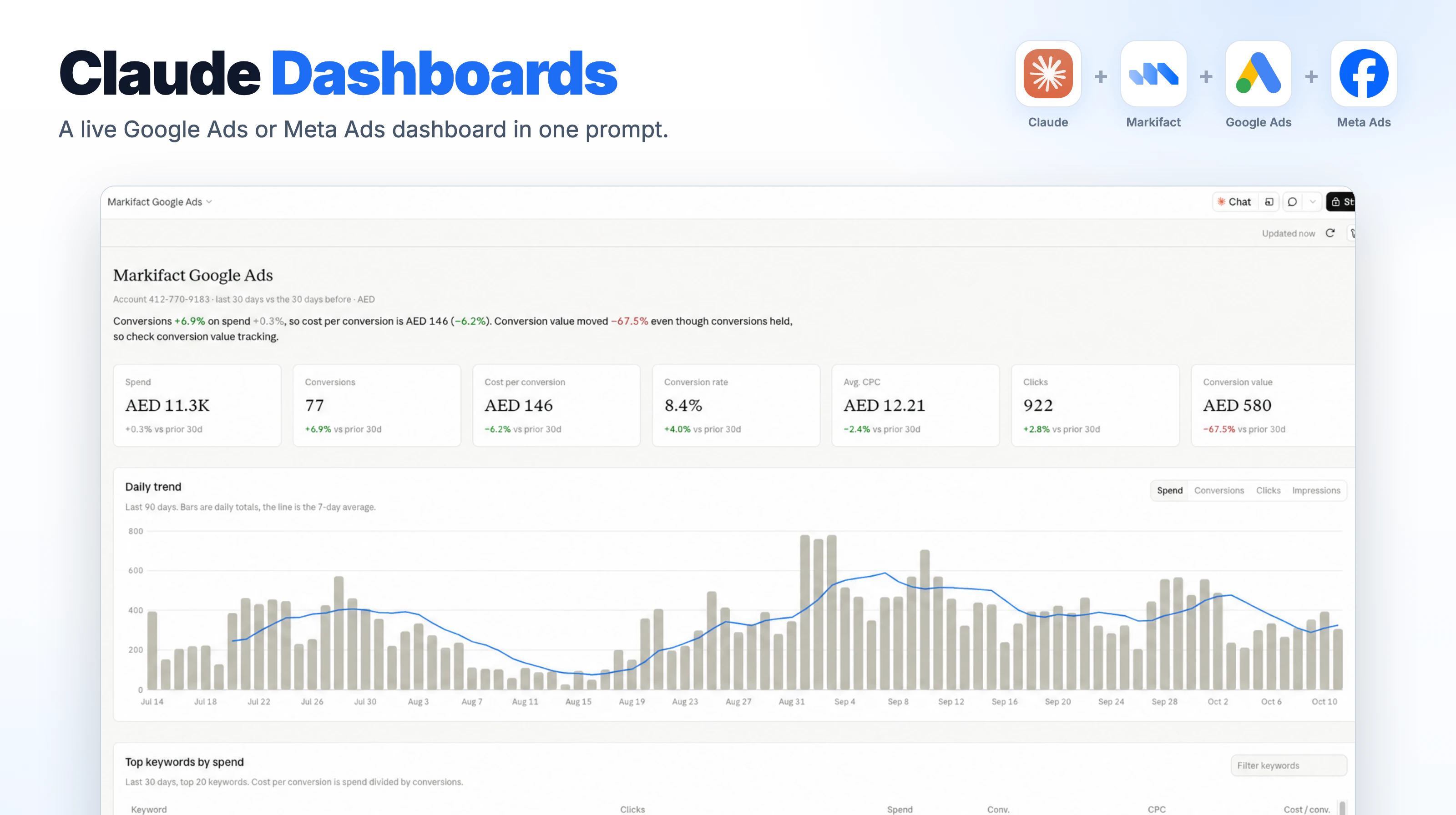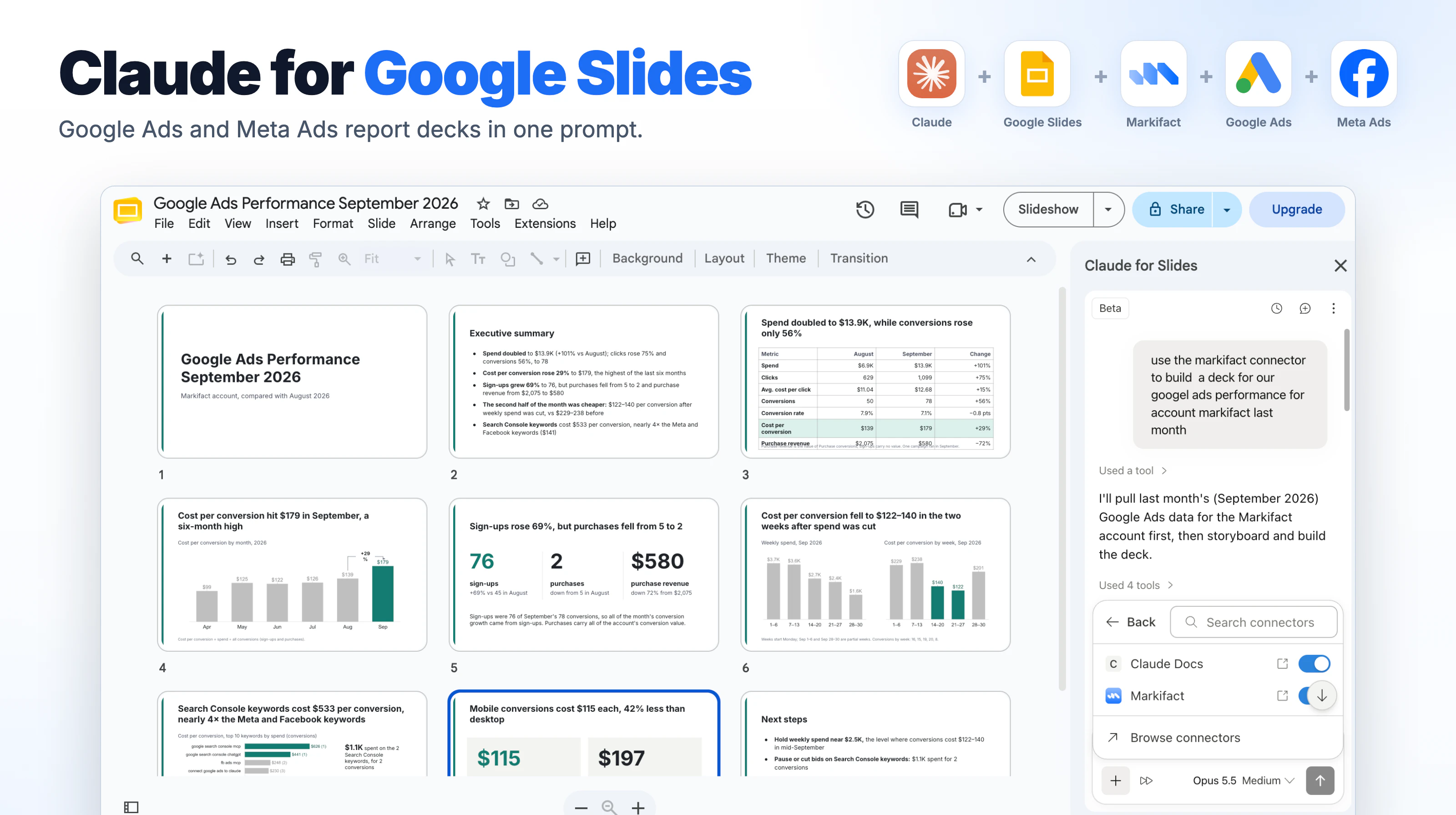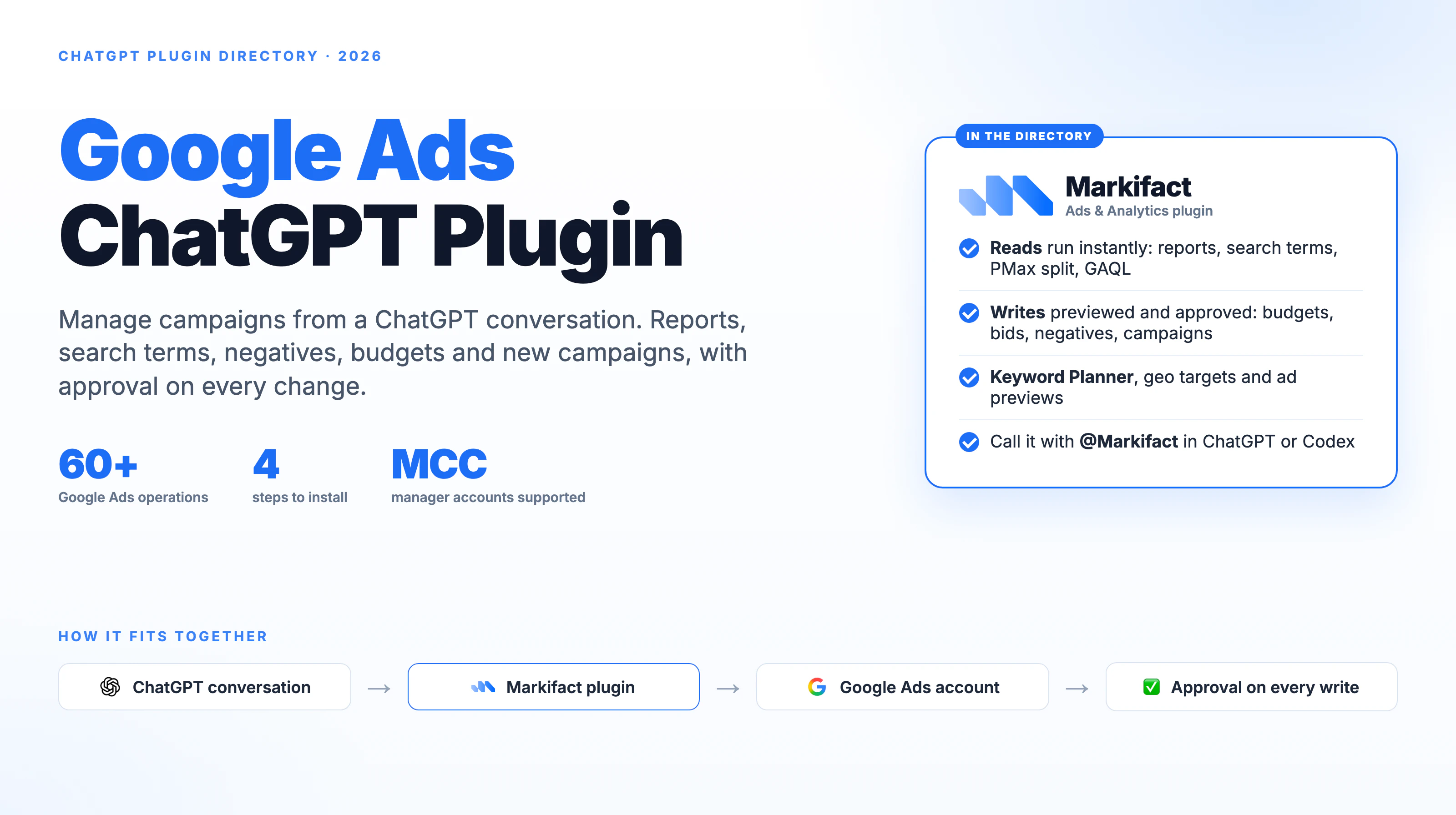

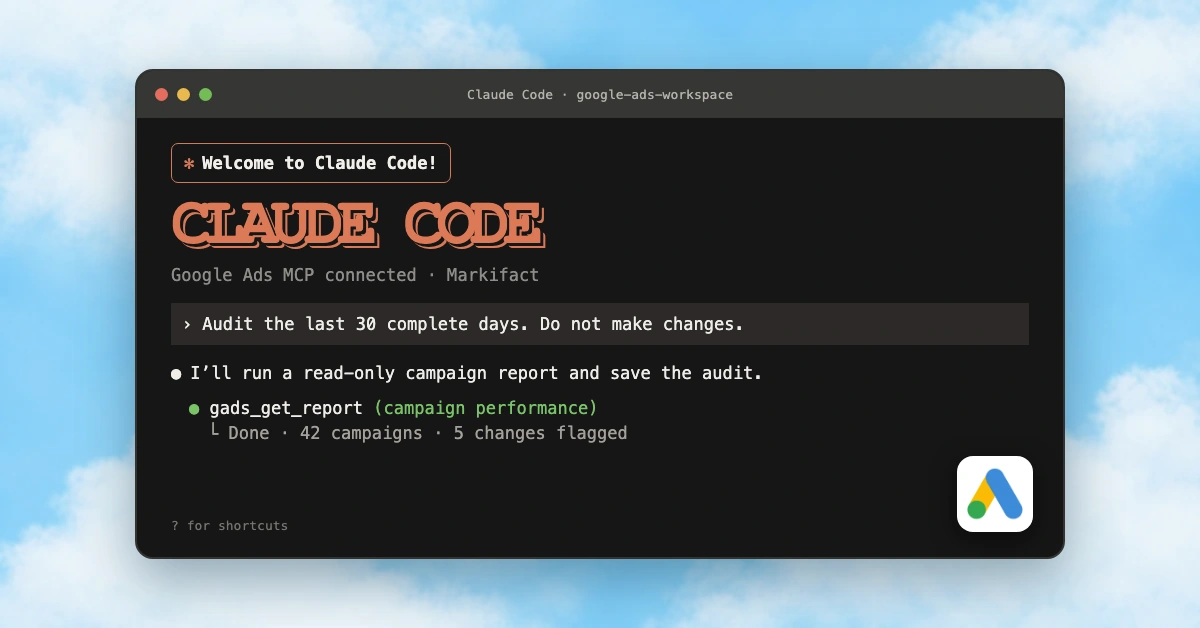
Claude Code can manage Google Ads through MCP, letting you pull performance data, investigate account structure, create reports, and prepare or execute approved changes without leaving the terminal. It is especially useful when your analysis already lives in code repositories, Markdown reports, scripts, or repeatable command-line workflows.
There are two practical ways to connect it. Google provides an official local MCP server for read-only queries. Markifact provides a managed connection with multi-account reporting, a broad catalog of purpose-built Google Ads operations, and low-level GAQL and mutation access for the wider API surface. This guide walks through both setups, explains their permission boundaries, and gives you workflows you can reuse.
If you already know you want Markifact, the fastest setup is one command:
claude mcp add --transport http markifact https://api.markifact.com/mcp \
  --header "Authorization: Bearer YOUR_MARKIFACT_MCP_TOKEN"
“Google Ads MCP” can mean two different servers. This guide sets up both honestly, starting with Google’s official server.
| Google’s official server | Markifact | |
|---|---|---|
| Maintainer | Markifact | |
| Hosting | Local Python process or your infrastructure | Managed remote HTTP server |
| Authentication | Google Cloud, developer token, and Google credentials | Markifact token after connecting Google Ads with OAuth |
| Reads | Three tools for customer discovery, metadata, and Google Ads searches | Dedicated reporting tools plus custom GAQL access |
| Writes | None | Dedicated write tools plus generic Google Ads mutations |
| Multiple accounts | Query accounts individually | gads_get_report can report across multiple selected accounts |
| Best fit | Developers who want a free Google-maintained read-only server | Teams that need the complete API surface and approval-gated execution |
For the wider platform context, see the State of Advertising MCPs in 2026. If you want the GUI client instead of the terminal, use the Google Ads MCP and Claude Desktop guide.
Before you start
Install Claude Code and verify it starts:
npm install -g @anthropic-ai/claude-code
claude --version
Anthropic advises against installing the package with sudo. You also need pipx for Google’s local server:
pipx --version
Use local MCP scope for credentials. Claude Code’s local scope is private to you and the current project, while project scope writes a shared .mcp.json intended for version control.
Setup A: Google’s official Google Ads MCP
Google’s official Google Ads MCP server is open source and Google-maintained. It is a good fit when you already have Google Ads API credentials and want account queries without any mutation tools.
1. Prepare Google Ads API access
You need:
- A Google Cloud project with the Google Ads API enabled
- A Google Ads developer token with access to the accounts you will query
- OAuth credentials or a compatible Google Ads API client configuration
- Application Default Credentials with the Google Ads API scope
Google documents this ADC command for user credentials and an OAuth client file:
gcloud auth application-default login \
  --scopes https://www.googleapis.com/auth/adwords,https://www.googleapis.com/auth/cloud-platform \
  --client-id-file=YOUR_CLIENT_JSON_FILE
The command prints the path to the saved credentials file. Keep that file private.
If your developer token is approved only for test accounts, it will not query production accounts. Google’s access-level documentation explains the production access levels and permissible uses.
2. Add the official server to Claude Code
Replace the three placeholders, then run:
claude mcp add google-ads-official --scope local \
  --env GOOGLE_APPLICATION_CREDENTIALS=/absolute/path/to/application_default_credentials.json \
  --env GOOGLE_PROJECT_ID=your-project-id \
  --env GOOGLE_ADS_DEVELOPER_TOKEN=your-developer-token \
  -- pipx run --spec git+https://github.com/googleads/google-ads-mcp.git google-ads-mcp
The double dash separates Claude Code’s MCP options from the command that launches the server.
If you reach client accounts through a Google Ads manager account, include the manager customer ID:
claude mcp add google-ads-official --scope local \
  --env GOOGLE_APPLICATION_CREDENTIALS=/absolute/path/to/application_default_credentials.json \
  --env GOOGLE_PROJECT_ID=your-project-id \
  --env GOOGLE_ADS_DEVELOPER_TOKEN=your-developer-token \
  --env GOOGLE_ADS_LOGIN_CUSTOMER_ID=1234567890 \
  -- pipx run --spec git+https://github.com/googleads/google-ads-mcp.git google-ads-mcp
Use digits only for the customer ID.
3. Verify the server
claude mcp list
claude mcp get google-ads-official
Start Claude Code in the project where you added the local server:
claude
Then use this first prompt:
Use the google-ads-official MCP server.

First list the Google Ads customers I can access. Ask me which customer to
use if there is more than one. Then show campaign performance for the last
30 complete days with campaign name, status, cost, clicks, conversions,
conversion value, CPA, and ROAS where available.

State the customer ID, currency, and exact date range. Do not make changes.
What the official server exposes
Google currently exposes exactly three tools:
list_accessible_customerslists customer IDs directly available to the authenticated user.get_resource_metadatadescribes fields on a Google Ads API resource.searchruns account queries through the Google Ads API.
It also publishes resources for the discovery document, metrics, segments, and release notes. That is a strong read-only developer surface.
The wall is writes. There is no official tool to create a campaign, add a negative keyword, change a budget, or update a PMax asset group. It can enumerate accessible customers and query them individually, but it does not provide one multi-account aggregate reporting operation.
Setup B: Markifact in Claude Code
Use Markifact’s Google Ads MCP when you need more than the official server’s three read tools.
Markifact is not Google’s official server. It is a managed MCP layer that handles the Google Ads connection and exposes dedicated operations, multi-account reporting, custom GAQL, and approval-gated mutations.
1. Connect Google Ads in Markifact
Open the Connections area in the intended Markifact workspace and connect Google Ads with the Google user that has access to the required accounts.
If you manage several clients, confirm the workspace and manager-account access before continuing. Claude Code will see the accounts authorized through that saved connection.
2. Create an MCP token
Open the MCP server page in Markifact and create a manual token. Copy it when shown.
Treat the token like a password:
- Do not paste it into this article’s example files.
- Do not commit it to
.mcp.json,CLAUDE.md, shell scripts, or screenshots. - Rotate it if it appears in terminal history, logs, or a shared recording.
3. Add Markifact as a remote HTTP server
The command generated by Markifact uses HTTP transport and a bearer header:
claude mcp add --transport http markifact https://api.markifact.com/mcp \
  --header "Authorization: Bearer YOUR_MARKIFACT_MCP_TOKEN"
Use the token generated for your MCP server, not a Google access token.
Verify it:
claude mcp list
claude mcp get markifact
If the connection fails, run Claude Code and open /mcp to inspect the server status.
Run your first Markifact report
Start in a dedicated ads workspace directory:
mkdir -p google-ads-workspace/reports
cd google-ads-workspace
claude
Paste:
Use Markifact and my connected Google Ads account.

Call gads_get_report for the last 30 complete days. Return one row per
campaign with campaign name, campaign ID, status, cost, impressions, clicks,
CTR, conversions, conversion value, CPA, and ROAS where available.

State the account, customer ID, currency, timezone, and exact date range.
Sort by cost descending. Do not make any changes.
gads_get_report is the normal reporting tool. It supports account selection, dates, metrics, dimensions, filters, and sorting, and can query multiple selected accounts in one request.
Verify the account, currency, date range, and conversion definition before interpreting the result. A correct query against the wrong client account is still a bad report.
Claude Code permissions and Markifact approvals are separate
Claude Code controls whether the client may invoke an MCP tool. Depending on your settings, it can ask before a tool call or use a tool you explicitly allowed.
Markifact then applies its own operation policy. For example:
gads_get_reportis a read operation.gads_create_campaignis an approval-gated write.gads_update_campaign_budgetis an approval-gated write.gads_add_negative_keywords_to_ad_groupsis an approval-gated write.gads_create_pmax_asset_groupis an approval-gated write.gads_mutate, the advanced generic mutation fallback, is also approval-gated.
These are examples, not the complete Google Ads operation catalog.
Allowing an MCP tool in Claude Code does not automatically approve a live Google Ads change in Markifact.
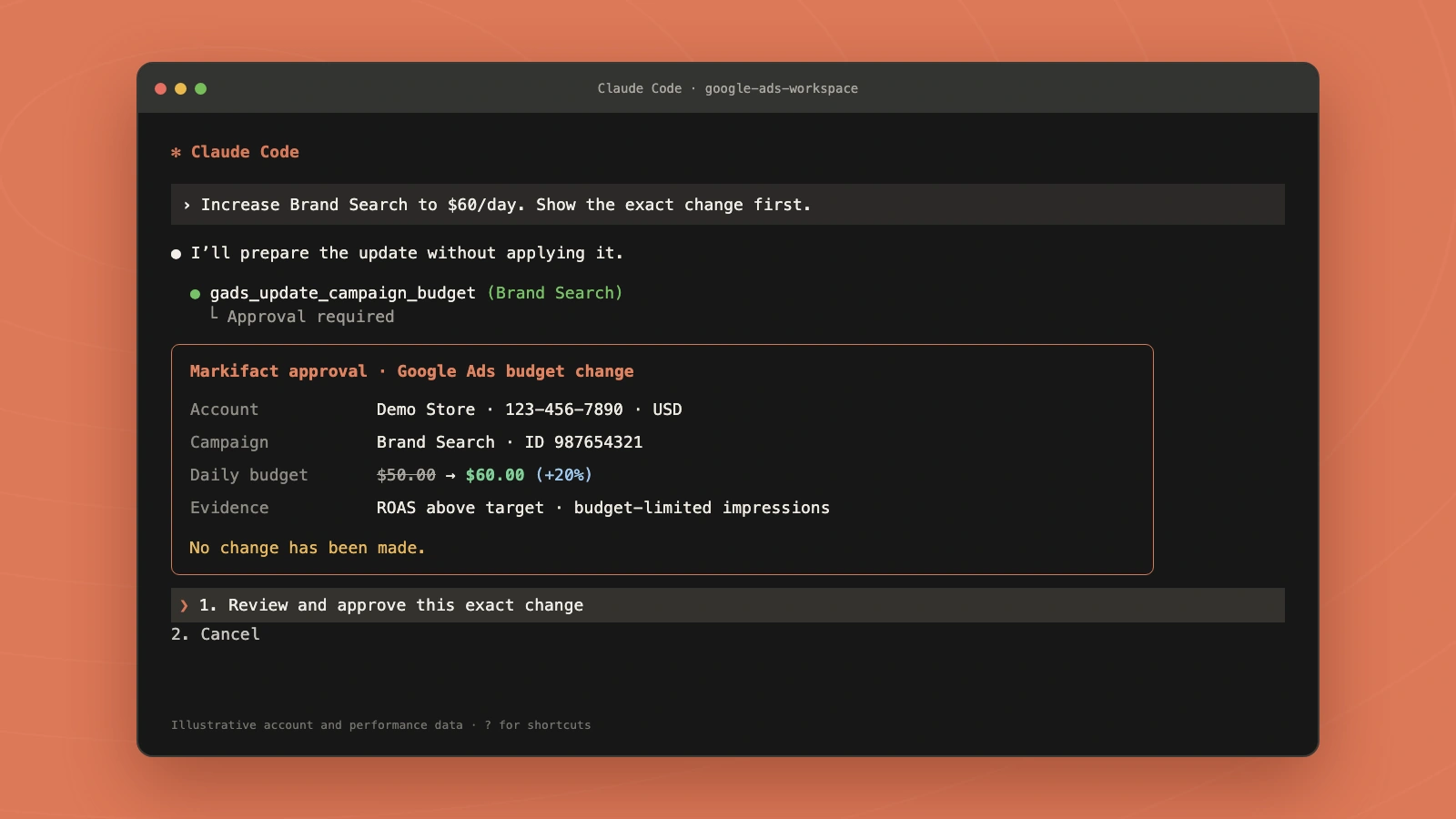
For a budget change, inspect all of these before approving:
- Markifact workspace and Google Ads customer ID
- Campaign name and campaign ID
- Account currency
- Current daily budget
- Proposed daily budget
- Percentage change and performance evidence
gads_update_campaign_budget accepts a readable value in the account currency, not micros. Raw GAQL money fields ending in _micros must be divided by 1,000,000 before they become human currency values.
Markifact covers the full Google Ads API surface
The named workflow tools are the easiest interface, not the limit. Markifact exposes a broad and growing catalog of purpose-built Google Ads operations.
Examples include gads_get_report, gads_create_campaign, gads_create_ad_group, gads_create_responsive_search_ad, gads_update_campaign_budget, gads_add_negative_keywords_to_campaigns, gads_create_conversion_action, and gads_create_pmax_asset_group. These are examples only, not an exhaustive list. For normal tasks, Claude Code should choose a dedicated operation when one exists because its inputs and approval behavior are clearer.
For everything else:
gads_run_gaql_queryretrieves any resource information available through Google Ads Query Language.gads_search_gaql_resourcesdiscovers valid resources, metrics, segments, and compatible fields.gads_mutatesends approval-gated create, update, and remove operations through Google’s genericgoogleAds:mutateendpoint.
The generic mutation tool supports grouped multi-resource changes, temporary negative IDs for chained creates, validate-only requests, and partial-failure mode. If a read or write is supported by the Google Ads API, Markifact provides a path through GAQL, a dedicated operation, or the generic mutation fallback.
Google account permissions, API versions, quotas, policy, and ad review still apply. Full API coverage is not permission bypass.
Workflow 1: write a weekly audit to Markdown
Use Markifact to audit Google Ads for the last 7 complete days versus the
previous 7 complete days.

Call gads_get_report. Include campaign ID, campaign name, cost, impressions,
clicks, CTR, conversions, conversion value, CPA, and ROAS. Flag the five
largest material changes and show the numbers behind each conclusion.

Write reports/google-ads-weekly.md with:
1. account and date-range checks
2. executive summary
3. campaign comparison table
4. anomalies that need investigation
5. recommended next queries

Do not make changes to Google Ads.
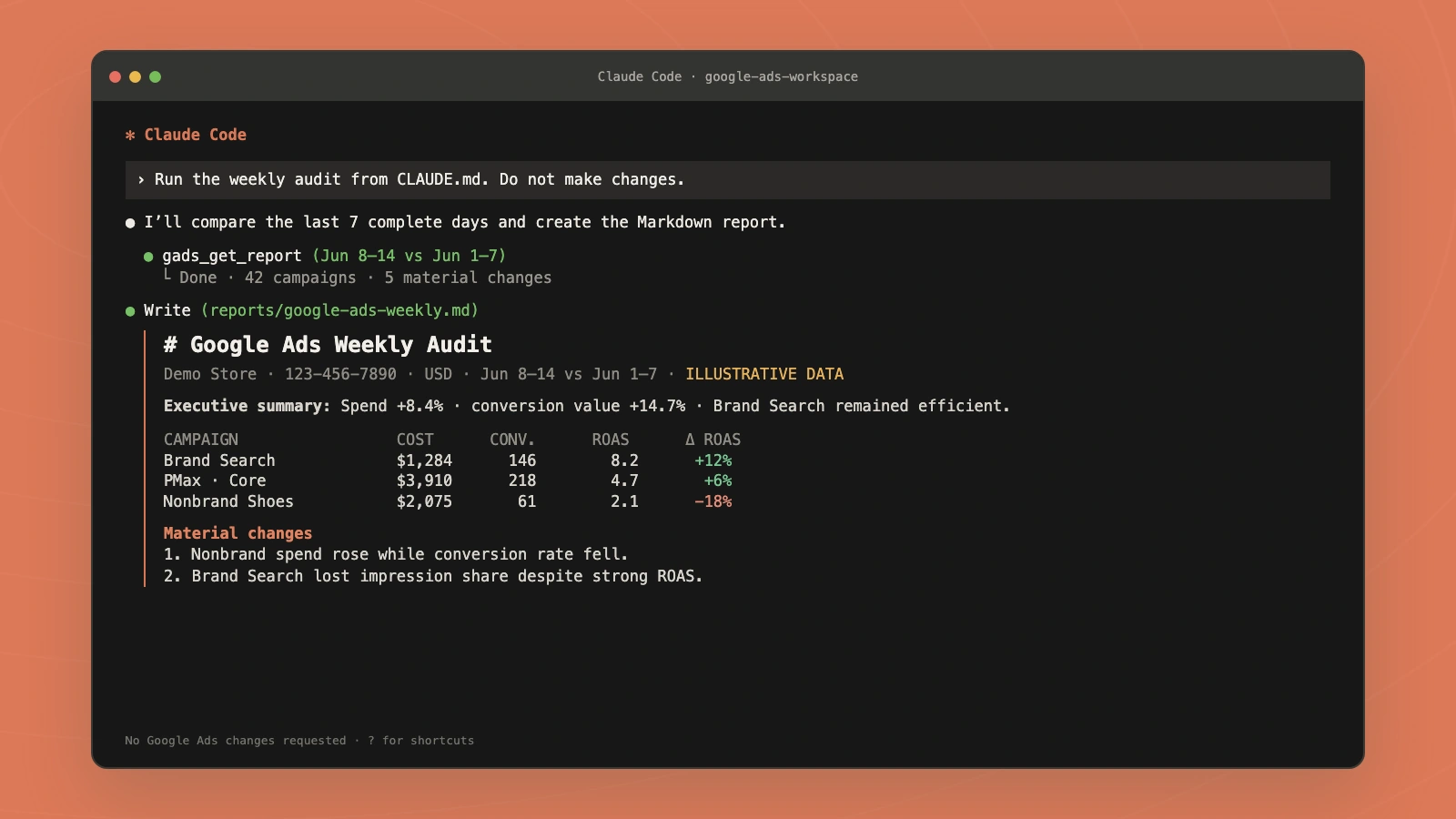
Keep recommendations separate from execution. The report becomes a reviewable artifact in the repository instead of disappearing into chat history.
Workflow 2: run a negative keyword sweep
Use Markifact to retrieve Google Ads search-term performance for the last
30 complete days.

Find terms with meaningful spend and no primary conversions. Group them by
ad group. For each proposed negative, show search term, spend, clicks,
matched keyword, proposed match type, and the reason.

Do not add anything yet. After I approve the exact list and ad group IDs,
use gads_add_negative_keywords_to_ad_groups for only those approved rows.
The first pass is analysis. The second pass is an explicit write with an exact approved list.
Workflow 3: check budgets across campaigns
Use Markifact to compare active Google Ads campaign performance and budget
pacing for the last 30 complete days.

Show campaign ID, campaign name, current daily budget, cost, conversions,
CPA, conversion value, ROAS, and lost impression share where available.

Recommend at most three budget changes. For each, show the current budget,
proposed budget, percentage change, and evidence. Do not call
gads_update_campaign_budget until I approve one exact campaign and value.
Approve one change at a time. This makes the terminal prompt, Markifact approval record, and Google Ads result easier to audit.
Workflow 4: prepare a PMax asset group
Use Markifact to prepare a Performance Max asset group for an existing
campaign.

First confirm the account, campaign name, campaign ID, asset group name,
final URL, business name, headlines, long headline, descriptions, images,
logo, and audience-signal plan. Validate character and asset requirements.

Return the complete draft as a checklist. Do not call
gads_create_pmax_asset_group until I approve the campaign ID, final URL,
text assets, and media assets.
gads_create_pmax_asset_group creates an asset group after the PMax campaign exists. Campaign creation and asset-group creation are separate decisions.
Add a CLAUDE.md for your ads workspace
Claude Code reads project instructions from CLAUDE.md. Put stable account context and safety rules there so you do not repeat them in every session.
Create CLAUDE.md in the workspace root:
# Google Ads workspace

## Account context

- Markifact workspace: <WORKSPACE_NAME>
- Google Ads customer: <CUSTOMER_NAME> (<CUSTOMER_ID>)
- Manager account: <MANAGER_NAME> (<MANAGER_CUSTOMER_ID_OR_NONE>)
- Currency: <CURRENCY>
- Timezone: <TIMEZONE>
- Primary conversion action: <CONVERSION_ACTION>
- Target KPI: <TARGET_CPA_OR_ROAS>

## Naming conventions

- Campaigns: <NAMING_PATTERN>
- Ad groups: <NAMING_PATTERN>
- PMax asset groups: <NAMING_PATTERN>
- Reports: reports/google-ads-YYYY-MM-DD.md

## Reporting rules

- Use complete dates unless I explicitly request intraday data.
- Always state account, customer ID, currency, timezone, and date range.
- Show the figures supporting every conclusion.
- Use gads_get_report for normal reporting.
- Use gads_run_gaql_query only when the standard report cannot return the
  required resource or field.
- Treat all account data as confidential.

## Change guardrails

- Never change budgets, bids, statuses, keywords, ads, audiences, targeting,
  assets, or account settings without asking first.
- Before any write, show account, entity name, entity ID, current value,
  proposed value, percentage change where applicable, and evidence.
- Ask for approval for one write action at a time.
- Prefer a dedicated gads_* operation when one exists.
- Use gads_mutate only as the advanced fallback and run validate_only first
  when the payload or resource schema is uncertain.
- Never use partial failure unless I explicitly approve that behavior.
Do not put a Markifact token, Google developer token, refresh token, or credentials path in CLAUDE.md.
Run read-only audits headlessly
Anthropic documents claude -p for non-interactive execution. For scheduled reporting, allowlist only the read tool and redirect the text output into a file:
mkdir -p reports

claude -p \
  --output-format text \
  --max-turns 8 \
  --allowedTools "mcp__markifact__gads_get_report" \
  "Run the weekly Google Ads audit defined in CLAUDE.md. Do not make changes." \
  > reports/google-ads-weekly.md
The MCP tool name follows Claude Code’s mcp__<server>__<tool> pattern.
Do not use --dangerously-skip-permissions for ad-account automation. Do not allowlist write tools in an unattended job. Keep scheduled runs read-only, review the artifact, and perform consequential changes interactively.
Troubleshooting
The official server appears disconnected
Run claude mcp get google-ads-official. Check that pipx is installed, the credentials path is absolute, the Google Cloud project is correct, and the Google Ads API is enabled.
Google says the developer token is test-only
The token cannot query production accounts at its current access level. Use a test account or complete Google’s production-access process.
A client account is missing
For the official server, add GOOGLE_ADS_LOGIN_CUSTOMER_ID when access goes through an MCC. For Markifact, confirm the connected Google user, manager account, and workspace.
Markifact returns unauthorized
Create or rotate the manual MCP token in Markifact, remove the old server with claude mcp remove markifact, then add it again with the generated command.
Claude chose the wrong Google Ads tool
Name the operation in the prompt. Use gads_get_report for normal reporting, a dedicated operation for a common write, gads_run_gaql_query for advanced reads, and gads_mutate only when no dedicated write operation exists.
The official server cannot change a budget
That is expected. Google’s official server is read-only. Use the Google Ads UI, your own Google Ads API implementation, or an approval-gated server such as Markifact for writes.
If you prefer a conversational app instead of the CLI, the Google Ads to ChatGPT and Codex guide covers that client path.
Frequently asked questions
Can Claude Code write to Google Ads?
Yes, when the connected MCP server exposes write tools. Google’s official Google Ads MCP is read-only. Markifact exposes dedicated write operations and an approval-gated generic mutation fallback for Google Ads API actions.
Is it safe to give Claude Code Google Ads write access?
Treat it like any production automation credential. Use local scope, protect tokens, keep stable guardrails in CLAUDE.md, inspect entity IDs and values, and require approval for consequential writes. Never use unattended permission bypasses for live ad accounts.
What is the difference between Google’s official server and Markifact?
Google’s official server is free, Google-maintained, local, and read-only with three tools. Markifact is a managed third-party server with multi-account reporting, dedicated operations, GAQL access, and approval-gated writes across the full practical Google Ads API surface.
Can Markifact do everything available through the Google Ads API?
Markifact provides a path for the full practical API surface: dedicated tools for common workflows, GAQL for arbitrary readable resources, and an approval-gated generic mutation tool for advanced create, update, and remove operations. Google permissions, API-version support, quotas, policy, and review still apply.
Can I automate Google Ads audits with Claude Code?
Yes. Use claude -p with an explicit allowlist containing only mcp__markifact__gads_get_report, then redirect the output to a Markdown file. Keep scheduled jobs read-only and review any proposed changes interactively.