
To connect Google Business Profile to Claude, connect Google Business Profile in Markifact, install the approved Markifact connector, and sign in to your workspace. Claude can then compare location performance, manage reviews and posts, update hours and profile details, answer customer questions, and manage photos. Reporting is read-only, while every external change is a separate write operation that requires approval.
This guide covers the managed Markifact route through the wider Markifact MCP hub. You do not need to build a Google Cloud project, maintain OAuth credentials, or host your own MCP server.
The quick version
- In Markifact, open Connections and connect Google Business Profile with your authorized account.
- Open the approved Markifact connector in Claude and click Connect.
- Sign in to the same Markifact workspace and review the connection access.
- Enable Markifact in the Claude conversation.
- Ask Claude to confirm the exact account or property, then run a read-only report before requesting changes.
What Claude can do with Google Business Profile
The connection exposes specific operations rather than handing Claude unrestricted control of your Google account.
Current examples include:
| Task | Operation | Access |
|---|---|---|
| List and select managed locations | business_profile_select_accounts |
Read |
| Discover available report fields | business_profile_list_report_fields |
Read |
| Report views and customer actions | business_profile_get_report |
Read |
| Retrieve location details | business_profile_get_location_info |
Read |
| Check verification and control status | business_profile_check_location_status |
Read |
| List reviews and reply status | business_profile_list_reviews |
Read |
| Publish a public review reply | business_profile_reply_to_review |
Approval-gated write |
| List, update, or delete a review reply | business_profile_delete_review_reply |
Approval-gated write |
| Publish an update, event, or offer | business_profile_publish_post |
Approval-gated write |
| List, update, or delete existing posts | business_profile_list_posts, business_profile_update_post, business_profile_delete_post |
Read plus approval-gated writes |
| List and answer customer questions | business_profile_list_questions, business_profile_answer_question |
Read plus approval-gated write |
| Update regular or special hours | business_profile_update_hours |
Approval-gated write |
| Update supported profile details | business_profile_update_location |
Approval-gated write |
| List, upload, or delete media | business_profile_list_media, business_profile_upload_photo, business_profile_delete_media |
Read plus approval-gated writes |
The reporting catalog includes Search and Maps views, calls, direction requests, website clicks, messages, bookings, food orders, menu clicks, and search terms where those fields are available. You can see the wider local reporting use cases on the Google Business Profile MCP page.
The connection supports broad profile administration, but every action remains scoped to a registered operation. Hours payloads can replace a complete set, media and post deletions are permanent, and changes to a business name, address, or category can trigger Google re-verification. Retrieve current state first, prepare only the intended fields, and inspect the exact payload before approval.
Before you start
You need:
- A Google account with access to the Business Profile locations you want to use
- A Markifact workspace
- A Claude account with permission to use the Markifact connector
Claude connector availability follows your account and organization settings. Use the approved Markifact directory listing; in a managed workspace, ask an administrator to allow it if necessary.
Google Business Profile access uses OAuth and the business.manage scope. Google's Business Profile OAuth documentation explains that this authorization lets an approved platform access and modify Business Profile data on behalf of the signed-in user, and the user can revoke access later. The managed route keeps that OAuth setup inside Markifact rather than asking you to create your own Google Cloud credentials.
1. Connect Google Business Profile in Markifact
Open Connections in Markifact, find Google Business Profile, and click Connect.
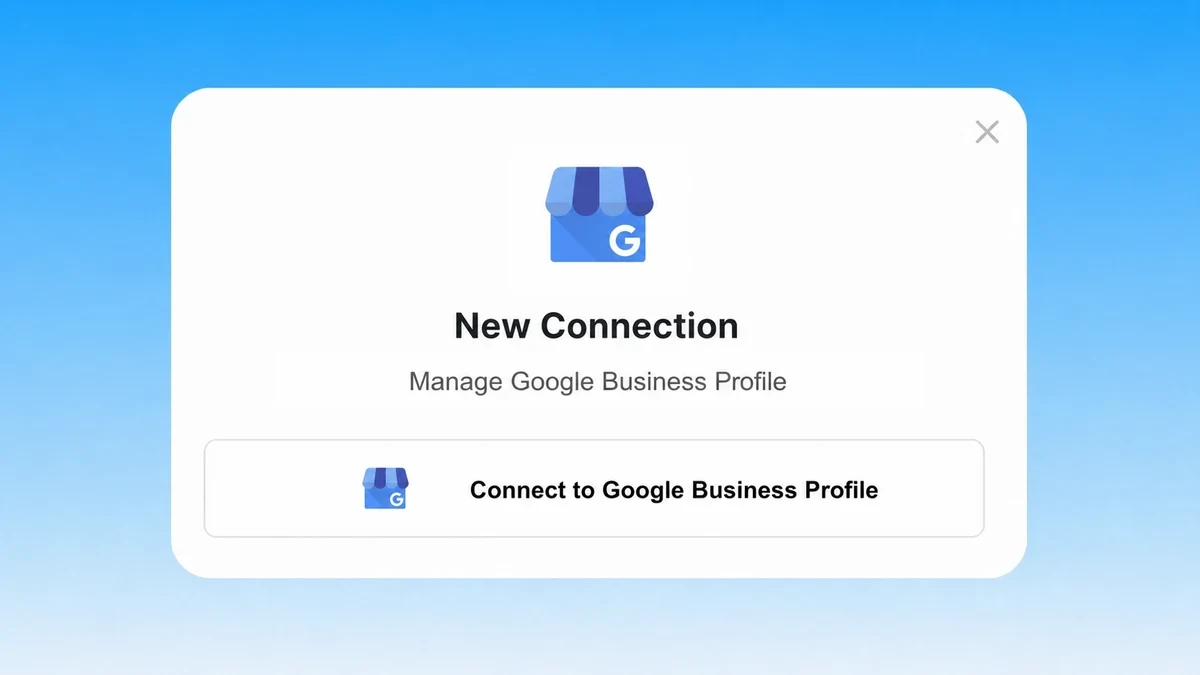
Sign in with the Google account that manages the intended locations. Review the consent screen carefully. Claude can only work with locations and capabilities available to that authorized Google user.
When the flow returns to Markifact, confirm the connection is active. If your workspace holds several Google logins, give the connection a name that identifies the business or client clearly.
Google's Business Profile API policies allow management only for listings you own or are authorized to manage. They also prohibit automated public changes without the user's prior specific and express consent. That is why every write request should stay separate from analysis and require an approval step.
2. Check workspace access and optional server scope
The directory install is the default route. The settings below are useful if your workspace uses a dedicated MCP server to limit connection or tool access; creating a new server is not a prerequisite for every reader.
Open MCP in Markifact and create a server for Claude. Use a name that makes the client and scope obvious, such as:
Claude - Business Profile - Northstar Cafes
Limit the server to the saved Business Profile connection intended for this workflow. If you manage several brands, do not expose every saved Google connection by default.
The hosted endpoint is:
https://api.markifact.com/mcp
The endpoint is shared. Your Markifact sign-in and selected MCP server determine which connections and operations Claude can use.
3. Install Markifact from the Claude directory
Markifact is approved in Claude's connector directory. Open the Markifact listing and click Connect. Complete the Markifact sign-in, choose the intended workspace, and review the requested access. If prompted to choose an MCP server, select the one with the connections you want to use.
In a Claude conversation, open + > Connectors and enable Markifact. You do not need to add a custom connector or paste a server URL for this setup. If your organization manages connector access, an administrator may need to allow Markifact first.
4. Run a read-only multi-location test
Start with reporting. It is the quickest way to verify that Claude sees the correct locations without risking a public change.
Use my connected Google Business Profile locations.

Compare the last 30 complete days by location.
Include total views, Search views, Maps views, calls,
direction requests, and website clicks.
Sort by total views from highest to lowest.
Flag missing fields and do not make any changes.
Claude can use business_profile_get_report for this request. The operation supports multiple locations, flexible metrics, date ranges, filters, sorting, and period comparisons. Google's Business Profile Performance API is the underlying reporting family for views and customer actions.
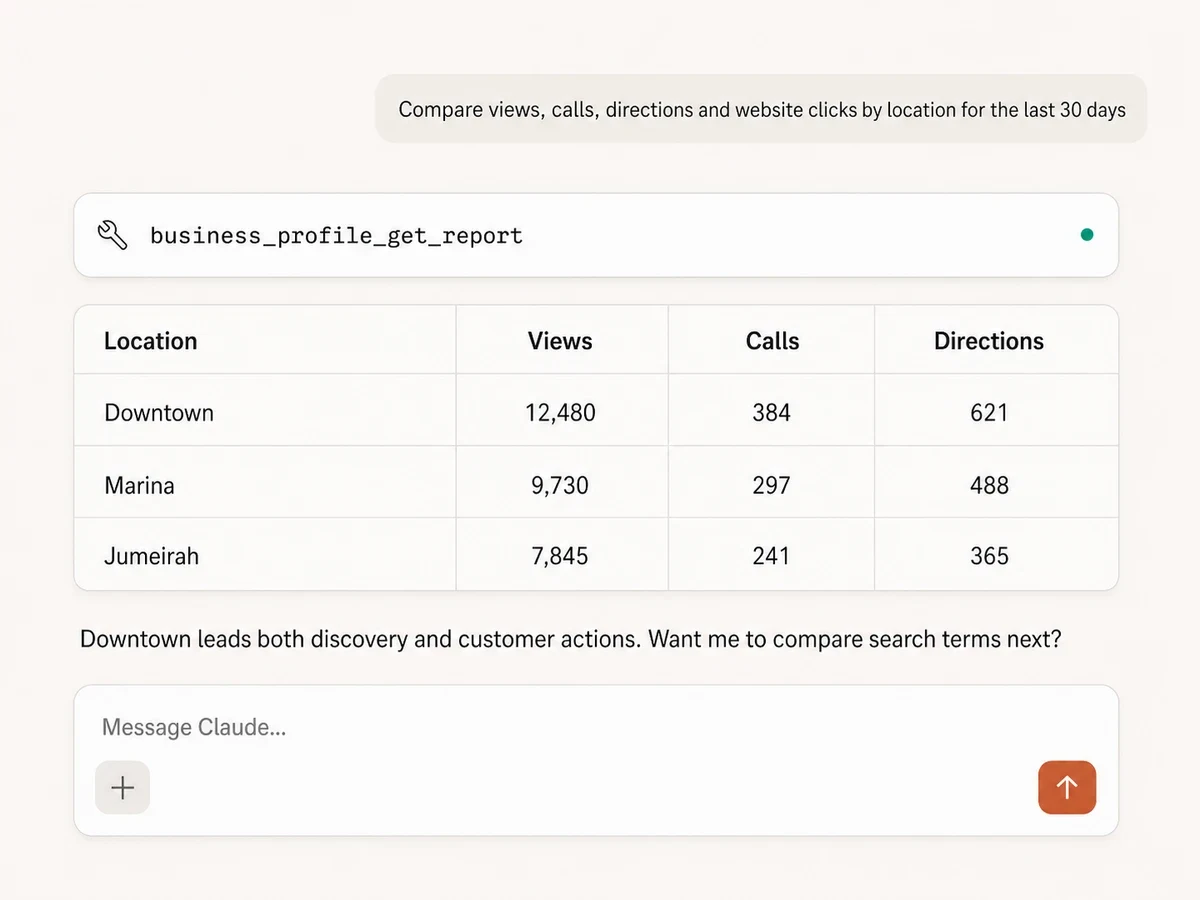
Illustrative data. The operation is real, while the location names and performance values are fictional.
Before interpreting the result, verify:
- The locations belong to the intended business.
- The date range contains complete days.
- The metrics are available for those profile types.
- The totals look plausible against Google Business Profile.
If a location is missing, fix the Google-user access or Markifact connection scope before continuing.
5. Inspect location details and unanswered reviews
Performance data tells you what changed. Location details and reviews help explain the customer experience behind it.
Use this prompt:
Use business_profile_get_location_info for every selected location.
Return the business name, locality, primary category, phone,
website, opening hours, average rating, and total review count.
Flag missing or inconsistent values. Do not change the profiles.
Then inspect recent reviews:
Use business_profile_list_reviews for the last 30 days.
Return location, reviewer, star rating, comment, date, and reply status.
Put unanswered one-star and two-star reviews first.
Do not post any replies.
business_profile_get_location_info and business_profile_list_reviews are read-only. They can identify problems and create a reply queue without publishing anything.
6. Reply to a review with approval
Once you identify a review, ask Claude to draft a response first. Keep drafting and publishing as separate instructions.
Draft a reply to review ID REV-10482 for the Marina location.
Apologize for the slow service, acknowledge the wait,
and say the team is working to improve service times.
Keep it under 60 words. Do not publish it yet.
Review the wording. Check that it does not expose personal information, promise compensation you did not authorize, or argue with the customer.
When the wording is approved, make the write request explicit:
Prepare business_profile_reply_to_review for review ID REV-10482
at the Marina location using the approved reply above.
Show me the final public text and wait for approval before posting it.

The operation posts the reply publicly as the business. Google's review resource supports listing reviews and updating replies. If that review already has a reply, the new reply replaces it. Confirm the location, review ID, customer comment, and exact public response before approval.
Google's API policies require prior specific and express consent for automated replies. Do not turn review replies into an unattended automation.
7. Publish a Business Profile post with approval
Markifact can also prepare standard updates, events, and offers. Google's local post creation method accepts a post for a specified location. A Markifact post can include text, an optional public image URL, and an eligible call to action. Events and offers require titles and start/end times.
Draft the post first:
Draft a Google Business Profile update for all Northstar Cafe locations.
Announce the new weekend brunch menu.
Keep the text under 100 words.
Use LEARN_MORE with https://northstar.example/brunch.
Do not publish anything.
After checking the copy and landing page, prepare the write:
Prepare business_profile_publish_post for the selected locations.
Post type: whats_new.
Use the approved brunch text and LEARN_MORE URL.
Show the locations, final text, CTA, and URL.
Wait for approval before publishing.
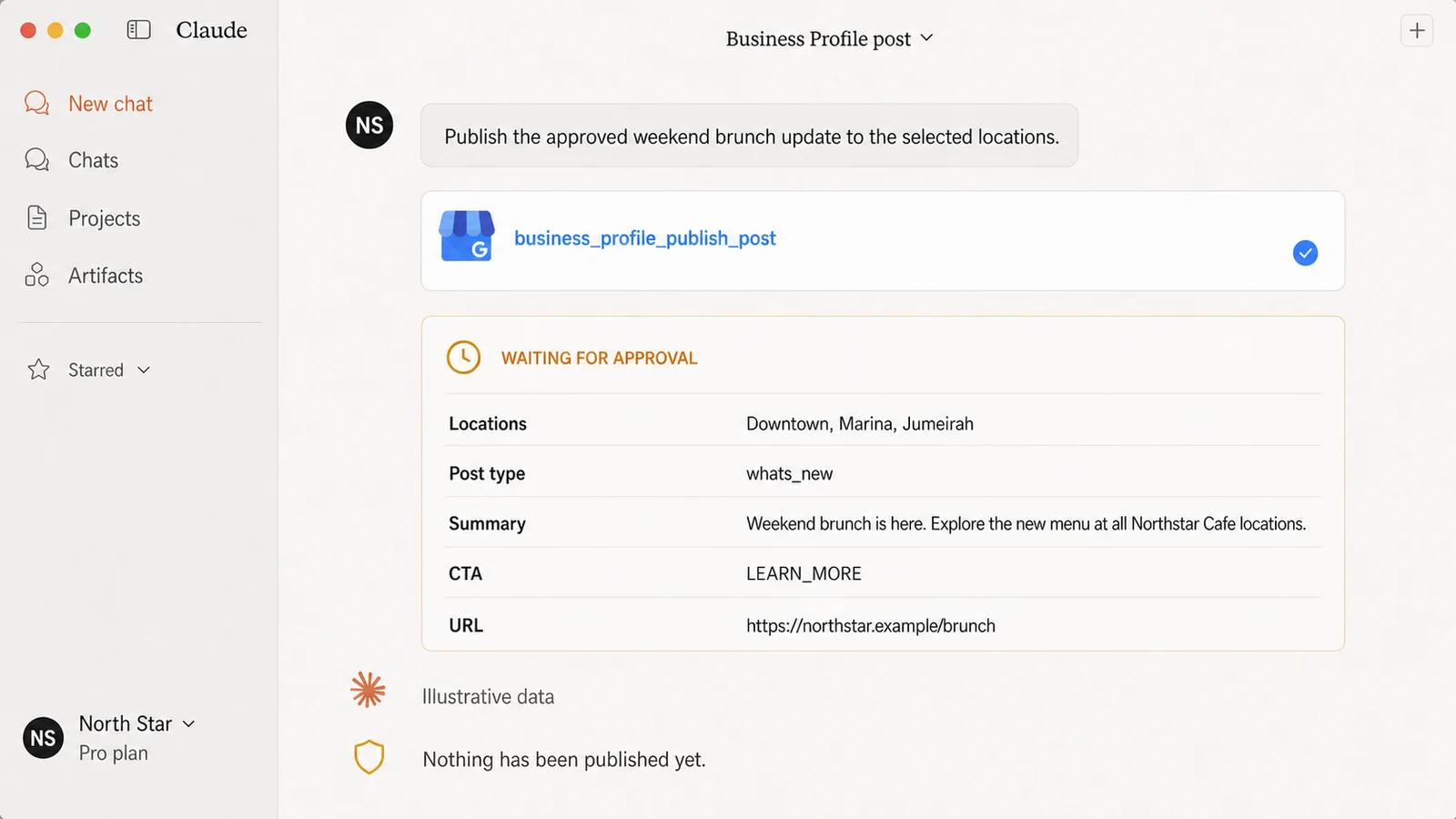
Google does not provide native post scheduling through this operation. If you need a post to run later, schedule the Markifact workflow and keep the approval and policy requirements in place.
Before approving, verify:
- Every target location
- Post type: update, event, or offer
- Final public text and language
- Image URL, if used
- CTA type and destination URL
- Event or offer dates in the location's local time
8. Manage hours, profile details, questions, and media
The same connector can manage more than reviews and posts.
Use business_profile_update_hours for regular weekly hours or special holiday hours. The supplied set replaces the existing set of that type, so ask Claude to retrieve current values and show the complete replacement payload before approval.
Read the current hours for the Downtown location.
Prepare special hours for August 30, 2026: 10:00 to 18:00.
Show the complete special-hours payload and everything it will replace.
Wait for approval.
Use business_profile_update_location for supported fields such as description, phone, website, labels, store code, and open status. Advanced fields can cover categories, storefront address, service area, and other Google location data. A name, address, or category change can trigger re-verification, so update one location at a time and inspect the update mask.
Customer questions and media have the same read-before-write pattern. List questions before preparing business_profile_answer_question. List media before business_profile_upload_photo or permanent business_profile_delete_media. Confirm the exact question or media resource, location, public wording, image URL, and category before approving a change.
Useful prompts after connecting
Compare locations with the previous month
Compare the last complete month with the previous complete month
for every selected Business Profile location.
Include Search views, Maps views, calls, directions, and website clicks.
Rank by absolute change in total actions and explain the evidence.
Do not make changes.
Find local search demand
Use business_profile_get_report with searchTerm and monthlySearches.
Return the top 30 search terms by location for the last complete month.
Group similar intent and flag terms that suggest missing landing-page content.
Do not change the profiles.
Build a review-response queue
List reviews from the last 14 days across all selected locations.
Prioritize unanswered reviews, then sort by star rating ascending.
Draft a response for each, but do not publish any reply.
Prepare a weekly local-performance update
Create a concise weekly update for the last 7 complete days.
Use sections: location winners, declines, new reviews, unanswered reviews,
and recommended actions. Cite the metric or review behind every point.
Do not publish posts or replies.
Security and control
Claude does not receive your Google password. Google OAuth authorizes Markifact to use the Business Profile connection within the permissions granted by the signed-in user.
Three boundaries matter:
- Google access: the connected Google user determines which locations are available.
- Markifact scope: the selected connection and MCP server determine which data and tools are exposed.
- Operation approval: every public or profile change is a write action and requires review before execution.
Keep separate MCP servers for unrelated clients. Name locations explicitly in write prompts. Read the final payload as if it had already changed the profile before you approve it.
If you also need public competitor and category research, use Google Maps MCP. Google Maps research works with public places, while Google Business Profile works with locations you manage.
Troubleshooting
A location is missing
Confirm that the connected Google user manages that location. Reconnect Google Business Profile in Markifact if the user's permissions changed, then check the MCP server's connection scope.
Claude cannot see Markifact
Open Customize → Connectors, confirm Markifact is connected, and enable it in the current conversation. Team and Enterprise organizations may require an owner to add the connector first.
Claude sees Markifact but not Business Profile tools
Check that the chosen Markifact MCP server exposes the Google Business Profile connection. If the server is scoped to another client or integration, create or select the correct server.
The report is empty
Widen the date range, remove optional filters, and confirm the chosen metrics are available for those locations. Run business_profile_list_report_fields before guessing field names.
A post fails for one location
Check whether that location supports local posts, then verify the post type, text length, public image URL, CTA, and event dates. Multi-location publishing can return partial results, so inspect every location result instead of assuming one success means all succeeded.
Claude proposes the wrong public reply
Do not approve it. Restate the location, review ID, original comment, tone, and exact required wording. Drafting can be repeated safely because nothing is published until the write operation is approved.
A practical first workflow
I would use this sequence for the first week:
- Run a 30-day multi-location report.
- Verify locations and performance fields.
- Pull recent unanswered reviews.
- Draft replies without publishing.
- Approve one low-risk reply after checking the full context.
- Draft one Business Profile update.
- Approve it for a single location before expanding to several.
That sequence proves the connection, reporting, and approval boundaries before you scale the workflow.
If you also want analytics and search-performance context, connect GA4 to Claude and Google Search Console to Claude. Markifact can keep those sources behind the same managed MCP layer.
For a wider explanation of Claude's connector model, see Claude Connectors for Marketers.
Frequently asked questions
Can Claude connect to Google Business Profile?
Yes. Connect Google Business Profile to Markifact and install the approved Markifact connector.
What can Claude do with Google Business Profile?
Claude can report on managed locations, monitor status and reviews, manage replies and posts, update hours and supported profile fields, answer customer questions, and manage photos. Every external change is approval-gated.
Can Claude reply to Google reviews?
Yes. business_profile_reply_to_review posts a public reply after approval. If a reply already exists, the new reply replaces it, so confirm the review ID and final text carefully.
Can Claude publish Google Business Profile posts?
Yes. business_profile_publish_post supports standard updates, events, and offers, with optional images and eligible calls to action. The operation requires approval before publishing.
Can Claude compare several Business Profile locations?
Yes. The reporting operation accepts multiple locations and can break down performance by account or location, depending on the selected fields.
Do I need my own Google Cloud project?
No for the managed Markifact route. Markifact handles the hosted OAuth and MCP connection. A direct implementation normally requires Business Profile API access, Google Cloud configuration, OAuth credentials, secure token handling, and ongoing maintenance.
Is the Google Business Profile connection safe?
Safety depends on your Google permissions, Markifact MCP server scope, and approval discipline. Keep client connections separated, use read-only tests first, and approve public replies and posts only after checking their exact targets and content.
What is the Markifact MCP URL for Claude?
Install from the approved Claude directory listing. The hosted MCP endpoint, for clients that require manual configuration, is https://api.markifact.com/mcp.